Overview
This tutorial will aid you creating a new MAUI Android application project using Visual Studio. The tutorial and project is using following requirements
- Minimum SDK Version - API 29: Android 10 (Q)
- Target SDK Version - API 36: Android 16 (T)
- Development environment .NET Framework 10.0
- Visual Studio 2026 or greater
- Maui Targeted Framework: net10.0-android
Installation
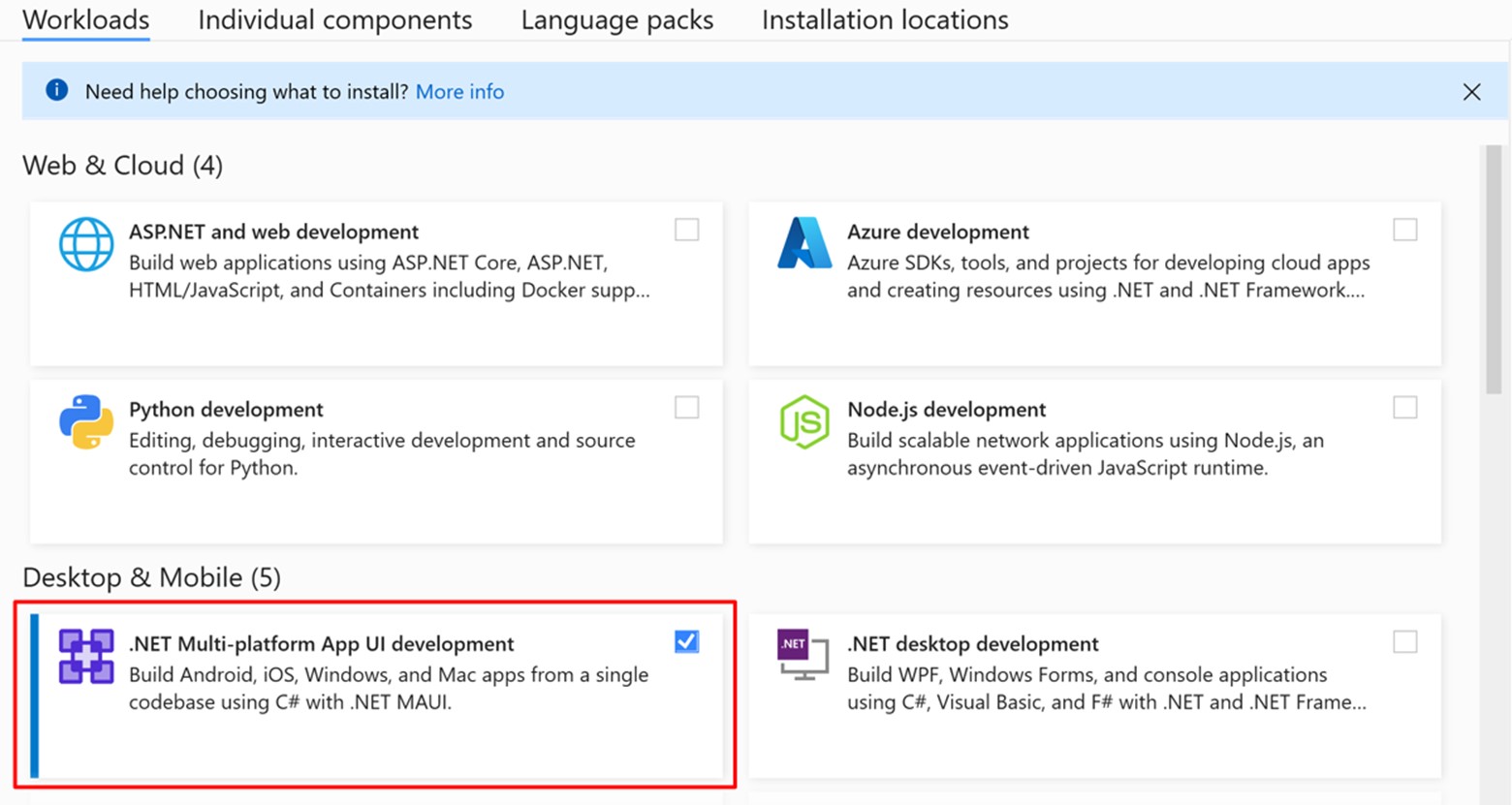
- Either install Visual Studio, or modify your existing installation, and install the .NET Multi-platform App UI development workload with its default optional installation options:
Create The Project
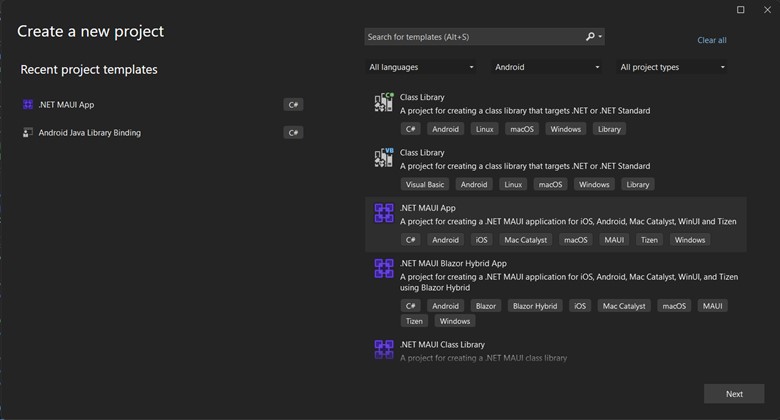
Start Visual Studio 2026 and select File > New > Project >.Net Maui App Follow the on-screen steps in Visual Studio
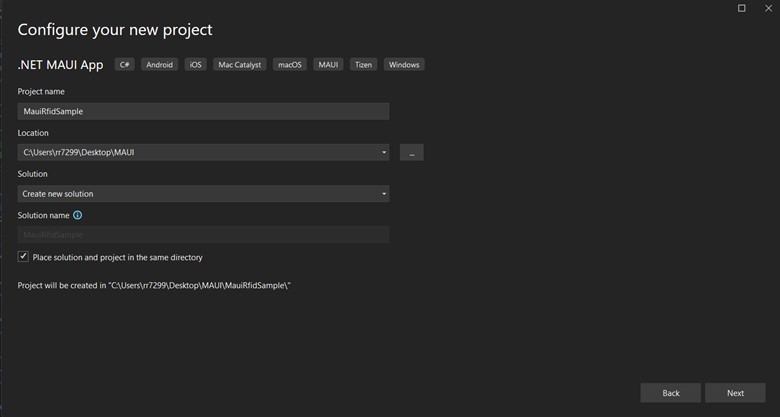
Select Project Name, Location etc. as shown in the image below.
Select .net version, In this demo using .net 10.
Enable the RFID SDK in project
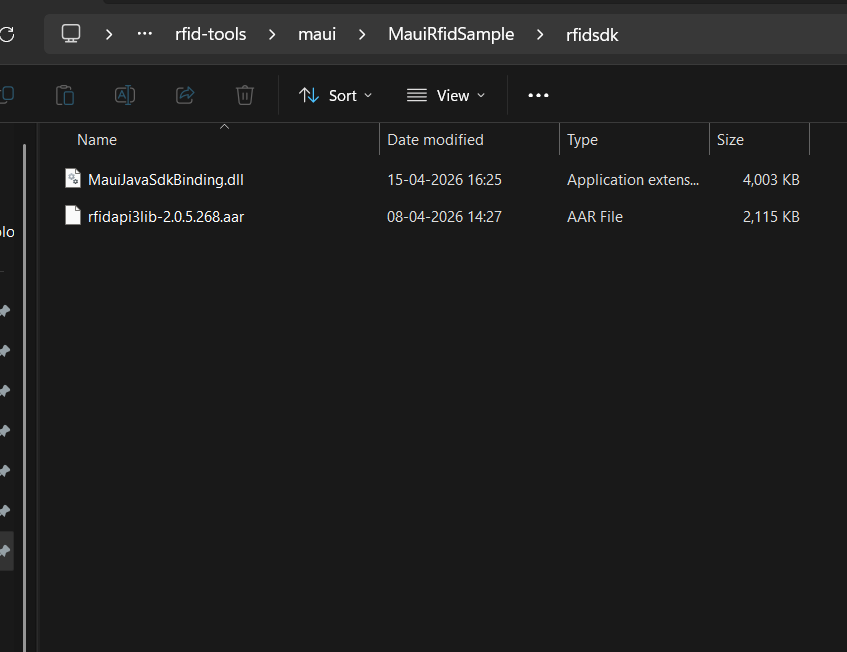
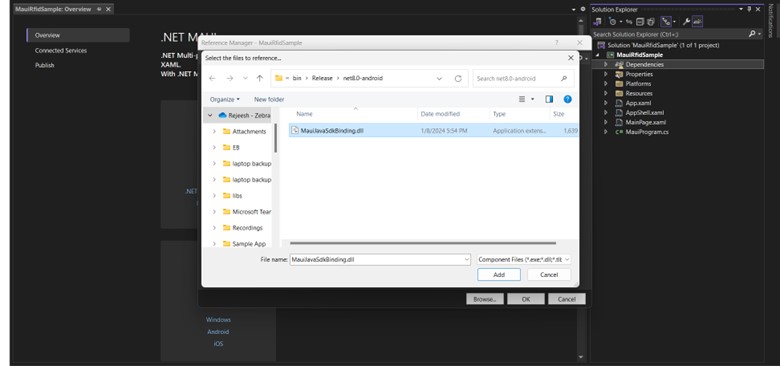
Right click Dependencies in solution explorer -> Add Project References -> Browse and select the MauiJavaSdkBinding.dll file as shown in the images below
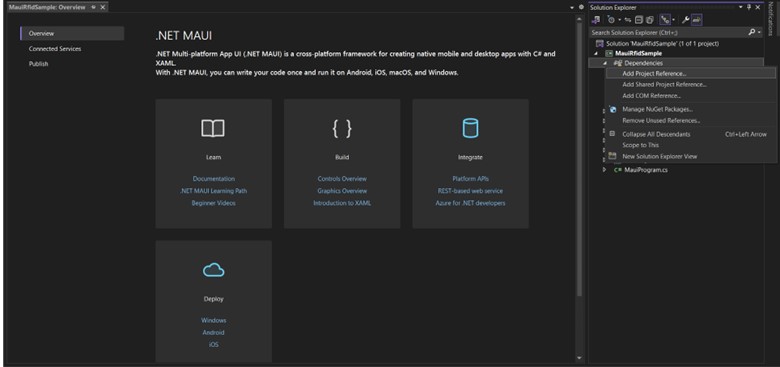
Make Sure rfidapi3lib.aar also present in same folder
Now MauiJavaSdkBinding.dll reference will be added inside Dependencies -> Assemblies
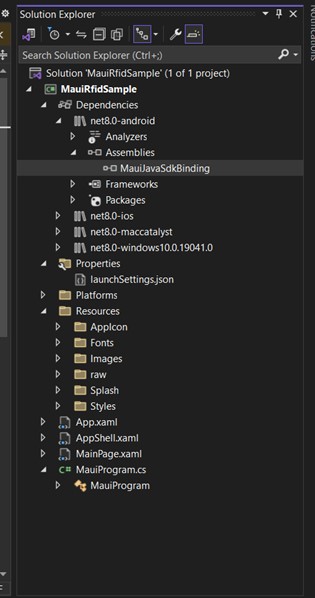
Your project is now ready with RFID SDK for Maui (Android) Module
Import RFID API3 package
After completing the steps in Adding dependency
- Open MainPage.xaml.cs in editor
- Add using Com.Zebra.Rfid.Api3 in MainPage.xaml.cs
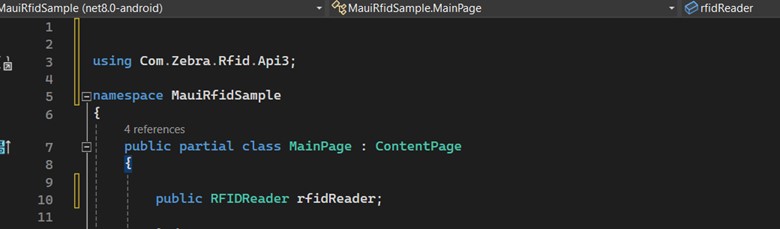
Your project is now ready to use the RFID SDK for Maui (Android)