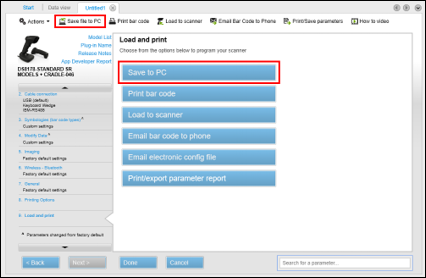
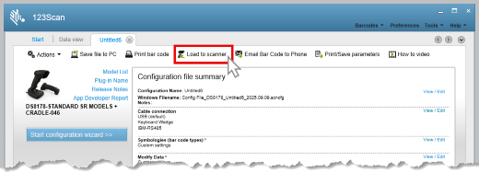
About 123Scan Configuration Utility

Overview

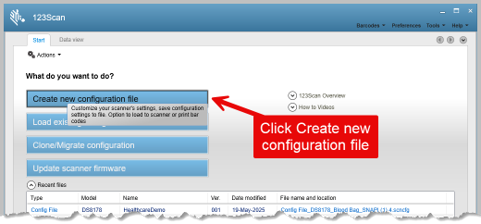
123Scan is an easy-to-use, PC-based software tool that enables the quick and easy set-up of Zebra scanners.

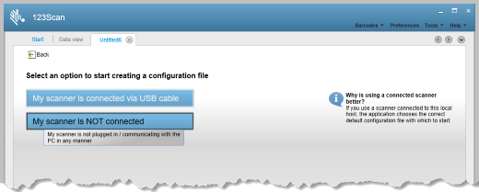
123Scan uses a wizard tool to guide users through a streamlined set up process. Once parameters are set, the values are saved to a configuration file that can be distributed via email, electronically downloaded via USB cable or used to generate a sheet of programming bar codes that can be scanned.

123Scan can generate multiple reports that can be easily rebranded using Microsoft Word and Access. Report options include parameters, asset tracking (inventory) information and a validation of scanned data.

Additionally, 123Scan can display scanned barcode data including non-printable characters. It can display, optimize and save pictures from an imager scanner. It can also upgrade scanner firmware, automatically check online to enable support for newly released products, generate a single 2D barcode for one scan programming and stage large numbers of scanners simultaneously via USB hub(s).

Functionality

  1. Optimized for first time users.
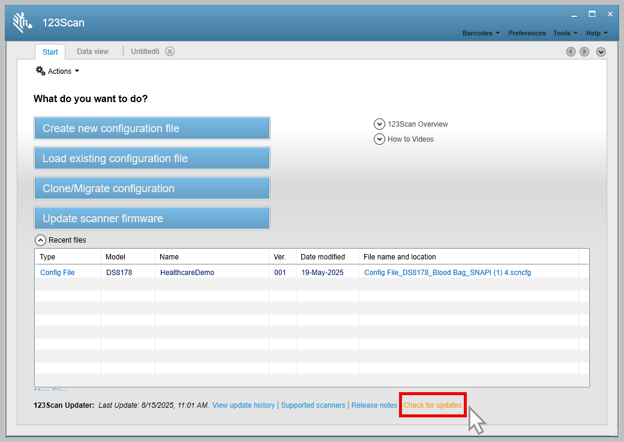
  2. Utility supports the latest scanner updates by performing a check for updates at bootup
  3. Generation of an electronic configuration file.
    1. Supported programming modes from a configuration file include.
      1. Electronic programming
      2. Barcode scanning
    2. Maintain a library of configuration files by saving files to your PC.
  4. Program Data Formatting Rules
    1. Advanced Data Formatting (ADF)
    2. Multicode Data Formatting (MDF)
    3. Data Parsing
      1. UDI
      2. GS1
      3. Blood Bag
    4. Drivers Licensing Parsing (USA only)
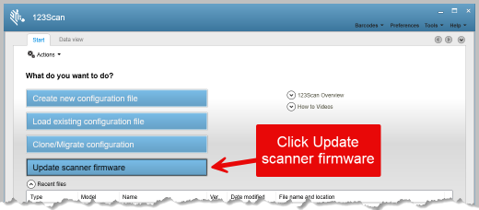
  5. Firmware upgrade of scanners
    1. Using a standard USB cable
    2. Using a Bluetooth connection to a Cordless Scanner (no cradle)
  6. Report generation capabilities.
    1. Parameter Report: List of parameters programmed within a configuration file.
    2. Activity Report: List of activities performed on a scanner(s) within a screen session.
    3. Inventory Report: List of scanners configured and their asset tracking information.
    4. Validation Report: Printout of scanned data can include non-printable characters.
    5. Statistics Report: List of all statistics retrieved from scanner.
  7. Rebranding Reports / Partner Customization.
    1. Customize Programming Barcode Sheet after 123Scan outputs it to a Microsoft Word document.
    2. Customize Reports after 123Scan outputs it to a Microsoft Word document.
  8. Data Viewer
    1. Display scanned barcode data from a USB cable including non-printable characters.
    2. Display, optimize and save images from a USB connected imager scanner.
  9. Discovered Scanner Tab.
    1. Access to scanner asset tracking information.
    2. Ability to program scanners simultaneously using powered USB hubs. If a 7-port hub, it must have at least a 3.5 Amp power supply. For fast staging use 123Scan's Mass Upgrade Mode available on the Discovered Scanners tab.
      1. Loading a configuration : 10 Scanners
      2. Upgrading firmware : 10 Corded; or 3 to 5 Cordless; or 2 to 5 MP7X00; or 2 to 4 RFD8500
  10. Statistics Viewer for scanners that support statistics such as the MP6000, DS3608, LI3678…
  11. Remote Management Package
    1. Generate SMS (Scanner Management Package) using built in wizard.

Supported Devices

For the compatible devices list, please visit following page.

https://www.zebra.com/us/en/support-downloads/software/scanner-software/123scan-utility.html

Installation Requirements

Hardware Requirements

  • Pentium Dual-Core E214 1.6GHz or Pentium Mobile Dual-Core T2060 or Pentium Celeron E1200 1.6GHz.
  • 2GB RAM 1.2 GB free hard drive space.
  • USB port, 1.1 or higher, for the connection of USB Scanners.
  • Minimum display resolution = 1024 by 768 pixels.

NOTE: To use 123Scan, a Windows computer and mouse are required. 123Scan does not support touch screen use.

Software and Supported Operating Systems

  • Supported Operating Systems
    • Windows 10 - 32bit & 64bit
    • Windows 11 - 64bit
  • If not present, Microsoft .NET Framework 4.0 client profile will be loaded at time of initial 123Scan installation.

123Scan can be launched from Start Screen

Start Screen → Apps → Zebra Scanner → “123Scan - Configuration Utility”

In order for 123Scan to download utility and plug-in updates the following requirements must be met:

  1. Have connectivity to Internet (direct or via proxy).
  2. Allow HTTPS data (Port 443 should be open if a firewall is present).
  3. The proxy setting should be set in the System Proxy not on Individual applications (Ex. Firefox Proxy will not work). [ http://windows.microsoft.com/en-US/windows7/Change-proxy-server-settings-in-Internet-Explorer].
    1. This can be confirmed by browsing to https://www.zebra.com/content/dam/zebra_new_ia/en-us/solutions-verticals/product/Software/scanner-software/123scan/fact-sheets/data-capture-dna-123scan-fact-sheet-en-a4.pdf from Internet Explorer. It should download the ZEBRA SCANNER 123SCAN SPEC SHEET. If not, there is some proxy setting issue.
  4. Application needs at least 1Mb of free space in C: drive or the System drive.

Version History

Version 6.01.0003 - 06/2026

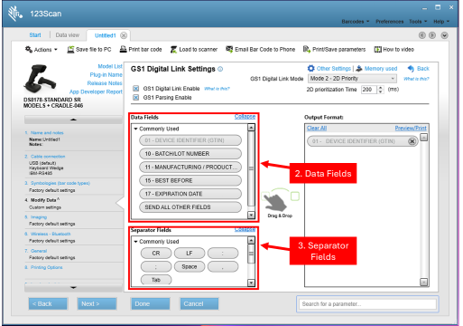
  1. Added a new option in Other Settings for GS1 Label Parsing and UDI Parsing to enable sending raw barcode data for non-complaint GS1 barcodes.
  2. Added support to configure Preferred Symbol settings without MDF programming for SP2002 scanners.
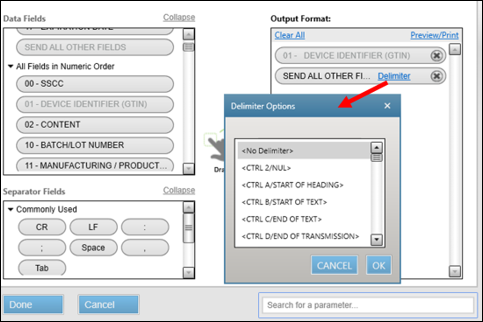
  3. Bug Fix - Fixed an issue in 123Scan GS1 Label Parsing that incorrectly included duplicate delimiter options in SEND ALL FIELDS AI.
  4. Bug Fix - Resolved incorrect printing of “00xFF” if No-Delimiter was selected as the separator between fields when SEND ALL FIELDS was configured in GS1 Label Parsing.
  5. Bug Fix - Fixed an issue in GS1 Digital Link to ensure enabling the trigger mode criteria does not implicitly enable parsing.

Version 6.00.0037 - 01/2026

  1. Added Rectangular Micro QR (rMQR) symbology support for configuration, ADF, MDF, DataView and Statistics.
  2. Added a new checkbox to enable/disable GS1 Digital Link Parsing in 123Scan.
  3. Bug Fix - Fixed an issue where the cancel button on the GS1 Digital Link screen did not clear changes made in the "Other Settings" section.
  4. Added support for DS8288 PowerCap State of Health Statistic in 123Scan.
  5. Bug Fix - Resolved an issue where GS1 Digital Link screen indicated a rule being present, with GS1 Digital link disabled.
  6. Bug Fix - Fixed issue to clear out the programmed GS1 Digital link rules when the "Cancel" button is selected in Configuration wizard.
  7. Bug Fix - Resolved incorrect rule details displayed in parameter report for GS1 Digital Link rules when Mode 1 is used.

Version 6.00.0036 - 09/2025

  1. Added the ability to configure a custom a delimiter for “Send all fields” and “Send all other fields” options in Label Parsing and GS1 Digital Link programming.
  2. Updated the dialog box when saving an SMS package to indicate the minimum SMS required version supporting rotational log file creation for Linux.
  3. Added support to display default settings of simple data formatting to be driven by plug-in.
  4. Bug fix - Fixed incorrect programming barcode generated for GS1 Digital Link when changing from Mode 2 to Mode 1.
  5. Bug fix - Fixed incorrect fields when saving a configuration file with a HIBCC rule containing Serial Number, Expiration date and Batch/LOT.
  6. Bug fix - Fixed issue in the configuration migration flow, where the save configuration prompt was not displayed for an unsaved configuration file when closing the tab.
  7. Bug fix - Fixed an application crash, when attempting to add ADF rules from the ADF library, when the application was executed on a French operating system.

Version 6.00.0035 - 06/2025

  1. Added descriptions for scanner parameters within the Configuration wizard.
  2. Added Log file count in SMS Wizard to configure log file rotation based on the value specified in the SMS package.
  3. Removed Log method and Log file size from SMS Wizard's log settings.

Version 6.00.0034 - 04/2025

  1. Bug fix - Fixed locked Data and Separators fields in UDI parsing rule setup.

Version 6.00.0033 - 03/2025

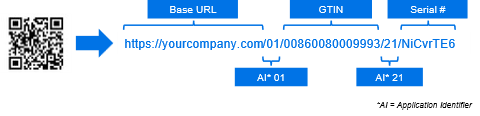
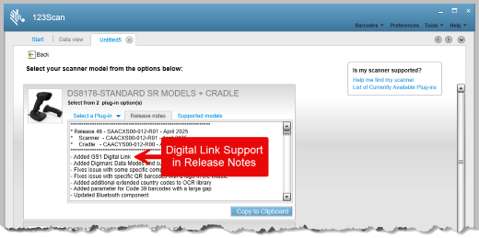
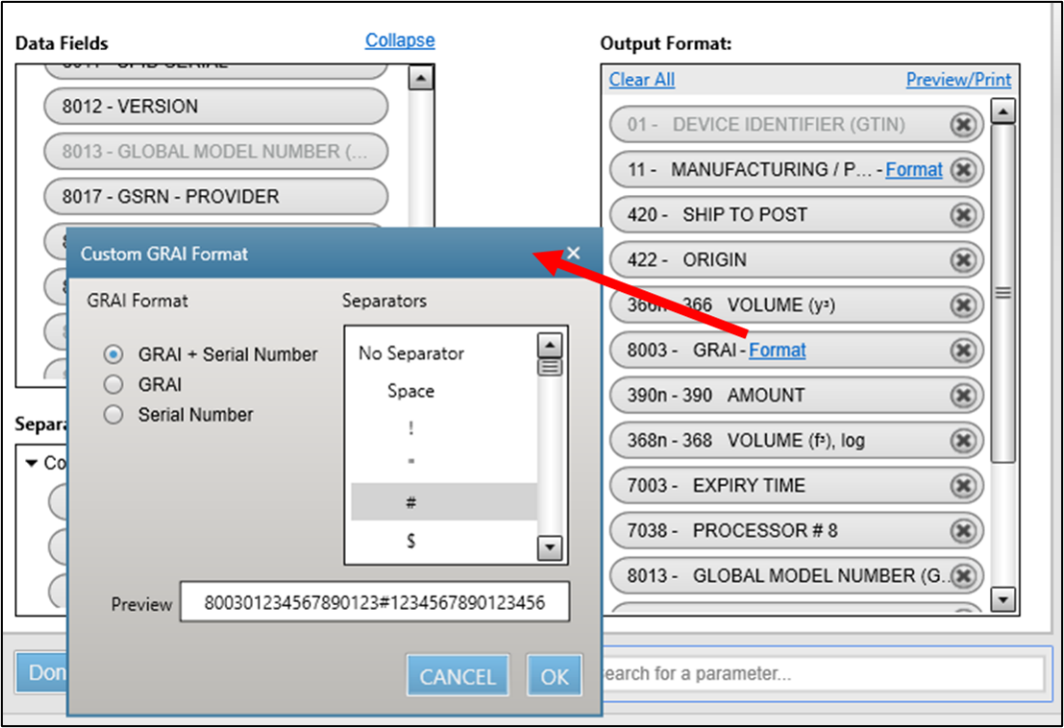
  1. Added the parsing capabilities to the GS1 Digital Link settings, for supported scanners.
  2. Added supplemental symbologies for Selectable Label Identification support for MP7XXX and SP72XX.
  3. Updated Staging Flash Drive Tools menu selection to represent both multi-plane and single-plane scanners.
  4. Updated the App Developer Report to represent the parameter groups as per the Configuration Wizard.
  5. Enhanced the exact matching plug-in download flow.
  6. Bug fix - Fixed an application crash when attempting to open a configuration with a large ADF rule set exceeding the maximum memory permitted by the matched plug-in.

Version 6.00.0028 - 12/2024

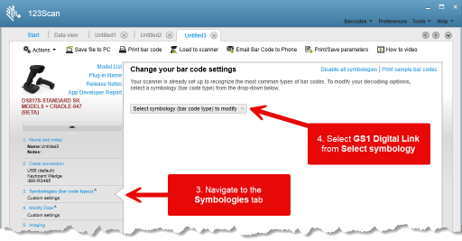
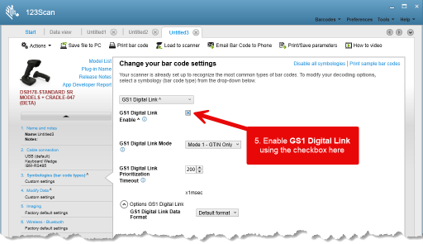
  1. Added support to program GS1 Digital Link settings for supported scanners.
  2. Updated the new URL for How-to-video links.
  3. Updated the network requirements for 123Scan over-the-air updates.

Version 6.00.0022 - 09/2024

  1. Enhanced the Staging Flash Driver Package Wizard and its scanner family categorization to display recently used, active and discontinued scanners.
  2. Enhanced the Start Tab to include a new button as “Clone/Migrate configuration”, which allows selecting to clone a scanner's configuration or migrate a connected scanner's configuration settings.
  3. Added “Veteran” field for Driver's License parsing.
  4. Updated 123Scan's network requirements information to include URLs to be allowed through firewall settings. The updated content is available through Help → Network requirements for 123Scan updates.
  5. Updated the hyperlink to access discontinued scanners through 123Scan's scanner family page, SMS wizard and SFD wizard.
  6. Added attributes “Scale Interval Range” and “Legal Scale Units” to Scale Diagnostics of App Developer Report.

Version 6.00.0021 - 08/2024

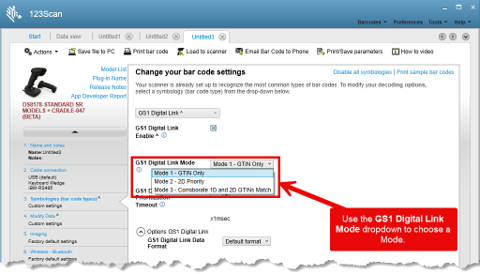
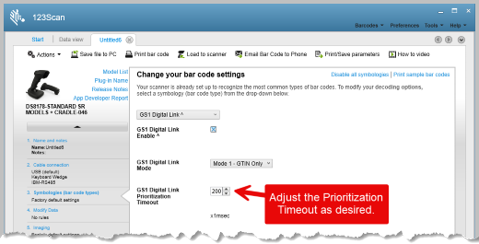
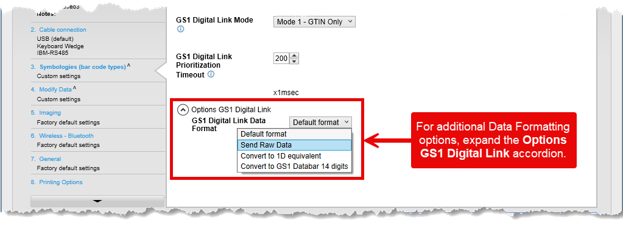
  1. Added configuration support for GS1 Digital Link
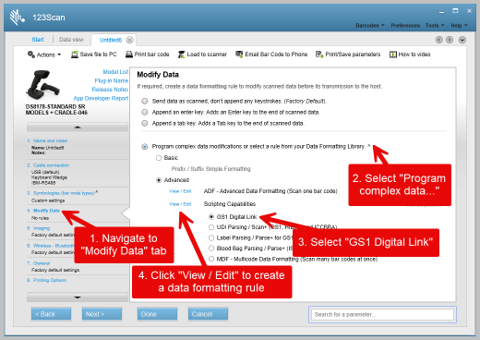
    1. This feature will automatically appear when a scanner's plugin, with its associated firmware, that supports GS1 Digital Link is imported into 123Scan.
    2. To access this functionality, when a Digital Link enabled plugin is present, go to the configuration wizard.s “Modify Data” tab, then select the “GS1 Digital Link” radial button.

Version 6.00.0019 - 07/2024

  1. Enhanced the SMS Wizard and its scanner family categorization to display recently used, active and discontinued scanners.

Version 6.00.0017 - 04/2024

  1. Added a new feature to migrate a connected scanner's configurations into a new scanner.
    Note - The “Clone/modify my connected scanner settings” is now accessible via the Action menu.
  2. Bug fix - Fixed issue in MDF rule's generation logic when “Skip to End” action is used in the rule card(s).
  3. Bug fix - Fixed incorrect MDF symbology value selected for UPC-E1, Micro PDF and GS1 Databar Limited symbologies.

Version 6.00.0014 - 01/2024

  1. Enhanced Staging Flash Drive Package - Added MP72XX support to Staging Flash Drive package creation wizard.
  2. Enhanced App Developer Report - Grouped similar parameters and attributes under category headers (eg. Scale, Statistics, Asset Info, etc.).
  3. Enhanced UI for Advanced Data Formatting (ADF) 2.0 capabilities
    1. Added support for up to 16 Rule Sets in ADF criteria screen.
    2. Added a “custom name” to an ADF Rule Set in the ADF criteria screen.
    3. Added an additional “Notes” section in the ADF rule card. The information in this section will be leveraged by Active Focus Manager (AFM) module.
  4. Programming Barcode Report
    1. Simplified the Programming Barcode report by no longer displaying the list of supported scanner models. This can be re-enabled from the printout details screen.
    2. Added a note to a Programming Barcode report indicating the user should wait for a reconnect beep from the cradle/scanner before scanning a second programming barcode.
  5. Config File Name Validation Check - Users are no longer able to name a config file “Modified” or “Factory Default” or variations of these themes.
  6. Automatic Exact Plugin Download - Added support to automatically download the plug-in of a scanner connected via USB to PC, if plugin is not already on PC.
  7. Debug Log - Added 123Scan logging support when performing a check for updates.

Version 6.00.0012 - 10/2023

  1. Enhanced Configuration Wizard / Device Selection Screen - Simplified display of devices. Shortened displayed scanner list to active scanners (currently selling / supported). Discontinued devices available at bottom of page via a link.
  2. Enhanced Advanced Data Formatting (ADF) capabilities
    1. Updated ADF “what is this” dialogs. Link now exists to access General Settings (of ADF rule's).
    2. “Trigger bar code” link added back to ADF rule card (in ADF Criteria dialog).
    3. Removed outdated “Send Special Keys” category from ADF Actions under Action “Send Value”.
    4. Bug fix - Added warning dialog if possible loss of data - When copying ADF actions between rule cards configured with conflicting data length (Full string length vs compact string length).
  3. Enhanced App Developer Report - Added Asset Info, Statistics, Action attributes, ... in addition to existing scanner parameters.
  4. Enhanced Staging Flash Drive Package - Added SP72XX support to Staging Flash Drive package creation wizard.
  5. Optimized Automatic 123Scan Over-the-Air Updater - Added auto retry to updater (utility and plug-in).
  6. Enhanced Barcode Report Layout - Removed list of scanner models displayed in barcode report. Within next 6 months will be an option in the print settings.
  7. Bug Fix - Added support for extended ASCII character “160” to input actions.
  8. Bug Fix - Fixed rare issue in downloading a cradle / BT scanner plugin.

Version 6.00.0011 - 07/2023

  1. Updates to Advanced Data Formatting (ADF) capabilities
    1. Added ADF version info on the main ADF screen, that shows all ADF rule tabs.
    2. Added new criteria called “String match from End position”.
    3. When specifying communication protocol within an ADF rule, 123Scan only shows what is supported in your plugin / firmware version.
    4. Update UI element when writing a rule - “View / Edit” link in ADF Actions replaced with a new “three dots within a circle” icon.
    5. Added “Back” icon to close the ADF Actions list.
    6. ADF Library Updates
      1. Default ADF rules in the library are now read-only and cannot be deleted from the ADF library.
      2. To modify default ADF rules - Add rule to a config, modify it and then save it to library under your desired name.
    7. Enhanced automatic plug-in download - Now supports automatic plugin download when opening a saved configuration file containing ADF rules, when an exact matching plug-in is not found in the host PC. If required, plugin automatically downloads. This may take up to 20 seconds.
  2. Bug fix - In Chinese localization mode, resolved issue loading configuration with MDF settings through a USB cable.

Version 6.00.0007 - 04/2023

  1. Updates to Advanced Data Formatting (ADF) capabilities
    1. Added a new tooltip that displays a summary of the programmed criteria within an ADF rule. This tooltip is visible from the main ADF screen when hovering over an action or criteria.
    2. ADF Library enhancements
      1. Added ADF version # (for a rule) to the ADF library UI.
      2. Added a notes section allowing a user to document the rules capabilities. The note can be up to 1000 characters.
      3. Added a “ADF Testing Report” for Zebra provided rules, to assist in learning and testing the ADF rule.
    3. Added support for new ADF Actions, listed below,
      1. Beep After Delimiter
      2. Stop Beep After Delimiter
      3. Pause After Delimiter
      4. Stop Pause After Delimiter
      5. LED Indicator After Delimiter
      6. Stop LED indicator After Delimiter
      7. Vibrate After Delimiter
      8. Stop Vibrate After Delimiter
      9. Send up to Pattern
      10. Send from X to Y Positions
    4. Enhanced ADF Library to update with new Zebra provided rules when loading installation software. Note existing customer ADF rules in the library will still be present after update.
    5. Bug fix - Fixed rare issue of incorrect computation of total ADF memory used.
  2. Bug fix - Fixed issue that causes firmware update to fail if attempting a firmware update while an automatic plug-in update was in progress.
  3. Enhanced the “Configuration Summary” screen displayed when opening a config file from the start screen, it now displays the Windows file name.

Version 6.00.0003 - 02/2023

  1. Updates to Advanced Data Formatting (ADF) capabilities,
    1. Added capability to re-order ADF rule cards using drag and drop.
    2. Updated “Most commonly used” section to reflect new capabilities.
    3. Bug fix - Fixed rarely seen issue on incorrectly mapping the ADF custom characters selected.
  2. Bug fix - Fixed issue in UDI Parsing with AI value 395n.

Version 6.00.0002 - 01/2023

  1. Enhanced Advanced Data Formatting (ADF) capabilities,
    1. Supported Scanners - Scanners supporting new ADF v2.0 enabled firmware can interact with 123Scan to perform next level data formatting. Our first scanner supporting ADF v2.0 is the DS8100 series. The DS8100 plugins will be made available through an automated (in utility) update. After download into your 123Scan, you must update your scanner to the latest firmware using the following plugins.
      1. DS8108 - Plugin 31 or higher (Available in March of '23)
      2. DS8178 - Plugin 41 or higher (Available in March of '23)
    2. Added to ADF Library with additional sample rules that exercise all the power of ADF v2.0.
      1. Note the new ADF Library must be loaded manually (it is not loaded with the installation software or automated in utility update.). To update the library, following the instructions posted on https://www.zebra.com/us/en/support-downloads/software/utilities/123scan-utility.html
    3. New user interface for ADF rule programming.
    4. New user interface for ADF library.
    5. Temporarily removed - “Trigger bar code” link in the ADF rule card.
    6. Temporarily Changed - “Rule Sets” are temporarily included in the filters, as part of the criteria section's Boolean logic. This will be fixed (to be made like previous version of 123Scan) with the “Rule Sets” being pulled out of the Boolean Logic in a upcoming release in Q1 '23.
  2. Added support for new GS1 AIs (235, 395n, 417, 4310 - 4326, 7040, 8009, 8026). To access new AIs requires use of 123Scan v6 (or newer) AND updated scanner firmware. See release notes for support of new AIs.
  3. Added “Send All AIs” to GS1 Label Parsing. To access new feature requires use of 123Scan v6 (or newer) AND updated scanner firmware. See release notes for support of new “Send All AIs”.
  4. Added Staging Flash Driver support for NCR 7895 Bioptic scanner.
  5. Bug fix - Fixed issue that prevented 123Scan from launching on Windows 10 PC if FIPS enabled - Fix = Disabled FIPS enterprise setting in 123Scan (not customer accessible) to allow the successful launch of 123Scan with FIPS enabled PCs. No user interaction required.
  6. Bug fix - Fixed issue using GS1 Data Parsing AIs 7030 to 7039, formerly called 703s. Note - Older config files using 703s will have to be recreated with each AI from 7030 through 7039 called out individually. If an older config with 703s is opened, it will automatically be replaced with 7030.
  7. Bug fix - DataView now supports scanners with no manufacture date available over a USB cable.

Version 5.03.0018 - 05/2022

  1. Windows 11 support added.
  2. Bug fix - Fixed configuration file generation issue if the config file enables “Preferred Symbol”.

Version 5.03.0017 - 04/2022

  1. SMS package wizard enhancement - Added configurable option to delete SMS package once the package has been loaded.
  2. SMS package wizard enhancement - Added configurable option to force configuration load from SMS package upon launch of the SMS, even if the configuration is already present on the scanner.

Version 5.03.0016 - 01/2022

  1. SMS Package wizard - Support added for up to eight device groups when creating SMS packages.
  2. Enhanced configuration wizard
    1. Users are no longer able to name a config file “Modified” or “Factory Default”.
    2. Added warning message when user download invalid scanner tone files into a scanner.
  3. Enhanced firmware update
    1. Added a link to check the latest plug-in version when attempting to update firmware.
    2. Update warning dialogs for firmware update option 1 when missing existing plug-in in the host PC.
  4. MDF (Multicode Data Formatting) enhancement - Added warning message when saving and loading configuration file to a scanner with incomplete MDF rules.
  5. Reports enhancements.
    1. List the parameter number along with the parameter name in Parameter Reports.
    2. Bug fix - Solve opening print option dialog, multiple times in statistics report.
  6. Migrate plug-in download service links to a new production server.

Version 5.03.0014 - 04/2021

  1. Modified how 123Scan communicates with a cradle and it's Bluetooth scanner. For this device combination, settings are now cloned from the scanner, when both the scanner and cradle are present simultaneously.
  2. Updated Bluetooth terminology from master-slave to central-peripheral.
  3. Added support for composite codes to ADF criteria programming screen.

Version 5.03.0012 - 01/2021

  1. Enhanced Data Parsing (UDI, GS1, Blood Bag) rule editor
    1. Added ability to add up to 35 separators between two AIs or prefix and suffix.
    2. Data Parsing output can now be modified through an ADF rule before being output to a host.
  2. Enhanced Configuration Wizard - Added "What is this" help for Config file name.
  3. CS6080 and all Bluetooth Wireless scanners enhancements
    1. “Clone and Modify” button on the 123Scan start screen now works with BT scanners. This was achieved by removing the set defaults attribute from the Bluetooth pairing barcode.
    2. “Update Scanner Firmware” button on the 123Scan start screen modified to behave similarly to “Clone and Modify” button for BT scanner. This was achieved by removing the set defaults attribute from the Bluetooth pairing barcode.
  4. Added programable label ID support on IBM OEM interfaces for select USB cabled scanners like the MP7000.
  5. Bug fix - L10W (EMC tablet) plugin now displays supported models properly.
  6. Bug fix - Fixed wrong plug-in name shown on start screen's “Update Scanner Firmware” when connected to a LS2208 (Tahoe) scanners.
  7. Bug fix - Fixed 123Scan issue when re-opening a 123Scan created USB Staging Flash Drive for the MP7000 AND DS8108.
  8. Bug fix - Fixed CS4070 programmable barcode generation problem on parameter barcode report.

Version 5.03.0010 - 07/2020

  1. Added Data Parsing functionality: 1.) UDI Parsing for HIBCC and ICCBBA and 2.) Blood bag parsing. To access, go to the Modify Data tab within a config file. Functionality available for select scanner. For 123Scan to display these parsing solutions, a scanner's firmware/plugin must support the capability.
    1. Add ability to insert Function keys like prefix of F12 and suffix of F11 to the data parsed output via ADF - see Data Parsing user guide for details.
  2. For Bluetooth scanners performing a firmware update and or configuration file load, added capability to unpair and reboot the scanner at the end of the process. To leverage this functionality, the scanner's firmware must support this capability.
  3. Added back ability to uncheck this option when printing a programming barcode 123Scan

  4. Prefix Suffix - Removal select GUI Key (CMD Key) functionality from “Send Command Key” screen.
  5. ADF enhancements
    1. Added support for upper ASCII 255 (from ASCII 128 to 255)
    2. Removal select GUI Keys (CMD Keys) functionality from “Send Command Key” screen within ADF actions.
  6. Added support for screens with 1280x720 resolution.
  7. Bug fix - Added ability to change print size (mil size) of programming barcode (fix based on plugin change)
  8. Bug fix - Solved issue at launch in Turkish localization.

Version 5.03.0006 - 04/2020

  1. Added Data Parsing functionality (UDI Parsing and GS1 Label Parsing) to the Modify Data tab for select scanners. For 123Scan to display these parsing solutions, a scanner's firmware/plugin must support the capability.
  2. Improved firmware update reliability by adding up to 3 retry attempts if a firmware update failure occurs.
  3. SR plugins (most used plugin) now listed at top of list within configuration wizard.

Version 5.02.0004 - 10/2019

  1. Enhanced 123Scan's automatic check for updates functionality under “Preference” menu.
    1. Updates now automatically install without user intervention, as a background activity. If desired, this preference can be changed back to manually approve updates.
    2. 123Scan's update functionality will no longer be affected (taken offline) by invalid plug-in details.
  2. Enhanced battery statistics screen to support DS8178's PowerCap Capacitor. Note unsupported statistics will be shown as “999 (NA)”.
  3. Enhanced Config Wizard's search icons (family list search and parameter search) to enhance visual impact.
  4. Enhanced MDF screen within the Config Wizard to display message informing users to save the configuration including MDF settings, before loading to scanner.
  5. Added CUTE settings to the RS232 cable connection wizard.

Version 5.01.0004 - 07/2019

  1. Bug fix - Fixed firmware update failure showing up at 1% of process.

Version 5.01.0003 - 05/2019

  1. Added DotCode support for ADF and MDF data formatting.
  2. Bug fix - Increased 123Scan's output buffer size of MDF formatting from 500 bytes to 2000 bytes to match scanner's capabilities.
  3. Work around - When updating a RFD8500's firmware, do so using the “Mass Upgrade” mode from the discovered scanners tab (Start screen / Actions / Discovered Scanners Tab). Place a check in the Mass Upgrade checkbox. Wait for the reader to be found, then hit update firmware button.

Version 5.01.0002 - 04/2019

  1. Enhanced the config file wizard - Simplified the selection of a scanner:
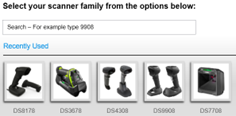
    123Scan
    1. Added recently selected scanners section
    2. provide search box to automate scanner selection.
  2. 123Scan maintains preferences when updating 123Scan with new installation software. For example, A4 paper size is maintained when loading new version of 123Scan.
  3. App Developer Report - Added this new report that lists all available attributes (parameters) and their range of supported values for a plugin. This report is for application developers.
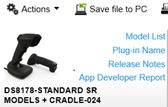
    123Scan
    It is accessible from within the config wizard.
  4. RFD8500 Plugin Only - Added capability to toggle the state of the “Application Connection Password” field based on the state of “Enable Application Password” parameter.
  5. Bug fix - When viewing the CS4070 programming barcode and click “Save as MS Word” button, barcode now saved as correct 2D format.
  6. Bug fix - Fixed text overlap of serial number when printed on DataView report.

Version 5.00.0008 - 11/2018

  1. In ADF Rule creation - Added GridMatrix Symbology as available “code type” in criteria section for supported scanners.
  2. Updated LS2208 config file generation process when “My scanner is not connected”. Now highlight the currently available model versus discontinued model.
  3. Fixed CS4070 programming barcode printing - Now only prints 2D like Datamatrix.
  4. Enhanced Statistics screen / “Decode Time and Count” - If scanner supports handsfree and handheld modes, now statistics report calls out scans separately for handheld and handsfree modes. If scanner supports RFID, it is also reported.
  5. Minor Bug fix - When loading configuration after updating firmware on cordless scanner in the cradle - LED reflects configuration push completed properly.
  6. Minor Bug fix - When updating one scanner's firmware, rarely “Update Another” button being incorrectly shown on the firmware update dialog screen. Issue resolved.
  7. Configuration file format change from UTF16 to UTF8 to support Chinese localization.
  8. ADF and MDF action,s context menu update - Paste above and Paste below.

Version 5.00.0003 - 09/2018

  1. Fixed firmware update error by updated 123Scan's CoreScanner Driver to a Microsoft signed USB “SNAPI Imaging driver”.
  2. Added back option to send “ASCII Tab and Enter” into MDF actions options.
  3. Increased reboot reconnect time from 5 minutes to 8 minutes when updating firmware available from Start and Discovered Scanners tabs.
  4. Fixed “Erase All Rules” barcode which was missing in the programming barcode report.
  5. Bug fix - Added back option to insert the < (less than), > (greater than) and ? (question mark) characters into ADF String/Trigger code field.
  6. Bug fix - Fixed issue related to ADF configuration barcode failing to configure scanner when it been localized to Chinese Language.

Version 5.00.0001 - 08/2018

  1. Added support (localization) for simplified Chinese language. 123Scan will automatically open in simplified Chinese, if this is your Window's default OS locale. Note to manually change 123Scan's localization, click Preferences / Language / Localization and select your desired language. After clicking Apply, restart 123Scan for the setting to take effect.
  2. Name of utility changed from 123Scan2 to 123Scan.
  3. Utility's Windows desktop icon changed from 123Scan to 123Scan New
  4. Bug fix - Fixed 1D bar code printing issue for CS4070 specific parameters.

Version 4.05.0011 - 05/2018

  1. Added support for cordless scanner firmware update over Bluetooth (no cradle involved) from Start screen / Update Scanner Firmware button.
  2. Changed default operation mode of SMS Wizard to “Run as Application”.
  3. Updated SMS Deployment Checklist to reflect new default operation mode of SMS Wizard (Run as Application) and Windows 10 support.
  4. Added Digimarc GS1 Databar “decode count” to Statistics View.
  5. Changed order of scanners displayed on Config Wizard's “Select your scanner family from the options below” screen.

Version 4.05.0007 - 02/2018

  1. Enabled updating firmware from a custom firmware to a new custom firmware.

Version 4.05.0006 - 11/2017

  1. Fixed Mass Upgrade Mode to avoid re-updating a scanner that has already been updated successfully, within the same Mass Upgrade session. Applies to all scanners, but fixes an issue with DS8178, DS2278, DS3678.
  2. Fixed incorrect display of non-printable characters appearing in slowest decode data in Statistics View.
  3. Add support for the extended ASCII Characters in ADF, ADF now supports any ASCII character up to 256.
  4. Fix for handling incorrectly formatted synapse buffers in the plug-ins.

Version 4.05.0002 - 10/2017

  1. Added Scan Speed Analysis (SSA) to statistic view.
  2. “USB communication protocol may have changed” dialog no longer used (when cloning a scanner's configuration) for select scanners running new firmware.
  3. Added support to configure up to four cable settings (communication protocols) in a configuration file.
  4. Fixed issue - Now can enable/Disable MDF Groups via programming barcodes.

Version 4.04.0008 - 06/2017

  1. Added a search box to the configuration wizard.
  2. Enhanced bar code data processing in fast HID KB mode.
  3. Decreased application launch time and decreased installation package size.
  4. Simplified Mass Upgrade mode, available on the Discovered Scanners Tab.
  5. Added additional “Time between MDF Codes” options to the Multicode Data Formatting screen.

Version 4.03.0002 - 12/2016

  1. Bug fix - Fixed inconsistency in setting reset to defaults in cordless scanners.
  2. Bug fix - Resolved programming barcode issue when bar code report is printed for configurations with large ADF buffer.
  3. Bug fix - Resolved RS6000 support issue introduced in 123Scan v4.2.1.0.
  4. Removed Quick Startup Instructions and updated 123Scan Overview.

Version 4.03.0000 - 11/2016

  1. Bug fix - Fixed language specific formatting dependency that occurs when “.” is replaced by “,” in automatic updates process.

Version 4.02.0001 - 09/2016

  1. Added support for DS3678 Bluetooth Scanner and cradle into a single plug-in.

Version 4.01.0006 - 06/2016

  1. Added Battery Statistics support for scanners supporting Battery Statistics.
  2. Added support for MDF (Multicode Data Formatting).
  3. Updated ADF screen layout to match new MDF layout.

Version 4.00.0003 - 05/2016

  1. Redirected plug-in download process to Zebra site.
  2. Removed “Set to Custom Defaults” option from the Printing Options.

Version 4.00.0002 - 03/2016

  1. Rebranded to Zebra Technologies.
  2. Added Windows 10 Support.

Version 3.07.0002 - 10/2015

  1. Added RFD8500 support.
  2. Lower max number of simultaneously programmable scanners from 14 to 10 scanners.

Version 3.06.0002 - 05/2015

  1. Added support for two new Symbologies: GS1-DataMatrix and GS1-QR Code to ADF/Data View and Statistics.
  2. Added support for new MP6000 firmware update - This version of 123Scan must be used with all MP6000/6200 firmware released after June 1, 2015.
  3. Added support enabling ADF (Advanced Data Formatting) on OCR (Optical Character Recognition).
  4. Added support to copy bar code data from the Data View's scan log into the Windows Clipboard using a right mouse click.
  5. Bug fix - “RS-232 host mode change” programming 2D bar code now printed as two 2D bar codes.
  6. Bug fix - Up Carrot ( ^ indicates change from factory default) in Config Wizard properly displayed.
  7. Bug fix - Corrected bar code printed for “IBM Specification level” parameter.

Version 3.05.0002 - 01/2015

  1. Optimized the Check for Update process.
  2. Added send programming barcode to phone option.
  3. Added a report that outputs the updates history.
  4. Added support for ADF Rule Sets.
  5. Added new ADF commonly used actions group.
  6. Added ability to prevent parameter barcodes scanning via a SMS packages.

Version 3.04.0001 - 10/2014

  1. Security enhancements to address potential security vulnerability.
  2. DS9208 scanner firmware download fix.

Version 3.02.0008 - 03/2014

  1. Removed LS2208 (Symbol logo) scanner from the SMS package wizard's available/supported scanners.

Version 3.02.0006 - 02/2014

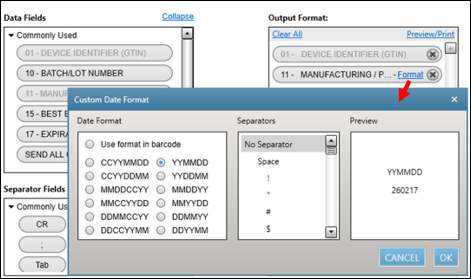
  1. Updated DL parsing screen to support multiple date formats and gender format per field.
  2. Added support to select similar scanners with a single click in Discovered scanner list.
  3. Added feature to save Staging flash driver files as packages to PC and track in recent files list.
  4. Color coded plug-in selection across the application (Normal plug-ins black, Custom plug-ins green, Beta plug-ins red).
  5. Dialog displayed when an RS232 host variant is switched. Dialog indicates a number of other parameters are also switched and how to determine which parameters were changed.
  6. Cordless bug fixes
    1. Hot Swap mode now supports cordless scanners.
    2. Now maintain pairing between scanner and cradle during set to defaults, both electronically and via barcodes.
    3. Added support for configuring the scanner/cradles as units when loading and retrieving setting.
  7. Include Set Factory defaults and Set Defaults in Print dialog and configuration options.
  8. Windows 8 support.

Version 3.01.0001 - 10/2013

  1. Added ability to display scale weight for the MP6000 within the data view.
  2. Added independent display of “Set to Default” parameter based on cordless or corded scanner.
  3. Optimized text in numerous dialogs and menus.

Version 3.00.0010 - 07/2013

  1. Added statistics (decode times, barcodes scan count …) displayed in the Statistics View for select scanner such as the MP6000.
  2. Added ability to program DL Parsing rule using the Configuration Wizard.
  3. Added MP6000 support. Use USB cable CBA-U51-S16ZAR and plug into the MP6000's "POS PORT".
  4. Added support for generating a MP6000 Staging Flash Drive.
  5. Added LI2208 support.
  6. Optimized text in numerous dialogs and menus.
  7. Added Barcode menu for access to key bar codes.
  8. Updated firmware naming convention
    1. Old format : CAABQS00-001-R01
    2. New format : Release XXX - YYYY.MM.DD (Engineering Name)
    3. New format : Release 010 - 2013.06.21 (CAABQS00-001-R01)
  9. Release notes now also on firmware upgrade screen.

Version 2.02.0011 - 11/2012

  1. Added ability to include DL Parsing parameters within the 2D programming barcode printout.
  2. Fixed Check for Update process. Windows 7 64 bit operating systems now supported.
  3. Within the Configuration Wizard, individual parameters changes tracked. Values changed from default setting now indicated with a “^”.

Version 2.02.0006 - 07/2012

  1. Added ability to generate an SMS Package for use with the Scanner Management Service.
  2. Removed requirement for exact match between scanner and plug-in firmware when generating a configuration file. Now if your scanner has a newer version of firmware than present within a plug-in within 123Scan, you can create a configuration file.
  3. Simultaneous firmware upgrade for multiple cordless scanners*.
  4. Maximum number of simultaneous firmware upgrades typically varies between 3 to 7 cordless scanners in their cradle, depending on PC hardware capabilities.
  5. Note - clicking the “Blink scanner LED's” or “Refresh” button during a cordless scanner firmware upgrade may halt the firmware upgrade process.
  6. Operating System support for Windows 7 64bit.

Version 2.01.0002 - 12/2011

  1. UI update on data formatting Prefix/Suffix Screen, added < >.
  2. Updated Set Defaults Barcode Options report, added “Set Factory Defaults” and “Write to Custom Defaults” barcodes.
  3. Updated the print programming barcodes reports: Replace the “Set Defaults” parameter with “Set Factory Defaults” for RSM 2 scanner printouts. For RSM 1 and legacy scanner printouts, the Set Default parameter is still utilized.
  4. Added two new RFID code types for RFID based ADF rules.

Version 2.01.0001 - 10/2011

  1. How to Videos link added to start tab and help menu.
  2. Optimized check for updates screen layout.
  3. Added support for additional ALT key sequences within the Data Formatting screen.
  4. Full name of firmware displayed on the Discovered Scanners tab.

Version 2.01.0000 - 05/2011

  1. Cordless scanner plug-in selection process optimized.

Version 2.00.0005 - 02/2011

  1. Generate a list of supported scanners models including plug-in name and model of firmware. See Help menu.
  2. Scan Log screen displays scanned data, including hidden characters. See DataView tab.
  3. Image Log screen captures and displays pictures on imaging enabled scanners via a USB connection.
  4. Optimized to support EMEA / APAC sized paper. To permanently set, see Preferences tab.
  5. Firmware upgrade optimized for SNAPI enabled scanners. Total upgrade time is less than 2 minutes.
  6. A uniform naming convention applied to reports and printouts.
    1. Configuration file: Config File_Model_Config name_Date Stamp.scncfg
    2. Parameter Report: Parameter Settings_Model_Config name.rtf
    3. Programming Barcodes: Programming Barcode_Model_Config name.rtf
    4. Activity Report: Activity Report_Date stamp_Time stamp.csv
    5. Inventory Report: Inventory Report_Date stamp _Time stamp.csv
    6. Scanner Output Report: Validation Report_Model_Config name_Date stamp_Time stamp.rtf
    7. Images: Image_Date stamp_Time stamp.bmp

Version 1.01.0011 - 12/2009

  1. Initial release of 123Scan Scanner Configuration Utility.

ADF 2.0 Programmer's User Guide

Overview

Advanced Data Formatting is a powerful rule driven data editor within Zebra scanners. Rules are programmed within the 123Scan utility with a GUI based wizard that generates code in a unique interpreted ADF language. This code is loaded into the scanner and the ADF interpreter processes acquired decode data before it is transmitted to the attached host device. The 123Scan utility provides descriptions of the criteria and actions available in the ADF language. Most of the functionality within ADF is easy to understand and apply. This document provides additional details of the powerful ADF features that can be used to customize your scanner to meet your company's changing IT requirements.

Terminology

ADF Interpreter

Software that runs on the Zebra product that interprets ADF Rules after decode data is read and before the data is transmitted.

ADF Rule Formats

The format of ADF Rule data as it is stored in the scanner's Flash memory. 2000 bytes of rule storage is available on the scanner. The legacy versions of ADF (called ADF1 Format) limits the size of a rule to 127 bytes. This includes the criteria and action sections of a rule. The latest version of ADF (called ADF2 Format) limits the size of a rule from 310 to 670 bytes depending on the number of criteria sections. Refer to Highlights of ADF Features for more details on multiple criteria sections.

The current ADF Interpreter supports both Rule Formats, but only one format can be used at a time. If one rule is saved in the legacy format, then only rules of that format can be added.

Boolean Logic

Boolean Logic is a form of Mathematics that is centered on values that are either TRUE or FALSE. Each Criterion in a rule has a TRUE or FALSE value. Boolean Operators are used to show how the criteria are related to each other. When a Boolean Operator is applied, it has a TRUE or FALSE result.

Table 1: ADF Interpreter Supported Boolean Operators

Operator Example Meaning
NOT NOT Code 39 If the criterion is FALSE, the NOT changes it to the TRUE result
AND Length 14 AND Starts with “A” If both criteria are TRUE, the result is TRUE. Otherwise the result is FALSE
OR Length 8 OR Length 10 If one of the criteria are TRUE, the result is TRUE. Otherwise the result is FALSE
AND NOT Length 10 AND NOT Starts with “C” If both the left criterion is TRUE and the right criterion is FALSE, the result is TRUE. Otherwise the result is FALSE
OR NOT Upc-a OR NOT ends with “X” If either the left criterion is TRUE or the right criterion is FALSE, the result is TRUE. Otherwise the result is FALSE

Hexadecimal Numbers

In Mathematics, Hexadecimal numbers can be used to represent a number from 0 to 255 in two digits. Each hexadecimal digit has a value from 0 to 15 (0,1,2,3,4,5,6,7,8,9,A,B,C,D,E,F) The letters A to F are used to represent the values 10 to 15 respectively. In a two digit Hexadecimal number, the left digit is also from 0 to 15, but its value is assumed to be multiplied by 16.

In this document hexadecimal numbers are displayed with a back-slash \ followed with an “x” and two digits. For example: the hexadecimal number \x12 has the decimal value of 18 (1x16 + 2).

Highlights of ADF Features

ADF rules are programmed using a Graphical User Interface based utility.

123Scan 123Scan Utility

The 123Scan utility is the recommended way to program rules into the scanner. Depending on your product configuration, the utility can generate the correct ADF rule structure for your product.

Once rules are entered into the utility, they can be uploaded to your scanners directly. As an alternative, barcodes can be printed to enter the same rules through scanning.

123Scan Advanced Data Formatting Programmer's Guide

The legacy barcode menus in this document can still be used to program rules into the scanner. Not all ADF features are supported in the legacy ADF Programmer's guide.

ADF can be used to process barcode data of any length and prepare it for transmission to a host device.

The ADF Interpreter’s main function is to use rules to process the scanned bar code data in an input buffer and to move selected data to an output buffer. Each rule has a “criteria” section that describes the requirements for the rule to apply. If the rule applies, the rule’s list of actions is used to process the input buffer’s data. The results of the rule’s actions are stored in an output buffer. This output buffer data is transferred to the connected host device.

The legacy ADF Interpreter (called ADF1) is designed to work optimally with barcodes up to 255 bytes in length. When a barcode is longer, ADF1 can process these barcodes, but it may require multiple actions to move data or move the cursor 255 characters at a time.

To improve the operation of ADF, the latest version of ADF (called ADF2) has an “Full String Length” feature that allows the easy processing of barcodes up to 4096 bytes in length. This feature is enabled by default and it can be disabled in the General Settings section of 123Scan for each rule.

ADF Rules are processed in the order in which they are stored.

The ADF rules built in 123Scan are transferred to the Scanner and stored in the scanner’s Flash based storage.The order that ADF rules are stored is significant. The first rule that applies is the one that is chosen to process the input data.

General vs. Specific Rules

Rules with more stringent criteria are called “Specific Rules”, Rules that apply in most cases are called “General Rules”.

When assembling rules for your device, be careful to put the more specific rules higher on the list. When a “General Rule” is placed on the rule list above a more “Specific Rule” it has the effect of cancelling out the rules that follow it.

For example: Here is a list of rules that is more specific at the top, and more General at the bottom.

Rule List (Criteria sections only)
Specific Rules When the connected Host is IBM RS485 and barcode is UPC
When rule set 1 is enabled and barcode is QR Code starting with “STOP”
When a barcode begins with “GPC” and is length 12
When a barcode contains “XYX” in any location
When a barcode is Code 128 Length 10
When a barcode is UPC
When a barcode contains only Numeric data
When a barcode is decoded in handsfree mode
General Rules When any barcode is scanned

It is subjective on how “Specific” a rule is. When editing the rules in 123Scan, consider the rule order based on how the rules need to be applied.

All About Cursors

Similar to viewing data in an editor, ADF starts with a cursor on the starting position of the data. As actions are performed on the data, the cursor is moved forward or backward based on the actions used on the rule.

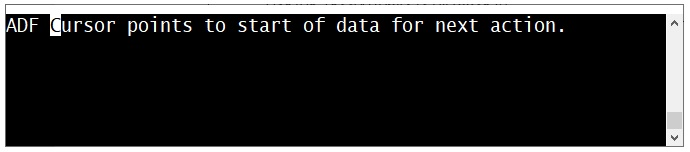
The ADF Interpreter uses a cursor to mark the next character to be processed by the next action. The image below shows a “data terminal” screen, and the cursor is on the “C” character in the word “Cursor”

As actions are processed, the cursor is moved forward for every character sent. So if the rule says to send data up to space (“ “), then the word Cursor is sent and the cursor is moved to the letter “p” of points.

In cases where the data needs to be skipped, ADF provides several Actions to move the cursor to a new position.

ADF Rules require that the data matches the rule.

When a rule is selected by the ADF interpreter due to matching criteria, then the Action section is applied. Actions will traverse the input data like a word processing application. A cursor is maintained that points to where the next action will process data.

Actions in the rule can move the cursor forward or backward a specified number of positions, or until a matching character or pattern is seen. If an action requests to move to a place in the data that does not exist, then the rule is said to have an “Action Failure” (See Failure Recovery for details).

ADF Rules build Output Data to be transmitted.

In summary, ADF is configured by writing one or more rules using the 123Scan2 graphical interface. These rules are transmitted to the scanner and stored in its Flash memory. When a barcode is scanned these rules are checked to see if a rule is found that would apply to the data.

Later on, when a barcode is scanned, the ADF Interpreter is called on the scanner to format the input data. The rule creates a buffer of Output Data. This data is handed off to the driver for the attached host device and the data is transmitted.

Understanding Criteria Within a Rule

Each ADF rule has a Criteria section that defines the types of barcode data that applies to a rule. The latest version of ADF has some improved capabilities in the Criteria section. These improvements provide a more powerful way of customizing the scanner.
The Criteria section defines the conditions required for a rule to apply to scanned data.

Each rule provides a list of criteria to determine if a specified set of actions should be applied to a barcode that is scanned. ADF provides several criteria to choose from when building a rule.
  • The source of the data
  • The length of the data
  • The type of barcode data scanned
  • The contents of the data
  • The means that the barcode scanner was triggered to read the data
  • The connected host that will receive the data
  • The rule is presently enabled or disabled using a Rule Set

ADF uses Boolean Logic to evaluate each of the criteria and determine if the rule applies. The ADF Interpreter will assume there is an AND or OR relationship between each criterion. 123Scan will automatically assign this relationship based on these requirements:

  • When more than one criterion of the same name follows another, they are assumed to have the OR relationship. (e.g. Length = 5 OR Length = 6 OR Length = 12)
  • When more than one criterion of a different name follows another, they are assumed to have the AND relationship. . (e.g. Code 39 AND Starts with “A”)

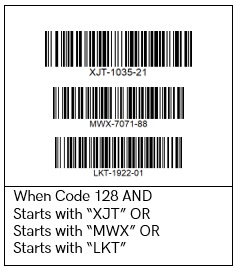
For example: The user wants a rule that applies when a code 128 barcode starts with XJT, MWX, or LKT. In this simple case, the ADF interpreter applies the following Boolean Operators according to its requirements.

The user can override the ADF Interpreter’s requirements by Manually inserting Boolean Operators between criteria to implement really special cases. See Tips for Power Users of ADF for more information.

Getting to know the Criteria supported in ADF.

Checking the Length of Scanned Data

ADF allows the checking of discrete lengths, lengths within a range, lengths below a value, lengths above a value. To illustrate length checking we have some sample barcodes:

The following are examples of what could be programmed in an ADF rule and the lengths of barcodes that would cause the rule to apply.

Length checking type Criteria Length 8 Length 10 Length 12
Discrete lengths When length equals 10 or 12 ✔ ✔
Lengths within a range When length in range 8 to 11 ✔ ✔
Lengths below a value When length is below 10 ✔
Lengths above a value When length is above 10 ✔

Checking the Type of Barcode Data Scanned

ADF can check the symbology type of barcode that was scanned. Zebra scanners can support many barcode types, and more than one symbology type could require similar formatting. ADF allows multiple code symbology types to apply to a rule.

To illustrate symbology type checking we have some sample barcodes:

The following are examples of what could be programmed in an ADF rule and the types of barcodes that would cause the rule to apply.

Symbology checking type Criteria UPC-A Code128 QR Code
Single Code Type When Code Type is UPC-A ✔
When Code Type is Code 128 ✔
When Code Type is QR Code ✔
When Code Type is Code 128 OR Code 39 ✔
Code Type Group When UPC/EAN ✔

Looking for Patterns of Data Within Scanned Barcode Data

ADF can check for patterns of data within the scanned barcode: At the start, at the end, at a specific position in the data, or in any position. Position numbers start with 1 at the first character of the scanned barcode data.

The following are examples of what could be programmed in an ADF rule and the types of barcodes that would cause the rule to apply.

Pattern matching type Criteria
Starts With When starts with “187”
At a specific position When “-“ is at position 4
Ends With When ends with “ICE”
In Any Location When “ABC” is anywhere

Format Differently Depending on the Connected Host

One way of detecting where the scanner is used is by the type of host that it is connected to. The host connection type could be used to automatically select rules. This can be handy if one workstation used a USB connection and the same scanner can be plugged into another workstation with a RS232 connection. ADF rules can identify the type of Host connection that they belong to. If the rule does not apply then it is skipped. Actions within the rules can easily strip out certain non printable or alphabetic characters to suit one host.

Use the scanner’s Buttons to Select What Rules to Run

Zebra scanners support a variety of methods to trigger the reading a barcode. One scanner model has 2 buttons available to scan data. A rule could be programmed to format the data differently depending on how the decode was triggered.

One example is to use one trigger button to “add” an item and put it in the cart, and the other button to “remove” items from the cart. Data could be added to decode data depending on which button was used.

Rules Can Ignore Barcodes that Contain Unwanted Data

When processing data, sometimes the data has special characters or un-printable characters that are not applicable. ADF has a criterion that can be used to select the types of ASCII data that are allowed for a rule to apply. (see Appendix: ASCII Type Classification for a list of ASCII values and their default character type).

ADF supports the recognition of these types of ASCII data:

  • NON-PRINT - Non Printable ASCII value
  • WHITESPACE - Tabs, Spaces, Line Feeds, Vertical Tabs, Carriage Returns
  • NUMERIC - Values 0 to 9
  • ALPHA - Values A to Z and a to z
  • OTHER - ASCII values greater than 127
  • SPECIAL - Everything else (for example: !@#$%^&*()_+)
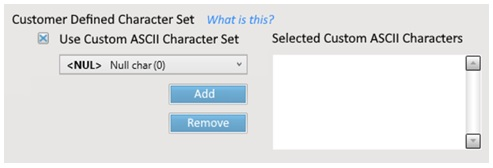
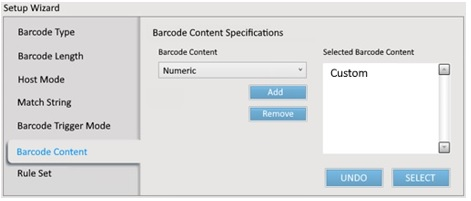
  • CUSTOM - A list of 1 to 16 ASCII characters that the user can select for a rule.

See Tips for Power Users of ADF for details on defining a custom character set.

A criterion can be added to a rule to select one or more ASCII categories that are allowed to be in the input data for the rule to apply. All of the selected ASCII categories must be represented in the barcode for the criterion to be TRUE.

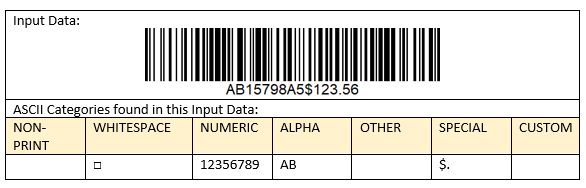
The following barcode contains three categories: Numeric, Alphabetic, and Special.

For example, using this barcode, a criterion can be used in a rule that requires all three of these categories of data to match: When Scan data includes NUMERIC, ALPHA, SPECIAL

The barcode contains all three categories of data, so the criterion evaluates to TRUE.

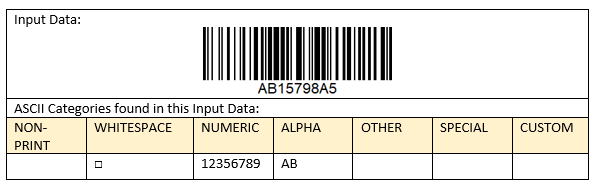
The following barcode contains three categories: Numeric and Alphabetic.

Using the same rule, the criteria When Scan data includes NUMERIC, ALPHA, SPECIAL would evaluate to FALSE.

Rules Can Be Disabled or Enabled

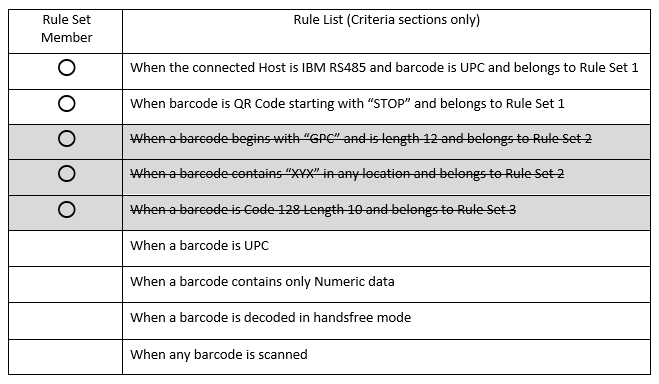
ADF has a mechanism to enable or disable one or more rules at a time using Rule Sets. There are eight numbered Rule Sets supported by ADF and each rule can optionally be assigned to a Rule Set number using the Rule Set member criteria.

“This rule belongs to Rule Set x”

Each numbered Rule Set has a status, it is either enabled or disabled. All are disabled by default when the scanner powers up.

When a Rule Set is disabled, then the ADF Interpreter will skip all the rules that are a member of that rule set. When a rule is not assigned to a Rule Set, then the Rule is always Enabled.

For example, if a scanner has the following rules stored in the ADF Rule buffer. And the status of the eight Rule Sets are as shown above, then the shaded rules are skipped.

More details on this feature can be found in Tips for Power Users of ADF.

Building your Output Data with Actions

Each ADF rule has an Action section that defines how the decoded barcode data is processed before it is transmitted to the attached host. The latest version of ADF has some improved capabilities in the Action section. These improvements provide a more powerful way of customizing the scanner.

Changing Input Source

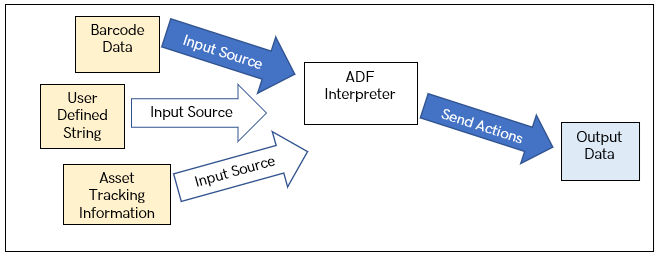
A new aspect of ADF is that it supports multiple data sources. When barcode data is scanned, the initial input source is the barcode data (shown with blue arrow). However, actions are available to change the input source for the rule to either a User Defined String, or to Asset Tracking Information (shown with white arrows).

Each input source has its own cursor. When the rule switches to User Defined String data or Asset Tracking Information then the cursor starts at the beginning of this data, however the barcode data cursor position is retained. When the input source is switched back to barcode data, ADF continues where it left off.

The next two sections provide examples of Input Source changing in use.

Send a large block of data

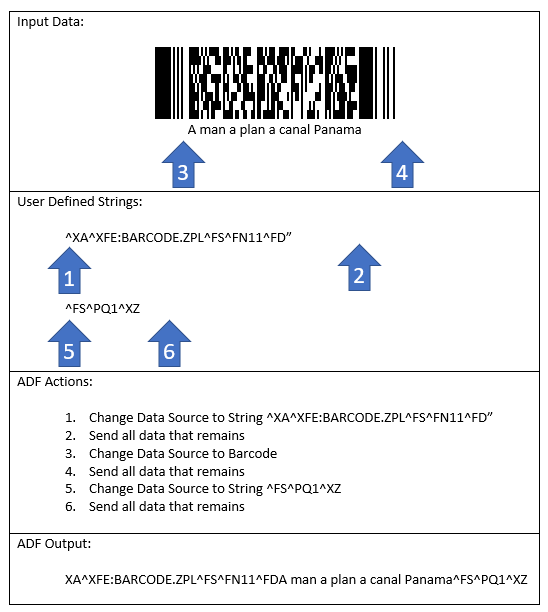
Sometimes the rule needs to append a large amount of data to the Output Data. For example, some printers require a lot of data to configure them. ADF rules can hold large user defined strings of printer configuration data, up to 128 bytes. Once in the rule, ADF actions can be used to parse the data to send in whatever format required.

The following is an example of “scan and print”. In this example, the string “^XA^XFE:BARCODE.ZPL^FS^FN11^FD” precedes the data to print and the string “^FS^PQ1^XZ” follows the data. A 2D barcode with a large amount of text is scanned. The blue arrows show the position of the cursor after each action.

Identify which scanner was used in collecting data

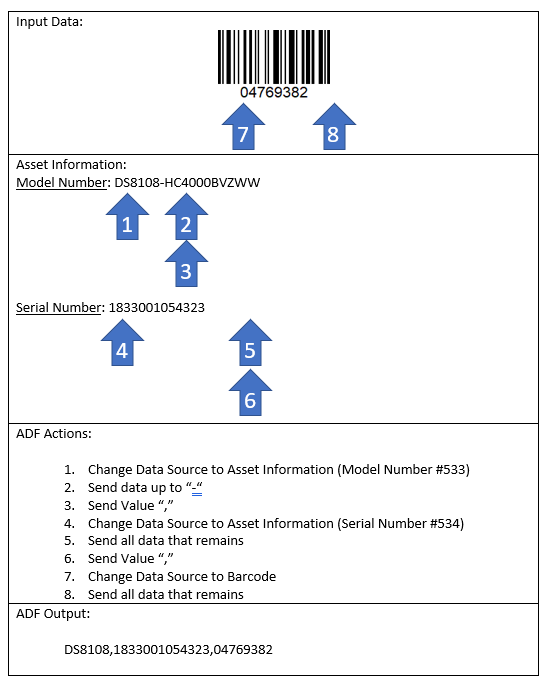
What if your process needs to know which scanner read a shipping barcode for its records. ADF can be programmed to transmit the scanner's model number or serial number with the needed data on the shipping label. This could be a way where the clerk's station could be identified

In this scenario, an Inventory taker is reading tags on units. This rule would send the model and serial number of the scanner followed by the inventory tag. The blue arrows show the position of the cursor after each action.

Actions that Provide User Feedback

Your business may use a process that requires the scanning of multiple barcodes and some User Feedback might help in the support of this process. ADF rules can be setup to adjust the LED lighting on the scanner, or to sound a beeper sequence or vibrate the scanner handle when a certain data pattern is seen. The vibrations can be in multiples so that they can stand out to the user.

For example, when a specific barcode is scanned (based on data contents) the scanner can give a single vibration and light the Green LED on the top of the scanner. And when incorrect data is scanned a Red LED can be lit and a triple vibration can be felt on the handle.

Beep Indication

An action can be used to sound a beeper sequence. The beeper sequence occurs when ADF processes the input data, before the output data is transmitted.

The following list shows all the available sequences.

  • 1 to 5 High Frequency Tones of Short Duration
  • 1 to 5 Low Frequency Tones of Short Duration
  • 1 to 5 High Frequency Tones of Long Duration
  • 1 to 5 Low Frequency Tones of Long Duration
  • High-Low-High-Low Frequency, Short Duration
  • High-Low-High-Low Frequency, Long Duration
  • 2 Tones High-Low Frequency, Short Duration
  • 2 Tones Low-High Frequency, Short Duration
  • High-Low-High Frequency, Short Duration
  • Low-High-Low Frequency, Short Duration
  • High-High-Low-Low Frequency, Short Duration

LED Indication

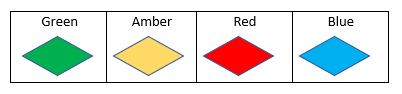
An action can be used to illuminate an LED, usually on the top of the scanner with a specified color for a number of seconds (From 1 to 10). Not all scanners support all colors. The LED sequence occurs when ADF processes the input data, before the output data is transmitted.

If the LED to illuminate is not supported by the scanner, this causes an “Action Failure”. See the “General Settings” section in 123Scan to select how to respond to this failure.

Vibrate Indication

An action can be used to vibrate the scanner handle in a special way by ADF rule. This only applies to scanners with vibration capability, such as Healthcare models.

Moving the Cursor through the Input Data

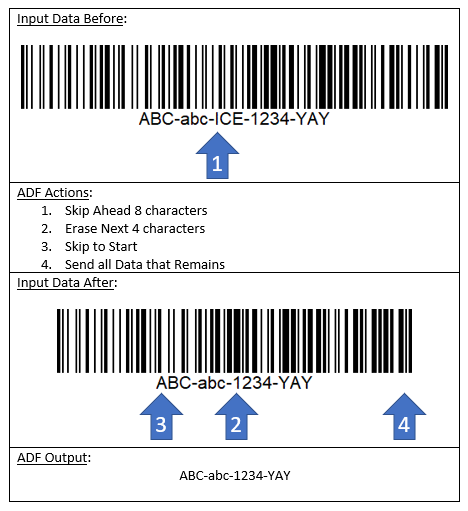
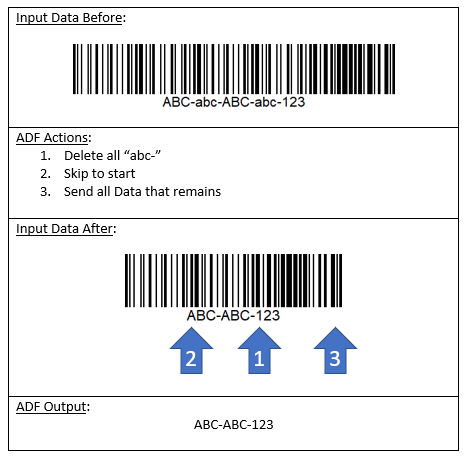
Skip to Start

This action moves the cursor to the first character of the input data.

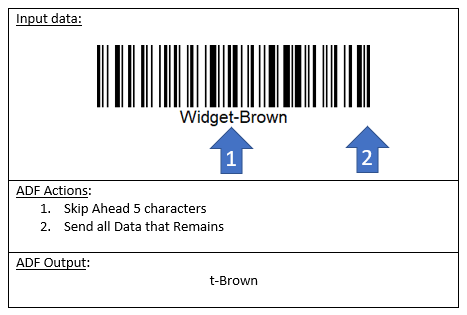
Skip Ahead

This action moves the cursor ahead the specified number of characters.

The following example shows the processing of a Code 128 barcode. The blue arrows show the position of the cursor after each action.

If the requested move goes beyond the end of data, this causes an “Action Failure”. See the “General Settings” section in 123Scan to select how to respond to this failure.

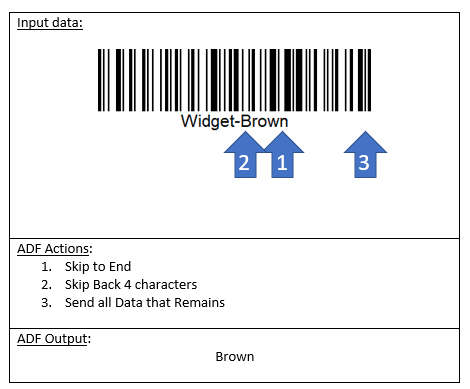
Skip to End

This action moves the cursor to the last character of the input data. When on the last character, a send action will process the last character only

Skip Back

This action moves the cursor back the specified number of characters.

The following example shows the processing of a Code 128 barcode. The blue arrows show the position of the cursor after each action.

If the requested move goes beyond the start of data, this causes an “Action Failure”. See the “General Settings” section in 123Scan to select how to respond to this failure.

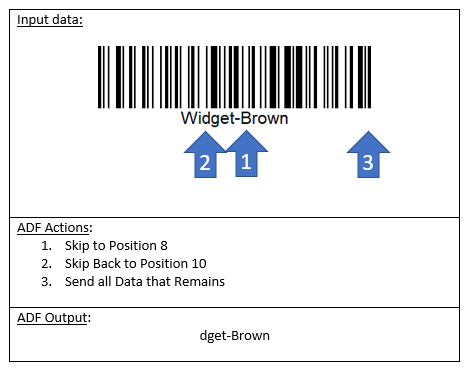
Skip to Position

This action moves the cursor to a specific position in the input data. If the requested move goes beyond the end of data, this causes an “Action Failure”. See the “General Settings” section in 123Scan to select how to respond to this failure.

Skip Back to Position

This action moves the cursor to a specific position in the input data relative to the end of the input data.

The following example shows the processing of a Code 128 barcode. The blue arrows show the position of the cursor after each action.

If the requested move goes beyond the start of data, this causes an “Action Failure”. See the “General Settings” section in 123Scan to select how to respond to this failure.

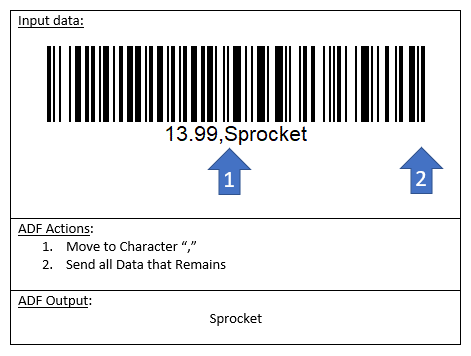
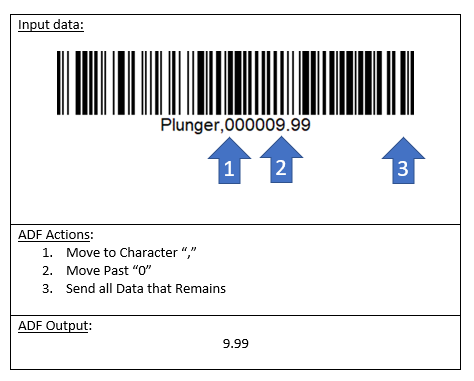
Move to Character

This action moves the cursor forward until a matching character is reached. The matched character is treated like a delimiter, so it is skipped. Upon a match, a forward search will place the cursor a character after the matched character.

The following example shows the processing of a Code 128 barcode. The blue arrows show the position of the cursor after each action.

If the character to match is not seen up to the start or end of data, this causes an “Action Failure”. See the “General Settings” section in 123Scan to select how to respond to this failure.

Move Past Character

This action moves the cursor forward until it no longer points to the specified character. This can be used to strip out strings of padding data anywhere within the input data.

The following example shows the processing of a Code 128 barcode. The blue arrows show the position of the cursor after each action.

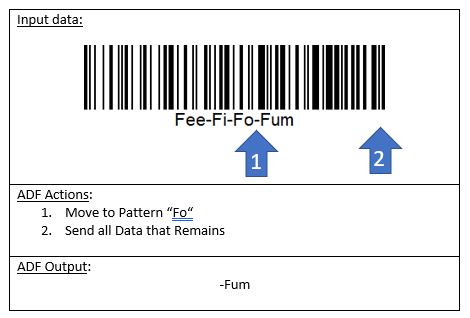
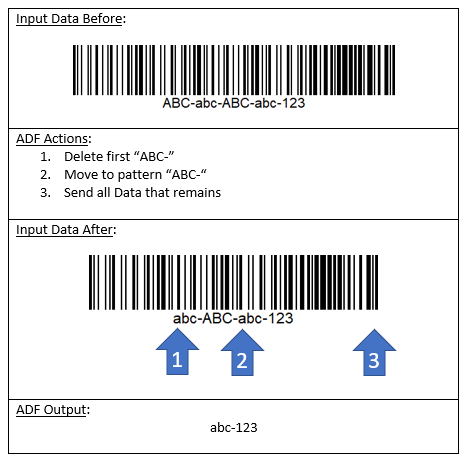
Move to Pattern

This action moves the cursor forward until a matching string is reached. Upon a match, a forward search will place the cursor a character after the matched string.

The following example shows the processing of a Code 128 barcode. The blue arrows show the position of the cursor after each action.

If the string to match is not seen up to the start or end of data, this causes an “Action Failure”. See the “General Settings” section in 123Scan to select how to respond to this failure.

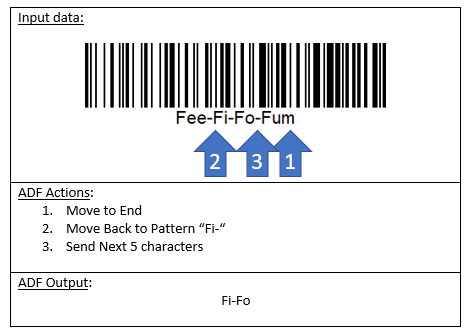
Move Back to Pattern

This action moves the cursor backward until a matching string is reached. Upon a match, a reverse search will place the cursor at the first character of the matched string.

The following example shows the processing of a Code 128 barcode. The blue arrows show the position of the cursor after each action.

If the string to match is not seen up to the start or end of data, this causes an “Action Failure”. See the “General Settings” section in 123Scan to select how to respond to this failure.

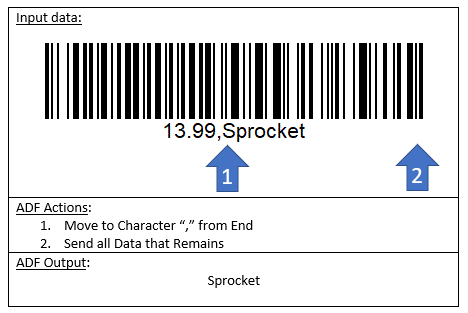
Move to Character from End

This action moves the cursor backward until a matching character is reached. Upon a match, a reverse search will place the cursor a character after the position of the matching character.

The following example shows the processing of a Code 128 barcode. The blue arrows show the position of the cursor after each action.

If the character to match is not seen up to the start or end of data, this causes an “Action Failure”. See the “General Settings” section in 123Scan to select how to respond to this failure.

Editing Input Data Before it is Sent

When barcode data is scanned, ADF holds this input data in a buffer. This data can be modified immediately by certain actions and retained in this buffer before the data is sent.

In ADF1, these modifications are retained if the current rule fails and exits due to an action failure. This means that the next rule that processes this input data will have whatever data is modified by the previous rule.

In ADF2 this side effect is eliminated by default. Each rule starts with the originally scanned data. This “Undo Changes” setting can be turned off by disabling the “Undo Changes” setting in the General settings section of 123Scan. This side effect can also be avoided by selecting “Ignore Failed Actions” or Partial Actions, aka “Do what you can when an Action Fails” in the General settings section of 123Scan.

Erase First N Characters

This action deletes the specified number of characters starting at the current cursor position. If the requested deletion goes beyond the end of data, this causes an “Action Failure”. See the “General Settings” section in 123Scan to select how to respond to this failure. The cursor does not move. The blue arrows show the position of the cursor after each action.

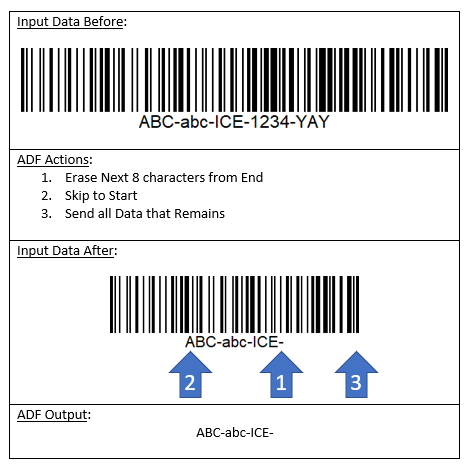
Erase First N Characters from End

This action deletes the specified number of characters starting at the end of the data. If the requested deletion goes beyond the start of data, this causes an “Action Failure”. See the “General Settings” section in 123Scan to select how to respond to this failure. The cursor is moved to the end of the input data. The blue arrows show the position of the cursor after each action.

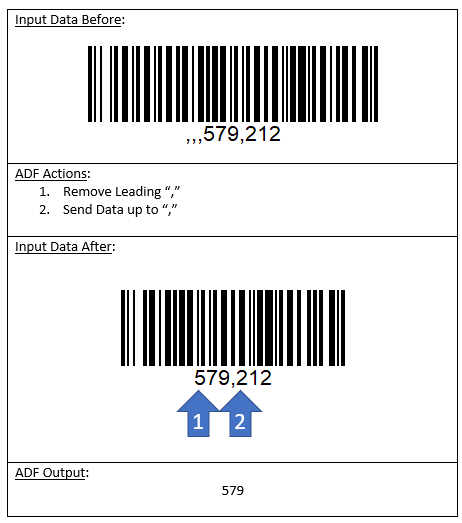
Remove Leading Characters

This action removes all leading instances of the selected character from the input data. The cursor is moved to the start of the data, and as long as the cursor is pointing at the specified ASCII character, it is removed from the input data. Once the cursor points to a character other than the specified character, the action is complete. The blue arrows show the position of the cursor after each action.

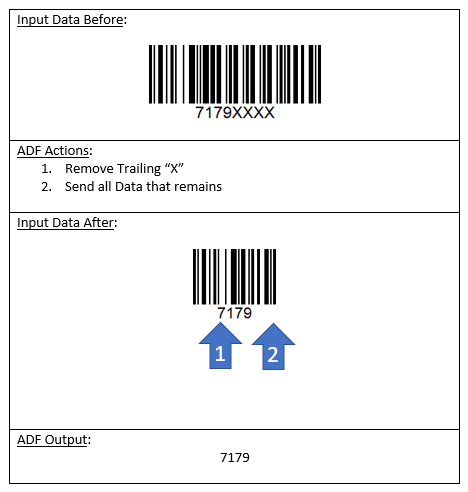
Remove Trailing Characters

This action removes all trailing instances of any specified ASCII character from the end of the input data. In the removal process, the cursor is moved to the last character of the data, and as long as the cursor is pointing at the specified ASCII character, it is removed from the input data. Once the cursor points to a character other than the specified character, the action is complete. The cursor is set to the start of the data at the end of the process. The blue arrows show the position of the cursor after each action.

Delete First Pattern

This action looks for a specified string within the input data starting at the current cursor position. This string is removed from the input data. The blue arrows show the position of the cursor after each action.

If the string to match is not seen up to the end of data, this causes an “Action Failure”. See the “General Settings” section in 123Scan to select how to respond to this failure.

Delete All Patterns

This action looks for a specified string within the input data starting at the current cursor position. This string is removed from the input data. This deletion is repeated for every instance found in the input data. The blue arrows show the position of the cursor after each action.

If the string to match is not seen up to the end of data, this causes an “Action Failure”. See the “General Settings” section in 123Scan to select how to respond to this failure.

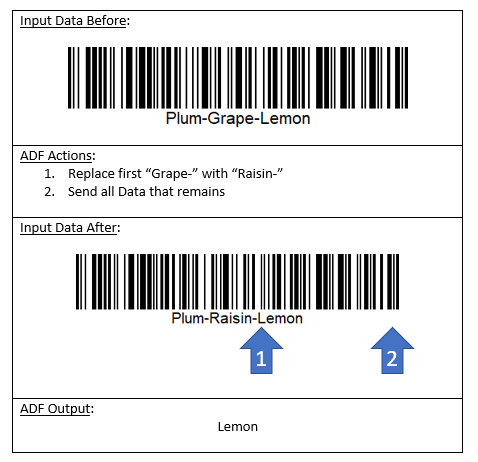
Replace First Pattern

This action looks for a specified string within the input data starting at the current cursor position. This string is removed from the input data and it is replaced with another string. The cursor is moved to a character after the replaced string. The blue arrows show the position of the cursor after each action.

If the string to match is not seen up to the end of data, this causes an “Action Failure”. See the “General Settings” section in 123Scan to select how to respond to this failure.

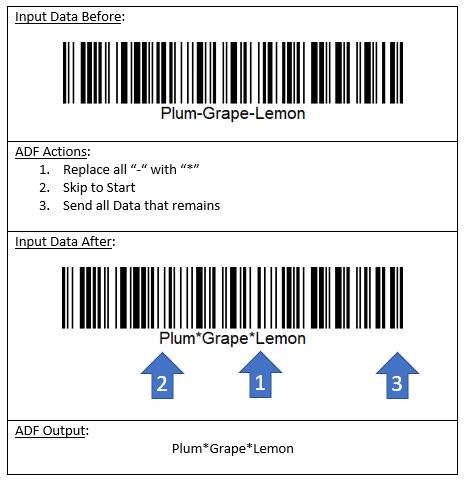
Replace All Patterns

This action looks for a specified string within the input data starting at the current cursor position. This string is removed from the input data and it is replaced with another string. This replacement is repeated for every instance found in the input data. If the string to match is not seen up to the end of data, this causes an “Action Failure”. See the “General Settings” section in 123Scan to select how to respond to this failure. The blue arrows show the position of the cursor after each action.

Trim Data Outside Positions

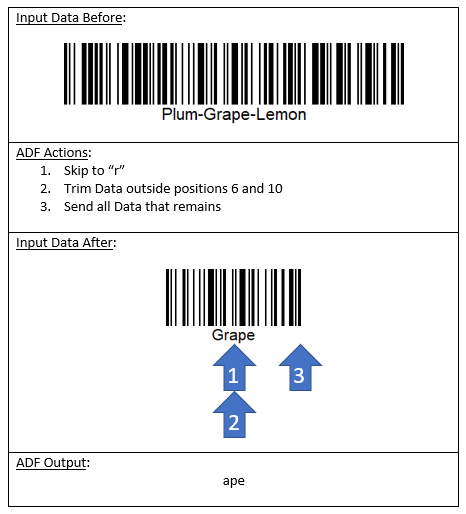
This action will trim the input data to be a substring of the original data. The start and end position within the scanned input data is selected and ADF will trim off the data before and after the set range. This trimmed data is used for the rest of the rule's execution. If the cursor is within the trim range, then the cursor is not changed, otherwise the cursor is set to the start of the trimmed data. The blue arrows show the position of the cursor after each action.

Modifying Output Data While it is Sent

ADF provides several options to filter and modify barcode data before it is sent out. These options are configured in advance in the rule and they take effect when a request is made to send data (Send All Data, or Send Data up to Char X, or Send next N characters of data). The input data is not changed by these actions.

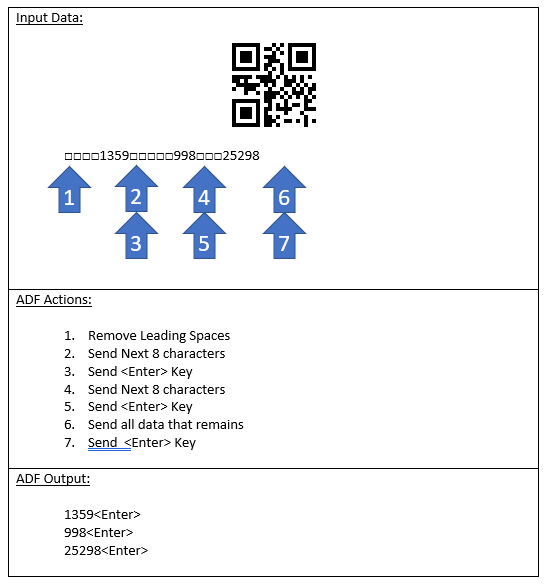
Remove all Leading Spaces

ADF has actions available to remove leading spaces in the front of the Output Data. When enabled, every send data request will have its leading spaces removed.

For example, if a QR barcode has three fields of data contained in it, all starting with leading spaces, ADF can strip the leading zeros off for each field (“□” shows a Space in input data). The blue arrows show the position of the cursor after each action.

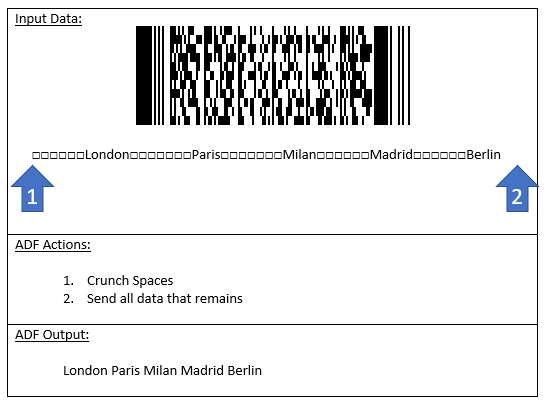
Crunch all Spaces

ADF has an action called “Crunch Spaces” that will shorten any blocks of multiple spaces to a single space within the Output Data.

For example, if a PDF417 barcode contains several 12 byte fields of data, but the spacing of the data is not needed, ADF can strip the extra spaces out when the data is transmitted. (“□” shows a Space in input data). The blue arrows show the position of the cursor after each action.

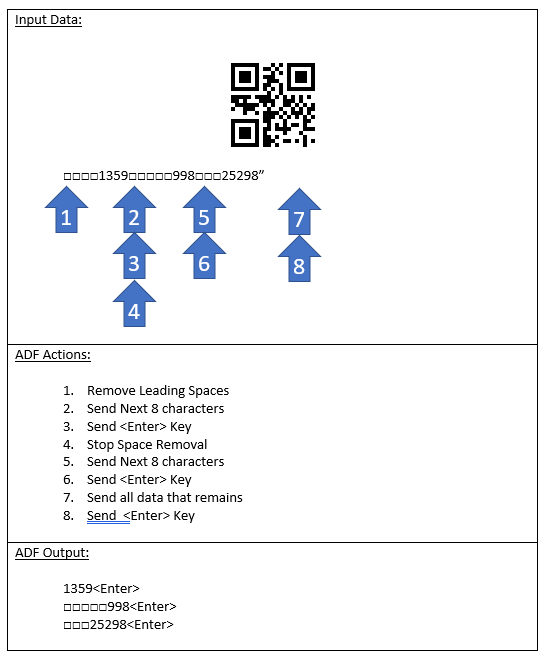
Stop Space Removal

The ADF Interpreter can be directed to stop removing spaces within a rule. All the send actions that follow in the rule will not have leading spaces removed.

For Example, the QR barcode has fields padded with spaces (“□” shows a Space in input and output data). In this case only the first field has leading spaces removed. The blue arrows show the position of the cursor after each action.

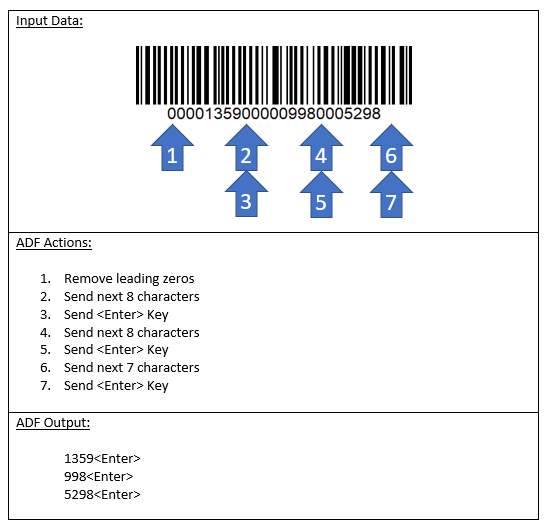
Remove All Leading Zeros

ADF has actions available to remove leading zeros in the front of the Output Data. When enabled, every send data request will have its leading zeros removed.

For example, if a Code 128 barcode has three fields of data contained in it, all starting with leading zeros, ADF can strip the leading zeros off of each field. The blue arrows show the position of the cursor after each action.

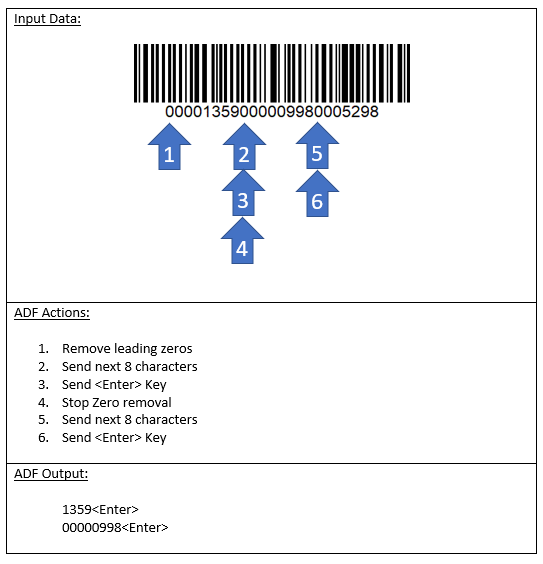
Stop Leading Zero Removal

The ADF Interpreter can be directed to stop removing zeros within a rule. All the send actions that follow in the rule will not have leading zeros removed.

The following example has a Code 128 barcode, and the first field of data has zeros stripped, but the field that follows does not. The blue arrows show the position of the cursor after each action.

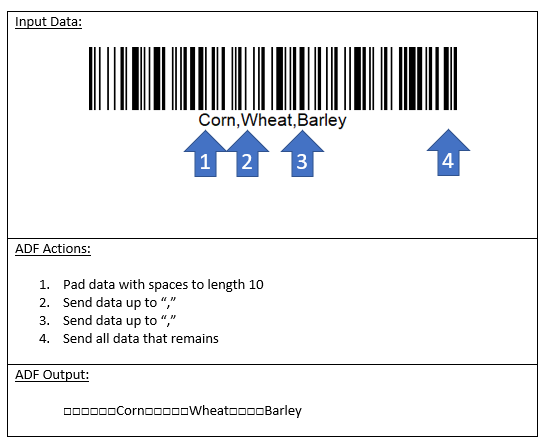
Pad Data with Spaces to a Specified Length

This action can be used to direct the ADF Interpreter to pad each following send actions to a specified length by adding leading spaces. If the data to be sent is longer than the requested length, then no spaces are added.

For example, three fields of data are separated with commas in the input data. This rule can replace the delimiter with fixed width fields with space padding. (“□” shows a Space in output data). The blue arrows show the position of the cursor after each action.

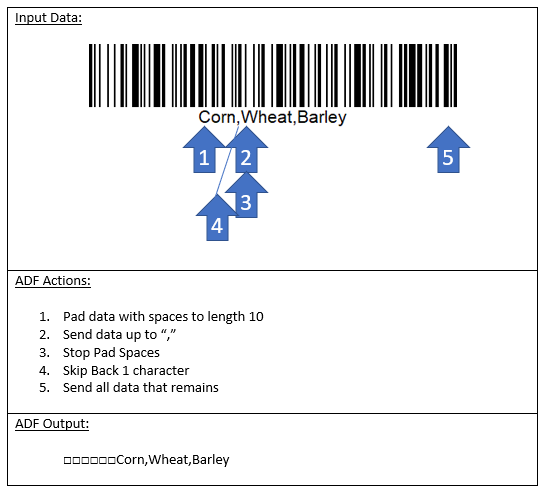
Stop Pad Spaces

The padding with spaces can be stopped within a rule. Here is the previous example, stopping the space padding after the first field. (“□” shows a Space in output data). The blue arrows show the position of the cursor after each action.

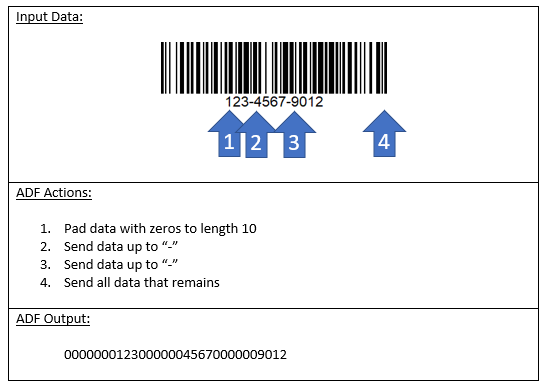
Pad Data with Zeros to a Specified Length

This action can be used to direct the ADF Interpreter to pad each following send actions to a specified length by adding leading zeros. If the data to be sent is longer than the requested length, then no zeros are added. The blue arrows show the position of the cursor after each action.

For example, three fields of data are separated with dashes in the input data. This rule can replace the delimiter with fixed width fields with zero padding. The blue arrows show the position of the cursor after each action.

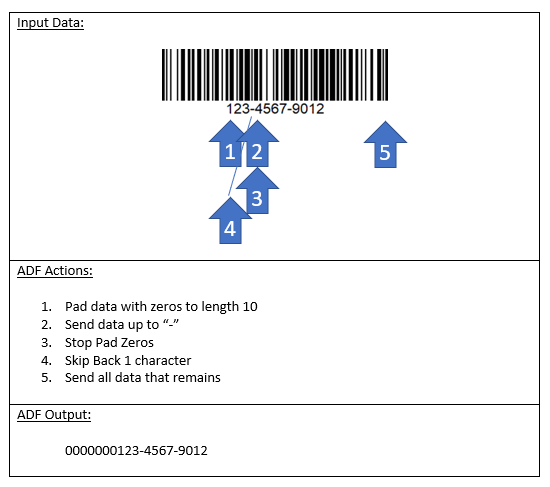
Stop Pad Zeros

The padding with zeros can stopped within a rule. Here is the previous example, stopping the zero padding after the first field. The blue arrows show the position of the cursor after each action.

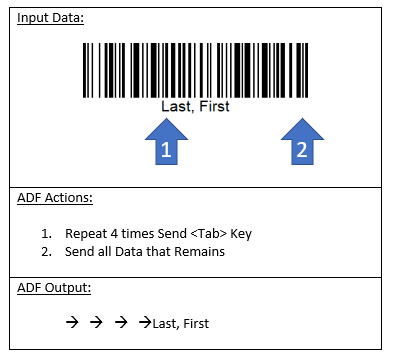
Repeat Next Actin N Times

This feature allows for the quick sending of repeated data or keystrokes. This can be handy if you need to “TAB” past several fields in a windows form. The next Send action that follows the Repeat action will be repeated. This only applies to Send Keystroke or Send Value actions. The repeat only applies once and is cleared.

For example, if a barcode contains the customers name, but it is in the 4th field on the data entry form, then the sequence “Repeat 4 times, send TAB Key” could be added to facilitate data entry. (“→” shows a Tab in output data). The blue arrows show the position of the cursor after each action.

Filter Output Data

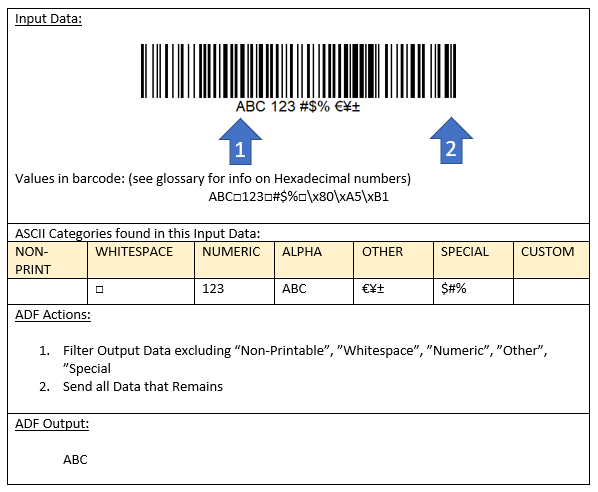
When processing data, sometimes the data has special characters or un-printable characters that are not needed. ADF has a filtering capability where one or more categories of ASCII data can be filtered out of the Output Data. (see Appendix: ASCII Type Classification for a list of ASCII values and their default character type). The blue arrows show the position of the cursor after each action.

ADF supports the filtering of these types of ASCII data:

  • NON-PRINT - Non Printable ASCII value
  • WHITESPACE - Tabs, Spaces, Line Feeds, Vertical Tabs, Carriage Returns
  • NUMERIC - Values 0 to 9
  • ALPHA - Values A to Z and a to z
  • OTHER - ASCII values greater than 127
  • SPECIAL - Everything else (for example: !@#$%^&*()_+)
  • CUSTOM - Set of up to Custom Characters defined in the General Settings of the rule. See Chapter 4: Tips for Power Users of ADF for details on defining a custom character set.

An action can be added to a rule to “exclude” one or more ASCII categories from the output data. The following barcode contains a few samples from each ASCII type: (“□” shows a Space in output data)

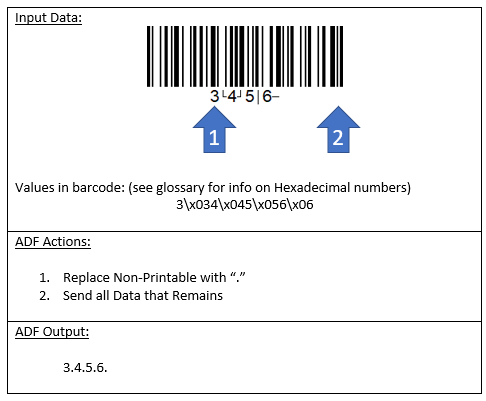
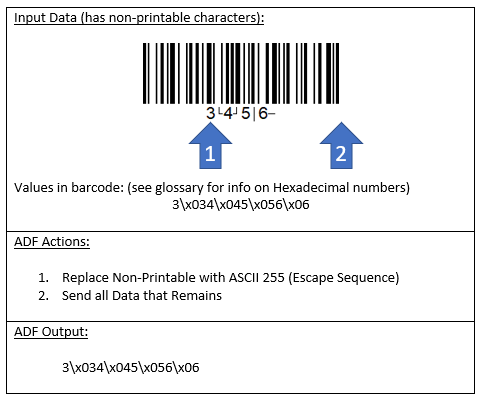
Replace Non Printables

This feature allows the substitution of all non-printable characters in the scanned barcode data to be substituted with another ASCII value.

The example shows what would be transmitted if this feature is enabled with the period character “.” substituted. The blue arrows show the position of the cursor after each action.

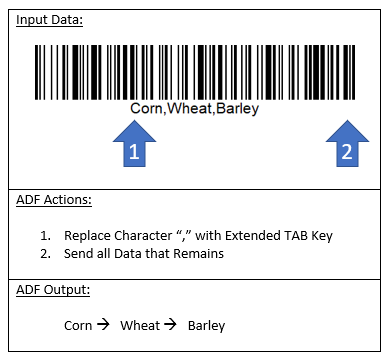
Replace a Character with a Keystroke

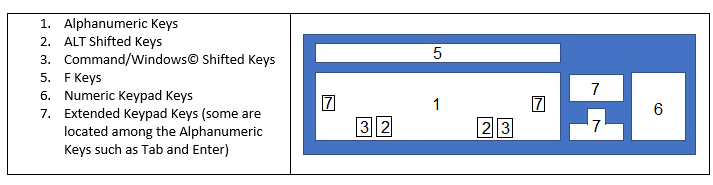
This feature allows the substitution of a specific character with a Keystroke value. Zebra scanners support several categories of Keystrokes.

The following diagram shows the typical zones of a keyboard. Most keys that reside in these zones can be selected to replace the character specified in this action. Not all ALT or Command Shifted keys are supported for security reasons.

The following example shows how the comma delimiter can be replaced with the TAB key on the keyboard. (“→” shows a Tab in output data) The blue arrows show the position of the cursor after each action.

Tips for Power Users of ADF

The ADF interpreter provides a powerful rules based editor to process scanned barcode data and format the data before transmission to the attached host device. The previous chapters highlighted the most commonly used features of ADF, this section will provide information on ADF features that provide additional functionality when it is needed.

Individual ADF Rules can have Multiple Criteria Sections

The traditional ADF rule has a single Criteria section and an Action section, but what if you find that you have multiple rules with the same Action section. To avoid all that repetition, in the latest version of ADF, a rule can have up to four criteria sections. What this means is that four criteria sections all have the same actions.

Multiple criteria sections can be created in 123Scan by clicking on one of the four criteria section icons.

Clicking on the icon will allow the user to edit or add criteria to the section. The order of the sections is not important. Follow the prompts to select criteria in the editor. Once filled in, when the ADF Interpreter sees the criteria section it will check each one individually, if any of the sections evaluate to be “True” then the rule applies.

The following example shows a rule with three criteria sections. Each section has a few criteria and the sections have an OR relationship between them. All three share the same Action section. In this example, criteria section 2 applies. The blue arrows show the position of the cursor after each action.

How to Change the Status of a Rule Set

ADF has a mechanism to enable or disable one or more rules at a time using Rule Sets. It is described in Understanding Criteria within a Rule. There are eight numbered Rule Sets supported by ADF and each rule can optionally be assigned to a Rule Set number.

Rule Sets can be enabled or disabled using one of the following approaches:

  1. Use of a “Switching Rule” in ADF
  2. Use of a Special Barcode to manually turn Rule Sets on and off
  3. Use of scanner setting that ties Rule Set numbers to Host Interfaces

Use of Switching Rules

A rule could be added to ADF that checks for a certain User Defined barcode and if it is scanned, then an Action in the rule will enable or disable a specific Rule Set number.

This can be useful if the user wants to reconfigure the scanner differently depending on the scanner's use case. ADF Rules can be assigned to a Rule Set number assigned to each use case. And when the User Defined barcode is scanned, ADF can enable or disable the desired sets of rules and prepare the scanner for it's use.

Use of Special Rule Set Switching Barcode

ADF based scanners support pre-defined barcodes that can be used to manually enable or disable Rule Sets. Here are some samples. There is a full set of these barcodes covering all 8 Rule Sets downloadable online.

Use of Connected Host Interface

ADF can be configured to enable a particular Rule Set when a certain Host connection is made to the scanner. When the Host connection is changed to another type, the Rule Set can be disabled.

This can be useful if the scanner is used in two different locations in the business. Fox example, the Back Room will connect the scanner using an RS232 connection, and the Retail checkout lanes use a USB SNAPI connection. The scanner can be set to enable Rule Set 1 when RS232 is connected, and Rule Set 2 when USB SNAPI is connected.

ADF rules in the scanner related to the Back Room would be assigned to Rule Set 1 using a Criteria section entry, and ADF Rules for the Checkout would be assigned to Rule Set 2.

By doing this, the same scanner can be used and the scanner's ADF rules will adapt to its location of use.

How to Override ADF's Default Relationships Between Criteria

As shared earlier, ADF uses “Boolean Logic” to evaluate the Criteria section of a Rule. Most of the time, the default relationship between Criteria section items (AND/OR) works just fine. There are some rare cases, when a rule needs to use Boolean Operators to clarify the relationship between Criteria.

Care must be applied in adding Boolean Operators as it is possible to define a rule that will never apply. The ADF Interpreter does not do Semantic checking on the rule designs. For example, if you program a rule like this the rule will never apply:

If Length is 10 AND Length is 12

It is impossible for a barcode to have two different lengths.

Using an OR Relationship

Ordinarily two criteria of different types are related by AND:

If Criteria A is TRUE AND Criteria B is TRUE then the rule applies

However, there might be an occasion when either of these Criteria should cause the Rule to apply.

If Criteria A is TRUE OR Criteria B is TRUE then the rule applies

To program a Rule this way, the OR operator needs to be inserted in the Rule. For Example, the Rule Entry in 123Scan could be setup like this:

This would override the default “AND” relation between the two criteria. Both the “AND” and “OR” operators are only allowed to be inserted between two criteria.

Using a NOT Relationship

ADF provides the ability to Negate a Criteria entry. For example, a rule can have the following:

If NOT Code 128 then the rule applies

The NOT Boolean operator negates the criteria, so in this case, any Code type but Code 128 evaluates to TRUE.

The NOT Operator can also be combined with AND and OR:

If Code 128 AND NOT length 12

If Starts with “A” OR NOT Code 128

The NOT operator is only allowed to be inserted at the front of the Criteria list, or following the OR or AND operators.

How to Display non-Printable Characters in Your Barcodes

ADF has an action called “Replace Non-Printable” that substitutes all non-printable characters with a single ASCII character, such as a period “.”. But what if you want to see what the specific non-printable characters are in the barcodes that you scan.

ADF supports a special case where non-printable characters can be converted to a “hexadecimal escape sequence”. This feature allows each non-printable character in the input data to be displayed in the format \x99, where 99 is substituted with the non-printable character's value in hexadecimal. (see glossary for info on Hexadecimal numbers)

To use this, the “Replace Non-Printable” action is performed with a replacement value of 255.

The example shows what would be transmitted if this feature is enabled. The blue arrows show the position of the cursor after each action.

How to Define a Custom Character Set to Support Data Filtering

ADF has a powerful filtering feature that can screen through barcode data to eliminate it, or to match barcodes that have it. A rule can have a Custom Set of characters defined to be referenced within the rule. The General Settings section of the rule has a place to setup this list. Up to 16 characters can be selected.

Adding a character to the Custom set overrides the default type of a character. (see Appendix: ASCII Type Classification for a list of ASCII values and their default character type).

For example, at the checkout stand, barcodes that contain a slash character “/” or a Dollar sign “$” need special parsing to remove price and quantity data. The characters “/” and “$” can be put in the Custom character set. In the “Barcode Content” criteria the “Custom” Character set can be selected. Then whatever needed parsing rules can be setup in the Action Section.

Failure Recovery

Updates to the ADF Interpreter

Advanced Data Formatting has been in Zebra's products for many years, and the latest version of the ADF interpreter is able to support all of the legacy features and rule formats. There are some basic limitations that need to be noted depending on the selected Rule Format.

Limitations of Using the Legacy ADF1 Format

If the stored ADF rules are in the ADF1 Format, then only rules in that format may be added. For scanners with the latest ADF, any ADF opcode both new and old may be used, except those related to “General Settings”:

  • Only 1 criteria section is allowed
  • Pattern Match and Replacement strings are limited to 10 characters
  • Changing the input source to User Defined String, or Asset Information is only allowed to process up to 30 characters. Any data that exceeds this length are truncated to 30 characters.
  • No use of the Custom Character set

Using the legacy ADF1 Format will use less Flash space per rule and it will allow for the storage of more rules. Though the size of the overall rule buffer is sufficiently large enough for most user’s needs.

Benefits of Using the Latest ADF2 Format

If the stored ADF rules are in the ADF2 Format, then only rules in that format may be added. Any opcode both new and old may be used without limitation. This is the default format supported with the latest version of ADF.

The General Settings section of the ADF Rule has some settings that customizes how the rule is built and executed.

Understanding Action Failures

A key aspect of understanding ADF editing is knowing that “ADF Rules require that the data matches the rule”. Actions in the rule can move the cursor forward or backward a specified number of positions, or until a matching character or pattern is seen. If an action requests to move to a place in the data that does not exist, then the rule is said to have an “Action Failure”.

In the legacy ADF1, an Action Failure would cause the rule to Exit and the ADF Interpreter would try the next rule.

In ADF2, each rule can be configured to recover from an Action Failure in one of three ways:

  • Exit Action (default)
  • Ignore Action
  • Partial Action

The General Settings section of each rule can choose one of these responses to an Action Failure. For more details on what happens with specific actions, refer to Appendix: Action Failures and Recovery. If the Action Fail Recovery feature is not selected the rule will exit on an action failure as in ADF1.

Sample Rule Set

For this section, all the examples refer to this sample set of rules:

Rules Criteria Actions
Rule 1 When barcode starts with “A” Skip ahead 5 characters
Send data up to “.”
Send <@> character
Send all data that remains
Send <Enter> Key
Rule 2 When barcode starts with “A” Skip ahead to “-”
Send all data that remains
Send <Enter> Key
Rule 3 When any barcode is scanned Send next 5 characters
Send <Enter> Key
Rule 4 When any barcode is scanned Send “???”
Send <Enter> Key

Exit Rule on Action Failure

Traditionally, on an Action Failure, ADF will exit the failed rule and resume looking for the next rule that applies. This can be used to select rules with even more granularity than the criteria section.

For example: If the rule buffer contains the sample set of rules in the previous section, then the ADF Interpreter will run them as follows. The left column shows what barcode is scanned, and the remaining columns show what rules applied due to the “Exit Rule” recovery process.

Input Data Scanned Rule Applied Output Data Reason
A12345XYZ.879 Rule 1 5XYZ@879 <Enter> All actions passed
A12345XYZ-879 Rule 2 879 <Enter> Rule 1 Action Failed (no “.”)
A12345XYZ879 Rule 3 A1234 <Enter> Rule 1 and 2 Action Failed (no “.” Or “-“)
A123 Rule 4 ??? <Enter> Rule 1 and 2 Action Failed (no “.” Or “-“) Rule 3 Action Failed (only 4 characters to send)

Ignore Actions That Fail

The latest version of ADF allows the ADF Interpreter to be configured to ignore any action that fails. This means that the rules with Action Failures will not exit but continue.

Using the sample set of rules from the previous section, this table shows how the ADF Interpreter will respond to the rules with “Ignore Action Failure” enabled:

Input Data Scanned Rule Applied Output Data Reason
A12345XYZ.879 Rule 1 5XYZ @879<Enter> All actions passed
A12345XYZ-879 Rule 1 @5XYZ-879 <Enter> Send data up to “.” ignored
A12345XYZ879 Rule 1 @5XYZ879 <Enter> Send data up to “.” ignored
A123 Rule 1 @A123<Enter> Skip ahead 5 characters ignored Send data up to “.” ignored

Partial Action Applied When an Action Fails

The latest version of ADF also allows the ADF Interpreter to be configured to do what it can when any action that fails. This means that the rules with Action Failures will not exit but continue. For more details on what happens with specific actions, refer to Appendix: Action Failures and Recovery.

Using the sample set of rules from the previous section, this table shows how the ADF Interpreter will respond to the rules with “Do what it can” enabled:

Input Data Scanned Rule Applied Output Data Reason
A12345XYZ.879 Rule 1 5XYZ @879<Enter> All actions passed
A12345XYZ-879 Rule 1 @5XYZ-879 <Enter> Send data up to “.” ignored
A12345XYZ879 Rule 1 @5XYZ879 <Enter> Send data up to “.” ignored
A123 Rule 1 @<Enter> Skip ahead 4 characters instead of 5


Appendix

ASCII Type Classification

The following table shows the classification of ASCII values according to these categories:

  • NOPRINT - Non Printable ASCII value
  • WHITESPACE - Tabs, Spaces, Line Feeds, Vertical Tabs, Carriage Returns
  • NUMERIC - Values 0 to 9
  • ALPHA - Values A to Z and a to z
  • OTHER - ASCII values greater than 127
  • SPECIAL - Everything else

The categories are used by the “Include” criteria and the “Filter Output Data” action, as well as the Modify Data action to replace Non-Printable characters with a printable one.

Table 1: ASCII Type Classification

ASCII Category ASCII Value
NOPRINT 00 NUL
NOPRINT 01 SOH
NOPRINT 02 STX
NOPRINT 03 ETX
NOPRINT 04 EOT
NOPRINT 05 ENQ
NOPRINT 06 ACK
NOPRINT 07 BEL
NOPRINT 08 BS
WHITESPACE 09 TAB
WHITESPACE 10 LF
WHITESPACE 11 VT
WHITESPACE 12 FF
WHITESPACE 13 CR
NOPRINT 14 SO
NOPRINT 15 SI
NOPRINT 16 DLE
NOPRINT 17 DC1
NOPRINT 18 DC2
NOPRINT 19 DC3
NOPRINT 20 DC4
NOPRINT 21 NAK
NOPRINT 22 SYN
NOPRINT 23 ETB
NOPRINT 24 CAN
NOPRINT 25 EM
NOPRINT 26 SUB
NOPRINT 27 ESC
NOPRINT 28 FS
NOPRINT 29 GS
NOPRINT 30 RS
NOPRINT 31 US
WHITESPACE Space
SPECIAL !
SPECIAL "
SPECIAL #
SPECIAL $
SPECIAL %
SPECIAL &
SPECIAL '
SPECIAL (
SPECIAL )
SPECIAL *
SPECIAL +
SPECIAL ,
SPECIAL -
SPECIAL .
SPECIAL /
NUMERIC 0
NUMERIC 1
NUMERIC 2
NUMERIC 3
NUMERIC 4
NUMERIC 5
NUMERIC 6
NUMERIC 7
NUMERIC 8
NUMERIC 9
SPECIAL :
SPECIAL ;
SPECIAL <
SPECIAL =
SPECIAL >
SPECIAL ?
SPECIAL @
ALPHA A
ALPHA B
ALPHA C
ALPHA D
ALPHA E
ALPHA F
ALPHA G
ALPHA H
ALPHA I
ALPHA J
ALPHA K
ALPHA L
ALPHA M
ALPHA N
ALPHA O
ALPHA P
ALPHA Q
ALPHA R
ALPHA S
ALPHA T
ALPHA U
ALPHA V
ALPHA W
ALPHA X
ALPHA Y
ALPHA Z
SPECIAL [
SPECIAL \
SPECIAL ]
SPECIAL ^
SPECIAL _
SPECIAL `
ALPHA a
ALPHA b
ALPHA c
ALPHA d
ALPHA e
ALPHA f
ALPHA g
ALPHA h
ALPHA i
ALPHA j
ALPHA k
ALPHA l
ALPHA m
ALPHA n
ALPHA o
ALPHA p
ALPHA q
ALPHA r
ALPHA s
ALPHA t
ALPHA u
ALPHA v
ALPHA w
ALPHA x
ALPHA y
ALPHA z
SPECIAL {
SPECIAL |
SPECIAL }
SPECIAL ~
NOPRINT 127 DEL
OTHER 128-255

Action Failures and Recovery

The following table shows how the ADF interpreter will recover in various Action Failure cases when “Partial Action Recovery” is selected in General Settings. The Ignore recovery is applied if there is no partial recovery available, see table.

Table 2: Action Failures and Recovery

Action Failure Partial Action Recovery
Send all data that remains Output buffer full Only insert data up to what can fit, discard the rest
Send up to char X No match Ignore Action
Send up to char X Output buffer full Only insert data up to what can fit, discard the rest
No match Ignore Action
Send next N chars Out of bounds Send data up to end
Output buffer full Only insert data up to what can fit, discard the rest
Select mag data Message source is not magstripe data Ignore Action
Select mag data Track number in rule out of range Ignore Action
Move cursor to Char X No match Ignore Action
Move cursor to position Out of bounds Move cursor to last character in data
Move cursor ahead Out of bounds Move cursor to last character in data
Move cursor back Out of bounds Move cursor to first character in data
Move cursor to Pattern No match Ignore Action
Replace first Pattern No match Ignore Action
Output buffer full Only insert data up to what can fit, discard the rest
Replace all Patterns No match Ignore Action
Output buffer full Only insert data up to what can fit, discard the rest
Move cursor to position from end Out of bounds Move cursor to first character in data
Move cursor in reverse to char X No match Ignore Action
Move cursor in reverse past string X No match Ignore Action
Send Keystroke Output buffer full Ignore Action
Send pause N seconds Output buffer full Ignore Action
Send pause indirect Output buffer full Ignore Action
Replace Character Keycat value in rule not supported Ignore Action
Replace Non Printable The ASCII value that replaces unprintable data is also unprintable Ignore Action
Trim Outside Positions The start and end indexes are the same or the end index is less than the start Ignore Action
Filter Output Data Filter Mask has undefined bits set Ignore Action
Erase next N characters Out of bounds Ignore Action
Erase N characters from End Out of bounds Ignore Action
Delete First Pattern No match Ignore Action
Delete all Patterns No match Ignore Action
Beep Indication UIF code out of range Ignore Action
Rule Set Control Flag number out of range Ignore Action
Send Value (Prefix Suffix) Invalid param index (>6) or Out of Memory Ignore Action
Change Input Source Invalid Source Type or Unsupported Attribute number Ignore Action
LED indication Product does not support the requested LED or duration exceeds 10 seconds Ignore Action
Vibrate Indication Vibrator motor is not present or Haptics feature is not installed Ignore Action
Repeat Send Repeat count is greater than 10 Coerce count to 10 and do the repeat

List of Features by ADF Version

Criteria

The following table shows a list of criteria supported in the legacy version of ADF and the latest version ADF2.

Table 3: List of Criteria Supported by ADF Version

Criteria Criteria Type Legacy ADF (ADF1) ADF2
Barcode Content Alphabetic Characters ✔
Custom Character Set ✔
Extended ASCII Codes (128-255) ✔
Non-Printable ✔
Numeric Characters ✔
Special Characters ✔
Whitespace ✔
Barcode Length Equal ✔ ✔
Greater than ✔ ✔
Less than ✔ ✔
Multiple lengths (3) ✔ ✔
Not equal ✔ ✔
Range ✔ ✔
Single length ✔ ✔
Barcode Trigger Mode Handsfree ✔
Primary Trigger ✔
Secondary Trigger ✔
Software Trigger ✔
Barcode Type Code type ✔ ✔
Host Mode ✔
Input Source Any scanner ✔ ✔
Aux serial input ✔ ✔
Auxiliary scanner ✔ ✔
Primary scanner ✔ ✔
Match String Match any location ✔ ✔
Match at position ✔ ✔
Match end ✔
Match start ✔ ✔

Actions

The following table shows a list of actions supported in the legacy version of ADF and the latest version ADF2.

Table 4: List of Actions Supported by ADF Version

Action Action Type Legacy ADF (ADF1) ADF2
Skip (Input Data) Ahead N characters ✔ ✔
Back N characters ✔ ✔
To end ✔ ✔
To position N from end ✔
To position N from start ✔ ✔
To start ✔ ✔
Move Cursor Location (Input Data) Cursor back to pattern X ✔
Past character X ✔ ✔
To character X ✔ ✔
To character X from end ✔
To pattern X ✔ ✔
Edit (Input Data) Delete all pattern X ✔
Delete first pattern X ✔
Erase next N characters ✔
Erase next N characters from end ✔
Remove leading character X ✔
Remove trailing character X ✔
Replace all pattern X ✔ ✔
Replace first pattern ✔ ✔
Trim outside positions ✔
Send (Output Data) Pause Specified amount of time ✔ ✔
Send All Data ✔ ✔
Send next N characters ✔ ✔
Send up to character X ✔ ✔
Send Value (Output Data) Send constant value Alphanumeric ✔ ✔
ALT Shifted ✔ ✔
Command (GUI) ✔ ✔
Extended Keypad ✔ ✔
F Keys ✔ ✔
Numeric Keypad ✔ ✔
Send value stored in Parameter Suffix/Prefix Values ✔ ✔
Modify (Output Data) Remove Padding Remove all Spaces ✔ ✔
Crunch all Spaces ✔ ✔
Stop Space Removal ✔ ✔
Remove Leading Zeros ✔ ✔
Stop Leading Zero Removal ✔ ✔
Add Padding Stop Pad Spaces ✔ ✔
Pad Spaces Left ✔ ✔
Pad Zeros Left ✔ ✔
Stop Pad Zeros ✔ ✔
Filter Output Data Alphabetic Characters ✔
Custom Character Set ✔
Extended ASCII Codes (128-255) ✔
Non-Printable ✔
Numeric Characters ✔
Special Characters ✔
Whitespace ✔
Repeat Send Action ✔
Replace character ✔
Replace non-printable ✔
Change Input Source Asset Tracking Information ✔
Barcode Data ✔
User Defined String ✔
User Feedback Beep Indication ✔ ✔
LED Indication ✔
Vibrate Indication ✔
Rule Set Control Disable/Turn Off Sets 1 to 4 ✔ ✔
Sets 5 to 8 ✔
Enable/Turn On Sets 1 to 4 ✔ ✔
Sets 5 to 8 ✔

General Settings

For every rule in ADF2, there is a General Settings section. This section is used to customize how the rule is built, how Action errors are recovered and special settings such as an optional Custom ASCII Set. The Custom ASCII Set is used by the Barcode Content criterion and the Filter Output Data action.

Legacy ADF1 does not have a general settings section, but the ADF interpreter has default values shown here.

Table 5: List of General Settings Supported by ADF Version

General Settings Sub Action Legacy ADF (ADF1) ADF2
ADF Version Version of ADF Rule Format Always 1 Always 2
Number of Criteria Sections Maximum number of criteria sections in a rule Always 1 Up to 4
Error Recovery Action Ignore N/A Optional
Action Exit Default Default
Action Partial N/A Optional
String Lengths Full Size N/A Default
Compact Size Default Optional
Custom ASCII Set Up to 16 ASCII Values N/A Optional
Data Recovery Restore Input Data upon Action Failure N/A Default
Keep data changes after a rule fails for next rule Default Optional

Download

Download 123Scan Configuration Utility

IMPORTANT

Zebra recommends using the latest release whenever possible.

To download 123Scan Configuration Utility:

  1. Visit the Zebra 123Scan Configuration Utility download page and select the desired download(s).
  2. Proceed to the 123Scan Configuration Utility release notes for the version details.