About JPOS Drivers for Windows and Linux

Overview

The POS application is either a Java application or an applet that uses one or more JavaPOS devices. An application accesses the JavaPOS device through the JavaPOS Device Interface, which is specified by Java interfaces.

Each JavaPOS device is a combination of these components:

  • JavaPOS Device Control is a Java class that provides the interface between the application and the device category. It contains no graphical component and is therefore invisible at runtime and conforms to the JavaBeans API. The Device Control was designed so that all implementations of a device category's control are compatible. The Device Control can be developed independently of a Device Service for the same device category. They may even be developed by different companies.
  • JavaPOS Device Service is a Java class that is called by the Device Control through the JavaPOS Device Service Interface. The Device Service is used by the Device Control to implement JavaPOS-prescribed functionality for a physical device. It can also call special event methods provided by the Device Control to deliver events to the application.
  • The JPOS driver included with the Zebra Scanner SDK for Windows provides JNI (Java Native Interface) mechanisms to scanner and scale devices (CSJPOSScanner.dll and CSJPOSScale.dll) for the JavaPOS Device Service layer to interface with the CoreScanner driver.

Zebra Scanner JPOS Driver Architecture

Figure 1: Zebra Scanner JPOS Driver Architecture

For more information about JavaPOS, JavaPOS architecture, terminology and programmer's guides, refer to:

NOTE: The terms JavaPOS and JPOS are used interchangeably in this document.

Version History

Release Notes for Windows
Release Notes for Linux

Version 3.07.0012 - 07/2026

  1. Added support to seamlessly communicate with new scanners connected to host without requiring initialization through Open-Claim-DeviceEnable.
  2. Bug Fix - Fixed an issue where an incorrect response was returned for release or close calls in the JPOS scale when the scanner is disconnected.
  3. Bug Fix - Fixed an issue where a device mistakenly enabled despite mismatched logical and physical device host modes.
  4. Bug Fix - Fixed an issue where the Clear Input function improperly cleared the Scan Data Label instead of only clearing data events.
  5. Bug Fix - Resolved the issue where the Device Enable command incorrectly functioned without a physical device attached.
  6. Bug fix - Fixedshowing correct weight value in JPOS Scale log file upon performing zero scale process.
  7. Bug fix - Fixed ZeroScale returning success when the scanner fails to reach Zero.
  8. Bug Fix - Minor sample appfix -Fixed the Hex View textbox improperly displaying previously decoded data in the Scan Data Label after an instance was closed.
  9. Bug fix - Minor sample appfix -Fix on "Auto Data Event Enable" UI status issue.

Version 3.07.0008 - 03/2026

  1. Added representation of platform architecture and app version to the headings of the sample application.
  2. Bug Fix - Fixed the incorrect beep in External CheckHealth operation for Scale. Instead, CheckHealth is now verified with a ReadWeight operation.
  3. Bug Fix - Resolved incorrect scan data label prefix shown when ISBN barcodes are scanned.
  4. Bug Fix - Added missing log entries for async and non-async scale weight operations.
  5. Bug Fix - Resolved missing log entries for Direct IO scale and scanner operations in log files.
  6. Bug Fix - Minor sample app fix - Unchecked "Data Event Enable" checkbox after performing barcode scanning and read weight operations in Scanner and Scale profiles.
  7. Bug Fix - Minor sample app fix - Fixed incorrect behavior of AutoDeviceEnable in Scale when Read Weight was used in async mode.

Version 3.07.0007 - 10/2025

  1. Added a new registry key-based configuration option to show or hide decode and raw barcode data from OPOS logs. The default selection will show all decode and raw barcode data.
  2. Bug fix - Fixed intermittent crash when attempting to call Open API when multiple devices are connected to host.
  3. Bug fix - Minor sample app fix - Resolved incorrect display of non-printable characters in barcode data in the OPOS Scanner sample application. Non-printable characters are now showing as e.g. for Horizontal Tab.
  4. Bug Fix - Fixed the incorrect Result Code shown when claiming an already claimed device.
  5. Bug Fix - Fixed the weight reading not being properly updated after the device reboots and reconnects to host while scale live weight is enabled.
  6. Bug Fix - Added missing log entries when performing Retrieve Statistics call before claiming or enabling the device in OPOS Scanner and Scale instances.
  7. Bug fix - Minor sample app fix - Updated text display fields for logical device name, statistics and log view to be read-only in Scanner and Scale sample applications.
  8. Bug fix - Minor sample app fix - Added input validations for Claim timeout and property value text entry fields for Scanner and Scale sample applications.
  9. Bug fix - Fixed issue on claiming the scanner from another process while ExclusiveClaimLevel is enabled and scanner is already claimed from one process.
  10. Bug fix - Minor sample app fix - Resolved incorrectly populating the already cleared "Filter By" textbox with the previous text when performing Reset Statistics.

Version 3.07.0006 - 07/2025

  1. Added “Real Time Alert (RTA)” support for JPOS Scale. RTA configurations are supported through new DirectIO commands, and RTA events are captured and delivered through JPOS DirectIO events.
  2. Enhanced DirectIO events for scanner attach/detach events in scanner Disable state.
  3. Added ClearQueueOnRelease parameter in JPOS configuration XML file.
  4. Bug Fix - Minor sample app fix - Fixed an issue of live weight textbox displaying the previous weight reading after calling device disable.
  5. Bug Fix - Fixed an incorrect exception shown in JPOS sample application, when read weight is performed while in overweight condition.
  6. Bug Fix - Fixed the incorrect ScanData label, ScanData type and Label ID for ISSN symbology.
  7. Bug Fix - Resolved an issue observed when multiple instances of JPOS scanner objects are running in parallel.
  8. Bug Fix - Resolved an issue observed when performing Zero scale while scanner is Under Zero State.

Version 3.07.0005 - 03/2025

  1. Added support to update a scanner's firmware via DirectIO Command.
  2. Added firmware update status events support through DirectIO events.
  3. Added support to load a configuration file to a scanner via DirectIO Command.
  4. Added configuration load status update events support through DirectIO events.
  5. Enhanced the JPOS Scanner and Scale logs to include return values and return states for properties and methods that were missed in the logs.
  6. Renamed the Vision Wedge Produce interface to VDI (Vision Data Interface).
  7. Added the ability to skip unsupported property and method calls for a scanner discovered via the VDI interface.
  8. Bug Fix - Fixed redundant log entries printed in the log file when calling MaximumWeight property.
  9. Bug fix - Minor sample app fix - Restricted the ability to modify the Logical device name in the sample application for both Scanner and Scale.
  10. Bug Fix - Fixed invalid error printed in the terminal when Retrieve Statistics is called without claiming or enabling the device for both Scanner and Scale.
  11. Bug Fix - Minor sample app fix - Resolved the incorrect state of Power Notify checkbox when Device Enabled is used.
  12. Bug Fix - Minor sample app fix - Resolved the incorrect state of Device Enable checkbox when Fast Mode is used.
  13. Bug Fix - Fixed Label IDs to be appended for UPC-EAN supplementals in ScanData.
  14. Bug Fix - Fixed the GoodScanCount to return the correct value of barcode scans when auxiliary devices are connected to a scanner.
  15. Bug Fix - Fixed redundant exception thrown when scanning barcodes from JPOS instance.

Version 3.07.0004 - 12/2024

  1. Added produce interface support for Vision Wedge over JPOS.
  2. Added beep indication for Produce events received in JPOS.
  3. Added logging the Direct IO command names when Direct IO commands are executed.
  4. Bug Fix - Fixed NCR label ID type for symbologies with supplemental code types.
  5. Bug Fix - Fixed OPOS ScanDataType property to report SCAN_SDT_UNKNOWN for 2-Stage barcodes scanned in IBM HandHeld, IBM TableTop and USB OPOS host modes.
  6. Bug Fix - Fixed the incorrect display of live weight when ScaleLiveWeight property is disabled or after performing scale release.

Version 3.07.0001 - 09/2024

  1. Bug fix - Fixed issue in not throwing an exception pop up window upon performing zero scale in overweight scenario.
  2. Bug Fix - Corrected PIDXScan_ScanDataType getting set to 0 incorrectly after performing interactive checkhealth.
  3. Bug Fix - Minor sample app fix - Enable Live Weight checkbox now gets set to disabled state after enabling “Auto Device Enable” or after setting property for PIDX_DeviceEnabled to true.
  4. Enhancements in log file.
    1. Log entries are added to indicate the status of the “Zero Scale” command.
    2. Removed incorrect exception log entry upon performing zero scale process while PIDXScal_ZeroValid is false.
  5. Bug Fix - Fixed issue in disabling scanner after a barcode is read through interactive health check option, when AutoDisable is enabled.
  6. Bug Fix - Minor sample app fix - Implemented validations for values set for properties "DeviceEnabled", "EnableLiveWeight" and "PowerNotify" to indicate invalid values to user through the sample application's log view.
  7. Bug Fix - Corrected the text representations for Health Check options (Internal, External and Interactive) in log view.

Version 3.06.0038 - 07/2024

  1. Bug fix - Minor sample app fix - State of Power Notify checkbox in JPOS Sample application now shows the correct state after releasing the JPOS Scale profile.
  2. Bug Fix - Fixed PIDXScan_ScanData field to display label IDs (if configured) in the JPOS Sample application.
  3. Bug Fix - Fixed JPOS zero scale feature limits up to 0.05 lbs only when it should be 0.60 lbs.

Version 3.06.0037 - 04/2024

  1. Bug fix - Minor sample app fix - State of Data Event Enable and Device Enable checkboxes in JPOS Sample application now shows the correct state when JPOS Scale profile is not opened.
  2. Bug fix - Fixed intermittent exception caused in the JPOS Scale live weight thread when attempting to restart or configure the scale while live weight is in progress.
  3. Bug fix - Minor sample app fix - Synchronized state of “Device Enable” checkbox when “Auto Device Enable” or “Enable Live Weight” selections are used.
  4. Added a new attribute as “ClearQueueOnRelease” to JPOS.xml file, to configure clearing the data queue when device is released.
  5. Bug fix - An exception is fired upon performing Zero Scale with weights greater than the firmware implemented scale zeroing weight limit.
  6. Bug fix - Prevented incorrectly throwing “Timed out with zero stable weight” exception after setting PIDXScal_ZeroValid to true in JPOS Scale live weight DIO.

Version 3.06.0034 - 01/2024

  1. Bug fix - Minor sample app fix - State of Data Event Enable checkbox in JPOS Sample application after a barcode is scanned now works as expected.
  2. Bug fix - Minor sample app fix - State of Device Enable checkbox in JPOS Sample application after a barcode is scanned with AutoDisable enabled now works as expected.

Version 3.06.0033 - 10/2023

  1. Added support for multiple JPOS Scanner instances when communicating to one application. This enables the JPOS driver to communicate to and track multiple scanners simultaneously and independently, like the MP7000 and DS8178/cradle.
  2. Added ability to “Filter Scanner Discovery” on 1.) Host Communication Mode, 2.) Model (a.k.a DS9908...) and 3.) Serial Number. JPOS now matches OPOS functionality.
  3. Bug fix - Check Health (Internal and External) now returns “No hardware” response, when no scanner(s) is connected on the USB bus.
  4. Bug fix - Sample App no longer shows incorrect weight when ReadWeight is called with Freeze Events enabled.
  5. Bug fix - Driver now returns “Not Ready” scale status, when scale is unplugged, while having live weight enabled.

Version 3.06.0029 - 07/2023

  1. Bug fix - Fixed issue that incorrectly appended a Label ID for “NCR label” with barcode type ISSN.
  2. Bug fix - Fixed issue relevant to error arguments (locus and response) in JPOS read weight events.
  3. Sample App Security fix - Updated library “xercesImpl.jar” used in JPOS Sample application from v2.11.0 to v2.12.2 to resolve security vulnerabilities.
  4. Sample App Bug fix - Device enable button’s state now gets updated upon enabling auto device enable (button) in JPOS scale.
  5. Sample App Bug fix - Barcode name now correctly displayed for Han Xin Code.

Version 3.06.0028 - 04/2023

  1. Bug fix in Sample App - Fixed error message incorrectly displayed in JPOS Sample application when Zero Scale command is called and weighing item below 30 grams.
  2. Update JPOS driver to fire Scale status update events whenever a status update and a weight change is detected.
  3. Bug fix in Sample App - Made the display format for scale weight consistent in the sample application for Read Weight, Live Weight and Direct IO NCR Live Weight calls.
  4. Bug fix in JPOS Sample App - Fixed application lockup if enabling both live weight and auto disable simultaneously.

Version 3.06.0023 - 10/2022

  1. Enhanced driver to support NCR requested “HealthCheck” label IDs.
  2. Bug fix - “Get Error Response” API now returns the correct error on Read Weight in Scale.
  3. Bug fix - Deliver an error event with Error response, ER_CONTINUEINPUT, when all items of the queue are delivered and DataEvent is enabled.
  4. Minor UI optimizations in the JPOS Sample Application for Windows.

Version 3.06.0022 - 08/2022

  1. Enhanced driver to support Freeze Events in JPOS Scale.
  2. Bug fix - ReadWeight events now reported correctly when DataEventEnabled is false and LiveWeight is true.

Version 3.06.0021 - 06/2022

  1. Bug fix - ReadWeight events now reported correctly when DataEventEnabled is false and LiveWeight is true.
  2. Enhanced driver to support all NCR requested “ScanData” label IDs.

Version 3.06.0018 - 04/2022

  1. Enhanced Toshiba Global Commerce Solutions (TGCS) POS system support
    1. JPOS driver enhanced to support System Management Information calls from TGCS POS systems.
      1. Corescanner enhanced to support TGCS' CIM Service Provider = “UPOS_BarcodeScanner” queries

Version 3.06.0015 - 01/2022

  1. Updated Windows JPOS sample application to support smaller/lower resolutions monitors.
  2. Fixed rarely seen JPOS statistics retrieval issue.

Version 3.06.0013 - 10/2021

  1. Added support to execute DirectIO commands without claiming the device.
  2. JPOS sample application enhancement to display the “Live Weight” and the logs on live weight status update events.
  3. Enhanced logging in JPOS driver including access to barcode data, power state, scale weight, and what API calls have been made.

Version 3.06.0010 - 08/2021

  1. Enhanced logging in JPOS driver including access to barcode data, scale weight, and what API calls have been made.

Version 3.06.0006 - 04/2021

  1. Add support for “extended error codes” for NCRDIO_SCALE_LIVE_WEIGHT DirectIO command in JPOS.
  2. Add support for JPOS Scale status responses.

Version 3.06.0003 - 01/2021

  1. Added support for Scanner DirectIO RESET command.
  2. Added support for custom MP7000 scale result codes for ErrorOverWeight, ErrorUnderZero and ErrorSameWeight.

Version 3.06.0002 - 10/2020

  1. JPOS driver update. Removed Apache Xerces XML parser dependency from the Zebra JPOS Service Object (SO).

Version

  1. JPOS driver update. Removed Apache Xerces XML parser dependency from the Zebra JPOS Service Object (SO).

Version 3.05.0003 - 04/2020

  1. For NCR based retail POS customers- Added support for NCR Direct I/O command in JPOS drivers (Scanner and Scale).
  2. JPOS driver update. JPOS driver now uses a common code base with the more mature Linux JPOS driver.
  3. JPOS driver operation now also validated on OpenJDK 11, in addition to existing validation on the Oracle JDK.

Version 3.05.0001 - 01/2020

  1. Enhanced the JPOS driver to meet fully JPOS 1.14 specification compliance.
  2. Enhanced JPOS demo app to display barcode data in HEX format.
  3. Enhanced JPOS driver to support scanner configuration through a jpos.xml file.

Version 3.02.0000 - 08/2017

  1. Updated JPOS sample application to demonstrate Direct I/O functionality.

Version 2.04.0000 - 08/2014

  1. JPOS supports both 64bit and 32bit JVMs on 64bit platforms.

Version 4.4.1-70 - 01/2026

  1. Enhanced the DirectIO naming conventions used in the sample application to be consistent with OPOS sample application.
  2. Bug fix - Fixed incorrect scanner profile entry in JPOS logs when multiple scanner profiles are used.
  3. Bug fix - Removed redundant entry on Statistics output in JPOS log, when queried before enabling the device.
  4. Bug fix - Fixed incorrect power state being logged in JPOS logs.
  5. Bug Fix - Minor sample app fix - Fixed incorrect states for Device Enabled, Data Event Enabled and Decode Data checkboxes after failing to enable Fast Mode.
  6. Bug fix - Fixed issue to successfully claim a device when re-attached to host while claim is executed with large timeout values (e.g. 10000s or -1).
  7. Bug fix - Minor sample app fix - Updated text display fields for logical device name, device information, statistics and log view to be read-only in Scanner and Scale sample applications and live weight to be read-only in Scale sample application.
  8. Bug fix - Minor sample app fix - Added input validations for Claim timeout and property value text entry fields for Scanner and Scale sample applications.
  9. Bug fix - Fixed unhandled exception occurring when attempting to Close JPOS instance with no scanner attached to host.
  10. Bug fix - Fixed incorrect exception thrown as "Device not connected" when ReadWeight is performed with no scanner attached to host, while within the ReadWeight timeout.
  11. Added Package Upgrade feature support to JPOS RPM (rpm) installation packages.
  12. Added a new configuration option to show or hide decode and raw barcode data from JPOS logs. The default selection will show all decode and raw barcode data.
  13. Bug Fix - Removed the 20 second delay that existed with retrieving live weight.
  14. Bug Fix - Fixed the issue with PIDXScan_ScanDataType setting to 0 after performing interactive checkhealth.
  15. Bug Fix - Fixed an issue with Good Scan Count not incrementing upon retrieving statistics for cascaded scanner.

Version 4.4.1-67 - 10/2025

  1. Enhanced the DirectIO naming conventions used in the sample application to be consistent with OPOS sample application.
  2. Bug fix - Fixed incorrect scanner profile entry in JPOS logs when multiple scanner profiles are used.
  3. Bug fix - Removed redundant entry on Statistics output in JPOS log, when queried before enabling the device.
  4. Bug fix - Fixed incorrect power state being logged in JPOS logs.
  5. Bug Fix - Minor sample app fix - Fixed incorrect states for Device Enabled, Data Event Enabled and Decode Data checkboxes after failing to enable Fast Mode.
  6. Bug fix - Fixed issue to successfully claim a device when re-attached to host while claim is executed with large timeout values (e.g. 10000s or -1).
  7. Bug fix - Minor sample app fix - Updated text display fields for logical device name, device information, statistics and log view to be read-only in Scanner and Scale sample applications and live weight to be read-only in Scale sample application.
  8. Bug fix - Minor sample app fix - Added input validations for Claim timeout and property value text entry fields for Scanner and Scale sample applications.
  9. Bug fix - Fixed unhandled exception occurring when attempting to Close JPOS instance with no scanner attached to host.
  10. Bug fix - Fixed incorrect exception thrown as "Device not connected" when ReadWeight is performed with no scanner attato host, while within the ReadWeight timeout.
  11. Added Package Upgrade feature support to JPOS RPM (rpm) installation packages.
  12. Added a new configuration option to show or hide decode and raw barcode data from JPOS logs. The default selection will show all decode and raw barcode data.
  13. Bug Fix - Removed the 20 second delay that existed with retrieving live weight.
  14. Bug Fix - Fixed the issue with PIDXScan_ScanDataType setting to 0 after performing interactive checkhealth.
  15. Bug Fix - Fixed an issue with Good Scan Count not incrementing upon retrieving statistics for cascaded scanner.

Version 4.4.1-64 - 07/2025

  1. Added “Real Time Alert (RTA)” support for JPOS Scale. RTA configurations are supported through new DirectIO commands, and RTA events are captured and delivered through JPOS DirectIO events. (Needs Zebra CoreScanner Driver v4.4.1-49 or above)
  2. Updated “logback” library to version 1.3.15.
  3. Enhanced DirectIO events for scanner attach/detach events in scanner Disable state.
  4. Added support to update scanner firmware via DirectIO Command.
  5. Added firmware update status events support through DirectIO events.
  6. Added support to load a configuration file to a scanner via DirectIO Command.
  7. Added configuration load status update events support through DirectIO events.
  8. Added Package Upgrade feature support to CoreScanner Debian (dpkg) installation packages.
    1. RPM package upgrade support is *coming soon.
  9. Enhanced the JPOS Scanner and Scale logs to include return values and return states for properties and methods that were missed in the logs.
  10. Added ClearQueueOnRelease parameter in JPOS configuration XML file.
  11. Bug Fix - Resolved an issue observed when multiple instances of JPOS scanner objects are running in parallel.
  12. Bug Fix - Resolved an issue observed when performing Zero scale while scanner is Under Zero State.
  13. Bug Fix - Resolved Open command failure issue observed in Docker environment on JPOS scale.
  14. Bug Fix - Fixed redundant log entries printed in the log file when calling MaximumWeight property.
  15. Bug fix - Minor sample app fix - Restricted the ability to modify the Logical device name in the sample application for both Scanner and Scale.
  16. Bug Fix - Fixed invalid error printed in the terminal when Retrieve Statistics is called without claiming or enabling the device for both Scanner and Scale.
  17. Bug Fix - Minor sample app fix - Resolved the incorrect state of Power Notify checkbox when Device Enabled is used.
  18. Bug Fix - Minor sample app fix - Resolved the incorrect state of Device Enable checkbox when Fast Mode is used.
  19. Bug Fix - Fixed Label IDs to be appended for UPC-EAN supplementals in ScanData.
  20. Bug Fix - Fixed the GoodScanCount to return the correct value of barcode scans when auxiliary devices are connected to a scanner.
  21. Bug Fix - Fixed redundant exception thrown when scanning barcodes from JPOS instance.
  22. Bug Fix - Minor sample app fix - Fixed an issue of live weight textbox displaying the previous weight reading after calling device disable.
  23. Bug Fix - Fixed an incorrect exception shown in JPOS sample application, when read weight is performed while in overweight condition.
  24. Bug Fix - Fixed the incorrect ScanData label, ScanData type and Label ID for ISSN symbology.

Version 4.4.1-56 - 12/2024

  1. Added “Real Time Alert (RTA)” support for JPOS Scanner. RTA configurations are supported through new DirectIO commands and RTA events are captured and delivered through JPOS DirectIO events. (Scale support coming soon)
  2. Bug Fix - Fixed the issue of ZeroScale API not throwing an exception when failing to zero the scale.
  3. Bug Fix - Fixed the issue of NCR Label IDs for UPC-EAN with supplementals not showing up in ScanData.
  4. Added logging the Direct IO command names when Direct IO commands are executed.
  5. Bug Fix - Fixed NCR label ID type for symbologies with supplemental code types.
  6. Bug Fix - Fixed OPOS ScanDataType property to report SCAN_SDT_UNKNOWN for 2-Stage barcodes scanned in IBM HandHeld, and IBM TableTop host modes.
  7. Bug Fix - Fixed the incorrect display of live weight when ScaleLiveWeight property is disabled or after performing scale release.

Version 4.4.1-55 - 09/2024

  1. Bug fix - Fixed issue in not throwing an exception pop up window upon performing zero scale in overweight scenario.
  2. Bug Fix - Corrected PIDXScan_ScanDataType getting set to 0 incorrectly after performing interactive checkhealth.
  3. Bug Fix - Minor sample app fix - Enable Live Weight checkbox now gets set to disabled state after enabling “Auto Device Enable” or after setting property for PIDX_DeviceEnabled to true.
  4. Enhancements in log file.
    1. Log entries are added to indicate the status of the “Zero Scale” command.
    2. Removed incorrect exception log entry upon performing zero scale process while PIDXScal_ZeroValid is false.
  5. Bug Fix - Fixed issue in disabling scanner after a barcode is read through interactive health check option, when AutoDisable is enabled.
  6. Bug Fix - Minor sample app fix - Implemented validations for values set for properties “DeviceEnabled”, “EnableLiveWeight” and “PowerNotify” to indicate invalid values to user through the sample application’s log view.
  7. Bug Fix - Corrected the text representations for Health Check options (Internal, External and Interactive) in log view.

Version 4.4.1-53 - 07/2024

  1. Bug fix - Minor sample app fix - State of Power Notify checkbox in JPOS Sample application now shows the correct state after releasing the JPOS Scale profile.
  2. Bug Fix - Minor sample app fix - Fixed PIDXScan_ScanData field to display label IDs (if configured) in the JPOS Sample application.
  3. Bug Fix - Fixed JPOS zero scale feature limits up to 0.05 lbs only when it should be 0.60 lbs.

Version 4.4.1-52 - 06/2024

  1. Updated “logback” library to version 1.2.13.

Version 4.4.1-50 - 04/2024

  1. Bug fix - Minor sample app fix - State of Data Event Enable and Device Enable checkboxes in JPOS Sample application now shows the correct state when JPOS Scale profile is not opened.
  2. Bug fix - Fixed intermittent exception caused in the JPOS Scale live weight thread when attempting to restart or configure the scale while live weight is in progress.
  3. Bug fix - Minor sample app fix - Synchronized state of “Device Enable” checkbox when “Auto Device Enable” or “Enable Live Weight” selections are used.
  4. Added a new attribute as “ClearQueueOnRelease” to JPOS.xml file, to configure clearing the data queue when device is released.
  5. Bug fix - An exception is fired upon performing Zero Scale with weights greater than the firmware implemented scale zeroing weight limit.
  6. Bug fix - Prevented incorrectly throwing “Timed out with zero stable weight” exception after setting PIDXScal_ZeroValid to true in JPOS Scale live weight DIO.

Version 4.4.1-49 - 01/2024

  1. Enhanced the JPOS driver to send device enable/disable commands without checking the current status.

Version 4.4.1-47 - 01/2024

  1. Bug fix - Minor sample app fix - State of Data Event Enable checkbox in JPOS Sample application after a barcode is scanned now works as expected.
  2. Bug fix - Minor sample app fix - State of Device Enable checkbox in JPOS Sample application after a barcode is scanned with AutoDisable enabled now works as expected.

Version 4.4.1-45 - 10/2023

  1. Bug fix - Check Health (Internal and External) now returns “No hardware” response, when no scanner(s) is connected on the USB bus.
  2. Bug fix - Sample App no longer shows incorrect weight when ReadWeight is called with Freeze Events enabled.
  3. Bug fix - Driver now returns “Not Ready” scale status, when scale is unplugged, while having live weight enabled.

Version 4.4.1-44 - 10/2023

  1. Added support for multiple JPOS Scanner instances when communicating to one application. This enables the JPOS driver to communicate to and track multiple scanners simultaneously and independently, like the MP7000 and DS8178/cradle.
  2. Added support to filter scanner discovery by host mode, model and serial number. The scanners are filtered by comm protocol. Additional filters can include Model Name and/or Serial number.
  3. JPOS Sample application - Added support to create multiple JPOS Scanner instances.

Version 4.4.1-36 - 04/2023

  1. Bug fix in Sample App - Fixed error message incorrectly displayed in JPOS Sample application when Zero Scale command is called and weighing item below 30 grams.
  2. Update JPOS driver to fire Scale status update events whenever a status updates and a weight change is detected.
  3. Bug fix in Sample App - Made the display format for scale weight consistent in the sample application for Read Weight, Live Weight and Direct IO NCR Live Weight calls.
  4. Bug fix in JPOS Sample App - Fixed application lockup if enabling both live weight and auto disable simultaneously.

Version 4.4.1-33 - 10/2022

  1. Enhanced driver to support NCR requested “HealthCheck” label IDs.
  2. Bug fix - "Get Error Response" API now returns the correct error on Read Weight in Scale.
  3. Minor UI optimizations in the JPOS Sample Application for Windows.

Version 4.4.1-32 - 04/2023

  1. Bug fix in Sample App - Fixed error message incorrectly displayed in JPOS Sample application when Zero Scale command is called and weighing item below 30 grams.
  2. Update JPOS driver to fire Scale status update events whenever a status updates and a weight change is detected.
  3. Bug fix in Sample App - Made the display format for scale weight consistent in the sample application for Read Weight, Live Weight and Direct IO NCR Live Weight calls.
  4. Bug fix in JPOS Sample App - Fixed application lockup if enabling both live weight and auto disable simultaneously.

Version 4.4.1-30 - 10/2022

  1. Enhanced driver to support NCR requested “HealthCheck” label IDs.
  2. Bug fix - “Get Error Response” API now returns the correct error on Read Weight in Scale.
  3. Minor UI optimizations in the JPOS Sample Application for Windows.

Version 4.4.1-29 - 05/2022

  1. Bug fix, ReadWeight events now reported correctly when DataEventEnabled is false and LiveWeight is true.
  2. Enhanced driver to support all NCR requested “ScanData” label IDs.

Version 4.4.1-28 - 04/2022

  1. Enhanced Toshiba Global Commerce Solutions (TGCS) POS system support
    1. JPOS driver enhanced to support System Management Information calls from TGCS POS systems.
      1. Corescanner enhanced to support TGCS' CIM Service Provider = “UPOS_BarcodeScanner” queries

Version 4.4.1-27 - 01/2022

  1. Enhanced JPOS driver - Fixed rarely seen JPOS statistics retrieval issue on scanners

Version 4.4.1-24 - 10/2021

  1. Enhanced JPOS driver
      Added support to execute DirectIO commands without claiming the device. JPOS sample application enhancement to display the “Live Weight” and the logs on live weight status update events. Enhanced logging in JPOS driver including access to barcode data, power state, scale weight, and what API calls have been made.

Version 4.4.1-19 - 04/2021

  1. Enhanced JPOS driver v1.14 to include support for PNP events for both Scanner and Scale.
  2. Bug fix - The JPOS driver v1.14 for code 49 now returns the correct Symbology types when the Zebra scanner is in IBM Hand-Held or IBM Table-Top host modes.

Version 4.4.1-15 - 10/2020

  1. Common JPOS driver bundled in both Linux and Windows SDKs. With this common code driver, the same features are now supported across both Linux and Windows.
  2. Removed Apache Xerces XML parser dependency from the Zebra JPOS Service Object (SO).

Version 4.4.1-8 - 04/2020

  1. Bug fix - Synchronization block introduce when consuming the events from CoreScanner to JPOS driver. Otherwise, the single core POS system is missing different events from different logical devices (JPOS).

Version 4.4.1-2 - 10/2019

  1. Added “DotCode” and “GridMatrix” symbology support to JPOS and SDK Sample Applications. Note the Linux SDK already supported these symbologies.
  2. Added Java 12 UI enhancements to JPOS Sample Application. Note no change required in the JPOS driver.

Version 4.4.0-18 - 08/2019

  1. Added Scale Live Weight event support for Multi-Plane scanners.
  2. Vendor specific capability, 'CapStatusUpdate' enabled in JPOS Scale driver.
  3. Implemented 'StatusNotify' property in JPOS driver.

Version 4.4.0-14 - 06/2019

  1. “EAN13 Supplementary of 5” symbology support added into JPOS Sample Application.

Version 4.4.0 - 03/2019

  1. Added JPOS 1.14 standard compatibility for the JPOS driver.
  2. Introduced a JPOS based asset query capability (model #, serial #, date of manufacture, firmware version).

Version 4.3.1 - 08/2018

  1. Added support for JPOS Scale Asynchronized Read Weight -1 (forever) timeout support.

Version 4.2.4 - 04/2018

  1. JPOS Scale Read Weight Asynchronized mode support.
  2. JPOS Statistics reporting support for Scale.

Version 1.3.0 - 08/2015

  1. Concurrent application support for Scanner and Scale of MP6200 in JPOS.

Installation and Configuration

Overview

This chapter describes installation instructions and settings to configure the Zebra Scanner JPOS Driver on a host computer.

For custom installation instructions on installing the Zebra scanner JPOS driver, refer to the Installation and Configuration of Scanner SDK for Windows.

NOTE (for Windows): JPOS components are installed by default with the standard scanner SDK installation. If a custom scanner SDK installation is performed, the JPOS option must be selected to install the JPOS components.

NOTE (for Linux): JPOS components can be installed using RPM and Debian packages separately.

Configuration

Configuration for Windows

After a successful installation of the Zebra Scanner SDK with the JPOS driver, an XML file named JPOS.xml is created in the folder C:\Program Files\Zebra Technologies\Barcode Scanners\Scanner SDK\JPOS\Sample Applications\bin.

Setting JPOS CLASSPATH for Windows

The libraries required for the JPOS to run are referenced through classpath definitions. All the required classpaths are defined in the JPOSTest.bat file.

Why .bat file?

All the classpaths are defined through the JPOSTest.bat file to demonstrate which libraries are needed and how to load them to run the JPOS. Based on that the user can set the classpaths as needed from their custom locations. Zebra packages do not set .jar and libraries entries at system level classpath by default.

CLASSPATH Definitions


set PATH=%PATH%;%ProgramFiles%\Zebra Technologies\Barcode Scanners\Scanner SDK\JPOS\bin

Defines the directory which contains the CSJPOSScanner.dll and CSJPOSScale.dll files. These two .dll files acts as a link between the CoreScanner and the JPOS


set classpath=%classpath%;%ProgramFiles%\Zebra Technologies\Barcode Scanners\Scanner SDK\JPOS\External\xerces-2_11_0\xercesImpl.jar
set classpath=%classpath%;%ProgramFiles%\Zebra Technologies\Barcode Scanners\Scanner SDK\JPOS\External\xerces-2_11_0\xml-apis.jar

Defines the path to xercesImpl.jar and xml-apis.jar files. These are third-party libraries used for XML processing.


set classpath=%classpath%;%ProgramFiles%\Zebra Technologies\Barcode Scanners\Scanner SDK\JPOS\External\JavaPOS-1.14.0-Dist\javaPOS114.jar

Defines the path to the javaPOS114.jar file. This is the JPOS 1.14 service object.


set classpath=%classpath%;%ProgramFiles%\Zebra Technologies\Barcode Scanners\Scanner SDK\JPOS\bin\JposLogger.jar

Defines the path to the JposLogger.jar file. This handles the logging operations in JPOS.


set classpath=%classpath%;%ProgramFiles%\Zebra Technologies\Barcode Scanners\Scanner SDK\JPOS\bin\JposServiceJniScale.jar
set classpath=%classpath%;%ProgramFiles%\Zebra Technologies\Barcode Scanners\Scanner SDK\JPOS\bin\JposServiceJniScanner.jar

set classpath=%classpath%;%ProgramFiles%\Zebra Technologies\Barcode Scanners\Scanner SDK\JPOS\bin\JposServiceOnScale.jar
set classpath=%classpath%;%ProgramFiles%\Zebra Technologies\Barcode Scanners\Scanner SDK\JPOS\bin\JposServiceOnScanner.jar

set classpath=%classpath%;%ProgramFiles%\Zebra Technologies\Barcode Scanners\Scanner SDK\JPOS\bin\JposServiceScale.jar
set classpath=%classpath%;%ProgramFiles%\Zebra Technologies\Barcode Scanners\Scanner SDK\JPOS\bin\JposServiceScanner.jar

These six lines define the paths to the JPOS service object related .jar files. All these jar files are required for the execution of JPOS. They are categorized based on Scale and Scanner.


set classpath=%classpath%;%ProgramFiles%\Zebra Technologies\Barcode Scanners\Scanner SDK\JPOS\Sample Applications\bin\

Defines the directory which contains the JPOS sample app executable.

Visit Configure JavaPOS Scanner and Scale Drivers for Windows on a Custom Path KB article for more details.

Configuration for Linux

Following prerequisites are needed to run JPOS in Linux distributions.

  • libudev-dev
  • JDK (1.6 or above)
  • libgtk2.0-dev
  • ant

JPOS package can be installed by executing the following command inside the folder containing the .deb/.rpm packages.

Please refer the Install 32-bit CoreScanner and JAVAPOS Packages in a 64-bit Linux Environment to see the instructions to install Zebra 32bit applications on 64bit environment.

For Debian distributions:


sudo dpkg -i zebra-scanner-javapos_X.X.X-X_amd64.deb

For RPM distributions:


rpm –ivh zebra-scanner-javapos-X.X.X-X.x86_64.rpm

Use the appropriate Package names when using the above commands. After the installation is completed, jpos.xml can be found in the location given below.


/usr/share/zebra-scanner/javapos/xml

The JPOS Sample Application can be found at:


/usr/share/zebra-scanner/samples/jpos-sample-app

Note that, this Application can only be run with JDK version 1.8 or above. In order to run the JPOS Sample Application in Linux, navigate to the location where the executable is located.


cd /usr/share/zebra-scanner/samples/jpos-sample-app

Execute the command mentioned below.


./jpos-sample-app.sh

Furthermore, a Sample Application especially catered to run with JDK 1.6 is provided to the users in the form of a zip file, 'jpos-sample-app-java1.6_vX.X.X-X.tar.gz' along with the package. In order to run the Application, extract and navigate to the below location.


cd jpos-sample-app-java1.6_vX.X.X-X/jpos-sample-app-java1.6

Please include the appropriate version in the above command. The Sample App can be run by executing the relevant '.sh' file.


./jpos-sample-app-java1.6.sh

Note that, this Sample Application has a limited set of features than what the above Sample App offers.

Setting JPOS CLASSPATH for Linux

References for the essential lib and JAR files needed for the proper execution of JPOS driver for Linux are defined as CLASSPATHs in the shell script jposampleapp.sh. These libs and JARS are loaded at runtime based on the CLASSPATH locations. In custom app development, it is possible to change the default CLASSPATHs into user appropriate locations to suit the custom requirement.

CLASSPATH Definitions

Shared object files of JPOS driver for Linux can be found in the path stated below.


LIB_PATH=$LIB_PATH:/usr/lib/zebra-scanner/javapos/jni
CLASSPATH=$CLASSPATH:$LIB_PATH

Third party JAR files responsible for XML processing are found in the path given below.


CLASSPATH=$CLASSPATH:/usr/lib/zebra-scanner/javapos/jpos/xercesImpl.jar	
CLASSPATH=$CLASSPATH:/usr/lib/zebra-scanner/javapos/jpos/xml-apis.jar

JAR file containing the path to the JPOS 1.14 service object is found in the path provided below.


CLASSPATH=$CLASSPATH:/usr/lib/zebra-scanner/javapos/jpos/javaPOS114.jar

The XML file containing the names of the logical devices and the corresponding settings is saved in the location below.


CLASSPATH=$CLASSPATH:/usr/share/zebra-scanner/javapos/xml

Logging configurations and JPOS trace properties can be done using the file available at the given location.


CLASSPATH=$CLASSPATH:/usr/share/zebra-scanner/javapos/config

Path for the JAR file managing the logging operations of JPOS is defined below.


CLASSPATH=$CLASSPATH:/usr/lib/zebra-scanner/javapos/jpos/JposLogger.jar

Paths that lead to JPOS service objects of both the scanner and the scale, that are essential for the JPOS driver execution are mentioned below.


CLASSPATH=$CLASSPATH:/usr/lib/zebra-scanner/javapos/jpos/JposServiceJniScale.jar
CLASSPATH=$CLASSPATH:/usr/lib/zebra-scanner/javapos/jpos/JposServiceJniScanner.jar

CLASSPATH=$CLASSPATH:/usr/lib/zebra-scanner/javapos/jpos/JposServiceOnScale.jar
CLASSPATH=$CLASSPATH:/usr/lib/zebra-scanner/javapos/jpos/JposServiceOnScanner.jar

CLASSPATH=$CLASSPATH:/usr/lib/zebra-scanner/javapos/jpos/JposServiceScanner.jar
CLASSPATH=$CLASSPATH:/usr/lib/zebra-scanner/javapos/jpos/JposServiceScale.jar

The path to the Jar file used by the JPOS sample application is defined below.


CLASSPATH=$CLASSPATH:/usr/share/zebra-scanner/samples/jpos-sample-app/JposSampleApp.jar

JPOS Logical Devices

The Zebra Scanner JPOS Driver reads jpos.xml to retrieve required configurations such as the baud rate for serial scanners and scanner filtering rules to form the logical scanner defined by the user. Each <JposEntry logicalName="LogicalScannerName"> tag defines a logical scanner. The following sample JPOSEntries represents serial, USB IBM Hand-held and USB SNAPI logical devices.

Wincor-Nixdorf Mode B


<JposEntry logicalName="ZebraScannerSerialNIXMODB">
    <creation factoryClass="com.zebra.jpos.service.scanner.SymScannerSvc112Factory" serviceClass="com.zebra.jpos.service.scanner.SymScannerSvc112"/>
    <vendor name="Zebra Technologies" url="https://www.zebra.com"/>
    <jpos category="Scanner" version="1.12"/>
    <product description="Zebra Serial" name="Zebra Serial NIXMODB Scanner" url="https://www.zebra.com"/>		
    <prop name="ScannerType" value="NIXMODB"/>
    <prop name="ExclusiveClaimLevel" value="0" />
</JposEntry>

SSI Serial Scanners


<JposEntry logicalName="ZebraScannerSerialSSI">
    <creation factoryClass="com.zebra.jpos.service.scanner.SymScannerSvc112Factory" serviceClass="com.zebra.jpos.service.scanner.SymScannerSvc112"/>
    <vendor name="Zebra Technologies" url="https://www.zebra.com"/>
    <jpos category="Scanner" version="1.12"/>
    <product description="Zebra Serial" name="Zebra Serial SSI Scanner" url="https://www.zebra.com"/>		
    <prop name="ScannerType" value="SSI_SERIAL"/>
    <prop name="ExclusiveClaimLevel" value="0" />
</JposEntry>

USB IBM Hand-held Scanners


<JposEntry logicalName="ZebraUSBHandHeld">
    <creation factoryClass="com.zebra.jpos.service.scanner.SymScannerSvc112Factory" serviceClass="com.zebra.jpos.service.scanner.SymScannerSvc112"/>
    <vendor name="Zebra Technologies" url="https://www.zebra.com"/>
    <jpos category="Scanner" version="1.12"/>
    <product description="Zebra USB Scanner" name="Zebra Scanner" url="https://www.zebra.com"/>
    <prop name="ScannerType" value="USBIBMHID"/>
    <prop name="ExclusiveClaimLevel" value="0" />
</JposEntry>

USB SNAPI Scanners


<JposEntry logicalName="ZebraScannerSNAPI">
    <creation factoryClass="com.zebra.jpos.service.scanner.SymScannerSvc112Factory" serviceClass="com.zebra.jpos.service.scanner.SymScannerSvc112"/>
    <vendor name="Zebra Technologies" url="https://www.zebra.com"/>
    <jpos category="Scanner" version="1.12"/>
    <product description="Zebra SNAPI Scanner" name="Zebra Scanner" url="https://www.zebra.com"/>
    <prop name="ScannerType" value="SNAPI"/>
    <prop name="ExclusiveClaimLevel" value="0" />
</JposEntry>

All Scanners


<JposEntry logicalName="ZebraAllScanners">
    <creation factoryClass="com.zebra.jpos.service.scanner.SymScannerSvc112Factory" serviceClass="com.zebra.jpos.service.scanner.SymScannerSvc112"/>
    <vendor name="Zebra Technologies" url="https://www.zebra.com"/>
    <jpos category="Scanner" version="1.12"/>
    <product description="Zebra Serial/USB Scanner" name="Zebra Scanner" url="https://www.zebra.com"/>
    <prop name="ScannerType" value="ALL"/>
    <prop name="ExclusiveClaimLevel" value="0" />
    <prop name="NcrScanNOFPattern" type="String" value="12"/>
    <prop name="NcrScanTonePattern" type="String" value="4"/>
    <prop name="DioScannerNotOnFile" type="String" value="12"/>
    <prop name="DioScannerDioNof" type="String" value="12"/>
</JposEntry>

Scale Devices


<JposEntry logicalName="ZebraScale">
    <creation factoryClass="com.zebra.jpos.service.SvcServiceInstanceFactoryImpl" serviceClass="com.zebra.jpos.service.scale.ScaleService113Impl"/>
    <vendor name="Zebra Technologies" url="https://www.zebra.com"/>
    <jpos	category="Scale" version="1.13"/>
    <product description="Zebra Scale" name="Zebra Scale" url="https://www.zebra.com"/>
    <prop name="ErrorOnSameWeight" value="1"/>
</JposEntry>

NOTE When a scale device (such as MP6200) is connected to a host PC via an RSM-supported host mode, scale functionality is available. The scale is accessible using the JPOS Open and Claim methods. RSM-supported host modes include SNAPI, IBM HH, IBM TT and SSI.

Scanner Configuration Bar Codes

Scan the Set All Defaults bar code below to return all parameters to the scanner's default values. Refer to the scanner's Product Reference Guide for default values.

Set All Defaults

Scan the appropriate bar code below to configure the scanner for either USB or RS-232 communication protocols.

USB Communication Protocol

Set All Defaults
Set All Defaults
Set All Defaults

RS-232 Communication Protocol

Set All Defaults

Logging

Logging for Windows

To configure logging for Scanner JPOS and Scale JPOS, use the jpos_trace.properties file located at C:\Program Files\Zebra Technologies\Barcode Scanners\Scanner SDK\JPOS\bin.

Following is a sample log section of this file.


###############################################################################
#################### JPOS Configurations Zebra Scanners #######################
# ZEBRA, ZEBRA TECHNOLOGIES, and the Zebra Logo are trademarks or registered  #
# trademarks of Zebra Technologies International, LLC, © 2022 Zebra           #
# Technologies International, LLC. All Rights Reserved.                       #
###############################################################################

###############################################################################
# logFileName:
# File name or lable for the log file
###############################################################################
logFileName=jpos.log

###############################################################################
# logFilePath:
# log file storing location default location is /var/log/corescanner/jpos
###############################################################################
logFilePath=C:\\Program Files\\Zebra Technologies\\Barcode Scanners\\Scanner SDK\\JPOS\\bin\\Logs

###############################################################################
# logFileSize:
# size of a single log file, this can be changed
###############################################################################
logFileSize=1048576

###############################################################################
# logFileCount:
# Maximum number of log files created by JPOS, new log file will be created once
# the current log file archive "logFileSize" in byte
###############################################################################
logFileCount=2

###############################################################################
# logLevel:
# Currently support only 2 values
# 0 - Disable logging
# 1 - Enable logging
###############################################################################
logLevel=1

Logging for Linux

The file jpos_trace.properties in Linux platform can be found in the location /usr/share/zebra-scanner/javapos/config

The following is the content present in the file jpos_trace.properties


###############################################################################
#################### JPOS Configurations Zebra Scanners #######################
# ZEBRA, ZEBRA TECHNOLOGIES, and the Zebra Logo are trademarks or registered  #
# trademarks of Zebra Technologies International, LLC, © 2022 Zebra           #
# Technologies International, LLC. All Rights Reserved.                       #
###############################################################################

###############################################################################
# logFileName:
# File name or lable for the log file
###############################################################################
logFileName=jpos.log

###############################################################################
# logFilePath:
# log file storing location default location is /var/log/zebra-scanner/jpos
###############################################################################
logFilePath=/var/log/zebra-scanner/jpos

###############################################################################
# logFileSize:
# size of a single log file, this can be changed
###############################################################################
logFileSize=1048576

###############################################################################
# logFileCount:
# Maximum number of log files created by JPOS, new log file will be created once
# the current log file archive "logFileSize" in byte
###############################################################################
logFileCount=2

###############################################################################
# logLevel:
# Currently support only 2 values
# 0 - Disable logging
# 1 - Enable logging with input output values for functions
# 2 - Enable logging with input output values for functions along with function names
###############################################################################
logLevel=1

###############################################################################
# ShowSensitiveInfo:
# Log sensitive information (Scan Data, Read Weight Values)
# 0 - Disable logging
# 1 - Enable logging
###############################################################################
showSensitiveInfo=1

###############################################################################
# enableCimPropertyFile:
# Log CIM properties related log file. Applicable for Linux only
# 0 - Disable creation of CIM property log file
# 1 - Enable creation of CIM property log file
###############################################################################
enableCimPropertyFile=1

JPOS Scanner and Scale related logs get created in the folder /var/log/zebra-scanner/jpos


Properties, Methods and Events

Overview

The following steps depict the behavioral model of the JPOS driver and scanner.

  1. The scanner reads encoded data from a label.
  2. When the Control receives input, it queues a DataEvent.
  3. If the AutoDisable property is TRUE, the Control is disabled when a DataEvent is queued.
  4. The Control can deliver a queued DataEvent to the application when the DataEventEnabled property is TRUE. Just before delivering this event, the Control copies the data into properties and disables further data events by setting the DataEventEnabled property to FALSE. This causes the Control to queue subsequent input data while the application processes the current input and associated properties. When the application finishes the current input and is ready for more data, it re-enables events by setting DataEventEnabled to TRUE.
  5. The Control queues an ErrorEvent (or events) if it encounters an error while gathering or processing input and delivers this to the application when the DataEventEnabled property is TRUE.
  6. The DataCount property contains the number of DataEvents queued by the Control.
  7. Call the ClearInput method to delete all input that the Control queued.

Scanned data is placed into the property ScanData. If the application sets the property DecodeData to TRUE, the data is decoded into ScanDataLabel and ScanDataType.

Deviations from JPOS Specifications

  • When there is no scanner connected to a cordless base, the Zebra Scanner JPOS Driver considers the cordless base a scanner. Therefore, a claim succeeds with a cordless base.
  • In serial mode, a claim succeeds even when no scanner is connected to the port. In this case, it indicates the success of the port opening.

The following steps depict the behavioral model of the JPOS driver and scale:

  1. The POS application calls the ReadWeight method in JPOS control.
  2. When JPOS control receives the method call, it passes the request to the JPOS scale service and JPOS scale service passes that request to CoreScanner service.
  3. The CoreScanner Service requests the weight data from the scale and reports it back up through the JPOS scale service to the JPOS control.
  4. JPOS control returns the ReadWeight method with the weight data retrieved to the POS application.

JPOS Configurable Properties

Configurable JPOS properties are defined in the JPOS XML and a separate configuration set can be maintained per each host name as given in the sample xml below.


<JposEntries>
    <JposEntry logicalName="LogicalName1">
        <prop name="Property1" value="Value1"/>
        <prop name="Property2" value="Value2"/>
        <prop name="Property3" value="Value3"/>
        ... 
    </JposEntry>
    <JposEntry logicalName="LogicalName2">
        <prop name="Property1" value="Value1"/>
        <prop name="Property2" value="Value2"/>
        <prop name="Property3" value="Value3"/>
        ...
    </JposEntry>
<JposEntries>

JPOS Configurable Properties

Scanner Profile Properties


<prop name="ExclusiveClaimLevel" type="String" value="0"/>

The ExclusiveClaimLevel property controls the ability to claim the same device from multiple applications. When this value = 0, multiple apps can claim the same device. When this value = 1, once a device is claimed, other apps cannot claim the same device.


<prop name="ScannerType" type="String" value="ALL"/>

The ScannerType property identifies the Host communication mode of the Open device. The value ALL means all host modes are associated with the device. Individual mode values are USBIBMTT, USBIBMHID, SNAPI, SSI_SERIAL, USBOPOS, NIXMODB and SSI_BT.


<prop name="NcrBeepOnceScanTonePattern" type="String" value="10"/>

The NcrBeepOnceScanTonePattern property defines the NCR single beep tone pattern. The value represents the id of the tone pattern defined in the Beep Tone Value section.


<prop name="NcrEnableBeepScanTonePattern" type="String" value="10"/>


The NcrEnableBeepScanTonePattern property defines the NCR Enable Scan beep tone pattern. The value represents the id of the tone pattern defined in the Beep Tone Value section.


<prop name="NcrDisableBeepScanTonePattern" type="String" value="10"/>

The NcrDisableBeepScanTonePattern property defines the NCR Disable Scan beep tone pattern. The value represents the id of the tone pattern defined in the Beep Tone Value section.


<prop name="DioScannerNotOnFile" type="String" value="12"/>

The DioScannerNotOnFile property defines the Direct IO Not on File beep tone pattern. The value represents the id of the tone pattern defined in the Beep Tone Value section.


<prop name="DioScannerDioNof" type="String" value="12"/>

The DioScannerDioNof property defines the Direct IO NoF beep tone pattern. The value represents the id of the tone pattern defined in the Beep Tone Value section.


<prop name="ScanDataLabelId" type="String" value="9999"/>

The ScanDataLabelId property will append/prepend data based on the label ID. Supported values:

  • IBM_LABEL = 0 (Leave IBM Label ID)
  • NCR_LABEL = 1 (Convert to NCR Label ID)
  • NO_LABEL = 2 (Remove Label ID)
  • NCR_1D_ONLY = 3 (Convert to NCR Label ID for 1D barcode only)
  • NCR_2D_ONLY = 4 (Convert to NCR Label ID for 2D barcode only)
  • ZEBRA_LABEL = 9999 (Zebra default behavior)


<prop name="ReportMissingScannersOnEnable" type="String" value="0"/>

The ReportMissingScannersOnEnable property controls whether an exception is generated when a scanner that was connected during the Open command execution becomes unavailable during the Device Enable command execution. When this value is set to 0 (default), no exception will be raised if a scanner becomes unavailable. When this value is set to 1, an exception will be raised if a scanner becomes unavailable.


<prop name="ScannerHotSwap" type="String" value="0"/>

The ScannerHotSwap property controls whether JPOS accepts a scanner that is plugged in after the Open → Claim → Device Enable (hereafter referred to as OCE) process. When this value = 0 (default), only scanners that have completed OCE are accepted. When this value = 1, scanners that have not followed OCE are also accepted, if its host mode matches a logical device that has already completed OCE.

NOTE: This property is supported from Zebra Scanner SDK v3.07.0012 onwards.

NOTE: Remember to disable the ReportMissingScannersOnEnable property when enabling ScannerHotSwap.

Scale Profile Settings


<prop name="LiveWeightFrequency" type="String" value="500"/>

The LiveWeightFrequency property defines the live weight reporting rate in milliseconds.


<prop name="SyncReadWeightOnZeroTimeout" type="String" value="False"/>

The SyncReadWeightOnZeroTimeout property enable/disable the ReadWeight timeout value.


<prop name="NcrScaleReadWeightTimeout" type="String" value="300"/>

The NcrScaleReadWeightTimeout property defines the read weight timeout for the NCR ReadWeight Direct IO command in milliseconds.


<prop name="ErrorCode" type="String" value="114"/>

The ErrorCode property defines the error code value for the ReadWeight command.

The following entries define the string return values for NCR ResultCodeExtended (JPOS_E_EXTENDED) responses:


<prop name="ExtErrorOverWeight" type="String" value="201"/>

JPOS_ESCAL_OVERWEIGHT—the weight was over MaximumWeight.


<prop name="ExtErrorUnderZero" type="String" value="202"/>

NCR_ESCAL_UNDERZERO—the scale is reading less than zero weight.


<prop name="ExtErrorNonStableWeight" type="String" value="203"/>

NCR_ESCAL_UNSTABLE—the scale reading is not stable.


<prop name="ExtErrorStableZeroWeight" type="String" value="204"/>

NCR_ESCAL_ZEROWEIGHT—the scale is not registering a weight.

Supported Feature Set

Properties

Table 1: Common Properties

Property Version Type Access May Use After Comments on Zebra Scanner Support
AutoDisable 1.2 Boolean R/W Open Supported
BinaryConversion 1.2 Long R/W Open Not Supported
CapCompareFirmwareVersion 1.9 Boolean R Open Not Supported
CapPowerReporting 1.3 Int R Open Supported
CapStatisticsReporting 1.8 Boolean R Open Supported
CapUpdateFirmware 1.9 Boolean R Open Not Supported
CapUpdateStatistics 1.8 Boolean R Open Supported
CheckHealthText 1.0 String R Open Supported
Claimed 1.0 Boolean R/W Open Supported (see Deviations from JPOS Specifications)
DataCount 1.2 Int32 R Open Supported
DataEventEnabled 1.0 Boolean R/W Open Supported
DeviceEnabled 1.0 Boolean R/W Open and Claim Supported
FreezeEvents 1.0 Boolean R/W Open Supported
OpenResult 1.5 Long R N/A Not Supported
PowerNotify 1.3 Long R/W Open Supported
PowerState 1.3 Int32 R Open Supported
ResultCode 1.0 Long R N/A Not Supported
ResultCodeExtended 1.0 Long R Open Not Supported
State 1.0 Int32 R N/A Supported
ControlObjectDescription 1.0 String R N/A Supported
ControlObjectVersion 1.0 Int32 R N/A Supported
ServiceObjectDescription 1.0 String R Open Supported
ServiceObjectVersion 1.0 Int32 R Open Supported
DeviceDescription 1.0 String R Open Supported
DeviceName 1.0 String R Open Supported

Table 2: Scanner Specific Properties

Property Version Type Access May Use After Comments on Zebra Scanner Support
DecodeData 1.2 Boolean R/W Open Supported
ScanData 1.0 String R Open Supported
ScanDataLabel 1.2 String R Open Supported
ScanDataType 1.2 Int32 R Open Supported

Table 3: Scale Specific Properties

Property Version Type Access May Use After Comments on Zebra Scanner Support
CapDisplay 1.2 Boolean R Open Supported (Always False)
CapDisplayText 1.3 Boolean R Open Supported (Always False)
CapPriceCalculating 1.3 Boolean R Open Supported (Always False)
CapStatusUpdate 1.9 Boolean R Open Supported
CapTareWeight 1.3 Boolean R Open Supported (Always False)
CapZeroScale 1.3 Boolean R Open Supported
AsyncMode 1.3 Boolean R/W Open Supported
MaxDisplayTextChars 1.3 Integer R Open Not Supported
MaximumWeight 1.0 Integer R Open Supported
SalesPrice 1.3 Currency R Open, Claim, and Enable Not Supported
ScaleLiveWeight 1.9 Integer R Open Supported
StatusNotify 1.9 Integer R/W Open Supported
TareWeight 1.3 Integer R/W Open, Claim, and Enable Not Supported
UnitPrice 1.3 Currency R/W Open, Claim, and Enable Not Supported
WeightUnit 1.0 Integer R Open Supported
ZeroValid 1.13 Boolean R/W Open Supported

Methods

Table 4: Common Methods

Method Version May Use After Comments on Zebra Scanner Support
Open 1.0 N/A Supported
Close 1.0 Open Supported
ClaimDevice 1.0 Open Supported (see Deviations from JPOS Specifications)
ReleaseDevice 1.0 Open and Claim Supported
CheckHealth 1.0 Open, Claim, and Enable Supported
  • CheckHealthInternal / CH_INTERNAL - Supported
  • CheckHealthExternal / CH_EXTERNAL - Supported
  • CheckHealthInteractive / CH_INTERACTIVE - Supported
ClearInput 1.0 Open and Claim Supported
ClearInputProperties 1.10 Open and Claim Supported
DirectIO 1.0 Open Supported
compareFirmwareVersion 1.9 Open, Claim, and Enable Not Supported
resetStatistic 1.8 Open, Claim, and Enable Supported
retrieveStatistics 1.8 Open, Claim, and Enable Supported
updateFirmware 1.9 Open, Claim, and Enable Not Supported
updateStatistics 1.8 Open, Claim, and Enable Supported

Table 5: Scale Specific Methods

Method Version May Use After Comments on Zebra Scanner Support
DisplayText 1.3 Open, Claim, and Enable Not Supported
ReadWeight 1.3 Open, Claim, and Enable Supported
ZeroScale 1.0 Open, Claim, and Enable Supported

Zero Scale Operation

The weight reading of the scale can be set to zero by performing the Zero Scale operation. Once performed, the reading is set to Zero.

  • The range of values is 0-60 (default is 60)
  • In Lbs mode: 0 = 0.00 lb - 60 = 0.60 lb (increments of 0.01 lbs)
  • In Kgs mode: 0 = 0.00 kg - 60 = 0.300 kg (increments of 0.005 kg)

Events

Table 6: Events

Method Version May Use After Comments on Zebra Scanner Support
DataEvent 1.0 Open, Claim and Enable Supported
DirectIOEvent 1.0 Open and Claim Supported
ErrorEvent 1.0 Open, Claim and Enable Supported
StatusUpdateEvent 1.3 Open, Claim and Enable Supported


Sample Applications for JPOS Drivers

Overview

The Zebra Scanner JPOS Driver suite ships with a sample application that demonstrates all the JPOS operations on connected Zebra scanner and scale devices.

JPOS Sample Application (JPOS Test Utility)

The JPOS Test Utility allows you to simulate an application communicating with the Zebra Scanner JPOS Driver. This utility displays scanner and scale data received from the devices through the Zebra Scanner SDK. Zebra Scanner SDK includes source code for this Java test utility.

Multi-instance Support through JPOS

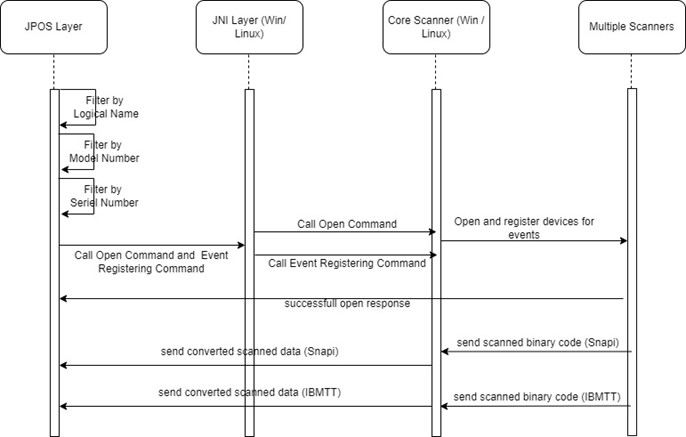
Multiple instances of the scanners can be maintained with JPOS driver for Windows/Linux. The instances can be of the same logical name or different logical names. The JPOS commands can be executed on selected scanners based on the configuration set in the JPOS xml. Details on setting the configuration is explained in the table given below. Addition of a new instance is performed by clicking on the 'Add Scanner' button. Currently, support is given to maintain only one instance of Scale through the utility.

Figure 2: Design Architecture of JPOS Multi-instance Support
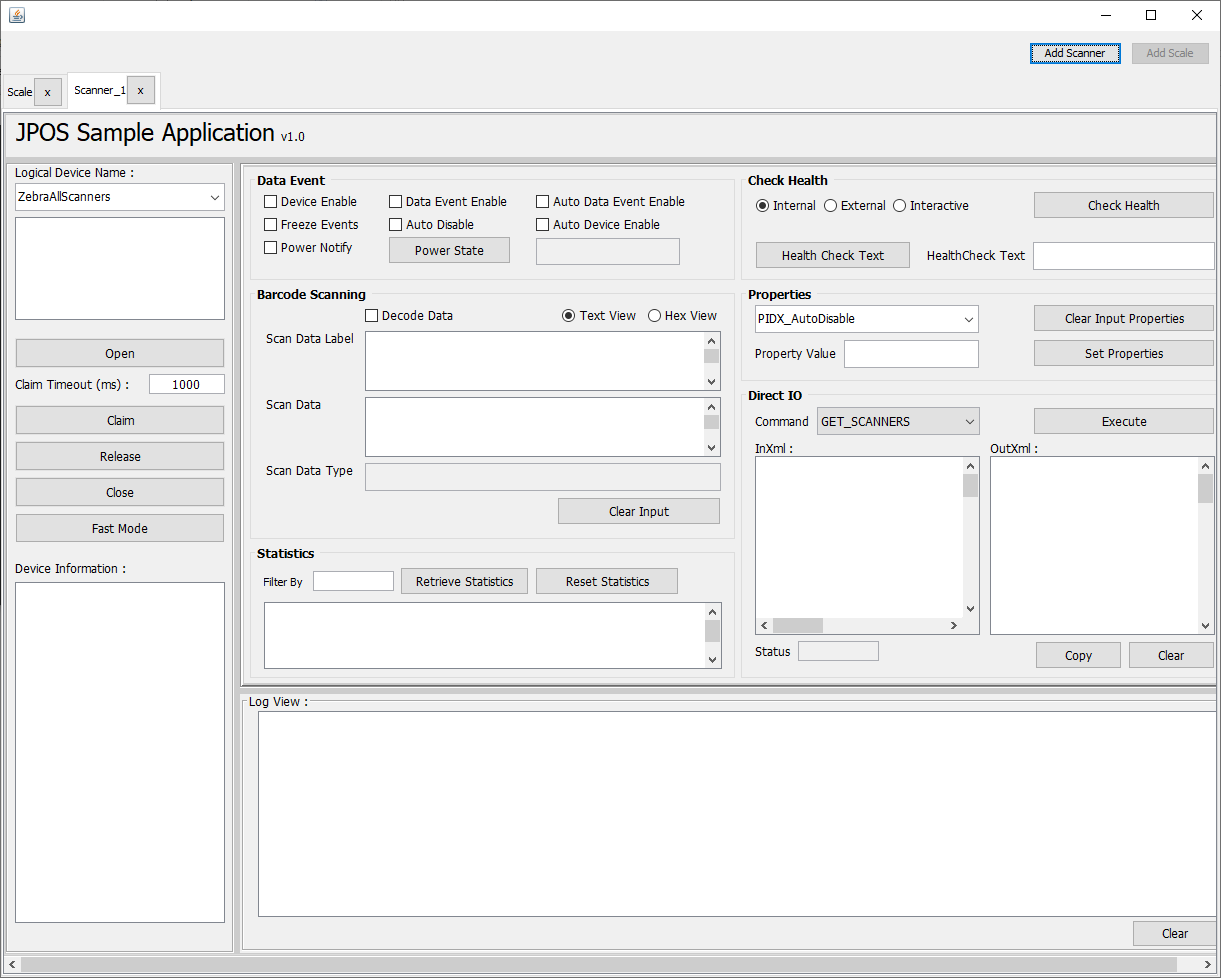
Table 7: Specific Scanner selection to initiate Communication in JPOS

Filtration Description
Logical Name Considers the host mode of the device.
Scanner Model This will only apply for the configured logical name in the JPOS XML and the scanners pertaining to the specified model name.
<prop name="ScannerModel" value=""/>
Serial Number This will only apply for the configured logical name in the JPOS XML and the scanners pertaining to the specified serial number.
<prop name=" SerialNumber " value=""/>

For better clarity, an excerpt of the JPOS xml is provided below.


<JposEntry logicalName="ZebraAllScanners">
    <creation factoryClass="com.zebra.jpos.service.scanner.SymScannerSvc112Factory" serviceClass="com.zebra.jpos.service.scanner.SymScannerSvc112"/>
    <vendor name="Zebra Technologies" url=https://www.zebra.com/>
    <jpos category="Scanner" version="1.12"/>
    <product description="Zebra Serial/USB Scanner" name="Zebra Scanner" url=https://www.zebra.com/>
    <prop name="ScannerType" value="ALL"/>
    <prop name="ScannerModel" value=""/>
    <prop name="SerialNumber" value=""/>
    <prop name="ExclusiveClaimLevel" value="0" />
    <prop name="NcrBeepOnceScanTonePattern" type="String" value="10"/>
    <prop name="NcrEnableBeepScanTonePattern" type="String" value="10"/>
    <prop name="NcrDisableBeepScanTonePattern" type="String" value="10"/>
    <prop name="DioScannerNotOnFile" type="String" value="7"/>
    <prop name="DioScannerDioNof" type="String" value="7"/>
    <prop name="ScanDataLabelId" type="String" value="9999"/>
    <prop name="ResetTimeout" type="String" value="30000"/>
</JposEntry>

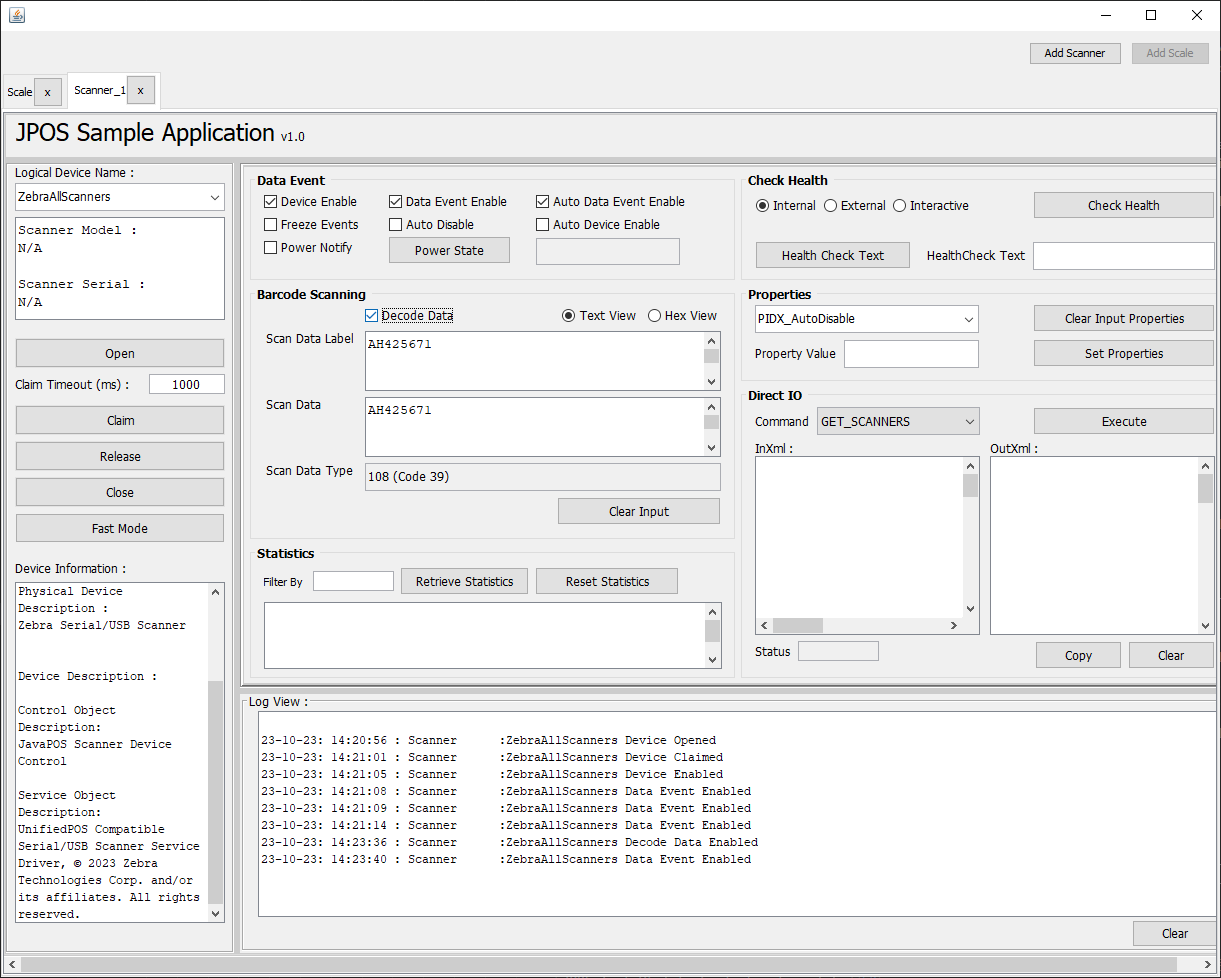
JPOS Test Utility Scanner Functionality

Figure 3: Scanner JPOS Test Window

Table 8: Scanner JPOS Test Utility Button/Field/Checkbox Functionality

Button / Field / Checkbox Description Values Code Samples
Open Open Method Zebra ScannerSNAPI scanner.open(ZebraScannerSNAPI);
Claim Claim the device with time out value. -1, Any integer starting from zero scanner.claim(1000);
Device Enable / Disable Enable or disable the scanner. Must enable before using scanners. N/A Enable: scanner.setDeviceEnabled(true);
Disable: scanner.setDeviceEnabled(false);
Release Release the scanner. N/A scanner.release();
Close Close the scanner. N/A scanner.close();
Scan Data
Scan Data Type Type of the scanned data. This is only a readable property. N/A scanner.getScanDataType();
Scan Data Label Label of the scan data. N/A scanner.getScanDataLabel();
Clear Input Clear method. Clears the input data. N/A N/A
Properties and Methods
Auto Disable Set the Auto disable property. N/A scanner.setAutoDisable(false);
Data Event Enabled Set data event enabled. Must enable data event to get data. N/A scanner.setDataEventEnabled(true);
Freeze Events Set the Freeze Events property. N/A scanner.setFreezeEvents(false);
Decode Data Set decode data enable. N/A scanner.setDecodeData(true);
Power State Get the Power State of the scanner. N/A scanner.getPowerState();

Viewing Bar Code Data

To view bar code data using the Scanner JPOS Test Utility:

  1. Scan the USB (IBM Hand-held) bar code, SNAPI bar code or Wincor-Nixdorf RS-232 Mode B bar code on Scanner Configuration Bar Codes to configure the scanner for the correct communication protocol.
  2. Launching the sample application.
    1. Windows - run C:\Program Files\Zebra Technologies\Barcode Scanners\Scanner SDK\JPOS\Sample Applications\bin\JPOSTest.bat to launch the Scanner JPOS Test Utility.
    2. Linux - execute the following commands to launch the JPOS Sample Application in Linux.

      
      cd /usr/share/zebra-scanner/samples/jpos-sample-app
      ./jpos-sample-app.sh
      
      
  3. Select Open after entering the logical name.
  4. Select Claim.
  5. Select Device Enable.
  6. Select Data Events.
  7. Select Decode Data.
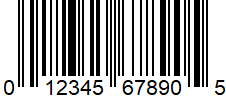
  8. Scan the following sample bar code:

    UPC-A 0-1234567890-5
  9. The bar code data the driver processed appears in the Scan Data Type and Scan Data Label boxes.

    Figure 4: Scanner JPOS Test Window - Scan Data
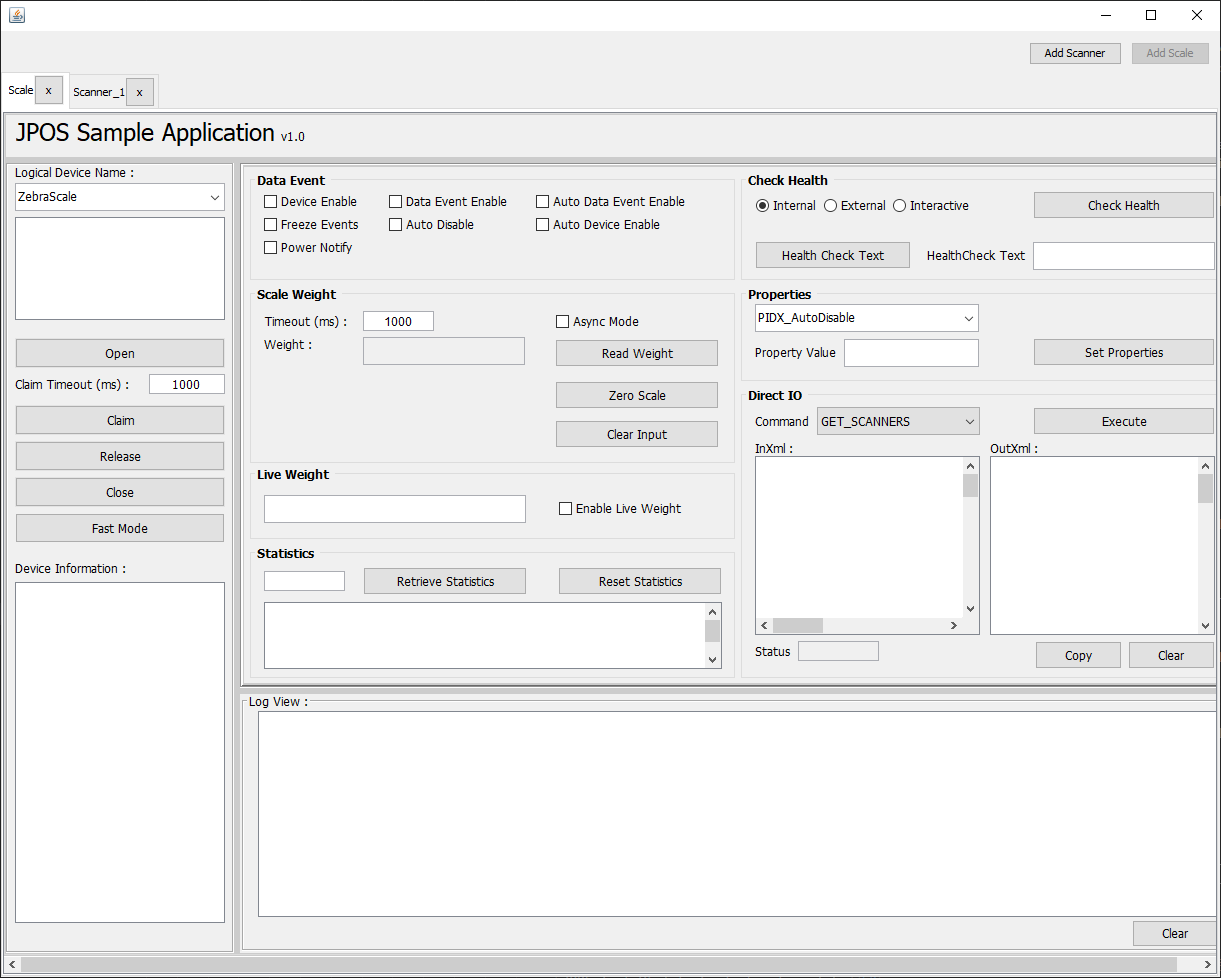
  10. Select Clear Input to clear the data from the Scan Data Type and Scan Data Label boxes.
  11. To perform a second test, scan another bar code.

Return Value

When calling any method, check whether the return value is 0 (=JPOS_SUCCESS) to ensure the method is successful. Otherwise it returns an error code, which indicates the reason for the error.

JPOS Test Utility Scale Functionality

Figure 5: Scale JPOS Test Scale Window
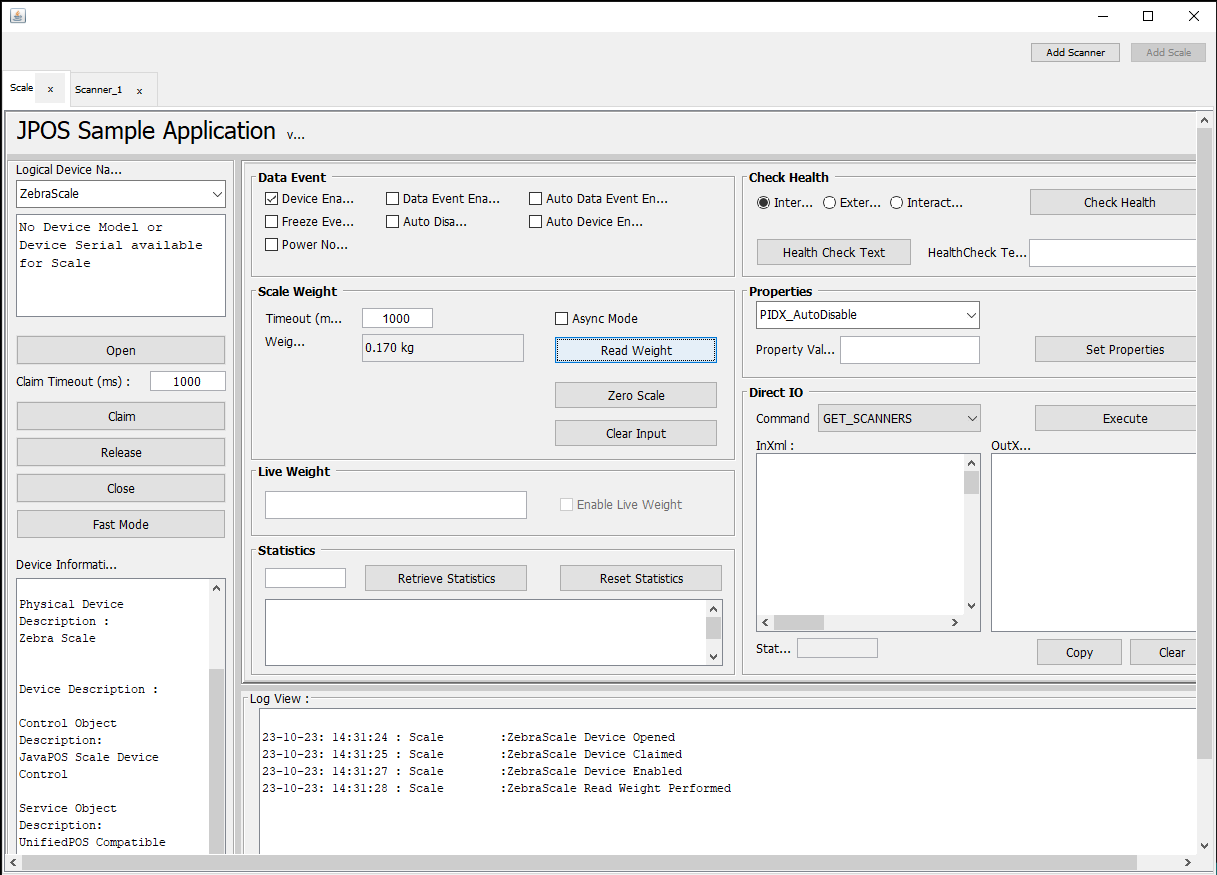
Table 9: Scale JPOS Test Utility Button/Field/Checkbox Functionality

Button / Field / Checkbox Description Values Code Samples
Open Open method. Zebra Scale. scale.open(ZebraScannerSNAPI);
Claim Claim the device with time out value. -1, Any integer starting from zero scale.claim(1000);
Device Enable / Disable Enable or Disable the scanner. Must enable before using scale. True / False Enable: scale.setDeviceEnabled(true);
Disable: scale.setDeviceEnabled(false);
Read Weight Measures the weight of items(s) on the scale. -1, Any integer starting from zero scale.ReadWeight(&weightData, 1000);
Zero Scale Sets the current scale weight to zero. N/A Scale.ZeroScale();
Release Release the scale. N/A scale.release();
Close Close the scale. N/A scale.close();

Read Weight Error and Status Codes

Error Codes and Extended Error Codes

JPOS reports scale statuses as JposException Error code and the default values for each states are as follows.

Table 10: Scale Read Weight Error Codes

Value Error Code (Default) Extended Error Code (Default) Property in jpos.xml
STABLE_WEIGHT_OVER_LIMIT 114 201 extErrorOverWeight
STABLE_WEIGHT_UNDER_ZERO 114 202 extErrorUnderZero
NON_STABLE_WEIGHT 114 203 extErrorNonStableWeight
SCALE_NOT_READY 114 203 extErrorNonStableWeight
STABLE_ZERO_WEIGHT 114 204 extErrorStableZeroWeight

Both the Error Code and the Extended Error Code are reported in the same exception. Error Code value is common and the Extended Error Code is unique for each scenario.

The values of the ErrorCode and the Extended Error Codes can be changed from the JPOS.xml by updating the following property values.


<prop name="ErrorCode" type="String" value="114"/>
<prop name="ExtErrorOverWeight" type="String" value="201"/>
<prop name="ExtErrorUnderZero" type="String" value="202"/>
<prop name="ExtErrorNonStableWeight" type="String" value="203"/>
<prop name="ExtErrorStableZeroWeight" type="String" value="204"/>

Status Update Events

If the property StatusNotify is true when the scale is enabled, the following StatusUpdateEvent will be generated. Each event is denoted by the tag given in the tag column.

Table 11: Status Update Events

Event Tag
SCAL_SUE_WEIGHT_UNSTABLE US
SCAL_SUE_WEIGHT_ZERO WZ
SCAL_SUE_WEIGHT_OVERWEIGHT OW
SCAL_SUE_NOT_READY NR
SCAL_SUE_WEIGHT_UNDER_ZERO UZ

Measuring the Weight of an Item

To view the weight of an item using the JPOS Test utility:

Figure 6: JPOS Test Window - Scale Read Weight
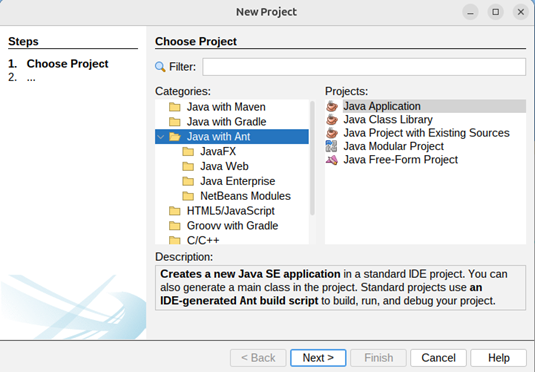
  1. Scan an IBM Hand-held, IBM Table-top, SNAPI, or SSI bar code to configure the device for the correct communication protocol.
  2. Launching the sample application.
    1. Windows - run C:\Program Files\Zebra Technologies\Barcode Scanners\Scanner SDK\JPOS\Sample Applications\bin\JPOSTest.bat to launch the Scanner JPOS Test Utility.
    2. Linux - execute the following commands to launch the JPOS Sample Application in Linux.

      
      cd /usr/share/zebra-scanner/samples/jpos-sample-app
      ./jpos-sample-app.sh
      
      
  3. Enter the scale's logical name, and select Open.
  4. Select Claim.
  5. Select Device Enable.
  6. Place an item on the scale platter.
  7. Select the ReadWeight button. The item's weight appears on the adjoining text box.
  8. To measure the weight of another item, remove any items on the platter and place the new item on the scale; select the ReadWeight button.
  9. Select Release to release the claimed device.
  10. Select Close to close the logical device.

How to Create a Sample Application Using NetBeans and Eclipse

Create a Sample Application Using NetBeans

Pre-requisites

  • Java 8 (JDK 1.8.0_202) to Java 21.
  • NetBeans IDE which corresponds to the installed Java version. (ex: NetBeans IDE 8.2 for Java 8)
  • Latest versions of Zebra Scanner SDK and JPOS for Linux.
  • Latest versions of Zebra Scanner SDK and JPOS for Windows.

NOTE: The JPOS driver for Linux or Windows supports Java versions starting from Java 1.6 onwards. Therefore, use a suitable version that fits the overall requirements and compatibility needs. At present it supports up to Java 21.

Setting up the Project

  1. Make sure the preferred Java version is installed on the system.
  2. Open NetBeans and click 'File' → 'New Project'.
  3. Select 'Java with Ant' from 'Categories'.
  4. Select 'Java Application' from 'Projects' and click 'Next'.

    Figure 7: Create a New Project

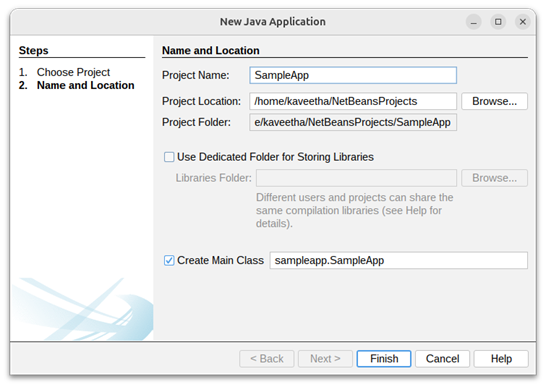
  5. Enter ‘Project Name’ and ‘Project Location’ (If required, click ‘Create Main Class’) and click ‘Finish’.

    Figure 8: Select the Application Type

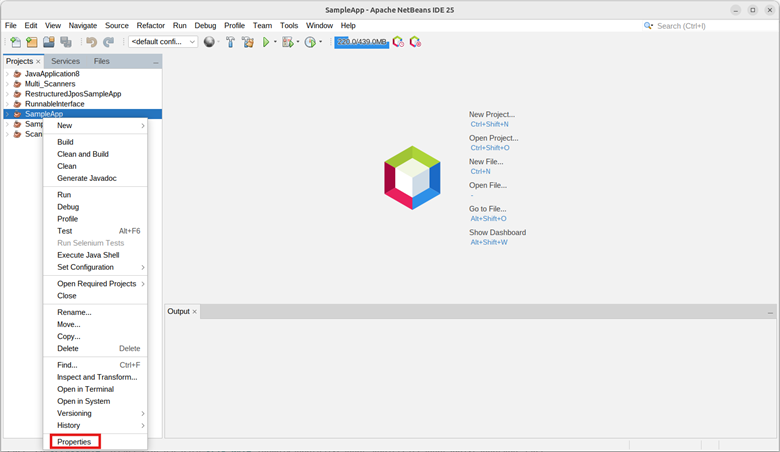
  6. Right click on the created project in the ‘Projects’ pallet and select ‘Properties’.

    Figure 9: Project Properties

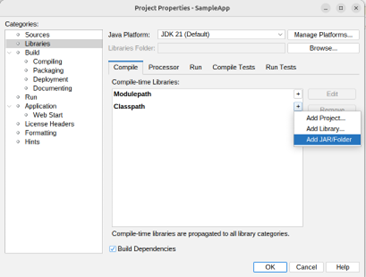
  7. Select ‘Libraries’ from ‘Categories’ and navigate to the ‘Compile’ tab.
  8. Select ‘Classpath’ in ‘Compile-time Libraries’.
  9. Click ‘+’ button and select ‘Add JAR/Folder’.

    Figure 10: Project Dependencies

    NOTE: Make sure to select the correct Java Platform.

  10. Navigate to the location where JPOS binaries are located.

    • Linux- ‘/usr/share/zebra-scanner/javapos/’
    • Windows- ‘C:\Program Files\Zebra Technologies\Barcode Scanners\Scanner SDK\JPOS’
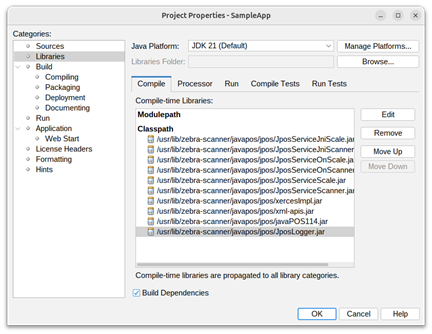
  11. Add the JAR files listed below from the specified locations in Table 1 at the Appendix section.

    • JposLogger.jar
    • JposServiceJniScale.jar
    • JposServiceJniScanner.jar
    • JposServiceOnScale.jar
    • JposServiceOnScanner.jar
    • JposServiceScale.jar
    • JposServiceScanner.jar
    • javaPOS114.jar
    • xercesImpl.jar
    • xml-apis.jar
    Figure 11: Project Dependencies Added

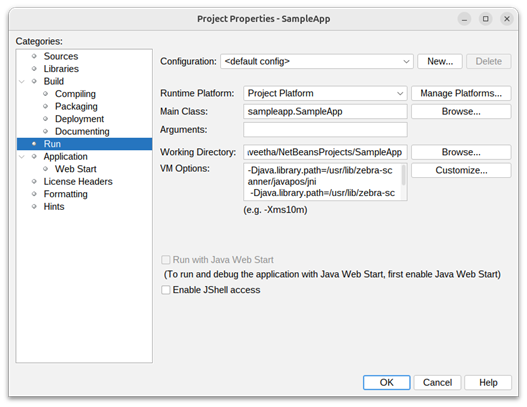
  12. Then click ‘Run’ option from ‘Categories palette.
  13. If the ‘Main Class’ is not selected, then browse and select ‘Main class’ of the project.
  14. Make sure to add’ DJava’ path inside the ‘VM Options’ box to specify the path to native libraries.

    For Linux:

    
    -Djava.library.path="/usr/lib/zebra-scanner/javapos/jni "
    -Djava.library.path="/usr/lib/zebra-scanner/javapos/jni:/usr/lib/jni "
    
    
    Figure 12: Project Properties on Linux
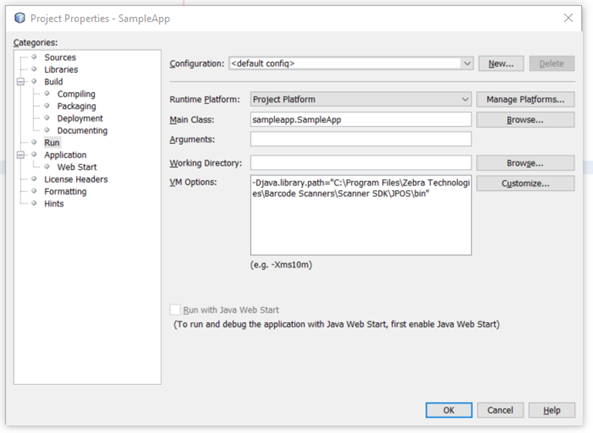
    For Windows:

    
    -Djava.library.path="C:\Program Files\Zebra Technologies\Barcode Scanners\Scanner SDK\JPOS\bin"
    
    
    Figure 13: Project Properties on Windows
  15. Click ‘OK’ button.
  16. Select ‘Source Packages’ in the ‘Projects’ pallet and paste below files under the ‘Source Packages’ from the given location.

    For Linux

    • jpos_trace.properties (/usr/share/zebra-scanner/javapos/config)
    • jpos.xml (/usr/share/zebra-scanner/javapos/xml)

    For Windows

    • jpos_trace.properties (C:\Program Files\Zebra Technologies\Barcode Scanners\Scanner SDK\JPOS\bin\jpos_trace.properties)
    • jpos.xml (C:\Program Files\Zebra Technologies\Barcode Scanners\Scanner SDK\JPOS\Sample Applications\bin\jpos.xml)

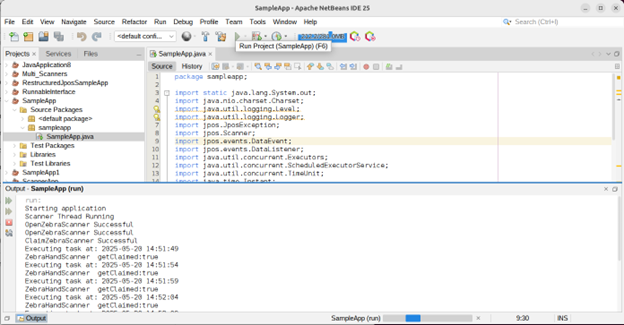
  17. Click on the ‘Run Project’ button and run the application.

    Figure 14: Project Execution

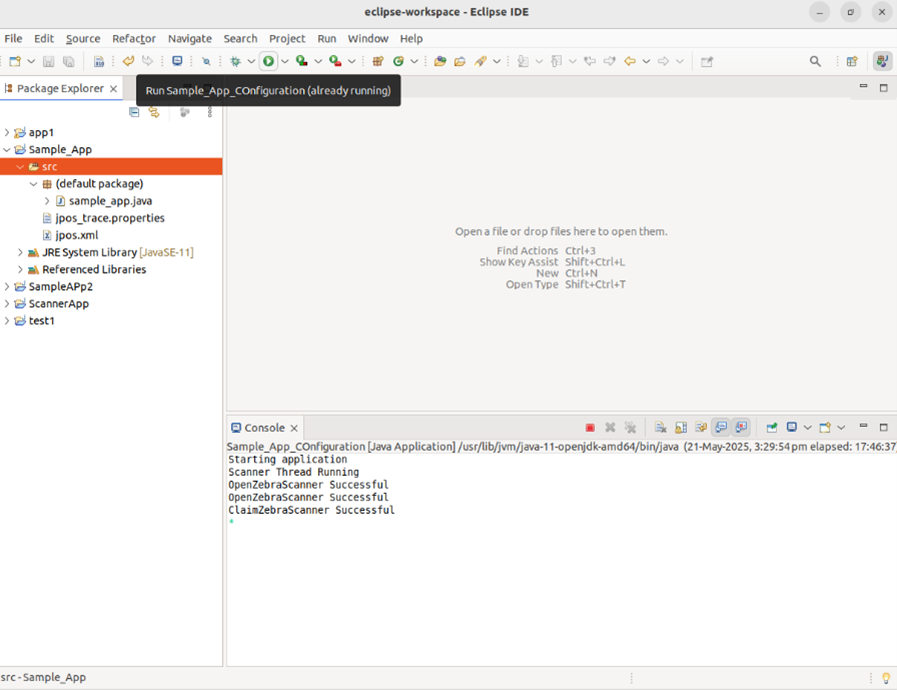
Create a Sample Application Using Eclipse

Pre-requisites

  • Java 8 (JDK 1.8.0_202) to Java 21.
  • Eclipse IDE which corresponds to the installed Java version . (ex: Eclipse 2024-12 (4.34))
  • Latest versions of Zebra Scanner SDK and JPOS for Linux.
  • Latest versions of Zebra Scanner SDK and JPOS for Windows.

NOTE: The JPOS driver for Linux or Windows supports Java versions starting from Java 1.6 onwards. Therefore, use a suitable version that fits the overall requirements and compatibility needs. At present it supports up to Java 21.

Setting up the Project

  1. Make sure the preferred Java version is installed on the system.
  2. Open Eclipse and click ‘File’ -> ‘New’ -> ‘Java Project’.
  3. Enter ‘Project Name’ and ‘Project Location’ (or the default location).

    Figure 15: Create a new Project in Eclipse
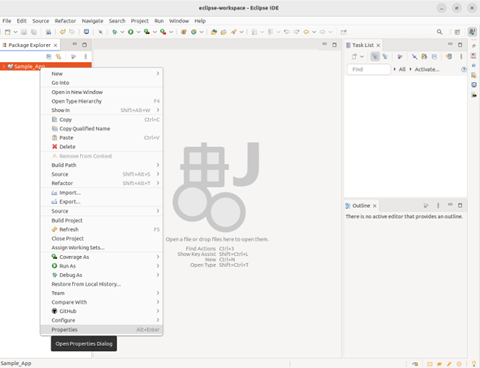
    NOTE: Make sure to select the correct Java Platform in ‘Use and execution environment JRE’.

  4. Click 'Finish'.
  5. Right click on the created project in the ‘Projects Explorer’ and select ‘Properties’.

    Figure 16: Project Properties

  6. Select ‘Libraries’ tab from ‘Java Build Path’,
  7. Select ‘Classpath’ and click ‘Add External JARs’ button.

    Figure 17: Project Dependencies

  8. Navigate to the location where JPOS binaries are located.

    • Linux- ‘/usr/share/zebra-scanner/javapos/’
    • Windows- ‘C:\Program Files\Zebra Technologies\Barcode Scanners\Scanner SDK\JPOS’
  9. Add each of the JAR files below from the specific location.

    • JposLogger.jar
    • JposServiceJniScale.jar
    • JposServiceJniScanner.jar
    • JposServiceOnScale.jar
    • JposServiceOnScanner.jar
    • JposServiceScale.jar
    • JposServiceScanner.jar
    • javaPOS114.jar
    • xercesImpl.jar
    • xml-apis.jar
    Figure 18: Project Properties

  10. Click ‘Apply and Close’.
  11. Right click on the project from ‘Project Explorer’ palette.
  12. Navigate to ‘Run As’ and select ‘Run Configuration’ from the drop-down list.

    Figure 20: Project Workspace

  13. Double click on ‘Java Application’ to create a new configuration.
  14. Select ‘Main’ tab and browse for the project.

    Figure 19: Project Configuration

  15. If ‘Main class’ is not selected, browse and select main class of the project.

    Figure 21: Project Type Selection

  16. Tick the check boxes as shown in the figure below if required.

    Figure 22: Project Configuration Execution
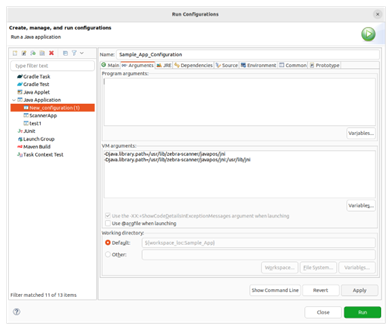
  17. Select ‘Arguments’ tab and inside the VM arguments box, add ‘DJava’ path to specify the path to native libraries.

    For Linux:

    
    -Djava.library.path="/usr/lib/zebra-scanner/javapos/jni "
    -Djava.library.path="/usr/lib/zebra-scanner/javapos/jni:/usr/lib/jni "
    
    
    Figure 23: Project Configuration on Linux
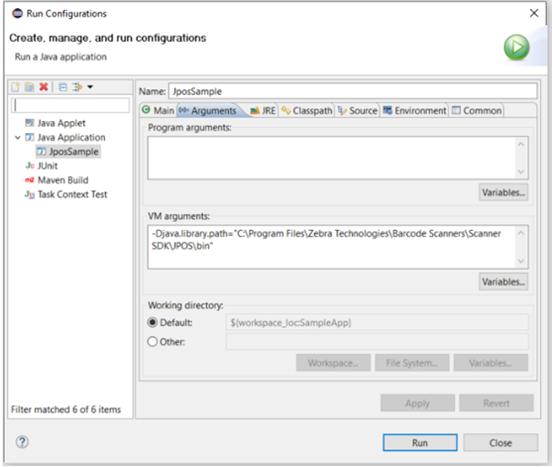
    For Windows:

    
    -Djava.library.path="C:\Program Files\Zebra Technologies\Barcode Scanners\Scanner SDK\JPOS\bin"
    
    
    Figure 24: Project Configuration on Windows
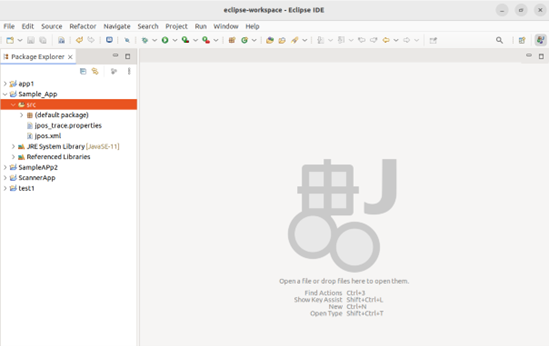
  18. Apply the changes and close the window.
  19. Select ‘Src’ of the project from the ‘Package Explorer’.
  20. Locate the following configuration files from the given locations and copy and paste the files under the Source Packages.

    For Linux:

    • jpos_trace.properties (/usr/share/zebra-scanner/javapos/config)
    • jpos.xml (/usr/share/zebra-scanner/javapos/xml)

    For windows:

    • jpos_trace.properties (C:\Program Files\Zebra Technologies\Barcode Scanners\Scanner SDK\JPOS\bin\jpos_trace.properties)
    • jpos.xml (C:\Program Files\Zebra Technologies\Barcode Scanners\Scanner SDK\JPOS\Sample Applications\bin\jpos.xml)
    Figure 25: Source Packages

  21. Click on the ‘Run’ button and run the application.

    Figure 26: Sample Application Execution
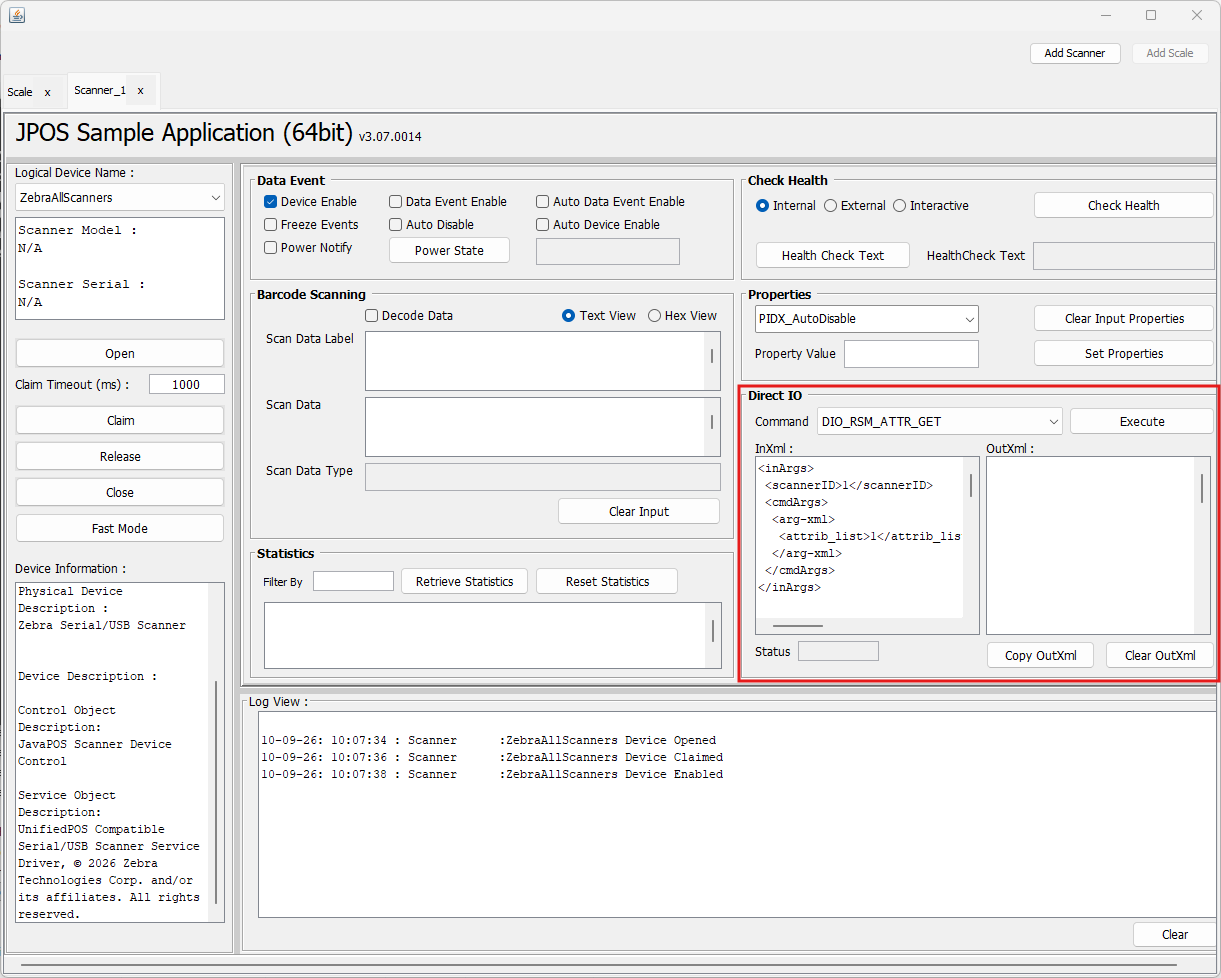

DirectIO

Overview

Through the DirectIO feature a POS application communicates directly with the underlying CoreScanner Service.

This method provides a means for a UnifiedPOS Service to provide functionality to the application that is not otherwise supported by UnifiedPOS control for its device category.

Information in this chapter is applicable to both scanner and scale devices.

DirectIO Java Package

The necessary classes to perform DirectIO are contained in the JposService.jar file under the two namespaces:

  • com.zebra.jpos.service
  • com.zebra.jpos.service.directio

The package com.zebra.jpos.service contains the DirectIO method, while the package com.zebra.jpos.service.directio contains the supporting classes to leverage the DirectIO method.

Zebra JPOS Direct IO implementation is similar to the Scanner SDK.

com.zebra.jpos.service.directio

The directio package contains the following supporting class:

  • DirectIOCommand

DirectIO Command


public class DirectIOCommand {

    // Common for Scanner and Scale
    public static final int DIO_GET_SCANNERS = 1;
    @Deprecated
    public static final int GET_SCANNERS = DIO_GET_SCANNERS;
    public static final int DIO_RSM_ATTR_GETALL = 0x1388;                       // 5000
    @Deprecated
    public static final int RSM_ATTR_GETALL = DIO_RSM_ATTR_GETALL;
    public static final int DIO_RSM_ATTR_GET = 0x1389;                          // 5001
    @Deprecated
    public static final int RSM_ATTR_GET = DIO_RSM_ATTR_GET;
    public static final int DIO_RSM_ATTR_GETNEXT = 0x138A;                      // 5002
    @Deprecated
    public static final int RSM_ATTR_GETNEXT = DIO_RSM_ATTR_GETNEXT;
    public static final int DIO_RSM_ATTR_SET = 0x138C;                          // 5004
    @Deprecated
    public static final int RSM_ATTR_SET = DIO_RSM_ATTR_SET;
    public static final int DIO_RSM_ATTR_STORE = 0x138D;                        // 5005
    @Deprecated
    public static final int RSM_ATTR_STORE = DIO_RSM_ATTR_STORE;
    public static final int DIO_RTA_GET_SUPPORTED = 0x157C;                     // 5500
    @Deprecated
    public static final int CMD_RTA_SUPPORTED_GET = DIO_RTA_GET_SUPPORTED;
    public static final int DIO_RTA_UNREGISTER = 0x157E;                        // 5502
    @Deprecated
    public static final int CMD_RTA_UNREGISTER = DIO_RTA_UNREGISTER;
    public static final int DIO_RTA_GET_EVENT_STATUS = 0x157F;                  // 5503
    @Deprecated
    public static final int CMD_RTA_ALERT_STATUS_GET = DIO_RTA_GET_EVENT_STATUS;
    public static final int DIO_RTA_SET_EVENT_STATUS = 0x1580;                  // 5504
    @Deprecated
    public static final int CMD_RTA_ALERT_STATUS_SET = DIO_RTA_SET_EVENT_STATUS;
    public static final int DIO_RTA_SUSPEND = 0x1581;                           // 5505
    @Deprecated
    public static final int CMD_RTA_SUSPEND = DIO_RTA_SUSPEND;
    public static final int DIO_RTA_GETSTATE = 0x1582;                          // 5506
    @Deprecated
    public static final int CMD_RTA_STATE = DIO_RTA_GETSTATE;
    public static final int DIO_SCANNER_LOAD_CONFIG = 0x139C;                   // 5020
    @Deprecated
    public static final int CMD_LOAD_CONFIGURATION = DIO_SCANNER_LOAD_CONFIG;

    // Scanner Specific
    public static final int DIO_SCANNER_UPDATE_FW_DAT = 0x1398;                 // 5016
    @Deprecated
    public static final int CMD_DEVICE_UPDATE_FIRMWARE_DAT = DIO_SCANNER_UPDATE_FW_DAT;
    public static final int DIO_SCANNER_UPDATE_FW_PLUGIN = 0x1399;              // 5017
    @Deprecated
    public static final int CMD_DEVICE_UPDATE_FIRMWARE_FROM_PLUGIN = DIO_SCANNER_UPDATE_FW_PLUGIN;

    // NCR Scanner
    public static final int NCR_DIO_SCANNER_TONE = 0x01F5;                      // 501
    @Deprecated
    public static final int DIO_NCR_SCAN_TONE = NCR_DIO_SCANNER_TONE;
    public static final int NCR_DIO_SCANNER_RESET = 0x1F6;                      // 502
    @Deprecated
    public static final int NCRDIO_SCAN_RESET = NCR_DIO_SCANNER_RESET;
    public static final int NCR_DIO_SCANNER_STATUS = 0x1F7;                     // 503
    @Deprecated
    public static final int NCRDIO_SCAN_STATUS = NCR_DIO_SCANNER_STATUS;
    public static final int NCR_DIO_SCANNER_DIRECT = 0x1FB;                     // 507
    @Deprecated
    public static final int NCRDIO_SCAN_DIRECT = NCR_DIO_SCANNER_DIRECT;
    public static final int NCR_DIO_SCANNER_NOT_ON_FILE = 0x01FC;               // 508
    @Deprecated
    public static final int DIO_NCR_SCANNER_NOF = NCR_DIO_SCANNER_NOT_ON_FILE;

    // NCR Scale
    public static final int NCR_DIO_SCALE_STATUS = 0x259;                       // 601
    @Deprecated
    public static final int NCRDIO_SCAL_STATUS = NCR_DIO_SCALE_STATUS;
    public static final int NCR_DIO_SCALE_LIVE_WEIGHT = 0x25C;                  // 604
    @Deprecated
    public static final int NCR_DIO_SCAL_LIVE_WEIGHT = NCR_DIO_SCALE_LIVE_WEIGHT;
    public static final int NCR_DIO_SCALE_DIRECT = 0x25D;                       // 605
    @Deprecated
    public static final int NCRDIO_SCAL_DIRECT = NCR_DIO_SCALE_DIRECT;
}
NOTE: Where an opcode has an older name, it is shown in parentheses after the current one - for example, DIO_RSM_ATTR_SET (RSM_ATTR_SET). The parenthetical name is the deprecated alias shown above (marked @Deprecated); it still works, but new code should use the primary name.

DIO_GET_SCANNERS (GET_SCANNERS)

This command must be used first when setting up DirectIO. It updates the OutXml parameter with information for available scanners, and returns ScannerIDs used in all other DirectIO calls.

InOutXml: This contains the raw XML string of all of the connected scanners in the format:


<scanners>
    <scanner type="mode">
        <scannerID>id1</scannerID>
        <serialnumber>serial_number</serialnumber>
        <GUID>S_N:XXXXXXXXXXXXXXXXXXXXXXXXXXXXXXXX</GUID>
        <VID>vendor_id</VID>
        <PID>product_id</PID>
        <modelnumber>model_number</modelnumber>
        <DoM>date_of_manufacture</DoM>
        <firmware>firmare_revision</firmware>
    </scanner>
    <scanner type="mode">
        <scannerID>id2</scannerID>
        <serialnumber>serial_number</serialnumber>
        <GUID>S_N:XXXXXXXXXXXXXXXXXXXXXXXXXXXXXXXX</GUID>
        <VID>vendor_id</VID>
        <PID>product_id</PID>
        <modelnumber>model_number</modelnumber>
        <DoM>date_of_manufacture</DoM>
        <firmware>firmare_revision</firmware>
    </scanner>
    ....
    ....
    <scanner type="mode">
        <scannerID>idN</scannerID>
        <serialnumber>serial_number</serialnumber>
        <GUID>S_N:XXXXXXXXXXXXXXXXXXXXXXXXXXXXXXXX</GUID>
        <VID>vendor_id</VID>
        <PID>product_id</PID>
        <modelnumber>model_number</modelnumber>
        <DoM>date_of_manufacture</DoM>
        <firmware>firmware_revision</firmware>
    </scanner>
</scanners>

DIO_RSM_ATTR_GETALL (RSM_ATTR_GETALL)

This command returns a list in XML format via the object argument, defined above, of all possible attributes that can be set. This list and what it contains is dependent on the scanning device. The scanner specific Product Reference Guide contains the definitions of all of these attributes. The XML string returned in the obj argument has the following format:

InOutXml: This contains the raw XML string of all the supported RSM attributes:


<?xml version="1.0" encoding="UTF-8"?>
<outArgs>
    <scannerID>1</scannerID>
    <arg-xml>
        <modelnumber>DS4801-XXXXXXXXXXX</modelnumber>
        <serialnumber>S/N:B1353E3FBA73C94DB3449420F6F3B3FD</serialnumber>
        <GUID>B1353E3FBA73C94DB3449420F6F3B3FD</GUID>
        <response>
            <opcode>5000</opcode>
            <attrib_list>
                <attribute name="">0</attribute>
                <attribute name="">1</attribute>
                <attribute name="">2</attribute>
                <attribute name="">3</attribute>
                <attribute name="">4</attribute>
                ....
                ....
                <attribute name="">25011</attribute>
                <attribute name="">25012</attribute>
            </attrib_list>
        </response>
    </arg-xml>
</outArgs>

The value of each attribute in the returned XML list can be accessed using the DIO_RSM_ATTR_GET (RSM_ATTR_GET) command.

NOTE: Calling this is not necessary if the attributes you wish to SET, or GET are known ahead of time.

DIO_RSM_ATTR_GET (RSM_ATTR_GET)

This command can be used to retrieve scanner attribute information including value, data type, and permission. For more information, refer to the Zebra Scanner SDK for Windows Developer's Guide.

InOutXml: For this command InOutXml argument is used to provide input and retrieve the output of the command.

InXML:


<inArgs>
    <scannerID>scannerID</scannerID>
    <!-- ScannerID of one of the scanners which could be retrieved by executing DIO_GET_SCANNERS (GET_SCANNERS) Direct IO command -->
    <cmdArgs>
        <arg-xml>
            <attrib_list> attribute1[,attribute2…attributeN]</attrib_list>
            <!-- A comma separated list of scanner attribute numbers -->
        </arg-xml>
    </cmdArgs>
</inArgs>

OutXML:


<outArgs>
    <scannerID>1</scannerID>
    <arg-xml>
        <modelnumber>DS4801-XXXXXXXXXXX</modelnumber>
        <serialnumber>S/N:B1353E3FBA73C94DB3449420F6F3B3FD</serialnumber>
        <GUID>B1353E3FBA73C94DB3449420F6F3B3FD</GUID>
        <response>
            <opcode>5001</opcode>
            <attrib_list>
                <attribute>
                    <id> attribute1</id>
                    <name></name>
                    <datatype>F</datatype>
                    <permission>RWP</permission>
                    <value>True</value>
                </attribute>
                ....
                ....
                <attribute>
                    <id> attributeN</id>
                    <name></name>
                    <datatype>F</datatype>
                    <permission>RWP</permission>
                    <value>True</value>
                </attribute>
            </attrib_list>
        </response>
    </arg-xml>
</outArgs>

DIO_RSM_ATTR_GETNEXT (RSM_ATTR_GETNEXT)

This will retrieve the value of the next available attribute of the given attribute number.

InOutXml: For this command InOutXml argument is used to provide input and retrieve the output of the command.

InXML:


<inArgs>
    <scannerID>1</scannerID>
    <cmdArgs>
        <arg-xml>
            <attrib_list>1</attrib_list>
        </arg-xml>
    </cmdArgs>
</inArgs>

OutXML:


<?xml version="1.0" encoding="UTF-8"?>
<outArgs>
    <scannerID>1</scannerID>
    <arg-xml>
        <modelnumber>MP7001-LNS0C00AU</modelnumber>
        <serialnumber>22351010553559</serialnumber>
        <GUID>22351010553559</GUID>
        <configname>Modified</configname>
        <response>
            <opcode>5002</opcode>
            <attrib_list>
                <attribute>
                    <id>2</id>
                    <name></name>
                    <datatype>F</datatype>
                    <permission>RWP</permission>
                    <value>True</value>
                </attribute>
            </attrib_list>
        </response>
    </arg-xml>
</outArgs>

DIO_RSM_ATTR_SET (RSM_ATTR_SET) / DIO_RSM_ATTR_STORE (RSM_ATTR_STORE)

Sets (volatile, cleared after device reboot) or stores (non-volatile, retained after device reboot) attributes respectively, specified in the XML string given in the obj argument. The XML string takes the following format.

InOutXml: For this command using InOutXml argument we could provide the information for the attribute to set in XML format

NOTE: The tabbed formatting is for brevity only, and the actual XML string has no end-line or carriage-return characters required.


<inArgs>
    <scannerID>1</scannerID>
    <cmdArgs>
        <arg-xml>
            <attrib_list>
                <attribute>
                    <id>rsm_attribute_number</id>
                    <!-- 7 -->
                    <datatype>valid_datatype</datatype>
                    <!-- F -->
                    <value>value_matching_datatype</value>
                    <!-- True -->
                </attribute>
            </attrib_list>
        </arg-xml>
    </cmdArgs>
</inArgs>

The following are the valid values:

  • rsm_attribute_number: One of the scanners accepted, writeable attributes numbers.
  • valid_datatype: A valid datatype character: F, B, W, D, A, S
  • value_matching_datatype: A value that is consistent with the datatype and the datatypes range. For example, 'F' is a 'Boolean' value that may be either 'false' or 'true'. A 'B' datatype is 'Byte' which ranges from 0-255.

For example, to disable UPC Code 128, the actual XML string passed into the obj argument would look this:


<inArgs>
    <scannerID>1</scannerID>
    <cmdArgs>
        <arg-xml>
            <attrib_list>
                <attribute>
                    <id>7</id>
                    <datatype>F</datatype>
                    <value>False</value>
                </attribute>
            </attrib_list>
        </arg-xml>
    </cmdArgs>
</inArgs>

DIO_SCANNER_LOAD_CONFIG (CMD_LOAD_CONFIGURATION)

This command can be used to update the scanner configuration by specifying the relevant scannerID and the absolute file path, including the filename, created using 123Scan (.scncfg).

InXML:


<inArgs> 
    <scannerID>1</scannerID> 
    <cmdArgs> 
        <arg-string>C:\DS8108 Config.scncfg</arg-string> 
    </cmdArgs> 
</inArgs>

OutXML: None. Instead of OutXml, DirectIO events with the following event types will be received.

  • CONFIG_LOAD_START = 17
  • CONFIG_LOAD_PROGRESS = 18
  • CONFIG_LOAD_END = 19

Possible error scenarios are outlined below.

Failure Error Code
File does not exist ERROR_INLVAID_CONFIG_FILE (601)
Incorrect extension ERROR_INLVAID_CONFIG_FILE (601)
Self-hash failure ERROR_INLVAID_CONFIG_FILE (601)
Incompatible device ERROR_INCOMPATIBLE_CONFIG_FILE (602)
XML syntax validation failure ERROR_CONFIG_FILE_SYNTAX_VALIDATION_FAILED (603)

DIO_SCANNER_UPDATE_FW_PLUGIN (CMD_DEVICE_UPDATE_FIRMWARE_FROM_PLUGIN) / DIO_SCANNER_UPDATE_FW_DAT (CMD_DEVICE_UPDATE_FIRMWARE_DAT)

This command can be used to update the scanner firmware by specifying the relevant scannerID and the absolute path of the firmware file (PLUGIN or DAT), including the filename.

InXML:


<inArgs> 
    <scannerID>1</scannerID> 
    <cmdArgs> 
        <arg-string>C:\DS3678-STANDARD.SCNPLG</arg-string> 
    <arg-int>2</arg-int> 
    </cmdArgs> 
</inArgs>

OutXML: None. Instead of OutXml, DirectIO events with the following event types will be received.

  • SCANNER_UF_SESS_START = 11
  • SCANNER_UF_DL_START = 12
  • SCANNER_UF_DL_PROGRESS= 13
  • SCANNER_UF_DL_END= 14
  • SCANNER_UF_SESS_END= 15
  • SCANNER_UF_STATUS= 16

Possible error scenarios are outlined below.

Failure Error Code
ERROR_FW_INVALID_DATFILE Invalid firmware file (500)
ERROR_FW_UPDATE_FAILED_IN_SCN FW Update failed in scanner (501)
ERROR_FW_READ_FAILED_DATFILE Failed to read DAT file (502)
ERROR_FW_UPDATE_INPROGRESS Firmware Update is in progress (cannot proceed another FW Update or another command) (503)
ERROR_FW_UPDATE_ALREADY_ABORTED Firmware update is already aborted (504)
ERROR_FW_UPDATE_ABORTE FW Update aborted (505)
ERROR_FW_SCN_DETTACHED Scanner is disconnected while updating firmware (506)
ERROR_FW_UPDATE_NOT_SUPPORTED Device doesn't support firmware update (507)
STATUS_FW_SWCOMP_RESIDENT The software component is already resident in the scanner (600)

NCR_DIO_SCANNER_TONE (DIO_NCR_SCAN_TONE)

This command is used to execute the NCR tone pattern configured in the JPOS.xml. Tone pattern can be set for any logical device by setting the following configuration.


<prop name="NcrScanTonePattern" type="String" value="<TonePatternID>"/>

InOutXml: No need of providing an InOutXml argument.

NCR_DIO_SCANNER_NOT_ON_FILE (DIO_NCR_SCANNER_NOF)

This command is used to execute the NCR “Not on File” tone pattern configured in the JPOS.xml. Tone pattern can be set for any logical device by setting the following configuration.


<prop name="NcrScanNOFPattern" type="String" value="<TonePatternID>"/>

InOutXml: No need of providing an InOutXml argument.

NCR_DIO_SCANNER_RESET (NCRDIO_SCAN_RESET)

This command is used to reset the device. Executing this command is not doing any change to the device now. Once executed it always returns success.

InOutXml: No need of providing an InOutXml argument.

NCR_DIO_SCANNER_STATUS (NCRDIO_SCAN_STATUS)

This command is used to get the IBM USB status bytes of the scanner. Status bytes are given as a string.

InOutXml: No need of providing an InOutXml argument.

NCR_DIO_SCANNER_DIRECT (NCRDIO_SCAN_DIRECT)

This command is used to execute direct IO commands GetAll, Get, GetNext, Set and Store attributes directly without the corresponding direct IO commands for these operations. Direct IO OpCode for these operations are passed as an attribute in the InXml.

InOutXml: This contains the raw XML string of direct access in xml with the opcode tag.


<inArgs>
    <scannerID>1</scannerID>
    <opcode>5000</opcode>
    <cmdArgs>
        <arg-xml>
            <attrib_list>
                <attribute>
                    <id>6000</id>
                    <datatype>X</datatype>
                    <value>2</value>
                </attribute>
            </attrib_list>
        </arg-xml>
    </cmdArgs>
</inArgs>

NCR_DIO_SCALE_LIVE_WEIGHT (NCR_DIO_SCAL_LIVE_WEIGHT)

This command is used to get the live weight value of the scale.

InOutXml: No need of providing an InOutXml argument.

NCR_DIO_SCALE_STATUS (NCRDIO_SCAL_STATUS)

This command is used to get the IBM USB status bytes of the scale. Status bytes are given as a string.

InOutXml: No need of providing an InOutXml argument.

NCR_DIO_SCALE_DIRECT (NCRDIO_SCAL_DIRECT)

This command is used to execute direct IO commands GetAll, Get, GetNext, Set and Store attributes directly without the corresponding direct IO commands for these operations. Direct IO OpCode for these operations are passed as an attribute in the InXml.

InOutXml: This contains the raw XML string of direct access in xml with the opcode tag.


<inArgs>
    <scannerID>1</scannerID>
    <opcode>5000</opcode>
    <cmdArgs>
        <arg-xml>
            <attrib_list>
                <attribute>
                    <id>6000</id>
                    <datatype>X</datatype>
                    <value>2</value>
                </attribute>
            </attrib_list>
        </arg-xml>
    </cmdArgs>
</inArgs>

Real Time Alerts (RTA)

Real Time Alerts (RTA) are preselected events that are monitored by a scanner device. When a selected statistic has reached a specified value or when a selected event occurs, it is then reported by the scanner device to the host as an alert.

For more information, see Real Time Alerts (RTA) User Guide

The JPOS driver uses DirectIO commands to invoke Real-Time Alerts (RTA) methods on the scanner or cradle device and utilizes DirectIO events to receive notifications when an RTA event is triggered by the scanner. Because the Zebra JPOS Service Object automatically registers for CoreScanner notification events during the initial Open call, the host application does not need to perform manual registration to receive RTA events.

DIO_RTA_GET_SUPPORTED (OPCODE - 5500)

Gets RTA events supported by the device.

InXML:


<inArgs>
    <scannerID>1</scannerID>
</inArgs>

OutXML:

Supported RTA events (ID and Stat type) along with on-limit and off-limit.

NOTE: On-limit/ Off-limit with "Not set" requires the value to be set when registering, and "Not applicable" doesn't require a value to be set.


<?xml version="1.0" encoding="UTF-8"?>
<outArgs>
    <scannerID>1</scannerID>
    <arg-xml>
        <modelnumber>CR8178-PCM00FBWW</modelnumber>
        <serialnumber>23117010558099</serialnumber>
        <GUID>B2887932D8F09D40880BFAE7AD61A8BA</GUID>
        <configname>Modified</configname>
        <response>
            <opcode>5500</opcode>
            <rtaevent_list>
                <rtaevent>
                    <id>38004</id>
                    <stat>7</stat>
                    <onlimit>Not set</onlimit>
                    <offlimit>Not applicable</offlimit>
                </rtaevent>
                <rtaevent>
                    <id>38001</id>
                    <stat>7</stat>
                    <onlimit>Not set</onlimit>
                    <offlimit>Not applicable</offlimit>
                </rtaevent>
                <rtaevent>
                    <id>38003</id>
                    <stat>13</stat>
                    <onlimit>Not applicable</onlimit>
                    <offlimit>Not applicable</offlimit>
                </rtaevent>
                <rtaevent>
                    <id>616</id>
                    <stat>2</stat>
                    <onlimit>Not applicable</onlimit>
                    <offlimit>Not applicable</offlimit>
                </rtaevent>
            </rtaevent_list>
        </response>
    </arg-xml>
</outArgs>

DIO_RTA_UNREGISTER (OPCODE - 5502)

Unregister for selected RTA events using RTA event ID and type.

InXML:


<inArgs>
    <scannerID>1</scannerID>
    <cmdArgs>
        <arg-xml>
            <rtaevent_list>
                <rtaevent>
                    <id>38004</id>
                    <stat>7</stat>
                </rtaevent>
                <rtaevent>
                    <id>38001</id>
                    <stat>7</stat>
                </rtaevent>
            </rtaevent_list>
        </arg-xml>
    </cmdArgs>
</inArgs>

OutXML:

Null

DIO_RTA_GET_EVENT_STATUS (OPCODE - 5503)

Retrieve the RTA event's alert status. The RTA alert status contains information on the following four statuses:

  • Registered: Whether the event is registered or not.
  • Reported: An alert associated with the event has been reported.
  • Measuring: Device has started measurement of the event.
  • Initialized: Device has initialized the event.

InXML:


<inArgs>
    <scannerID>1</scannerID>
</inArgs>

OutXML:


<outArgs>
    <scannerID>1</scannerID>
    <arg-xml>
        <modelnumber>CR8178-PC100F4WW  </modelnumber>
        <serialnumber>17034010506402  </serialnumber>
        <GUID>8835E76BE40A6C49B458BEEA0065F60E</GUID>
        <configname>Factory Default </configname>
        <response>
            <opcode>5503</opcode>
            <suspend>FALSE</suspend>
            <rtaevent_list>
                <rtaevent>
                    <id>38004</id>
                    <stat>7</stat>
                    <scope>0</scope>
                    <registered>TRUE</registered>
                    <reported>FALSE</reported>
                    <initialized>TRUE</initialized>
                    <measuring>FALSE</measuring>
                </rtaevent>
                <rtaevent>
                    <id>38001</id>
                    <stat>7</stat>
                    <scope>0</scope>
                    <registered>TRUE</registered>
                    <reported>TRUE</reported>
                    <initialized>TRUE</initialized>
                    <measuring>TRUE</measuring>
                </rtaevent>
            </rtaevent_list>
        </response>
    </arg-xml>
</outArgs>

DIO_RTA_SET_EVENT_STATUS (OPCODE - 5504)

Set RTA event's reported state.

NOTE: Only the <reported> alert status can be modified, and it can only be transitioned from true (1) to false (0). If set to any other value, the system will automatically overwrite it with 0.

InXML:


<inArgs>
    <scannerID>1</scannerID>
    <cmdArgs>
        <arg-xml>
            <rtaevent_list>
                <rtaevent>
                    <id>38004</id>
                    <stat>7</stat>
                    <reported>0</reported>
                </rtaevent>
                <rtaevent>
                    <id>616</id>
                    <stat>2</stat>
                    <reported>0</reported>
                </rtaevent>
            </rtaevent_list>
        </arg-xml>
    </cmdArgs>
</inArgs>

OutXML:

Null

DIO_RTA_SUSPEND (OPCODE - 5505)

Toggle RTA alert notification reporting to the host.

InXML:


<inArgs>
    <scannerID>1</scannerID>
    <cmdArgs>
        <arg-bool>false</arg-bool> <!--"true" will enable RTA to suspend, "false" will disable RTA suspend -->
    </cmdArgs>
</inArgs>

OutXML:

Null

DIO_RTA_GETSTATE (OPCODE - 5506)

Retrieve the current operational state of RTAs. State will have 4 values as follows.

State Name Value Description
Wait For Register 1 There are currently no alerts registered by the User.
Wait for Context 2 The scanner has not yet been assigned a Context Address for reporting.
Online 3 The Real Time Alerts feature is fully operational.
Suspend 0 The Real Time Alerts were suspended automatically or by the RTA_Suspend command.

InXML:


<inArgs>
    <scannerID>1</scannerID>
</inArgs>

OutXML:


<outArgs>
    <scannerID>1</scannerID>
    <arg-xml>
        <modelnumber>CR8178-PC100F4WW  </modelnumber>
        <serialnumber>17034010506402  </serialnumber>
        <GUID>8835E76BE40A6C49B458BEEA0065F60E</GUID>
        <configname>Factory Default </configname>
        <response>
            <opcode>5506</opcode>
            <state>0</state>
        </response>
    </arg-xml>
</outArgs>

DirectIO Status


public class DirectIOStatus {
    public static final int STATUS_SUCCESS = 0;
}

Currently only STATUS_SUCCESS is defined. Any other value should be indicated as an error. The DirectIO method itself is an exception based method (see The DirectIO Method for more information). As a result, use a try-catch statement when calling it. The JposException class contains most of the error information.

The DirectIO Methods

The Zebra JPOS driver allows direct RSM attribute GET/SET access in order to leverage features not otherwise able to be exposed through the JPOS API Specification.

The JPOS DirectIO method has the following prototype (as of Zebra JPOS driver 1.0):


directIO ( command: int32, inout data: int32, inout obj: object ): void { raises-exception }

DirectIO Method Arguments

For the purposes of the Zebra scanner device class, the DirectIO method arguments are defined as:

command: int32: The command is passed to the CoreScanner service which is responsible for communicating with the scanner. This command is defined in the JposService.jar.

inout data: int32: For Zebra devices, this is used to return the status of the executed op-code.

inout obj: object: This is an object type. In Zebra JPOS Direct IO implementation, Java StringBuffer type is used to provide input and get output of the argument in XML format. See DirectIO Command.

Using the JPOS Sample Application to Send Direct I/O Commands

DirectIO operations can be done using the panel highlighted in red, as shown in the screenshot given below. The required DirectIO command can be selected from the drop-down list named as the Command. Upon selecting, the InXML relevant to the chosen command will be displayed on the left side of the panel.

Figure 27: JPOS Sample Application - Direct IO Commands
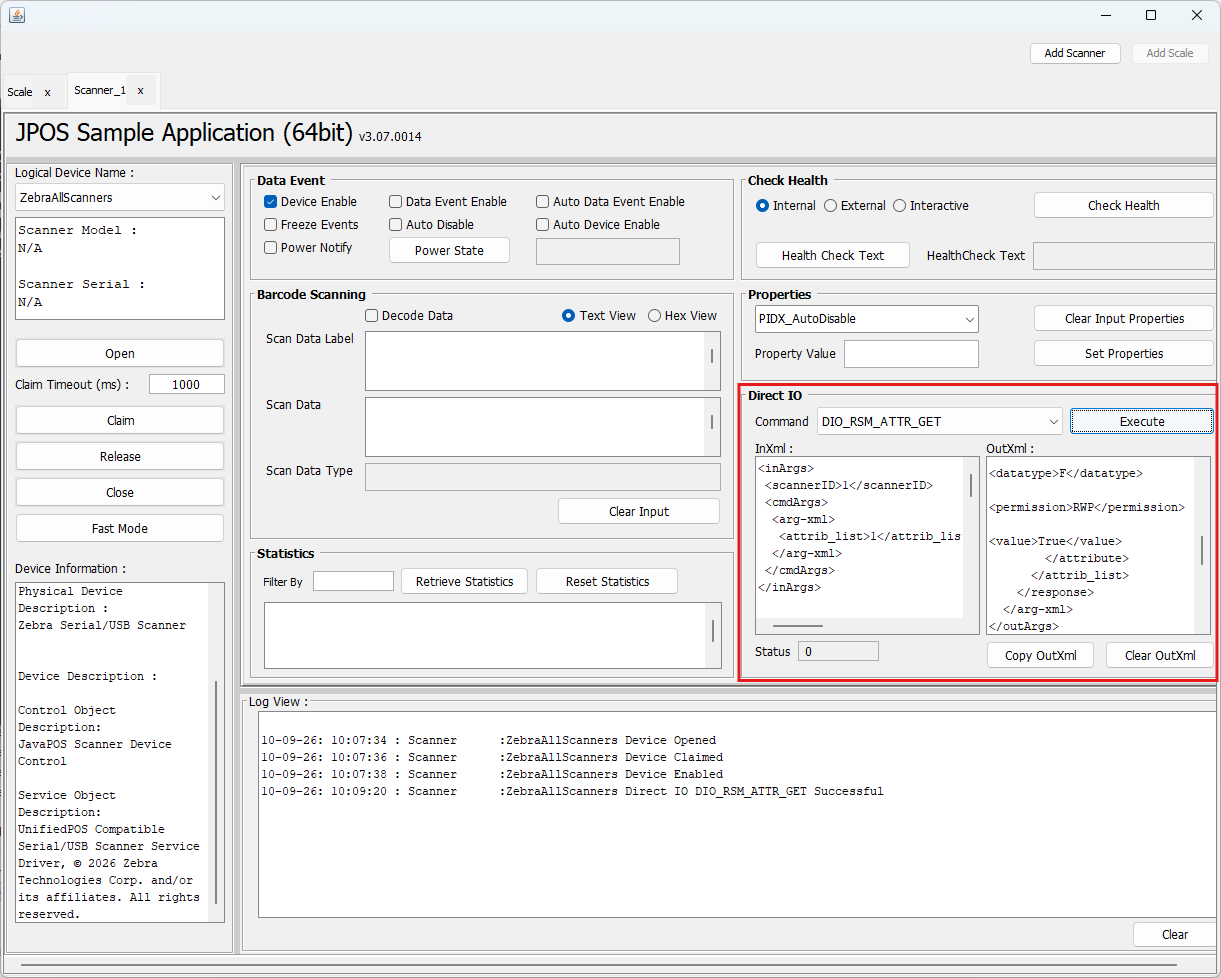
The OutXML: corresponding to the selected DirectIO command can be retrieved by clicking on the Execute button.

Figure 28: JPOS Sample Application - Direct IO Commands Output
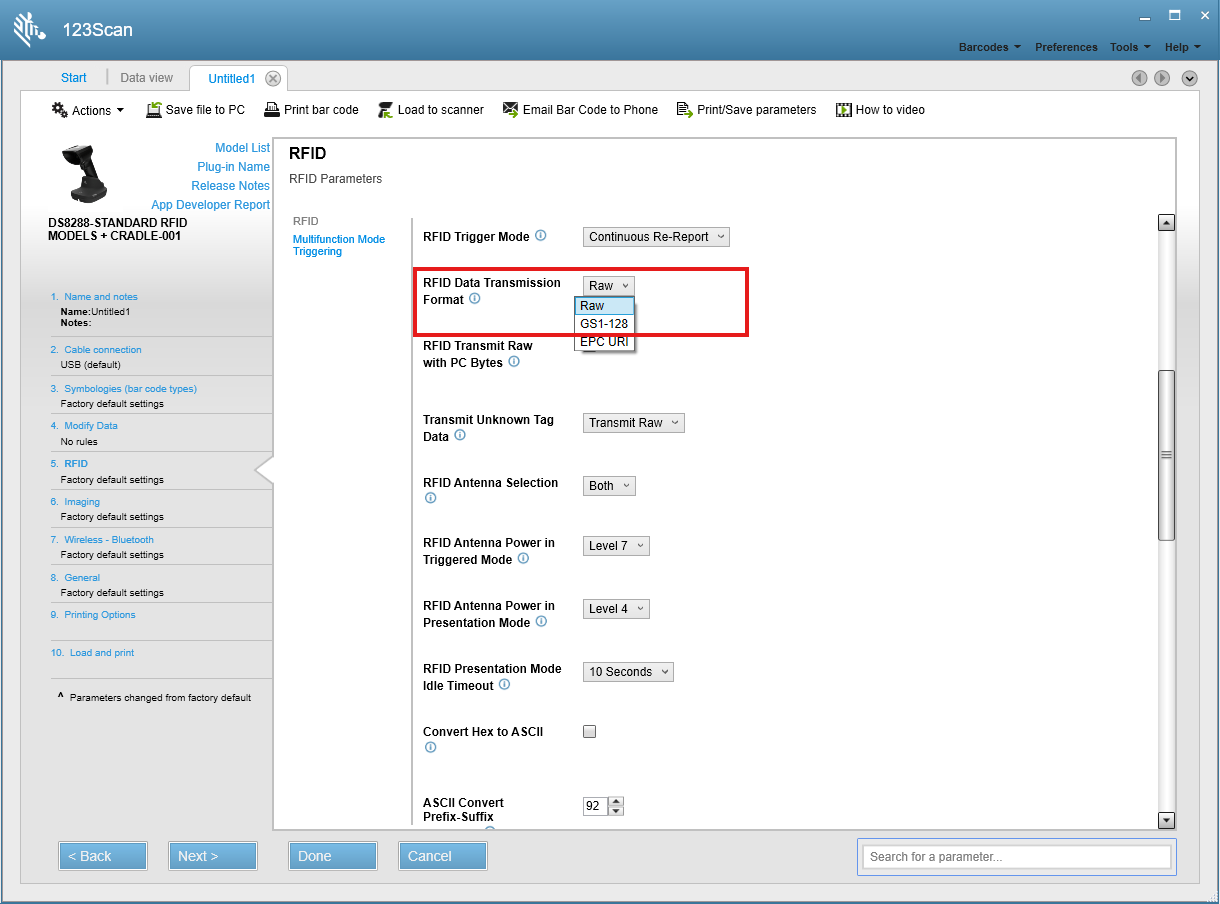
To send Direct I/O commands using the JPOS sample application:

  1. Connect a Zebra scanner and switch to a management enabled host mode such as IBM OPOS, IBM Hand-held, IBM Table-top, or SNAPI.
  2. Open the JPOS sample application and select the Scanner tab.
  3. Enter ZebraAllScanners as the logical name and click Open.
  4. Click Claim.

To retrieve a list of all the scanners connected to the PC:

  • Select DIO_GET_SCANNERS (GET_SCANNERS) as DIO Op-Code from the Direct I/O section.
  • Click Execute. The Direct I/O OutXml text box populates with XML with all the attached scanners.

To retrieve all attributes available in the scanner:

  1. Select DIO_RSM_ATTR_GETALL (RSM_ATTR_GETALL) as DIO Op-Code from Direct I/O section.
  2. In the Direct I/O InXml text box, change the value of the ScannerID XML element to the scannerID from which you want to retrieve attributes. Use the DIO_GET_SCANNERS (GET_SCANNERS) command to find available ScannerIDs.
  3. Click Execute. The Direct I/O OutXml text box populates with XML with attribute numbers of all supported attributes.

To retrieve more information for an attribute:

  1. Select DIO_RSM_ATTR_GET (RSM_ATTR_GET) as DIO Op-Code from the Direct I/O section.
  2. In the Direct I/O InXml text box, change the value of the ScannerID XML element to the required scanner ID, and enter a comma-separated list of attribute numbers as the value of attrib_list.
  3. Click Execute. The Direct I/O OutXml text box populates with XML containing a list of attributes with values and other attribute related details.

To temporarily set or permanently store the value of an attribute:

  1. Select DIO_RSM_ATTR_SET (RSM_ATTR_SET) or DIO_RSM_ATTR_STORE (RSM_ATTR_STORE) as DIO Op-Code from the Direct I/O section.
  2. In the Direct I/O InXml text box, change the value of the ScannerID XML element to the required scanner ID and change the values of data_type and the value XML elements accordingly as obtained by executing the command DIO_RSM_ATTR_GET (RSM_ATTR_GET).
  3. Click Execute. For these Direct I/O op-codes, an OutXml does not populate.

Upon executing each Op-Code, the CoreScanner Status field populates with the status of the underlying CoreScanner driver. Any value other than 0 indicates an error.

Using DirectIO

Following is an example of how to use DirectIO when attached to a single device, assuming a returned scanner/scale ID of '1'.

NOTE: The following code demonstrates how to use DirectIO with scanner JPOS control. The same pattern is applicable to scale JPOS control by declaring and instantiating JPOS scale class, and scale object instead of scanner class in the code.


package dio;

import jpos.*;
import com.zebra.jpos.service.directio.DirectIOCommand; 
import com.zebra.jpos.service.directio.DirectIOStatus; 
import java.io.ByteArrayInputStream;
import java.io.IOException; 
import java.util.logging.Level; 
import java.util.logging.Logger;
import javax.xml.parsers.DocumentBuilderFactory; 
import javax.xml.parsers.DocumentBuilder;
import javax.xml.parsers.ParserConfigurationException; 
import org.w3c.dom.Document;
import org.xml.sax.SAXException;

/**
*
* @author Zebra Technologies
*/
public class DirectIODemo {
    // As defined in JPOS v1.13

    public static Scanner scannerObj = new Scanner();
    // Interfacing with a single scanner connection 
    static int scannerID;

    // main function
    public static void main(String[] args) {
        // Open scanner API, claim, enable and perform get scanners 
        try {
            // open with 'ZebraAllScanners' as logical device name 
            scannerObj.open("ZebraAllScanners");
            
            // standard claim with 5000ms timeout 
            scannerObj.claim(5000); 
            
            // enable device
            scannerObj.setDeviceEnabled(true);

            // object to store DirectIO data
            StringBuffer deviceParams = new StringBuffer();

            // get scanners - this acquires the scanner ID needed to perform directIO on a specific device
            int opCode = DirectIOCommand.DIO_GET_SCANNERS; int[] csStatus = new int[1];
            // OR int opCode = DirectIOCommand.GET_SCANNERS; int[] csStatus = new int[1];

            scannerObj.directIO(opCode, csStatus, (Object) deviceParams); 
            if (csStatus[0] != DirectIOStatus.STATUS_SUCCESS) {
                    System.out.println("Error connecting to device"); return;
            }

            // retrieve ID number of scanner for this example, we assume at least 1 scanner is found
            DocumentBuilderFactory dbFactory = DocumentBuilderFactory.newInstance(); 
            DocumentBuilder dBuilder;
            try {
                dBuilder = dbFactory.newDocumentBuilder();
                Document doc;
                ByteArrayInputStream inIs = new ByteArrayInputStream(deviceParams.toString().getBytes());
                doc = dBuilder.parse(inIs);

                int scannerCount = doc.getElementsByTagName("scannerID").getLength();
                if (scannerCount <= 0) {
                    System.out.println("No scanner found attatched"); return;
                }

                for (int n = 0; n < scannerCount; n++) {
                    System.out.println("Scanner ID : " + doc.getElementsByTagName("scannerID").item(n).getTextContent());
                }

                System.out.println("Selected scanner ID : " + doc.getElementsByTagName("scannerID").item(0).getTextContent()); 
                scannerID = Integer.parseInt(doc.getElementsByTagName("scannerID").item(0). getTextContent());
            } 
            catch (SAXException ex) { 
                Logger.getLogger(DirectIODemo.class.getName()).log(Level.SEVERE, null, ex);
            } 
            catch (IOException ex) { 
                Logger.getLogger(DirectIODemo.class.getName()).log(Level.SEVERE, null, ex);
            } 
            catch (ParserConfigurationException ex) { 
                Logger.getLogger(DirectIODemo.class.getName()).log(Level.SEVERE, null, ex);
            }

            // retrieve model number of device

            // Setup DirectIO to do a GET Attribute setup DirectIO XML string
            String sGetAttribInXML = "<inArgs>\n"
                                    + " <scannerID>" + scannerID + "</scannerID>\n"
                                    + " <cmdArgs>\n"
                                    + " <arg-xml>\n"
                                    + " <attrib_list>535</attrib_list>\n"
                                    + " </arg-xml>\n"
                                    + " </cmdArgs>\n"
                                    + "</inArgs>";

            // create new DirectIO data structure see DirectIO data definition for more information 
            StringBuffer oGETparams = new StringBuffer();

            // copy XML string into DirectIO inXML member 
            oGETparams.append(sGetAttribInXML);

            // set opcode for Atrribute GET
            opCode = DirectIOCommand.DIO_RSM_ATTR_GET;
            // OR opCode = DirectIOCommand.RSM_ATTR_GET;

            // set scanner ID
            int[] csSataus = new int[1];

            // make directIO call to JPOS driver 
            scannerObj.directIO(opCode, csSataus, (Object) oGETparams);

            // check status from DirectIO status member
            if (csSataus[0] != DirectIOStatus.STATUS_SUCCESS) { 
                System.out.println("Error performing DirectIO"); return;
            }

            // output XML string returned. Not that the actual model number will be contained within the <value> XML tag.
            System.out.println("XML string returned: " + oGETparams.toString());

            // disable UPC-A barcode on scanner

            // Setup DirectIO to do a SET Attribute 
            String sSetAttribInXML = "<inArgs>\n"
                                    + " <scannerID>" + scannerID + "</scannerID>\n"
                                    + " <cmdArgs>\n"
                                    + " <arg-xml>\n"
                                    + " <attrib_list>\n"
                                    + " <attribute>\n"
                                    + " <id>6000</id>\n"
                                    + " <datatype>X</datatype>\n"
                                    + " <value>2</value>\n"
                                    + " </attribute>\n"
                                    + " </attrib_list>\n"
                                    + " </arg-xml>\n"
                                    + " </cmdArgs>\n"
                                    + "</inArgs>";

            // create new DirectIO data structure
            // see DirectIO data definition for more information 
            StringBuffer oSETparams = new StringBuffer();

            // copy XML string into DirectIO inXML member 
            oSETparams.append(sSetAttribInXML);

            // set opcode for Atrribute SET
            opCode = DirectIOCommand.DIO_RSM_ATTR_SET;
            // OR opCode = DirectIOCommand.RSM_ATTR_SET;

            // set scanner ID
            csSataus[0] = scannerID;

            // make directIO call to JPOS driver 
            scannerObj.directIO(opCode, csSataus, (Object) oSETparams);

            // check status from DirectIO status member
            if (csSataus[0] != DirectIOStatus.STATUS_SUCCESS) { 
                System.out.println("Error performing DirectIO");
            }
        } 
        catch (JposException ex) { 
            System.out.println("Exception: " + ex.getMessage());
        }
    }
}


RFID Data Transmission

Overview

Zebra RFID scanners provide flexible data transmission options, allowing you to seamlessly integrate RFID into your existing workflows and easily distinguish between standard barcode scans and RFID tag reads.

RFID Data Transmission Format

Zebra RFID scanners offer built-in RFID data conversion software that reports the tag's EPC data.

  • Raw: The EPC buffer transmits a hexadecimal string. This format can include the protocol control bytes.
  • GS1-128: For GS1-encoded tags, this option converts EPC data to a GS1-128 barcode (as per the GS1 EPC Tag Data Standard available at gs1.org). Otherwise, the tag optionally transmits in Raw format or is ignored.
  • EPC URI: The EPC data is represented as a Universal Resource Identifier (URI) as defined in the EPC Tag Data Standard.

The above format options can be selected using Parameter # 643 (SSI # F1h 83h):

123Scan RFID parameters - RFID Data Transmission Format

Refer to: https://docs.zebra.com/us/en/scanners/general/ds8-series/ds82-prg/c-rfid-scanning/r-rfid-preferences-parameter-defaults/r-param-desc-rfid-data-transmission-format.html

For more information about additional RFID user preferences parameters, refer to your scanner Product Reference Guide. For example, DS8288 RFID scanner: https://docs.zebra.com/us/en/scanners/general/ds8-series/ds82-prg/c-rfid-scanning/r-rfid-preferences-parameter-defaults.html

Note: Transmission Format Examples based on the EPC tag Type are included in the above link.

JPOS Default RFID Data Code Type

Choose the right communication interface for your environment.

Comm Interface RFID Data RFID Code Type JPOS
USB-SNAPI Yes Supported
USB-IBM HH/TT Yes ADF**
Serial RS-232 SSI Yes Supported
SSI Over USB CDC Yes Supported
SSI Over Bluetooth Yes Supported

** Utilize simple ADF2 Prefix/Suffix for immediate POS compatibility.

The following tables list the expected JPOS RFID symbology types based on the communication interface selected for the scanner.

RFID Data Transmission Format set to Raw

Comm Interface Data output sample Default RFID JPOS Code type Zebra Custom RFID JPOS Code type
SNAPI 30342EC33C2A9C000000A950 501 (OTHER) 601 (ZEBRA_RFID_RAW)
IBM HH/TT 30342EC33C2A9C000000A950 0 (Unknown) 0 (Unknown)
Serial RS-232 SSI 30342EC33C2A9C000000A950 501 (OTHER) 601 (ZEBRA_RFID_RAW)
SSI Over USB CDC 30342EC33C2A9C000000A950 501 (OTHER) 601 (ZEBRA_RFID_RAW)
SSI Over Bluetooth 30342EC33C2A9C000000A950 501 (OTHER) 601 (ZEBRA_RFID_RAW)

RFID Data Transmission Format set to EPC URI

Comm Interface Data output sample Default RFID JPOS Code type Zebra Custom RFID JPOS Code type
SNAPI urn:epc:tag:sgtin-96:1.0766159.043632.43344 501 (OTHER) 602 (ZEBRA_RFID_URI)
IBM HH/TT urn:epc:tag:sgtin-96:1.0766159.043632.43344 0 (Unknown) 0 (Unknown)
Serial RS-232 SSI urn:epc:tag:sgtin-96:1.0766159.043632.43344 501 (OTHER) 602 (ZEBRA_RFID_URI)
SSI Over USB CDC urn:epc:tag:sgtin-96:1.0766159.043632.43344 501 (OTHER) 602 (ZEBRA_RFID_URI)
SSI Over Bluetooth urn:epc:tag:sgtin-96:1.0766159.043632.43344 501 (OTHER) 602 (ZEBRA_RFID_URI)

RFID Data Transmission Format set to GS1-128

Comm Interface Data output sample Default RFID JPOS Code type Zebra Custom RFID JPOS Code type
SNAPI 01007661594363282143344 120 (EAN-128) 120 (EAN-128)
IBM HH/TT 01007661594363282143344 120 (EAN-128) 120 (EAN-128)
Serial RS-232 SSI 01007661594363282143344 120 (EAN-128) 120 (EAN-128)
SSI Over USB CDC 01007661594363282143344 120 (EAN-128) 120 (EAN-128)
SSI Over Bluetooth 01007661594363282143344 120 (EAN-128) 120 (EAN-128)

How to Enable JPOS RFID Zebra Code Type Configuration

To enable this feature, add the following property to your logical device's JposEntry block in the jpos.xml configuration file:


<!-- 0 (Default): Disable Zebra-specific symbologies; 1: Enable Zebra-specific symbologies; -->
<prop name="EnableZebraCustomSymbologies" value="0"/>

  • When set to 0 (Default): All custom symbologies report as SCAN_SDT_OTHER (501).
  • When set to 1: The driver assigns default Zebra values (ranging from 601 to 705) to distinguish between RFID Raw and RFID URI.
Property Name Description JPOS code type value CoreScanner code type value
ZEBRA_RFID_RAW Raw (unparsed) data read from an RFID tag 601 224 (0xE0)
ZEBRA_RFID_URI RFID tag data resolved to a URI 602 225 (0xE1)
ZEBRA_MULTICODE Result of Multicode processing (multiple codes fused into one payload) 701 198 (0xC6)
ZEBRA_UDI_CODE Parsed UDI (Unique Device Identifier) data 702 204 (0xCC)
ZEBRA_PARSED_DL Parsed driver's license / ID data (e.g. AAMVA PDF417) 703 177 (0xB1)
ZEBRA_PARSED_UID Parsed unique-ID data 704 178 (0xB2)
ZEBRA_DIGIMARC_NATIVE Digimarc watermark-based barcode data 705 206 (0xCE)

Resolving JPOS Zebra Custom Symbology Types in Code

Once EnableZebraCustomSymbologies is enabled through jpos.xml, the user can identify the specific custom symbology type returned by scanner.getScanDataType().

Below are the ways a user can implement this in the dataOccurred listener:

Option 1: Using the Scan Data Type Default String Output Values (Recommended)

This method requires JposServiceScanner.jar on your classpath. It ensures your application automatically matches whatever is configured in the XML, including any future Zebra default changes. This is the exact pattern used in the Zebra JPOS sample application.


import com.zebra.jpos.service.scanner.ZebraCustomScanDataType;

// ... inside your data listener ...
int scanDataType = scanner.getScanDataType();
String val = "Unknown"; // Your default/fallback

String customName = ZebraCustomScanDataType.getDisplayName(scanDataType);
if (customName != null) {
    val = customName;
}

Option 2: Assigning the Scan Data Type String Output Values Manually

If you prefer not to add the JAR dependency, you can map the known Zebra default values directly in your code using a switch statement:


// ... inside your data listener ...
int scanDataType = scanner.getScanDataType();
String name = "Unknown";

switch (scanDataType) {
    case 601:
        name = "ZEBRA_RFID_RAW";
        break;
    case 602:
        name = "ZEBRA_RFID_URI";
        break;
}

Obtaining and Filtering RFID Data via JPOS Payload

If you are not using the Custom Zebra Symbologies feature, or if your communication interface does not support the feature (like the IBM interface), you can configure the Zebra RFID scanner using an ADF2 rule (via 123Scan) to automatically wrap or frame RFID data transmissions with a unique custom prefix and/or suffix (see the 123Scan configuration illustration in Figure 29).

The modification to filter RFID data should be within the data receiving layer of the JPOS application, inside the dataListener.

123Scan Modify Data - selecting the RFID Raw Data and RFID URI code types
123Scan ADF rule with a filter on the RFID code typesFigure 29: 123Scan ADF Rule for RFID Data
The following tables detail the expected JPOS symbology types, sample data outputs, and corresponding datatypes for each configuration.

Format Host Mode JPOS Symbology Type Sample Data with Custom Framing (<RFID>...</RFID>)
GS1-128 SNAPI 120 <RFID>01000260000052272195023482671</RFID>
GS1-128 IBM 120 <RFID>010270101000000121541DAA1016251105</RFID>
RAW SNAPI 501 <RFID>FB1333650270101000000128541DAA10</RFID>
RAW IBM 0 <RFID>30340196400082961FD7472F</RFID>
EPC URI SNAPI 501 <RFID>urn:epc:tag:sgtin-96:1.0026000.000522.95023482671</RFID>
EPC URI IBM 0 <RFID>urn:epc:raw:128.xFB1333650270101000000128541DAA10</RFID>

Sample Application for Prefix/Suffix Payload Filtering

The following sample application demonstrates how to build logic inside your data listener to filter RFID data based on these Prefix/Suffix tags.


package sampleapp;

import static java.lang.System.out;

import java.io.FileWriter;
import java.io.IOException;
import java.io.PrintWriter;
import java.nio.charset.Charset;
import java.time.LocalDateTime;
import java.time.format.DateTimeFormatter;
import java.util.concurrent.CountDownLatch;
import jpos.JposException;
import jpos.Scanner;
import jpos.events.DataEvent;
import jpos.events.DataListener;

/**
* Filters RFID data from standard barcode data using scanner-configured custom prefix and suffix framing.
*
* Set LOGICAL_NAME below to match the logical device name configured in jpos.xml (typically under /usr/share/zebra-scanner/javapos/config/jpos.xml).
*
* RFID_PREFIX and RFID_SUFFIX must match the custom prefix and suffix programmed on the scanner for RFID reads through 123Scan.
*/
public class SampleApp {

    private static final String LOGICAL_NAME = "ZebraAllScanners";
    private static final DateTimeFormatter TS_FMT = DateTimeFormatter.ofPattern("yyyy-MM-dd HH:mm:ss.SSS");

    // Custom framing delimiters configured on the scanner
    private static final String RFID_PREFIX = "<RFID>";
    private static final String RFID_SUFFIX = "</RFID>";

    private final CountDownLatch shutdownLatch = new CountDownLatch(1);
    private PrintWriter logWriter;
    private Scanner scanner;

    private synchronized void log(String msg) {
        String line = LocalDateTime.now().format(TS_FMT) + " [" + Thread.currentThread().getName() + "] " + msg;
        out.println(line);
        if (logWriter != null) {
            logWriter.println(line);
            logWriter.flush();
        }
    }

    /**
     * Checks if the scanned data is wrapped in the RFID framing delimiters.
     */
    private static boolean isRfidData(String scanData) {
        if (scanData == null || scanData.isEmpty()) {
            return false;
        }
        return scanData.startsWith(RFID_PREFIX) && scanData.endsWith(RFID_SUFFIX);
    }

    /**
     * Extracts the raw RFID payload by stripping the framing prefix and suffix.
     */
    private static String extractRfidPayload(String scanData) {
        if (isRfidData(scanData)) {
            return scanData.substring(RFID_PREFIX.length(), scanData.length() - RFID_SUFFIX.length());
        }
        return scanData;
    }

    public void scannerInit() throws JposException {
        scanner = new Scanner();

        log("Opening " + LOGICAL_NAME);
        scanner.open(LOGICAL_NAME);
        log("Open " + LOGICAL_NAME + " successful");

        scanner.claim(1000);
        log("Claim " + LOGICAL_NAME + " successful");

        // Register the listener before enabling data events, so a scan arriving during initialisation cannot be missed.
        scanner.addDataListener(new DataListener() {
            @Override
            public void dataOccurred(DataEvent de) {
                long t0 = System.nanoTime();
                log(LOGICAL_NAME + " dataOccurred received");

                try {
                    String scanLabel = new String(scanner.getScanDataLabel(), Charset.defaultCharset());
                    int scanType = scanner.getScanDataType();
                    String rawScanData = new String(scanner.getScanData(), Charset.defaultCharset());
                    long elapsedMs = (System.nanoTime() - t0) / 1_000_000;

                    boolean rfid = isRfidData(rawScanData);
                    String processedData = rfid ? extractRfidPayload(rawScanData) : rawScanData;

                    log(LOGICAL_NAME + " retrieval complete in " + elapsedMs + "ms - label=" + scanLabel
                            + " JPOS type=" + scanType
                            + " rawData=" + rawScanData
                            + (rfid ? " [RFID DETECTED - Extracted Payload: " + processedData + "]" : " [STANDARD BARCODE]"));

                    // Re-enable data events for subsequent reads
                    if (!scanner.getDataEventEnabled()) {
                        scanner.setDataEventEnabled(true);
                    }
                } catch (JposException jposException) {
                    log(LOGICAL_NAME + " exception in dataOccurred: " + jposException);
                    jposException.printStackTrace();
                }
            }
        });

        scanner.setDecodeData(true);
        scanner.setDeviceEnabled(true);
        scanner.setDataEventEnabled(true);
        log(LOGICAL_NAME + " ready, waiting for scans");
    }

    /**
     * Releases and closes the device. Invoked from a shutdown hook so the scanner is always released, including on Ctrl+C.
     */
    private void shutdown() {
        if (scanner != null) {
            try {
                scanner.setDataEventEnabled(false);
                scanner.setDeviceEnabled(false);
                scanner.release();
                scanner.close();
                log("Closed " + LOGICAL_NAME);
            } catch (JposException ex) {
                log("Exception while closing " + LOGICAL_NAME + ": " + ex.getMessage());
            }
        }
        if (logWriter != null) {
            logWriter.close();
        }
        shutdownLatch.countDown();
    }

    public static void main(String[] args) throws InterruptedException {
        final SampleApp scannerTest = new SampleApp();

        String logFileName = "scanner-latency-"
                + LocalDateTime.now().format(DateTimeFormatter.ofPattern("yyyyMMdd-HHmmss")) + ".log";
        try {
            scannerTest.logWriter = new PrintWriter(new FileWriter(logFileName, true), true);
        } catch (IOException e) {
            out.println("Could not open log file " + logFileName + ": " + e.getMessage());
        }

        Runtime.getRuntime().addShutdownHook(new Thread(new Runnable() {
            @Override
            public void run() {
                scannerTest.shutdown();
            }
        }, "SampleApp-shutdown"));

        scannerTest.log("Starting application, logging to " + logFileName);
        try {
            scannerTest.scannerInit();
        } catch (JposException ex) {
            scannerTest.log("Exception in accessing " + LOGICAL_NAME + ": " + ex.getMessage());
            ex.printStackTrace();
            return;
        }

        // Keep the application alive to receive scans until interrupted.
        scannerTest.shutdownLatch.await();
    }
}

Host RFID Control over JPOS DirectIO

The Zebra JPOS driver offers JPOS Direct IO SetAttributes and GetAttributes methods to access the RFID attributes.

The Zebra RFID scanner must have a USB/Direct Bluetooth connection and should be configured with Device Type set to one of the following:

  • USB IBM Handheld
  • USB IBM TableTop
  • USB OPOS Handheld
  • SSI over Bluetooth

RSM Attributes for RFID

The RFID API is expressed in a series of RSM attributes.

Table 12: RSM Attributes

Attribute Number Attribute Name RSM Type Size (Bytes) Access Description
35001 RFID_LAST_TAG_ID ‘A’ 34 R The EPC Tag ID of the last tag reported. (size-encoded binary)
35002 RFID_TAG_ID ‘A’ 34 W The EPC Tag ID of the tag to be operated upon. (size-encoded binary)
35003 RFID_BANK ‘B’ 1 W Desired Tag Bank:
0 = reserved,
1 = EPC,
2 = TID,
3 = User
35004 RFID_DATA ‘A’ 66 RW Buffer for read, write, and lock (size-encoded binary)
35005 RFID_OFFSET ‘W’ 2 W Word offset into tag buffer
35006 RFID_LENGTH ‘W’ 2 W Words of data to read from tag buffer. 0 means entire bank
35007 RFID_PASSWORD ‘A’ 4 W Binary password for privileged operations
35008 RFID_COMMAND ‘B’ 1 W Execute command:
1 = Read
2 = Write
3 = Lock
4 = Kill
35009 RFID_CMD_STATUS ‘W’ 2 R Resulting status from executing a command
35010 RFID_TAG_CACHE ‘W’ 2 RW Internal Tag Cache Size: Read for current cache size
Write 0 to clear the cache

For size-encoded binary data, the first two bytes contain the length (MSB, LSB) for the data to be considered (needed because the RSM attributes are fixed size).

RFID_LAST_TAG_ID - Last Reported Tag

As a convenience, the RFID_LAST_TAG_ID may be used to get the raw EPC of the last tag reported by normal tag reading operation of the D9x08R (normally for an RFID_READ event, the scanner issues a 2-tone beep).

As an example, to get the RFID_LAST_TAG_ID attribute after the scanner reports the tag 3005FB63AC1F3681EC880469:

Method Input attValueList
GetAttributes
<attrib_list>35001</attrib_list>
<attrib_list>
  <attribute>
    <id>35001</id>
    <datatype>A</datatype>
    <permission>R</permission>
    <value>0x00 0x0c 0x30 0x05 0xfb 0x63 0xac 0x1f 0x36 0x81 0xec 0x88 0x04 0x69 0x00 0x00 0x00 0x00 0x00 0x00 0x00 0x00 0x00 0x00 0x00 0x00 0x00 0x00 0x00 0x00 0x00 0x00 0x00 0x00
  </value>
</attribute>
</attrib_list>

RFID_CMD_STATUS - Common Operation Response

All operations (read, write, kill, lock) return a status in the RFID_CMD_STATUS attribute:

0x0000 Success
0x0001 No RFID module
0x0002 Tag Not Found
0x0003 Timeout
0x0004 Tag CRC Error
0x01xx Tag Backscatter Error, LSB indicates the error_code as per EPC Protocol
0x02xx Tag Access error. LSB indicates the error code
0x03xx Bad Parameter, the LSB indicates which parameter:
1 = Command
2 = Tag_ID
3 = Bank
4 = Data
5 = Offset
6 = Password
7 = Length

RFID_COMMAND

The RFID_COMMAND attribute is used to execute the various tag operations. Each operation has parameter attributes that should be set up prior to executing the command.

Tag Read Operation

The Tag Read operation requires the following attributes to be set using RSM SetAttributes:

Attribute Number Attribute Description
35002 RFID_TAG_ID EPC code of desired tag.
35003 RFID_BANK Desired memory bank of tag.
35005 RFID_OFFSET Word offset into the memory bank.
35006 RFID_LENGTH Number of words to read.
35007 RFID_PASSWORD Optional access password.
35008 RFID_COMMAND 1 = Read.

The Tag Read operation is activated by the SetAttribute of the RFID_COMMAND attribute.

The result of the operation may be retrieved by the RSM GetAttributes of the following attributes. If the RFID_CMD_STATUS attribute indicates success, then the RFID_DATA attribute will have the requested data.

Attribute Number Attribute Description
35009 RFID_CMD_STATUS Resulting status from the read.
35004 RFID_DATA Buffer for read.

Example Read

Table 13 is an example to read the entire EPC bank of the tag with an EPC of 3005FB63AC1F3681EC880469.

Table 13: Example Read - Read Entire EPC Bank

Method Input attValueList
SetAttributes
<attrib_list>
  <attribute>
    <!--RFIDTagID-->
    <id>35002</id>
    <datatype>A</datatype>
    <value>0x00 0x0c 0x30 0x05 0xFB 0x63 0xAC 0x1F 0x36 0x81 0xEC 0x88 0x04 0x69 </value>
  </attribute>
  <attribute>
    <!--RFIDBank-->
    <id>35003</id>
    <datatype>B</datatype>
    <value>1</value>
  </attribute>
  <attribute>
    <!--RFIDOffset-->
    <id>35005</id>
    <datatype>W</datatype>
    <value>0</value>
  </attribute>
  <attribute>
    <!--RFIDLength-->
    <id>35006</id>
    <datatype>W</datatype>
    <value>0</value>
  </attribute>
  <attribute>
    <!--RFIDCommand-->
    <id>35008</id>
    <datatype>B</datatype>
    <value>1</value>
  </attribute>
</attrib_list>
n/a
GetAttributes
<attrib_list>35009,35004</attrib_list>
<attrib_list>
  <attribute>
    <id>35009</id>
    <name>"RFIDCmdStatus"</name>
    <datatype>W</datatype>
    <permission>R</permission>
    <value>0</value>
  </attribute>
  <attribute>
    <id>35004</id>
    <name>"RFIDData"</name>
    <datatype>A</datatype>
    <permission>R W P</permission>
    <value>0x00 0x10 0xA0 0x4B 0x30 0x00 0x30 0x05 0xFB 0x63 0xAC 0x1F 0x36 0x81 0xEC 0x88 0x04 0x69 0x00 0x00 0x00 0x00 0x00 0x00 0x00 0x00 0x00 0x00 0x00 0x00 0x00 0x00 0x00 0x00 0x00 0x00 0x00 0x00 0x00 0x00 0x00 0x00 0x00 0x00 0x00 0x00 0x00 0x00 0x00 0x00 0x00 0x00 0x00 0x00 0x00 0x00 0x00 0x00 0x00 0x00 0x00 0x00 0x00 0x00 0x00 0x00 </value>
  </attribute>
</attrib_list>

Table 14 is a second example to read the PC word (second word, whose value is 0x3000) from the EPC buffer of the same tag:

Table 14: Example Read - Read PC Word

Method Input attValueList
SetAttributes
<attrib_list>
  <attribute>
    <!--RFIDTagID-->
    <id>35002</id>
    <datatype>A</datatype>
    <value>0x00 0x0c 0x30 0x05 0xFB 0x63 0xAC 0x1F 0x36 0x81 0xEC 0x88 0x04 0x69 </value>
  </attribute>
  <attribute>
    <!--RFIDBank-->
    <id>35003</id>
    <datatype>B</datatype>
    <value>1</value>
  </attribute>
  <attribute>
    <!--RFIDOffset-->
    <id>35005</id>
    <datatype>W</datatype>
    <value>1</value>
  </attribute>
  <attribute>
    <!--RFIDLength-->
    <id>35006</id>
    <datatype>W</datatype>
    <value>1</value>
  </attribute>
  <attribute>
    <!--RFIDCommand-->
    <id>35008</id>
    <datatype>B</datatype>
    <value>1</value>
  </attribute>
</attrib_list>
n/a
GetAttributes
<attrib_list>35009,35004</attrib_list>
<attrib_list>
  <attribute>
    <id>35009</id>
    <name>"RFIDCmdStatus"</name>
    <datatype>W</datatype>
    <permission>R</permission>
    <value>0</value>
  </attribute>
  <attribute>
    <id>35004</id>
    <name>"RFIDData"</name>
    <datatype>A</datatype>
    <permission>R W P</permission>
    <value>0x00 0x02 0x30 0x00 0x00 0x00 0x00 0x00 0x00 0x00 0x00 0x00 0x00 0x00 0x00 0x00 0x00 0x00 0x00 0x00 0x00 0x00 0x00 0x00 0x00 0x00 0x00 0x00 0x00 0x00 0x00 0x00 0x00 0x00 0x00 0x00 0x00 0x00 0x00 0x00 0x00 0x00 0x00 0x00 0x00 0x00 0x00 0x00 0x00 0x00 0x00 0x00 0x00 0x00 0x00 0x00 0x00 0x00 0x00 0x00 0x00 0x00 0x00 0x00 0x00 0x00 </value>
  </attribute>
</attrib_list>

Tag Write Operation

The Tag Write operation requires the following attributes to be set using RSM SetAttributes:

Attribute Number Attribute Description
35002 RFID_TAG_ID EPC code of desired tag
35003 RFID_BANK Desired memory bank of tag
35004 RFID_DATA data to write
35005 RFID_OFFSET Word offset into the memory bank
35007 RFID_PASSWORD Optional access password
35008 RFID_COMMAND 2 = “write”

The Tag Write operation is activated by the SetAttribute of the RFID_COMMAND attribute.

The result of the operation may be retrieved by the RSM GetAttributes of the RFID_CMD_STATUS attribute.

Attribute Number Attribute Description
35009 RFID_CMD_STATUS Resulting status from the Write

Example Write

Table 15 is an example to write 0x1234 into the second word of the user bank of the tag with an EPC of 3005FB63AC1F3681EC880469.

Table 15: Example Write

Method Input attValueList
SetAttributes
<attrib_list>
  <attribute>
    <!--RFIDTagID-->
    <id>35002</id>
    <datatype>A</datatype>
    <value>0x00 0x0c 0x30 0x05 0xFB 0x63 0xAC 0x1F 0x36 0x81 0xEC 0x88 0x04 0x69 </value>
  </attribute>
  <attribute>
    <!--RFIDBank-->
    <id>35003</id>
    <datatype>B</datatype>
    <value>3</value>
  </attribute>
  <attribute>
    <!--RFIDOffset-->
    <id>35005</id>
    <datatype>W</datatype>
    <value>1</value>
  </attribute>
  <attribute>
    <!--RFIDData-->
    <id>35004</id>
    <datatype>A</datatype>
    <value>0x00 0x02 0x12 0x34
  </value>
</attribute>
<attribute>
  <!--RFIDCommand-->
  <id>35008</id>
  <datatype>B</datatype>
  <value>2</value>
</attribute>
</attrib_list>
n/a
GetAttributes
<attrib_list>35009</attrib_list>
<attrib_list>
  <attribute>
    <id>35009</id>
    <name>"RFIDCmdStatus"</name>
    <datatype>W</datatype>
    <permission>R</permission>
    <value>0</value>
  </attribute>
</attrib_list>

Tag Lock Operation

The Tag Lock operation requires the following attributes to be set using RSM SetAttributes:

Attribute Number Attribute Description
35002 RFID_TAG_ID EPC code of desired tag
35004 RFID_DATA Lock configuration
35007 RFID_PASSWORD Access password (required)
35008 RFID_COMMAND 3 = “Lock”

The Lock Configuration is 4 bytes, defined in the EPC Protocol Spec as:

Lock-Command Payload - masks and associated action fields

Lock-Command Payload - pwd-write, pwd-read/write and permalock descriptions

The password is required for the Tag Lock operation and must match the access password of the tag (bytes 4-7 of the reserved bank).

The Tag Lock operation is activated by the SetAttribute of the RFID_COMMAND attribute.

The result of the operation may be retrieved by the RSM GetAttributes of the RFID_CMD_STATUS attribute.

Attribute Number Attribute Description
35009 RFID_CMD_STATUS Resulting status from the Lock

Example Tag Lock Operation

Table 16 is an example to hide the kill password (bytes 0-3 of the reserved bank) of the tag with an EPC of 3005FB63AC1F3681EC880469, assuming the access password (bytes 4-7 of the reserved bank) is 0x87654321.

To set up the lock configuration, set:

  • “kill pwd” mask = 11
  • “kill pwd” action = 10

Therefore, the lock configuration is 0x000c0200.

Table 16: Example Tag Lock Operation

Method Input attValueList
SetAttributes
<attrib_list>
  <attribute>
    <!--RFIDTagID-->
    <id>35002</id>
    <datatype>A</datatype>
    <value>0x00 0x0c 0x30 0x05 0xFB 0x63 0xAC 0x1F 0x36 0x81 0xEC 0x88 0x04 0x69
  </value>
</attribute>
<attribute>
  <!--RFIDData-->
  <id>35004</id>
  <datatype>A</datatype>
  <value>0x00 0x04 0x00 0x0c 0x02 0x00
</value>
</attribute>
<attribute>
  <!--RFIDPassword-->
  <id>35007</id>
  <datatype>A</datatype>
  <value>0x87 0x65 0x43 0x21</value>
</attribute>
<attribute>
  <!--RFIDCommand-->
  <id>35008</id>
  <datatype>B</datatype>
  <value>3</value>
</attribute>
</attrib_list>
n/a
GetAttributes
<attrib_list>35009</attrib_list>
<attrib_list>
  <attribute>
    <id>35009</id>
    <name>"RFIDCmdStatus"</name>
    <datatype>W</datatype>
    <permission>R</permission>
    <value>0</value>
  </attribute>
</attrib_list>

Tag Kill Operation

The Tag Kill operation requires the following attributes to be set using RSM SetAttributes:

Attribute Number Attribute Description
35002 RFID_TAG_ID EPC code of desired tag
35007 RFID_PASSWORD Kill password (required non-zero)
35008 RFID_COMMAND 4 = “kill”

The password is required for the Tag Kill operation and must match the kill password of the tag (bytes 0-3 of the reserved bank). Note that, as per the EPC protocol spec, if the kill password is zero the tag cannot be killed.

The Tag Kill operation is activated by the SetAttribute of the RFID_COMMAND attribute.

The result of the operation may be retrieved by the RSM GetAttributes of the RFID_CMD_STATUS attribute.

Attribute Number Attribute Description
35009 RFID_CMD_STATUS Resulting status from the Kill

Example Tag Kill Operation

Table 17 is an example to kill the tag with EPC of 3005FB63AC1F3681EC880469, assuming the kill password (bytes 0-3 of the reserved bank) is 0x12345678.

Table 17: Example - Tag Kill Operation

Method Input attValueList
SetAttributes
<attrib_list>
  <attribute>
    <!--RFIDTagID-->
    <id>35002</id>
    <datatype>A</datatype>
    <value>0x00 0x0c 0x30 0x05 0xFB 0x63 0xAC 0x1F 0x36 0x81 0xEC 0x88 0x04 0x69 </value>
  </attribute>
  <attribute>
    <!--RFIDData-->
    <id>35004</id>
    <datatype>A</datatype>
    <value>0x00 0x04 0x00 0x0c 0x02 0x00 </value>
  </attribute>
  <attribute>
    <!--RFIDPassword-->
    <id>35007</id>
    <datatype>A</datatype>
    <value>0x12 0x34 0x56 0x78</value>
  </attribute>
  <attribute>
    <!--RFIDCommand-->
    <id>35008</id>
    <datatype>B</datatype>
    <value>4</value>
  </attribute>
</attrib_list>
n/a
GetAttributes
<attrib_list>35009</attrib_list>
<attrib_list>
  <attribute>
    <id>35009</id>
    <name>"RFIDCmdStatus"</name>
    <datatype>W</datatype>
    <permission>R</permission>
    <value>0</value>
  </attribute>
</attrib_list>

RFID_TAG_CACHE - Tag Cache Operations

As a diagnostic tool, the RFID_TAG_CACHE may be used to read the current tag cache size or to flush the tag cache. Reading this attribute returns the current number of unique RFID tags in the cache. Writing any value to this attribute causes the cache to be cleared (flushed).

NOTE: Use caution when clearing the tag cache as all tags in range will be read on the very next inventory. If automatic reading is enabled, this will be immediate.

Example Read Cache Size

Table 18: Example - Read Cache Size

Method Input attValueList
GetAttributes
<attrib_list>35010</attrib_list>
<attrib_list>
  <attribute>
    <id>35010</id>
    <name>""</name>
    <datatype>W</datatype>
    <permission>R W</permission>
    <value>2</value>
  </attribute>
</attrib_list>

Example Clear Tag Cache

Table 19: Example - Clear Tag Cache

Method Input attValueList
SetAttributes
<attrib_list>
  <attribute>
    <id>35010</id>
    <datatype>W</datatype>
    <value>0</value>
  </attribute>
</attrib_list>
n/a


JPOS Remote Management Tool

IMPORTANT: JPOS Remote Management Tool support only Linux distributions.

Overview

Zebra JPOS Remote Management Tool is an application which can deliver information related to current operation such as operative status, health and statistics of Zebra barcode scanners. Zebra JPOS Remote Management Tool is bundled with Zebra Barcode Scanner SDK for Linux that supports many Linux distributions such as Ubuntu 16.04, SUSE12, Debian 9 and operates with Zebra's Native and JAVAPOS libraries.

Following are some of the basic information that can be obtained using the tool:

  • Scanner model
  • Serial number
  • Duration of operation from the last "Power-ON"
  • Good decode count related to barcode scanning
  • Scale calibration event count
  • "Zero Scale" button pushed count
  • Display error count

Many other scanner information can be retrieved on a plain text log file by configuring the tool through its XML configuration file.

Installation and Configuration

JPOS Remote Management Tool uses the Zebra Native and JAVAPOS libraries that are installed along with CoreScanner and JPOS drivers for Zebra scanners.

Quick Setup Guide

"remote-management.xml" config file which is located in /usr/share/zebra-scanner/javapos/xml is used to configure Zebra Remote Management Tool to retrieve required scanner information in a log file.

"remote-management.xml" configuration file has following format:


<remote-management-configuration>
    <user-log>
        <file-path> path-of-log-file </file-path>
        <file-hostname>name-of-log-file</file-host-name>
        <file-serial-number>scanner-serial-number</file-serial-number>
        <file-model-number>scanner-model-number</file-model-number>
    </user-log>
    <scanner-configuration>
        <logical-name>scanner-management-interface</logical-name>
        <query-scanner-attributes>
            <attribute>
                <id> attribute-id-1 </id>
                <name> attribute-name-1 </name>
            <attribute>
            <attribute>
                <id> attribute-id-2 </id>
                <name> attribute-name-2 </name>
            <attribute>
        <query-scanner-attributes>
    <scanner-configuration>
</remote-management-configuration>

NOTE: Each attribute has an ID (unique number) given by Zebra. A list of IDs of the most commonly used attributes is given at the end of this section.

If any information that is not included in the list is needed, Zebra can evaluate the possibility of providing it based on scanner capability.

Sample remote-management.xml is given below.

Figure 30: Sample remote-management.xml
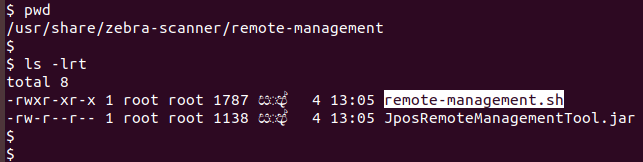
Most Commonly Used Attributes

Table 20: Most Commonly Used Attributes

Attribute ID Description Type
533 Scanner model Inventory
534 Serial number Inventory
20004 Firmware version Inventory
15 PDF symbology activated Configuration
15013 Seconds from Power-On Performance
293 QR symbology activated Configuration
15421 Number of UPC read Performance
25007 Scale calibration count Performance
15251 Pole display fault count Diagnostic
15227 Zero-scale button count Diagnostic

How to run JPOS Remote Management Tool

  1. Log into your Linux system and open a terminal/console.
  2. Change directory to /user/share/zebra-scanner/remote-management.

  3. Execute remote-management.sh script.

Statistics Log File

After the successful execution of the script, a plain text file with the expected statistics data is generated. The file will have the .log extension and will be in the path that has been configured in the configuration XML. By default, the log file will be generated in /var/log/zebra-scanner/jpos-remote-management directory.

Information in the log file are delimited by "pipe" ( | ) separator, each field contains information about a single attribute specified via the configuration XML file. String “null” will be printed if a specified attribute is not supported by the scanner. Sample entry from the log file is as below. A separate log file will be created for each scanner.


Appendix

Overview

This section provides a matrix of scanner modes and supported symbology types in each mode.

Supported Symbology Types vs. Scanner Mode

Table 21: Supported Symbology Types vs. Scanner Modes

Symbology Scanner Mode
Type Value IBM HID SNAPI Nixdorf Mode B
UPC-A SCAN_SDT_UPCA X X X
UPC-A with supplemental bar code SCAN_SDT_UPCA_S X X X
UPC-E SCAN_SDT_UPCE X X X
UPC-E with supplemental bar code SCAN_SDT_UPCE_S X X X
UPC-D1 SCAN_SDT_UPCD1 X X X
UPC-D2 SCAN_SDT_UPCD2 X X X
UPC-D3 SCAN_SDT_UPCD3 X X X
UPC-D4 SCAN_SDT_UPCD4 X X X
UPC-D5 SCAN_SDT_UPCD5 X X X
EAN 8 ( =JAN 8 ) SCAN_SDT_EAN8 X X X
JAN 8 ( = EAN 8 ) SCAN_SDT_JAN8 X X X
EAN 8 with supplemental barcode SCAN_SDT_EAN8_S X X X
EAN 13 ( = JAN 13 ) SCAN_SDT_EAN13 X X X
JAN 13 ( = EAN 13 ) SCAN_SDT_JAN13 X X X
EAN 13 with supplemental barcode SCAN_SDT_EAN13_S X X X
EAN-128 SCAN_SDT_EAN128 X X X
Standard ( or discrete ) 2 of 5 SCAN_SDT_TF X X X
Interleaved 2 of 5 SCAN_SDT_ITF X X X
Codabar SCAN_SDT_Codabar X X X
Code 39 SCAN_SDT_Code39 X X X
Code 128 SCAN_SDT_Code128 X X X
OCR "A” SCAN_SDT_OCRA X X -
OCR "B” SCAN_SDT_OCRB X X -
GS1 DataBar Omnidirectional (normal or stacked) SCAN_SDT_GS1_DATABAR X X -
GS1 DataBar Expanded (normal or stacked) SCAN_SDT_GS1_DATABAR_E X X -
Composite Component A SCAN_SDT_CCA - X -
Composite Component B SCAN_SDT_CCB - X -
Composite Component C SCAN_SDT_CCC - X -
PDF 417 SCAN_SDT_PDF417 X X -
MAXICODE SCAN_SDT_MAXICODE X X -
Data Matrix SCAN_SDT_DATAMATRIX - X -
QR Code SCAN_SDT_QRCODE - X -
Micro QR Code SCAN_SDT_UQRCODE - X -
Aztec SCAN_SDT_AZTEC - X -
Micro PDF 417 SCAN_SDT_UPDF417 - X -

When the scanner is in Wincor-Nixdorf RS232 Mode B, the Zebra JPOS return value for the ScanDataType property differs from the expected value for the bar code types listed below.

Table 22: Bar Code Types Not Accurately Identified in Wincor-Nixdorf RS232 Mode B

Symbology Type Expected Value Zebra RSM JPOS Return Value Comments
UPC-A with supplemental bar code SCAN_SDT_UPCA_S SCAN_SDT_UPCA Nixdorf Mode B cannot distinguish UPCA since it identifies bar code types UPCA, UPCA_S, EAN13, EAN13_S, and BOOKLAND as one type.
UPC-E with supplemental bar code SCAN_SDT_UPCE_S SCAN_SDT_UPCE Nixdorf Mode B identifies both bar code types UPCE and UPCE_S as UPCE.
EAN 8 with supplemental bar code SCAN_SDT_EAN8_S SCAN_SDT_EAN8 Nixdorf Mode B identifies both EAN8 and EAN8_S bar code types as EAN8.
EAN 13 SCAN_SDT_EAN13 SCAN_SDT_UPCA Nixdorf Mode B cannot distinguish EAN 13 since it identifies bar code types UPCA, UPCA_S, EAN13, EAN13_S, and BOOKLAND as one type.
EAN 13 with supplemental bar code SCAN_SDT_EAN13_S SCAN_SDT_UPCA Nixdorf Mode B cannot distinguish EAN 13_S since it identifies bar code types UPCA, UPCA_S, EAN13, EAN13_S, and BOOKLAND as one type.

Error Codes

Error Codes - JPOS Scanner

Table 23: Error Codes for JPOS Scanner

Message Return Codes Description
JPOS_S_CLOSED 1 The Device is closed.
JPOS_S_IDLE 2 The Device is in a good state and is not busy.
JPOS_S_BUSY 3 The Device is in a good state and is busy performing output.
JPOS_S_ERROR 4 An error has been reported, and the application must recover the Device to a good state before normal I/O can resume.
This property is always readable.
JPOS_SUCCESS 0 The Operation completed without Errors
JPOS_E_CLOSED 101 An attempt was made to access a closed JavaPOS Device.
JPOS_E_CLAIMED 102 An attempt was made to access a Physical Device that is claimed by another Device Control instance. The other Control must release the Physical Device before this access may be made. For exclusive-use devices, the application will also need to claim the Physical Device before the access is legal.
JPOS_E_NOTCLAIMED 103 An attempt was made to access an exclusive-use device that must be claimed before the method or property set action can be used.
If the Physical Device is already claimed by another Device Control instance, then the status JPOS_E_CLAIMED is returned instead.
JPOS_E_NOSERVICE 104 The Control cannot communicate with the Service, normally because of a setup or configuration error.
JPOS_E_DISABLED 105 Cannot perform this operation while the Device is disabled.
JPOS_E_ILLEGAL 106 An attempt was made to perform an illegal or unsupported operation with the Device, or an invalid parameter value was used.
JPOS_E_NOHARDWARE 107 The Physical Device is not connected to the system or is not powered on.
JPOS_E_OFFLINE 108 The Physical Device is off-line.
JPOS_E_NOEXIST 109 The file name (or other specified value) does not exist.
JPOS_E_EXISTS 110 The file name (or other specified value) already exists.
JPOS_E_FAILURE 111 The Device cannot perform the requested procedure, even though the Physical Device is connected to the system, powered on, and on-line.
JPOS_E_TIMEOUT 112 The Service timed out waiting for a response from the Physical Device, or the Control timed out waiting for a response from the Service
JPOS_E_BUSY 113 The current Service state does not allow this request. For example, if asynchronous output is in progress, certain methods may not be allowed.
JPOS_E_EXTENDED 114 A device category-specific error condition occurred. The error condition code is available by calling getErrorCodeExtended.
JPOS_E_DEPRECATED 115 The requested operation can not be performed since it has been deprecated. See “Deprecation Handling" on page 38 for additional information.
JPOS_ESTATS_ERROR 280 At least one of the specified statistics could not be reset.
JPOS_ESTATS_DEPENDENCY 282 At least one other statistic is required to be reset in addition to a requested statistic.
JPOS_EL_OUTPUT 1 Error occurred while processing asynchronous output.
JPOS_EL_INPUT 2 Error occurred while gathering or processing event-driven input.No previously buffered input data is available
JPOS_EL_INPUT_DATA 3 Error occurred while gathering or processing event-driven input, and some previously buffered data is available.
JPOS_ER_RETRY 11 Retry the asynchronous output. The error state is exited. May be valid only when locus is JPOS_EL_INPUT. Default when locus is JPOS_EL_OUTPUT.
JPOS_ER_CLEAR 12 Clear all buffered output data (including all asynchronous output) or buffered input data. The error state is exited. Default when locus is JPOS_EL_INPUT.
JPOS_ER_CONTINUEINPUT 13 Acknowledges the error and directs the Device to continue input processing. The Device remains in the error state and will deliver additional DataEvents as directed by the DataEventEnabled property. When all input has been delivered and DataEventEnabled is again set to true, then another ErrorEvent is delivered with locus JPOS_EL_INPUT.
Use only when locus is JPOS_EL_INPUT_DATA.
Default when locus is JPOS_EL_INPUT_DATA.

Error Codes - JPOS Scale

Table 24: Error Codes for JPOS Scale

Message Return Codes Description
SCAL_SUE_STABLE_WEIGHT 11 Scale weight is stable. The ScaleLiveWeight property is updated before event delivery.
SCAL_SUE_WEIGHT_UNSTABLE 12 Scale weight is unstable.
SCAL_SUE_WEIGHT_ZERO 13 Scale weight is zero.
SCAL_SUE_WEIGHT_OVERWEIGHT 14 Scale weight is overweight.
SCAL_SUE_NOT_READY 15 Scale is not ready to weigh.
SCAL_SUE_WEIGHT_UNDER_ZERO 16 Scale weight is under zero.
JPOS_ESCAL_OVERWEIGHT 201 The weight was over MaximumWeight.
JPOS_ESCAL_UNDER_ZERO 202 The scale is reporting a weight that is less than zero due to a calibration error. The scale should be recalibrated.
JPOS_ESCAL_SAME_WEIGHT 203 The scale is reporting that the item/weight on the scale is identical to the previously reported item/weight; i.e., the item has not been removed from the scale.

Installation Components for Windows and Linux

Table 25: Installation Components for Windows and Linux

Component or Module Description Installation Path (Windows) Installation Path (Linux)
JposLogger.jar Contains logging functionality for JPOS service. C:\Program Files\Zebra Technologies\Barcode Scanners\Scanner SDK\JPOS\bin /usr/lib/zebra-scanner/javapos
JposServiceJniScale.jar JPOS Library Contains Java Native Interface (JNI) components for integrating and managing scale devices within a JavaPOS environment. C:\Program Files\Zebra Technologies\Barcode Scanners\Scanner SDK\JPOS\bin /usr/lib/zebra-scanner/javapos
JposServiceJniScanner.jar JPOS Library Contains Java Native Interface (JNI) components for integrating and managing scanner devices within a JavaPOS environment. C:\Program Files\Zebra Technologies\Barcode Scanners\Scanner SDK\JPOS\bin /usr/lib/zebra-scanner/javapos
JposServiceOnScale.jar JPOS Library Includes services for managing scales within the JavaPOS framework without requiring JNI. C:\Program Files\Zebra Technologies\Barcode Scanners\Scanner SDK\JPOS\bin /usr/lib/zebra-scanner/javapos
JposServiceOnScanner.jar JPOS Library Provides services or drivers for managing scanners within the JavaPOS system without requiring JNI. C:\Program Files\Zebra Technologies\Barcode Scanners\Scanner SDK\JPOS\bin /usr/lib/zebra-scanner/javapos
JposServiceScale.jar JPOS Library Contains core JavaPOS services related to scale devices, offering an interface for scale operations and management. C:\Program Files\Zebra Technologies\Barcode Scanners\Scanner SDK\JPOS\bin /usr/lib/zebra-scanner/javapos
JposServiceScanner.jar JPOS Library Contains core JavaPOS services for scanner devices, providing the necessary interfaces and functions for scanner operations. C:\Program Files\Zebra Technologies\Barcode Scanners\Scanner SDK\JPOS\bin /usr/lib/zebra-scanner/javapos
javaPOS114.jar Third party Java library used for JPOS. A core component of the JavaPOS system, providing the main JavaPOS interfaces and classes necessary for developing POS applications. C:\Program Files\Zebra Technologies\Barcode Scanners\Scanner SDK\JPOS\external\JavaPOS-1.14.0-Dist /usr/lib/zebra-scanner/javapos
xercesImpl.jar Third party Java library used for JPOS. A part of the Apache Xerces project, which provides a library for parsing, validating, and manipulating XML documents. C:\Program Files\Zebra Technologies\Barcode Scanners\Scanner SDK\JPOS\external\xerces-2_11_0 /usr/lib/zebra-scanner/javapos/jpos
xml-apis.jar Third party Java library used for JPOS. Provides a set of APIs for XML processing, including interfaces for parsing and transforming XML documents. C:\Program Files\Zebra Technologies\Barcode Scanners\Scanner SDK\JPOS\external\xerces-2_11_0 /usr/lib/zebra-scanner/javapos/jpos


Download

Download JPOS Drivers for Scanner and Scale

IMPORTANT: Zebra recommends using the latest release whenever possible.

NOTE: Zebra JPOS Drivers for Scanner and Scale bundled with the Barcode Scanner SDK for Windows InstallShield and Barcode Scanner SDK for Linux distribution package.

To Download Barcode Scanner SDK for Windows:

  1. Visit the Zebra Barcode Scanner SDK for Windows download page and select the desired download(s).
  2. Proceed to the Barcode Scanner SDK for Windows release notes for the version details.
  3. Proceed to JPOS Drivers for Scanner and Scale setup page for installation instructions.

To Download Barcode Scanner SDK for Linux:

  1. Visit the Zebra Barcode Scanner SDK for Linux download page and select the desired download(s).
  2. Proceed to the Barcode Scanner SDK for Linux release notes for the version details.