Supported Symbology Types vs. Scanner Mode
This appendix provides a matrix of scanner modes and supported symbology types in each mode, and the Windows registry keys for the OPOS Scanner and Scale logical names and drivers.
Table 1: Supported Symbology Types vs. Scanner Modes
| Symbology | Scanner Mode | |||
|---|---|---|---|---|
| Type | Value | IBM HID | SNAPI | Nixdorf Mode B |
| UPC-A | SCAN_SDT_UPCA | X | X | X |
| UPC-A with supplemental barcode | SCAN_SDT_UPCA_S | X | X | X |
| UPC-E | SCAN_SDT_UPCE | X | X | X |
| UPC-E with supplemental barcode | SCAN_SDT_UPCE_S | X | X | X |
| UPC-D1 | SCAN_SDT_UPCD1 | X | X | X |
| UPC-D2 | SCAN_SDT_UPCD2 | X | X | X |
| UPC-D3 | SCAN_SDT_UPCD3 | X | X | X |
| UPC-D4 | SCAN_SDT_UPCD4 | X | X | X |
| UPC-D5 | SCAN_SDT_UPCD5 | X | X | X |
| EAN 8 ( =JAN 8 ) | SCAN_SDT_EAN8 | X | X | X |
| JAN 8 ( = EAN 8 ) | SCAN_SDT_JAN8 | X | X | X |
| EAN 8 with supplemental barcode | SCAN_SDT_EAN8_S | X | X | X |
| EAN 13 ( = JAN 13 ) | SCAN_SDT_EAN13 | X | X | X |
| JAN 13 ( = EAN 13 ) | SCAN_SDT_JAN13 | X | X | X |
| EAN 13 with supplemental barcode | SCAN_SDT_EAN13_S | X | X | X |
| EAN-128 | SCAN_SDT_EAN128 | X | X | X |
| Standard (or Discrete) 2 of 5 | SCAN_SDT_TF | X | X | X |
| Interleaved 2 of 5 | SCAN_SDT_ITF | X | X | X |
| Codabar | SCAN_SDT_Codabar | X | X | X |
| Code 39 | SCAN_SDT_Code39 | X | X | X |
| Code 128 | SCAN_SDT_Code128 | X | X | X |
| OCR "A" | SCAN_SDT_OCRA | X | X | - |
| OCR "B” | SCAN_SDT_OCRB | X | X | - |
| GS1 DataBar Omnidirectional (normal or stacked) | SCAN_SDT_GS1_DATABAR | X | X | - |
| GS1 DataBar Expanded (normal or stacked) | SCAN_SDT_GS1_DATABAR_E | X | X | - |
| Composite Component A | SCAN_SDT_CCA | - | X | - |
| Composite Component B | SCAN_SDT_CCB | - | X | - |
| Composite Component C | SCAN_SDT_CCC | - | X | - |
| PDF 417 | SCAN_SDT_PDF417 | X | X | - |
| MAXICODE | SCAN_SDT_MAXICODE | X | X | - |
| Data Matrix | SCAN_SDT_DATAMATRIX | - | X | - |
| QR Code | SCAN_SDT_QRCODE | - | X | - |
| Micro QR Code | SCAN_SDT_UQRCODE | - | X | - |
| Aztec | SCAN_SDT_AZTEC | - | X | - |
| Micro PDF 417 | SCAN_SDT_UPDF417 | - | X | - |
When the scanner is in Wincor-Nixdorf RS- 232 Mode B, the Zebra OPOS return value for the ScanDataType property differs from the expected value for the bar code types listed in Table below.
Table 2: Bar Code Types Not Accurately Identified in Wincor-Nixdorf RS-232 Mode B
| Symbology Type | Expected Value | Zebra RSM OPOS Return Value | Comments |
|---|---|---|---|
| UPC-A with supplemental bar code | SCAN_SDT_UPCA_S | SCAN_SDT_UPCA | Nixdorf Mode B cannot distinguish UPCA since it identifies bar code types UPCA, UPCA_S, EAN13, EAN13_S, and BOOKLAND as one type. |
| UPC-E with supplemental bar code | SCAN_SDT_UPCE_S | SCAN_SDT_UPCE | Nixdorf Mode B identifies both bar code types UPCE and UPCE_S as UPCE. |
| EAN 8 with supplemental bar code | SCAN_SDT_EAN8_S | SCAN_SDT_EAN8 | Nixdorf Mode B identifies both EAN8 and EAN8_S bar code types as EAN8. |
| EAN 13 | SCAN_SDT_EAN13 | SCAN_SDT_UPCA | Nixdorf Mode B cannot distinguish EAN 13 since it identifies bar code types UPCA, UPCA_S, EAN13, EAN13_S, and BOOKLAND as one type. |
| EAN 13 with supplemental bar code | SCAN_SDT_EAN13_S | SCAN_SDT_UPCA | Nixdorf Mode B cannot distinguish EAN 13_S since it identifies bar code types UPCA, UPCA_S, EAN13, EAN13_S, and BOOKLAND as one type. |
OPOS Logging (spdlog)
The OPOS driver previously utilized a custom logging mechanism based on registry configurations. This has been transitioned to the new spdlog framework to enhance performance and ensure consistency with other products, such as CoreScanner.
The OPOS Scanner SDK now leverages spdlog as its core logging framework to provide robust diagnostic and debugging capabilities. The system is managed via an XML configuration file, allowing for easily customizable settings.
Legacy SDK Logging (For Scanner SDK v3.07.0008 and Earlier)
In SDK versions up to v3.07.0008, the OPOS logging mechanism is controlled through the Windows Registry. You can enable or disable logging, and configure the log file's location, size, and rotation by modifying the registry keys.
Registry Key Definitions
Table 3: Registry Key Descriptions
| Registry Key | Description |
|---|---|
| EnableTrace | Enable or disable debug/engineering message entries to the log file specified by LogFilePath. |
| LogFilePath | Specifies the full directory path where log files will be saved. |
| LogFileLength | Defines the maximum number of lines each log file can contain. |
| MaxLogFileCount | Specifies the maximum number of log files to retain before overwriting. |
Registry Paths
Modify the keys at the following paths to configure the logging mechanism for Scanners and Scales:
Scanner: Computer\HKEY_LOCAL_MACHINE\SOFTWARE\Zebra\Zebra Scanners\OPOS\Scanner
Scale: Computer\HKEY_LOCAL_MACHINE\SOFTWARE\Zebra\Zebra Scanners\OPOS\Scale
Table 4: Available Registry Keys by Device
| Device | Available Keys |
|---|---|
| Scanner | EnableTrace, LogFilePath, LogFileLength, MaxFileCount |
| Scale | EnableTrace, LogFilePath, LogFileLength, MaxFileCount, DebugPrint, EngDbgStr, Level |
IMPORTANT NOTE: As of Scanner SDK v3.07.0009, this registry-based logging system is deprecated and no longer supported. The logging system has been upgraded to use SPD logs.
SPD Logging (Scanner SDK v3.07.0009 for Windows and Newer)
Starting with Scanner SDK v3.07.0009, the logging system has been upgraded by integrating the SPDLOG library (v1.15.3). This powerful third-party library provides a more robust and flexible logging solution.
For more information on the SPDLOG library, please refer to the official spdlog GitHub repository.
Configuration File
Logging behavior is defined by the properties within an XML configuration file. This file is made available upon the installation of the Scanner SDK.
Configuration File Locations
Table 5: SPD Logging Configuration File Paths
| Component | Path |
|---|---|
| OPOS Scanner x64 | C:\Program Files\Zebra Technologies\Barcode Scanners\Scanner SDK\OPOS\Scanner OPOS\bin\OPOSScannerLog_config.xml |
| OPOS Scanner x86 | C:\Program Files\Zebra Technologies\Barcode Scanners\Scanner SDK\OPOS\Scanner OPOS\bin\x86\ OPOSScannerLog_config.xml |
| OPOS Scale x64 | C:\Program Files\Zebra Technologies\Barcode Scanners\Scanner SDK\OPOS\Scale OPOS\bin\OPOSScaleLog_config.xml |
| OPOS Scale x86 | C:\Program Files\Zebra Technologies\Barcode Scanners\Scanner SDK\OPOS\Scale OPOS\bin\x86\OPOSScaleLog_config.xml |
XML Configuration Structure
<log_configuration>
  <sinks>
    <sink type="rotating_logger_mt" name="rotating_logger_mt">
      <property key="log_path" value="C:\Program Files\Zebra Technologies\Barcode Scanners\Scanner SDK\OPOS\Scanner OPOS\bin\Logs\" />
      <property key="max_file_size" value="5120" />
      <property key="max_file_count" value="5" />
      <property key="log_pattern" value="[%d-%m-%Y] [%H:%M:%S:%e] [T%t] [P%P] [%l] [%!] %v [%s]  %#" />
      <property key="log_level" value="2" />
    </sink>
  </sinks>
</log_configuration>
Supported Sink Types
rotating_logger_mt (Rotating File Logger - Multi-threaded)
- Creates rotating log files
- File naming:
<Device Type (Scanner/Scale)>_<Driver Architecture (x64/x86)>_<ProcessID>_<Instance Number>.log
Example:OPOSScanner_x64_50944_1.log - Automatically manages old log files based on
max_file_countandmax_file_size - Thread-safe for multi-threaded applications
Configuration Properties
log_path
Type: String
Description: Directory path where log files will be stored.
Example: C:\Program Files\Zebra Technologies\Barcode Scanners\Scanner SDK\OPOS\Scanner OPOS\bin\Logs
Note: The directory will be created automatically if it doesn't exist (requires permissions). If the log folder is created manually, you must also manually set the necessary write permissions for the application.
log_pattern
Type: String
Description: Defines the format of log entries
Default: [%d-%m-%Y] [%H:%M:%S:%e] [T%t] [P%P] [%l] %v
Log Pattern Breakdown
Table 6: Log Pattern Format Codes
| Pattern | Description |
|---|---|
| %d-%m-%Y | Date (day-month-year) |
| %H:%M:%S:%e | Time (hour:minute:second:millisecond) |
| %t | Thread ID |
| %P | Process ID |
| %l | Log Level (e.g., info) |
| %v | The log message content |
For more pattern options, see the spdlog Custom Formatting guide.
Example Log Entry:
[08-10-2025] [21:29:02:949] [T22196] [P28396] [info] [CScannerSO::CScannerSO] Initializing Logging from App Start returns 0 [ScannerSO.cpp] 509
max_file_size
Type: Integer (in KB)
Description: The maximum size of a single log file in kilobytes (KB). The minimum value is 5120 KB (5 MB); any value below this will default to 5120 KB. The maximum value is 20480 KB (20MB); any value exceeding this will default to 20480 KB.
Default: 5120 KB (5MB)
Minimum: 5120 KB (5MB)
Maximum: 20,480 KB (20 MB)
max_file_count
Type: Integer
Description: Maximum number of log files to retain. Any invalid input will default to 1. Any value higher than the max value of 1000 will default to 1000.
Behavior: Oldest files are automatically deleted when limit is reached
Default: 5
Minimum: 1
Maximum: 1000
log_level
Type: Integer
Description: Minimum severity level for logging
Default value: 2 (INFO)
Table 7: Log Levels
| Level | Numeric Value | Description |
|---|---|---|
| DEBUG | 1 | Designates detailed diagnostic events used to troubleshoot issues and analyze internal software behavior. |
| INFO | 2 (Default) | Designates useful information about the application's general flow and significant events. |
| WARNING | 3 | Designates unexpected events or potential issues that do not stop the application but should be reviewed. |
| ERROR | 4 | Designate errors, typically those that have caused a specific operation to fail. |
| Off | 6 | Disables all logging. |
System Information File
The OPOS Open call triggers the automatic generation of a system information file in the configured log_path. This file provides a snapshot of the environment and contains the following details:
- OPOS Scanner/Scale Version
- Driver Architecture (x86/x64)
- Operating System Name
- Operating System Build ID
- Operating System Architecture
- Number of Processors

Figure 1: System Information Log File
Log File Management
Automatic Log Rotation and Cleanup
To prevent log files from consuming excessive disk space, the logging system uses an automatic size-based rotation mechanism. When the active log file (e.g., OPOSScanner_x64_50944_1.log) reaches its configured maximum size limit (max_file_size), the following sequence occurs:
- Renaming (Archiving): The currently active log file is closed and renamed by appending an incrementing index number to the extension (e.g., it becomes OPOSScanner_x64_50944_1.1.log). It is now considered a history file.
- Creation: A new, empty log file is immediately created using the original active filename (e.g., OPOSScanner_x64_50944_1.log).
- Continuation: The application continues writing new log entries into this newly created active file.
- Sequential Indexing: If the active file fills up again, the rotation process repeats. The system maintains a sequentially numbered history (e.g., OPOSScanner_x64_50944_1.1.log, OPOSScanner_x64_50944_1.2.log, …) up to the configured maximum file count limit.
- Rotation Triggers: Rotation occurs automatically whenever the file size limit is reached during operation, as well as upon application startup.
- Independent Component Logging: If different drivers (Scanner/Scale) or driver architectures (x64/x86) (e.g., Scanner x64 and Scanner x86) are writing log files into the same target directory, they will each manage and rotate their own log files independently, adhering strictly to their respective configuration settings.
The total number of log files generated in the log directory depends on the number of active application instances, the driver configurations, and system logging.
For a single driver, total number of log files is: M + N + 1
- M: The number of "currently writing" log files (one for each of the M open application instances).
- N: The maximum number of "history" log files (as defined by max_file_count).
- 1: The SystemInfo.log file.
If this causes the number of history files to exceed N, the oldest history file is automatically deleted. The system automatically manages log file count; oldest files are deleted when max_file_count is exceeded, and locked files (in use by other processes) are skipped during cleanup.
Log File Naming Convention (Multi-Instance Support)
To seamlessly support multiple simultaneous instances of the OPOS driver, the logging system generates a unique name for each active log file. It does this by appending the Process ID (PID) and the instance sequence number to the filename.
Standard Naming Format: <Device Type>_<Driver Architecture>_<ProcessID>_<Instance Number>.log
OPOS Scanner Examples
- Configuration File: OPOSScannerLog_config.xml
- Log File Name Example: OPOSScanner_x64_50944_1.log (Scanner, 64-bit architecture, Process ID 50944, Instance 1)
- System Info File: OPOSScannerSystemInfo_64.log
OPOS Scale Examples
- Configuration File: OPOSScaleLog_config.xml
- Log File Name Example: OPOSScale_x64_67934_1.log (Scale, 64-bit architecture, Process ID 67934, Instance 1)
- System Info File: OPOSScaleSystemInfo_64.log
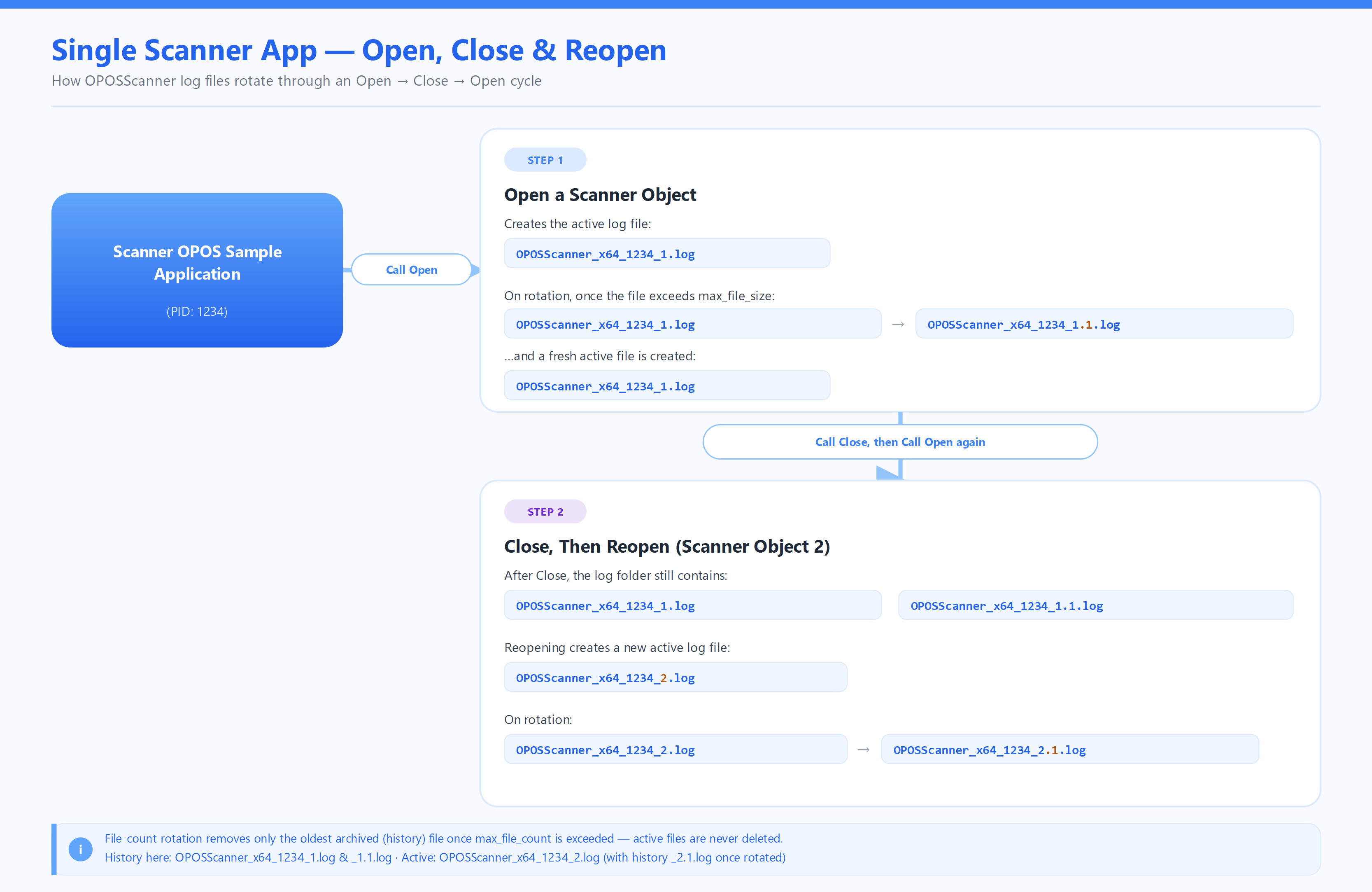
Figure 2: Single Scanner Application Log Files
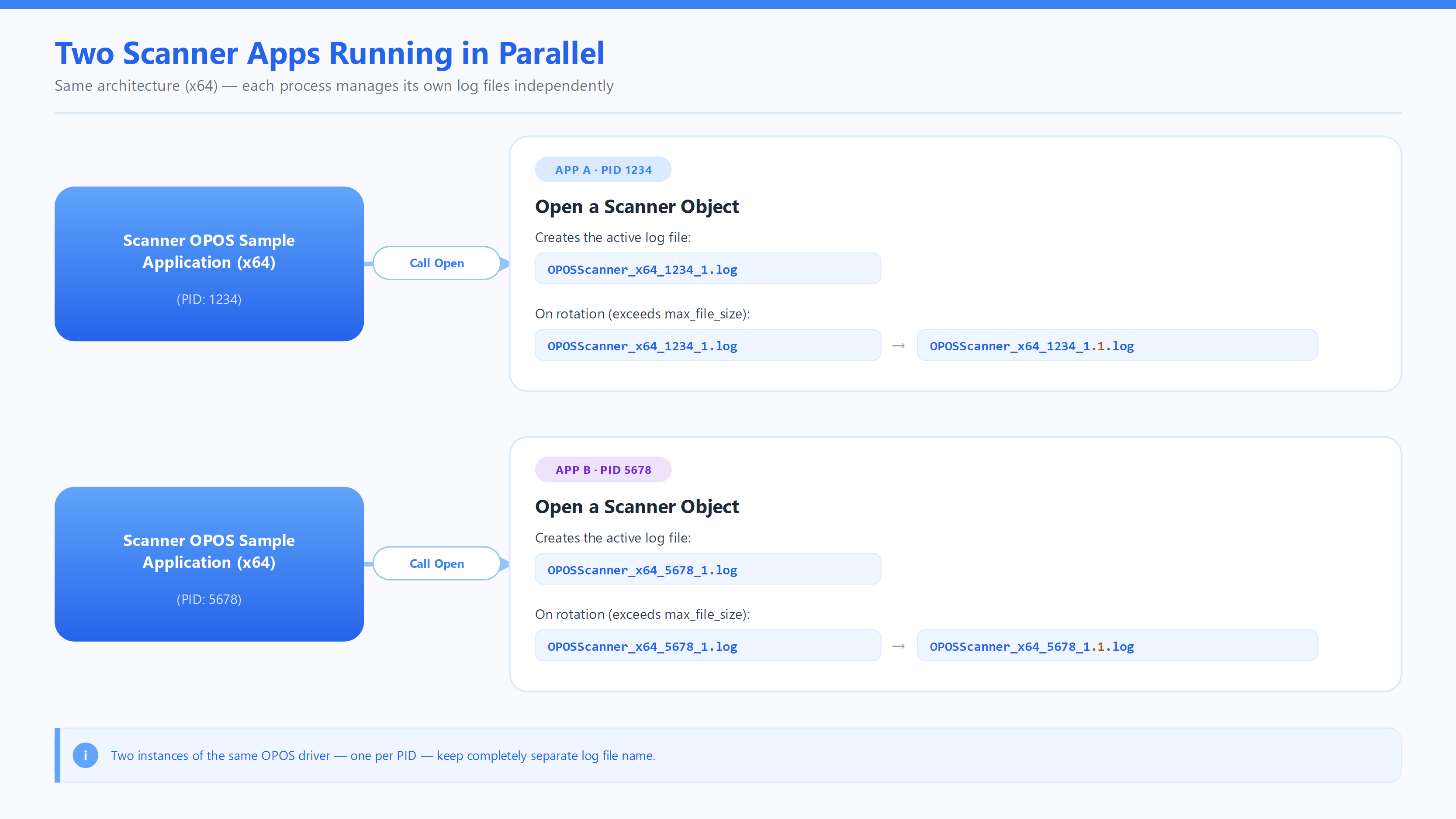
Figure 3: Two Scanner Application Log Files
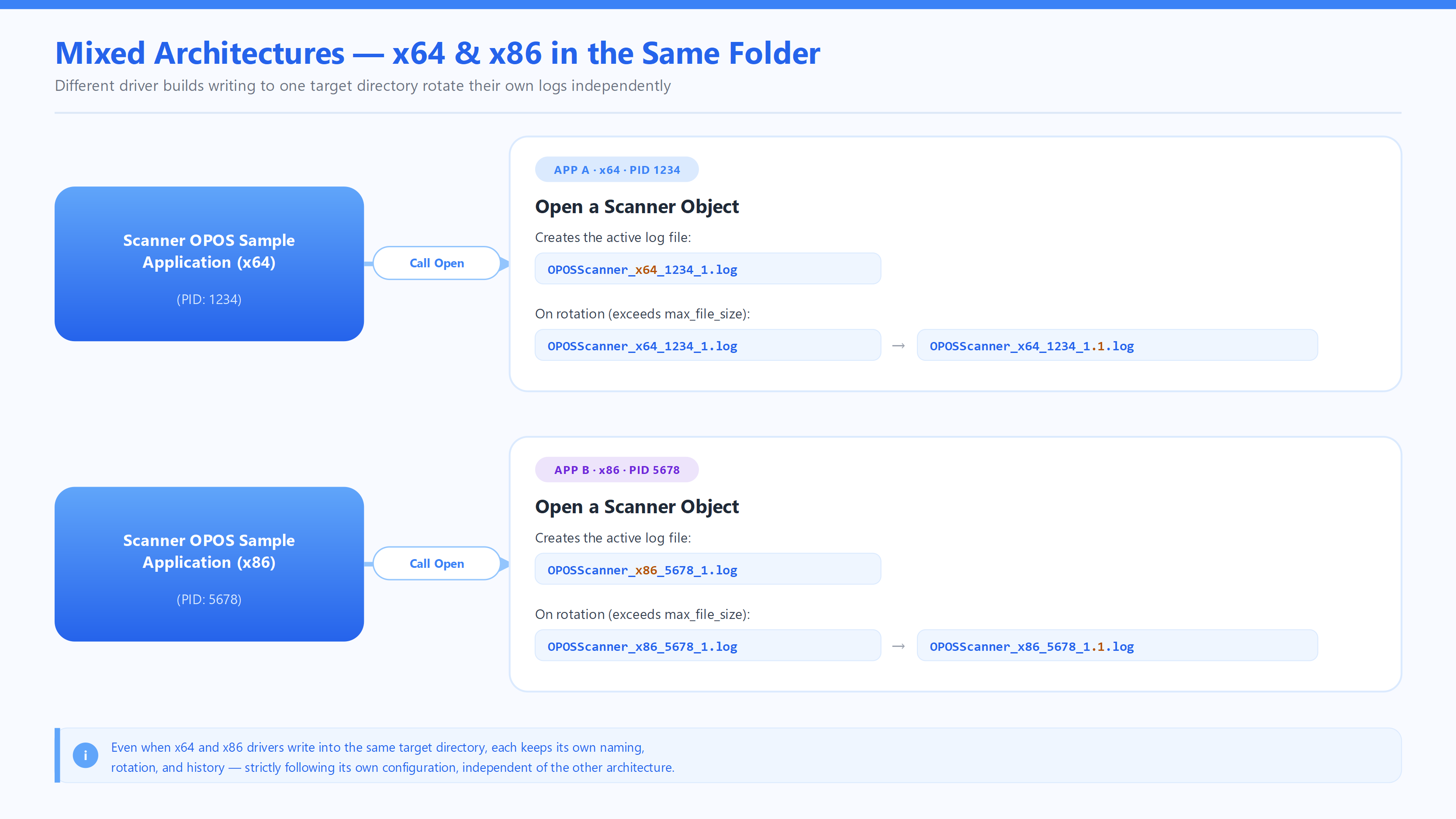
Figure 4: Mixed Architectures Log Files
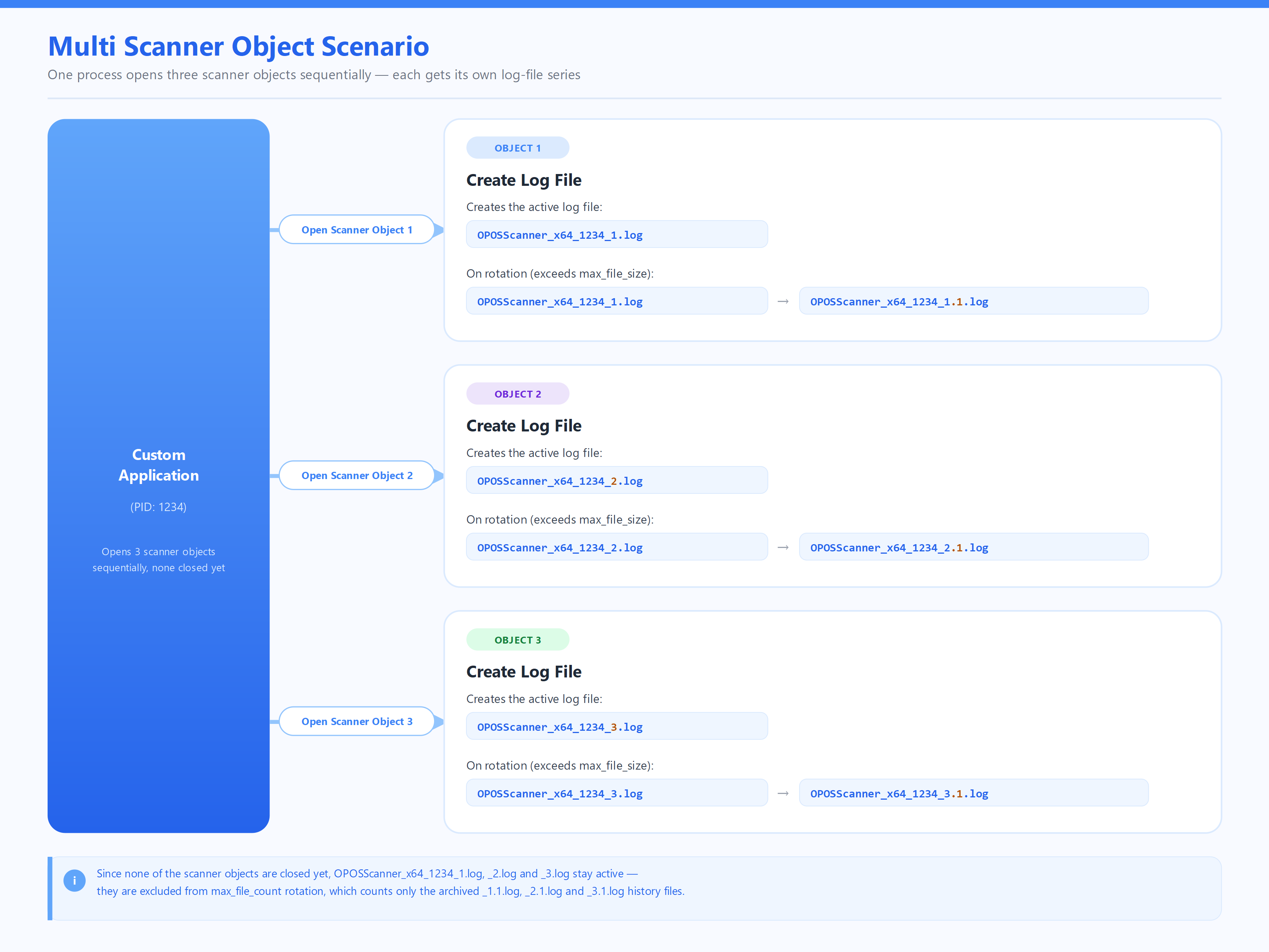
Figure 5: Multiple Scanner Objects Log Files
Windows Event Log Integration
The logging system writes important events to Windows Event Log (Application log) for both Scanner and Scale components.
Table 8: Event Log Sources
| OPOS Component | Event Source Name | Purpose |
|---|---|---|
| OPOS Scanner | OPOSScanner | Scanner-related configuration and critical errors |
| OPOS Scale | OPOSScale | Scale-related configuration and critical errors |
Events Written to Event Log
Both components write the following types of events:
- ✅ Configuration Loading Errors (Missing or invalid XML configuration file, XML parsing failures, Invalid sink configurations)
- ✅ Directory Creation Failures (Unable to create log directories, Permission denied errors)
- ✅ File Permission Issues (Failed to open log files for writing, Disk space errors)
- ✅ Initialization Warnings (Empty or missing sink configurations, Fallback to default logging)
Viewing Event Logs:
Method 1: Event Viewer GUI
- Open Event Viewer (eventvwr.msc)
- Navigate to: Windows Logs → Application
- Filter by source:
- For Scanner: OPOSScanner
- For Scale: OPOSScale
Method 2: PowerShell
# View Scanner events
Get-EventLog -LogName Application -Source "OPOSScanner" -Newest 50

# View Scale events
Get-EventLog -LogName Application -Source "OPOSScale" -Newest 50

# View both
Get-EventLog -LogName Application | Where-Object {$_.Source -like "OPOS*"}
Method 3: Windows Event Viewer Quick Filter
<QueryList>
  <Query Id="0" Path="Application">
    <Select Path="Application">
      *[System[(EventID=4096) and (Provider[@Name='OPOSScanner' or @Name='OPOSScale'])]]
    </Select>
  </Query>
</QueryList>
Table 9: Event Log vs. SPD Logging Comparison
| Aspect | Windows Event Log | SPD Logging |
|---|---|---|
| Purpose | System-level critical errors | Detailed diagnostic logging |
| Scope | Configuration and initialization only | All operations |
| Verbosity | Minimal (errors/warnings only) | Configurable (trace to critical) |
| Persistence | System-managed | File-based rotation |
| Access | Requires admin rights to view | File system permissions |
| Performance | Low overhead | Optimized async logging |
Event Log Configuration
The Event Log integration is automatic and cannot be disabled. It provides a safety net when:
- SPD logging is misconfigured
- Log files cannot be created
- Application is running in restricted environments
Troubleshooting
Problem: No SPD log files are being created
Solutions:
- Verify XML configuration file exists at the expected location
- Check directory permissions for log_path
- Ensure log_level is not set to 6 (off)
- Verify XML structure is valid
- Check Event Log for OPOSScanner or OPOSScale source
- Look for configuration or permission errors
Common Event Log messages indicate:
- Missing XML configuration file
- Invalid log path
- Insufficient permissions
Problem: Windows Event Log Error – "Failed to create log directory"
Solutions:
- Run application with appropriate permissions
- Use a directory with write access (e.g., C:\ProgramData)
- Manually create the directory and grant write permissions
Problem: Log Files Not Rotating
Solutions:
- Verify max_file_size is set and within valid range (5 MB - 20 MB)
- Ensure sink type is rotating_logger_mt
- Check file permissions on log directory
- Confirm max_file_count is greater than 1
Windows Registry Keys for OPOS Driver
Table 10: Registry Paths to Default Scanner OPOS Logical Names
| Key Path (x64) |
| HKEY_LOCAL_MACHINE\SOFTWARE\OLEforRetail\ServiceOPOS\Scanner\ZEBRA_SCANNER |
| HKEY_LOCAL_MACHINE\SOFTWARE\OLEforRetail\ServiceOPOS\Scanner\MOTOROLA_SCANNER |
| HKEY_LOCAL_MACHINE\SOFTWARE\OLEforRetail\ServiceOPOS\Scanner\STI_USBSCANNER |
| HKEY_LOCAL_MACHINE\SOFTWARE\OLEforRetail\ServiceOPOS\Scanner\SYMBOL_SCANNER |
NOTE On 64-bit Windows, there are registry keys for 32-bit applications under the corresponding Wow6432Node.
Table 11: Registry Keys for OPOS Scanner Logical Names
| Value Name | Sample Data | Description |
|---|---|---|
| (Default) | ZebraScannerSO.ScannerSO | Service object name of the scanner OPOS. |
| Baud rate | 9600 115200 |
Baud rate for serial port. |
| CheckDigitAutoCalculate | 0 1 |
Automatically calculate Check Digit and append to the decode data label. 0= Disable 1 = Enable |
| CompatibilityMode | 0 1 |
Specifies how the decode data is stored in the ScanData and ScanDataLabel properties. 0 = Decode data is stored according to the UPOS specification. 1 = ScanData property contains the same data as the ScanDataLabel property. |
| Connection1 | ConnUSB | Added for backward compatibility. |
| Description | Zebra scanner logical device | Logical device description. |
| ExclusiveClaimLevel | 0 1 |
Specifies whether an OPOS claim is required to be exclusive to the scanners in the logical device. For example, if a scanner is exclusively claimed by an application, other applications cannot claim it or send management commands to that scanner. 0 = OPOS claim exclusivity is not required for all scanners in the logical device. 1 = OPOS claim is exclusive to all scanners in the logical device. Any other value = OPOS claim is able to claim at least one scanner in the logical device. |
| ModelNumber | 1. DS6707-SR20001ZZR,DS9808* (* Represents any model of the DS9808.) |
Comma separated list of scanner model numbers for use with OPOS driver. |
| PID1 | * (Represents all PIDs) | Product IDs of Zebra bar code scanners. |
| Port | COM1 COM1,COM2 * (Represent any COM port) |
Comma or space delimited list of serial ports needed for use with OPOS driver. |
| SerialNumber | 1. 7116000500337, 7087000501981 2. * (Represents all serial numbers) |
Comma separated list of scanner serial numbers for use with OPOS driver. |
| Type | SNAPI NIXMODB USBIBMHID USBIBMTT SSI ALL | Comma or space delimited list of scanner modes from the TypePool. |
| TypePool | SNAPI NIXMODB USBIBMHID USBIBMTT SSI ALL | All the supported types only for reference. OPOS driver does not read this entry. |
| VID | 0x05E0 | Vendor ID of Zebra bar code scanners. |
1 Added to maintain the backward compatibility and are optional if the CompatibilityMode is set to disable backward compatibility.
Table 12: Registry Paths to Default Scale OPOS Logical Names
| Key Path (x64) |
| HKEY_LOCAL_MACHINE\SOFTWARE\OLEforRetail\ServiceOPOS\Scale\ZEBRAA_SCALE |
| HKEY_LOCAL_MACHINE\SOFTWARE\OLEforRetail\ServiceOPOS\Scale\MOTOROLA_SCALE |
Table 13: Registry Keys for OPOS Scale Logical Names
| Value Name | Sample Data | Description |
|---|---|---|
| (Default) | ScaleOPOS.ScalSO | Service object name of the Scale OPOS. |
| DeviceDescription | Zebra Technologies Scale logical device | Logical device description. |
| ExclusiveClaimLevel | 0 1 |
0 =OPOS Scale service object does not get exclusive access of the device on claiming the device. This may be required if an application needs to access both scanner and scale of the MP6200 scanner at same time. 1 =Scale service object does claim the device exclusively so that no other POS application can access the device. |
| LiveWeightFrequency | 2 | Number of live weight events per second (values from 1 to 100). |
| NoTimeOutOnReadWeight | 0 1 |
0 = ReadWeight method returns OPOS_E_TIMEOUT if no valid weight data is retrieved before the time out elapse. 1 = ReadWeight method does not return OPOS_E_TIMEOUT if no valid weight data is retrieved before the time out elapse. It always reports OPOS_SUCCESS as result code. |
| ZeroValidOveride | 0 1 |
0 = ReadWeight does not accept zero weight as a valid reading. 1 = ReadWeight does accept zero weight as a valid reading. |
| WeightChangeThreshold | Unit of the value is based on scales weight unit with assumed decimal point. For example, 10 = 0.01kr or 0.01lb | Defines hoe large the weight reported from the scanner should differ from the previously reported value in order for the last reported weight value to be a legitimate weight. |
| WeightChangeMonitorInterval | Polling interval in milliseconds. | Defines how fast the SO should poll the scale to detect a change of weight on the platter. |
| UnstableWeightisADifferentWeights | 0 = unstable no weight change 1 = unstable reported as weight change |
Define whether even an unstable weight reported after stab;e weight is considered as a change ot wight on the platter. |
Table 14: Registry Path for Scanner OPOS Driver
| Key Path (x64) | HKEY_LOCAL_MACHINE\SOFTWARE\Zebra\Zebra Scanners\OPOS\Scanner |
Table 15: Registry Keys for Scanner OPOS Driver - Applies to all Scanner OPOS Logical Names
| Value Name | Values | Description |
|---|---|---|
| AutoDisableControl | 0 = Disable 1 = Enable |
0 = Normal AutoDisable property operation. 1 = Automatically disables the scanner after each data event regardless of the value of OPOS property AutoDisable. |
| AutoDisableDelay | 0 | Delay in milliseconds to disable the scanner automatically after each data event. Default value is 0. |
| DataEventAutoDisableControl | 0 = Disable 1 = Enable |
0 = Normal DataEventEnable operation. 1 = Scanner SO overrides the value of OPOS property DataEventEnable and always delivers the data events to application layer. |
| DataEventDelay | 0 | Minimum time gap in milliseconds between two decode data events. Default value is 0 ms. |
| EnableTrace | 0 = Disable 1 = Enable |
Enable or disable debug/engineering message entries to the log file specified by LogFilePath. |
| InterCommandDelay | 0 | Minimum time gap in milliseconds between OPOS method calls. Default value is 0 ms. |
| LogFilePath | \Program Files\Zebra Technologies\Barcode Scanners\Scanner SDK\OPOS\Scanner OPOS\bin\Logs\stiopos.txt | Path and filename for log file if EnableTrace is enabled. |
| SetDeviceEnableStateOnFailure | 0 = Disable 1 = Enable |
0 = Normal Result Code operation 1 = Regardless of the result of DeviceEnable call, Result Code is set to OPOS_SUCCESS. |
| SetEnableDisableOnEvent | 0 = Disable 1 = Enable |
0 = Normal Enable/Disable operation 1 = SO keeps the device Enable/Disable state in same state as SO DeviceEnable state. If an external application changes the device state, the SO immediately corrects it. |
| SetHardwareAutoDisableState | 0 = Disable 2 = Enable |
Controls the hardware ‘Scan Disable Mode’ setting on the scanner itself. 0 = Normal operation 2 = The SO sets the ‘Scan Disable Mode’ on the scanner to ‘Auto Disable’. This disables scanning after transmission of a bar code, and remains disabled until the host sends a Scan Enable. This feature is not supported by all scanner models. |
| SyncDeviceEnableStateOnDiscovery | 0 = Disable 1 = Enable |
Sync a newly connected device’s enable / disable state with the current enable / disable state of the OPOS driver. This is helpful if a new scanner is connected to a POS system where it already has a connected scanner. At the time the new scanner is connected, if the state of the OPOS SO is ‘device disabled’ the newly connected scanner should also has to change its state to ‘device disable’. This synchronization will be performed if “SyncDeviceEnableStateOnDiscovery” is enabled. |
| EnableBarcodeDataLogging | 0 = Disable 1 = Enable |
0 - No barcode data (raw data or decode data) is logged. 1 - All the barcode data including raw data and decode data is logged. |
Table 16: Registry Path for Scale OPOS Driver
| Key Path (x64) | HKEY_LOCAL_MACHINE\SOFTWARE\Zebra\Zebra Scanners\OPOS\Scale |
NOTE On 64-bit Windows, there are registry keys for 32-bit applications under the corresponding Wow6432Node.
Table 17: Registry Path for Scale OPOS Driver
| Value Name | Values | Description |
|---|---|---|
| DebugPrint | 0 = Disable 1 = Enable |
Enable debug log messages viewable through a debug log viewer such as Microsoft DebugView. |
| EngDbgStr | 0 = Disable 1 = Enable |
Enable detailed engineering-level debug messages through a debug log viewer. |
| FileLog | 0 = Disable 1 = Enable |
Enable or disable debug/engineering message entries to the log file specified in the Location key. |
| Level | 1 - 5 | Level of log messages, from minimal (1) to verbose (5). |
| Location | \Program Files\Zebra Technologies\Barcode Scanners\Scanner SDK\OPOS\Scale OPOS\bin\Logs | Path name to log file if FileLog is enabled. |
For more details on how to use the registry, see Modified Claim Functionality.
Error Codes
Error Codes - OPOS Scanner
Table 18: Error Codes for OPOS Scanner
| Message | Return Codes | Description |
|---|---|---|
| OPOS_S_CLOSED | 1 | The Control is closed. |
| OPOS_S_IDLE | 2 | The Control is in a good state and is not busy. |
| OPOS_S_BUSY | 3 | The Control is in a good state and is busy performing output. |
| OPOS_S_ERROR | 4 | An error has been reported, and the application must recover the Control to a good state before normal I/O can resume. This property is always readable. |
| OPOS_SUCCESS | 0 | The Operation completed without Errors. |
| OPOS_E_CLOSED | 101 | An attempt was made to access a closed Device. |
| OPOS_E_CLAIMED | 102 | An attempt was made to access a Physical Device that is claimed by another Control instance. The other Control must release the Physical Device before this access may be made. For exclusive-use devices, the application will also need to claim the Physical Device before the access is legal. |
| OPOS_E_NOTCLAIMED | 103 | An attempt was made to access an exclusive-use device that must be claimed before the method or property set action can be used. If the Physical Device is already claimed by another Control instance, then the status E_CLAIMED is returned instead. |
| OPOS_E_NOSERVICE | 104 | The Control cannot communicate with the Service, normally because of a setup or configuration error. |
| OPOS_E_DISABLED | 105 | Cannot perform this operation while the Device is disabled. |
| OPOS_E_ILLEGAL | 106 | An attempt was made to perform an illegal or unsupported operation with the Device, or an invalid parameter value was used. |
| OPOS_E_NOHARDWARE | 107 | The Physical Device is not connected to the system or is not powered on. |
| OPOS_E_OFFLINE | 108 | The Physical Device is off-line. |
| OPOS_E_NOEXIST | 109 | The file name (or other specified value) does not exist. |
| OPOS_E_EXISTS | 110 | The file name (or other specified value) already exists. |
| OPOS_E_FAILURE | 111 | The Device cannot perform the requested procedure, even though the Physical Device is connected to the system, powered on, and on-line. |
| OPOS_E_TIMEOUT | 112 | The Service timed out waiting for a response from the Physical Device, or the Control timed out waiting for a response from the Service |
| OPOS_E_BUSY | 113 | The current Service state does not allow this request. For example, if asynchronous output is in progress, certain methods may not be allowed. |
| OPOS_E_EXTENDED | 114 | A device category-specific error condition occurred. The error condition code is held in an extended error code. |
| OPOS_E_DEPRECATED | 115 | The requested operation can not be performed since it has been deprecated. See “Deprecation Handling” on page Intro-38 for additional information. |
| OPOS_ESTATS_ERROR | 280 | At least one of the specified statistics could not be reset. |
| OPOS_ESTATS_DEPENDENCY | 282 | At least one other statistic is required to be reset in addition to a requested statistic. |
| OPOS_OR_ALREADYOPEN | 301 | Control already open. |
| OPOS_OR_REGBADNAME | 302 | The registry does not contain a key for the specified device name. |
| OPOS_OR_REGPROGID | 303 | Could not read the device name key's default value, or could not convert the Programmatic ID it holds into a valid Class ID. |
| OPOS_OR_CREATE | 304 | Could not create a service object instance, or could not get its IDispatch interface. |
| OPOS_OR_BADIF | 305 | The service object does not support one or more of the methods required by its release. |
| OPOS_OR_FAILEDOPEN | 306 | The service object returned a failure status from its open call, but does not have a more specific failure code. |
| OPOS_OR_BADVERSION | 307 | The service object major version number does not match the control object major version number. The following values can be returned by the Service Object if it returns a failure status from its open call. The Service Object can choose to return one of these, if applicable, or define additional values. (See the Control Programmer's Guide's GetOpenResult description for details on how the Service Object returns these values. If the Service Object does not implement GetOpenResult, then OpenResult returns OPOS_OR_FAILEDOPEN.) |
| OPOS_ORS_NOPORT | 401 | The Service Object tried to access an I/O port (for example, an RS232 port) during Open processing, but the port that is configured for the DeviceName is invalid or inaccessible. As a general rule, an SO should refrain from accessing the physical device until the DeviceEnabled property is set to TRUE. But in some cases, it may require some access at Open; for instance, to dynamically determining the device type in order to set the DeviceName and DeviceDescription properties. |
| OPOS_ORS_NOTSUPPORTED | 402 | The Service Object does not support the specified device. The SO has determined that it does not have the ability to control the device it is opening. This determination may be due to an inspection of the registry entries for the device, or dynamic querying of the device during open processing. |
| OPOS_ORS_CONFIG | 403 | Configuration information error. Usually this is due to incomplete configuration of the registry, such that the SO does not have sufficient or valid data to open the device. |
| OPOS_ORS_SPECIFIC | 450 | Errors greater than this value are service object specific. If the previous return values do not apply, then the SO may define additional OpenResult values. These values are Service Object-specific, but may be of value in these cases: 1) The Application logs or reports this error during debug and testing. 2) The Application adds SO-specific logic, to attempt to report more error conditions or to recover from them. This property is initialized by the Open method. |
| OPOS_EL_OUTPUT | 1 | Error occurred while processing asynchronous output. |
| OPOS_EL_INPUT | 2 | Error occurred while gathering or processing event-driven input.No previously buffered input data is available |
| OPOS_EL_INPUT_DATA | 3 | Error occurred while gathering or processing event-driven input, and some previously buffered data is available. |
| OPOS_ER_RETRY | 11 | Typically valid only when locus is EL_OUTPUT. Retry the asynchronous output. The error state is exited. May be valid when locus is EL_INPUT. Default when locus is EL_OUTPUT. |
| OPOS_ER_CLEAR | 12 | Clear all buffered output data (including all asynchronous output) or buffered input data. The error state is exited. Default when locus is EL_INPUT. |
| OPOS_ER_CONTINUEINPUT | 13 | Used only when locus is EL_INPUT_DATA. Acknowledges the error and directs the Control to continue processing. The Control remains in the error state and will deliver additional DataEvents as directed by the DataEventEnabled property. When all input has been delivered and the DataEventEnabled property is again set to true, then another ErrorEvent is delivered with locus EL_INPUT. Default when locus is EL_INPUT_DATA. |
Error Codes - OPOS Scale
Table 19: Error Codes for OPOS Scale
| Message | Return Codes | Description |
|---|---|---|
| SCAL_SUE_STABLE_WEIGHT | 11 | Scale weight is stable. The ScaleLiveWeight property is updated before event delivery |
| SCAL_SUE_WEIGHT_UNSTABLE | 12 | Scale weight is unstable. |
| SCAL_SUE_WEIGHT_ZERO | 13 | Scale weight is zero |
| SCAL_SUE_WEIGHT_OVERWEIGHT | 14 | Scale weight is overweight. |
| SCAL_SUE_NOT_READY | 15 | Scale is not ready to weigh. |
| SCAL_SUE_WEIGHT_UNDER_ZERO | 16 | Scale weight is under zero. |
| OPOS_ESCAL_OVERWEIGHT | 201 | The weight was over MaximumWeight. |
| OPOS_ESCAL_UNDER_ZERO | 202 | The scale is reporting a weight that is less than zero due to a calibration error. The scale should be recalibrated. |
| OPOS_ESCAL_SAME_WEIGHT | 203 | The scale is reporting that the item/weight on the scale is identical to the previously reported item/weight; i.e., the item has not been removed from the scale. |
Read Weight Error and Status Codes
Error Codes and Extended Error Codes
Custom Error Codes and Extended Error codes for the Read Weight scenarios can be set by defining the following registry keys under HKEY_LOCAL_MACHINE\SOFTWARE\Zebra\Zebra Scanners\OPOS\Scale.
NOTE : If the registry key is not defined, the default value will be taken.
Table 20: Scale Read Weight Error Codes
| Description | Registry Key | Default Value |
|---|---|---|
| Timeout | ExResultCode_TimeOut | 0 |
| Weight Under Zero | ExResultCode_WeightUnderZero | 202 |
| ResultCode_WeightUnderZero | 114 | |
| Weight Over Limit | ExResultCode_WeightOverLimit | 201 |
| ResultCode_WeightOverLimit | 114 | |
| Zero Weight | ExResultCode_ZeroWeight | 0 |
| ResultCode_ZeroWeight | 112 | |
| Unstable Weight | ExResultCode_UnstableWeight | 0 |
| ResultCode_UnstableWeight | 112 |
Status Update Events
If the property StatusNotify is true when the scale is enabled, the following StatusUpdateEvent will be generated. Each event is denoted by the tag given in the tag column.
Table 21: Status Update Events
| Event | Tag |
|---|---|
| SCAL_SUE_WEIGHT_UNSTABLE | US |
| SCAL_SUE_WEIGHT_ZERO | WZ |
| SCAL_SUE_WEIGHT_OVERWEIGHT | OW |
| SCAL_SUE_NOT_READY | NR |
| SCAL_SUE_WEIGHT_UNDER_ZERO | UZ |