About Scanner SDK for Linux

Overview

The Zebra Scanner Software Developer Kit (SDK) for Linux defines an architectural framework providing a single programming interface across multiple programming languages (such as C++, Java) and across multiple system environments (such as RPM based Linux distributions and Debian based Linux) for all scanner communication variants (such as IBMHID, SNAPI, and HIDKB).

The Zebra Scanner SDK includes a suite of components that provides a unified software development framework with a wide range of functions for interfacing Zebra scanners to user applications and solutions.

The CoreScanner driver creates a connection between the host and scanner. The SDK uses CoreScanner to receive data from and send commands to the scanner.

This SDK allows you to read barcodes, manage scanner configurations, capture images/videos, and select a list of scanners on which to work. While one application in one programming language uses a scanner or a set of scanners, you can use another application in a different language within the same system environment.

The SDK can build an application with complete control of scanner capabilities:

  • Data, barcode

    1. JPOS output
    2. SNAPI output
  • Command and control

    1. LED and beeper control
    2. Aim control
    3. Scan enable and disable
  • Imaging

    1. Capture and transfer of images
    2. Capture and transfer of video

NOTE For a list of a scanner's supported attribute (parameter) numbers and definitions, refer to the scanner Product Reference Guide, available on the Zebra Support website http://www.zebra.com/support. Attributes include configuration parameters, monitored data, and asset tracking information.


Scanner SDK Architecture
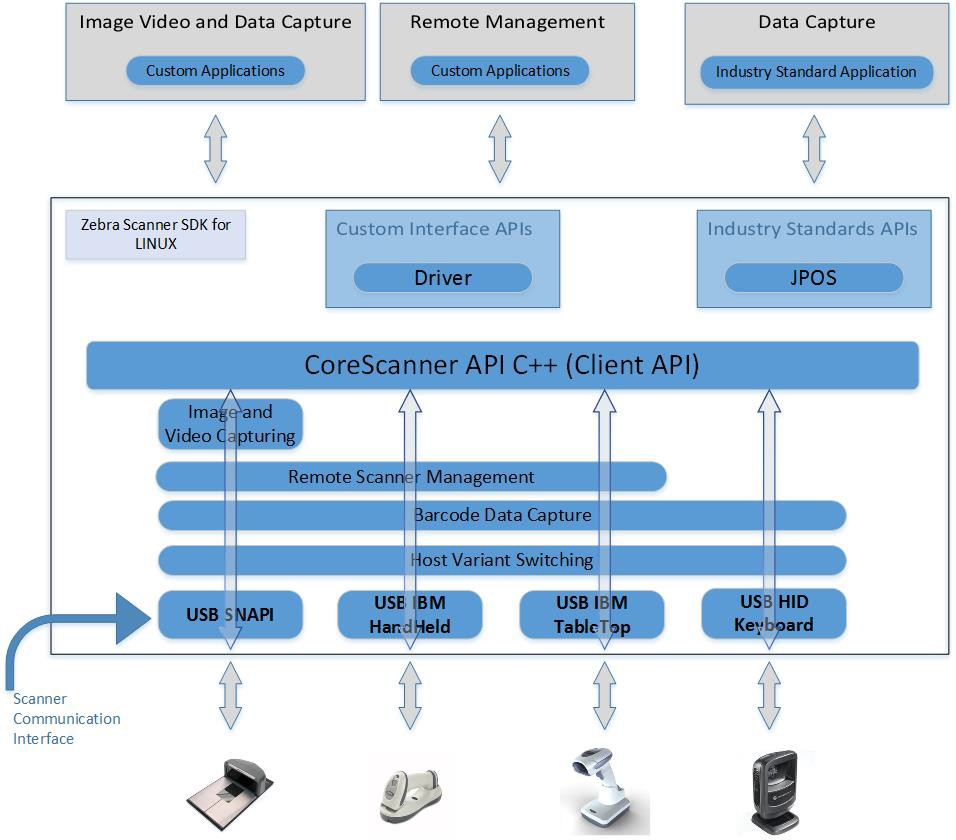
Figure 1: SDK Architecture

Host Communication Modes

You can configure Zebra scanner devices to operate in different host communication modes such as USB SNAPI, USB OPOS, USB HID Keyboard, and USB IBM Table-top. Device feature support varies by mode but all modes support barcode scanning. Refer to the scanner Product Reference Guide to set the host communication mode.

To use the Zebra Scanner SDK to switch between supported host communication modes, useful when advanced functionality is required but not supported by the current communication mode, call the Host Variant Switching command. This switches the scanner to a feature-rich mode to execute certain commands, and then reverts the scanner to the previous mode.

For example, to disable the UPC-A symbology when the device is in USB HID Keyboard mode, switch the scanner to USB SNAPI or USB OPOS (if supported by the scanner), disable UPC-A, and then revert the scanner to USB HID Keyboard mode.

Following table illustrates scanner capabilities supported in each communication mode. Refer to the scanner specifications for support of each communication mode.

Table 1: Scanner Device Communication Modes Vs. Capabilities

Capabilities USB SNAPI USB HID Keyboard USB IBM Table-top USB IBM Handheld
Data Supported Supported Supported Supported
Host Variant Switching Supported Supported Supported Supported
Management Supported Not Available Supported Supported
Image & Video Supported Not Available Not Available Not Available
Simulated HID Keyboard Output * Supported Not Available Supported Supported
Advanced Data Formatting Not Available Supported Partial Partial
Multicode Data Formatting Supported Supported Supported Supported
*Advanced Data Formatting (ADF) is not supported when using Simulated HID Keyboard Output.

Multiple Scanner Device Identification and Asset Tracking

The Zebra Scanner SDK supports connecting multiple scanners to any user application running on CoreScanner APIs. The application identifies each scanner by a unique scanner identification number. There cannot be multiple scanners with the same scanner ID.

Asset tracking information such as model number, serial number, firmware version, and date of manufacture is available if the scanner and its current host mode support the management feature. For example, asset tracking information does not appear for a scanner in USB HID Keyboard mode, but does appear if that scanner is in USB OPOS or USB SNAPI mode.

The format of device asset tracking information can vary between device models. For example, the length of a serial number for DS6707 and DS9808 scanners can be different.


Application Access to Multiple Scanners

The Zebra Scanner SDK supports multiple applications accessing multiple scanners connected to the host at the same time.

The scanner ID uniquely identifies a connected scanner to all applications, and is consistent among all applications for one SDK instance. Restarting the CoreScanner service or the host may assign a different scanner ID to a scanner, but it is unique and referenced by all applications.

Two Applications Connected To One Scanner

App 1 & App 2 support bi-directional (two way) communication with the scanner.

Figure 2: Two Applications Connected To One Scanner

Three Applications Connected To Two Scanners

App 1 and App 2 support bi-directional (two way) communication with the DS6878.

Figure 3: Two Applications Connected To One Scanner

Many Applications Connected To Many Scanners

App 1 performs image capture with the DS6878.

App 2 remotely manages both the DS6878 and LS4208.

App 3 receives OPOS data from both the DS6878 and LS4208.

Figure 4: Many Applications Connected To Many Scanners

One Application Connected to Two Scanners

One application can manage multiple scanners in multiple communication interfaces. The application can capture data, image, and video, send management commands, and receive responses from multiple scanners.

All scanner responses consist of details (ScannerID, serial number, model number, etc.) identifying the scanner that sent the response.
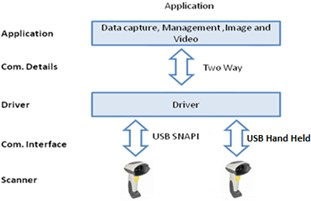
Figure 5: One Application Connected to Two Scanners

The following example shows a barcode event for a scanned label. The label data contains a unique ScannerID and the scanner's model number and serial number.


<?xml version="1.0" encoding="UTF-8"?>
<outArgs>
    <scannerID>1</scannerID>
    <arg-xml>
        <scandata>
            <modelnumber>DS6707-SR20001ZZR </modelnumber>
            <serialnumber>7114000503308	</serialnumber>
            <GUID>9008A01BB72BA34BB519806B63701AAA</GUID>
            <datatype>11 </datatype>
            <datalabel>0x39 0x37 0x38 0x30 0x32 0x30 0x31 0x34</datalabel>
            <rawdata>0x39 0x37 0x38 0x30 0x32 0x30 0x31 0x34</rawdata>
        </scandata>
    </arg-xml>
</outArgs>


Supported Devices

For the compatible devices list, please visit following page.

https://www.zebra.com/us/en/support-downloads/software/developer-tools/scanner-sdk-for-linux.html

Supported Linux Distributions

Scanner SDK for Linux (CoreScanner and JPOS) and IoT Connector for Linux latest versions supporting following distributions.

Figure 6: Linux Distributions for Barcode Scanner SDK for Linux and IoT Connector for Linux

Active Focus Manager for Linux and Command Line Utility for Linux latest versions supporting following distributions.
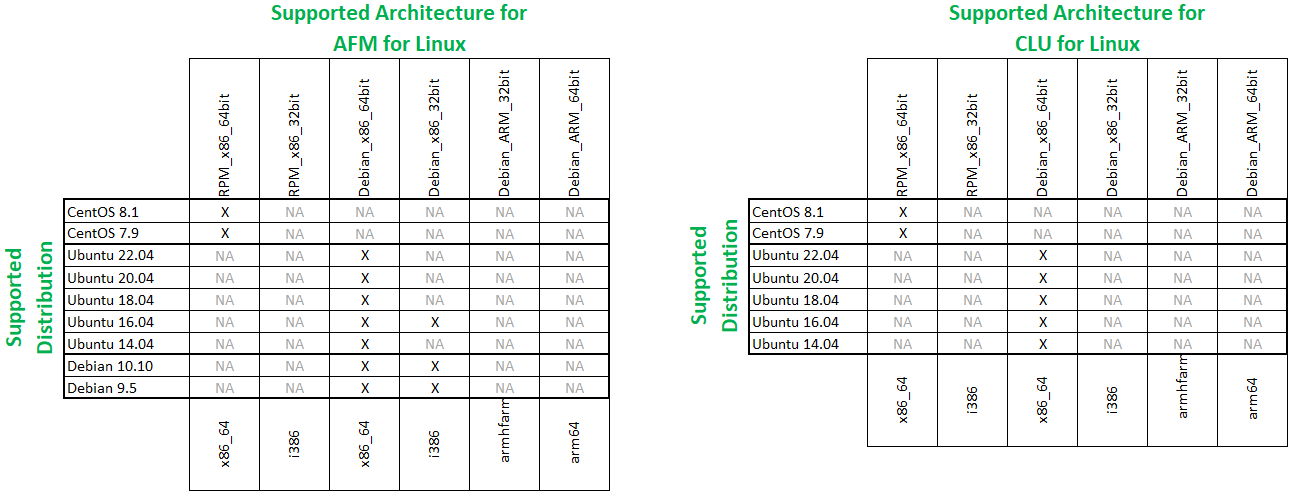
Figure 7: Linux Distributions for Active Focus Manager for Linux and Command Line Utility for Linux

Version History

Version 4.4.1-68 - 10/2026

  1. Enhanced CoreScanner Driver:
    1. Added Rocky Linux 10 support.
    2. Added a mechanism to configure two different values for the attribute #383 on the cradle and Bluetooth scanner.
    3. Removed RTA registration option from the console sample application.
    4. Bug Fix - Fixed Deadlock condition that occurs when attaching and detaching scanners frequently.
    5. Bug Fix - Fixed memory leak that occurred when attaching and detaching scanners frequently.
    6. Bug Fix - Fixed the crash that occurred during the execution of multiple instances of GUI sample application.
    7. Bug Fix - Fixed the issue with log file visibility for non-root level users that occurred once the log directory is changed on Debian OS.
    8. Bug Fix - Fixed the firmware update failure that occurred during the execution of multiple parallel firmware updates.
    9. Bug Fix - Fixed the issue of Scanner ID getting changed when the same physical Scanner gets switched between USB and cascaded connection modes.
    10. Bug Fix - Fixed the issue of incorrectly returning status 1 when calling NCR DIO SCANNER DIRECT with an empty scanner ID.
  2. Enhanced JPOS Driver:
    1. Added - RFID symbology filtering support.
    2. Added - Rocky Linux 10 support.
    3. Modified the default value of ‘ReportMissingScannersOnEnable’ to Zero.
    4. Bug Fix - Fixed the issue of premature End Of File printed in terminal when the InXml is incorrect for NCRDIO_SCAN_DIRECT DIO command.
    5. Bug Fix - Fixed the issue of Device not closing promptly after closing the scale tab of the JPOS sample app.
    6. Bug Fix - Fixed the issue of remaining scanners not sending barcode data after one scanner is detached when ‘ReportMissingScannersOnEnable’ is Zero.
    7. Bug Fix - Fixed inconsistent XML Parsing Errors between Scanner and Scale Instances in the Log View window of the JPOS sample app.
    8. Bug Fix - Fixed Barcode Event ‘AutoEnable’ failure in the JPOS sample application that occurs if multiple Logical Devices have different ‘AutoDisable’ states.
    9. Bug Fix - Fixed Direct IO command “NCR_DIO_SCALE_LIVE_WEIGHT” returning an invalid status (-1) despite correct weight being retrieved.
    10. Bug Fix - Fixed a failed DirectIO NCR_DIO_SCANNER_DIRECT command returning incorrect status (1 instead of 0).
    11. Bug Fix - Fixed GoodWeightReadCount incrementing incorrectly after Open-Claim-Enable in JPOS Scale.
    12. Bug Fix - Fixed an incorrect timeout error occurring during ZeroScale operations when the property ZeroValid is false.
    13. Bug Fix - Minor sample ap pix -Fixed an error in the Device Enable checkbox status automatically being set to enabled after checking the Enable Live Weight checkbox.
    14. Bug Fix - Resolved scanner remaining enabled after closing the JPOS Sample Application.
    15. Bug Fix - Resolved scanner remaining enabled after closing the JPOS Sample Application.

Version 4.4.1-63 - 06/2026

  1. Enhanced CoreScanner Driver
    1. Bug Fix - Resolved CoreScanner crash when loading a malformed configuration file to the scanner.
    2. Bug Fix - A fix added to remove hidden BOM (Byte Order Mark) from the XML string that gets passed through JNI.
    3. Added support for CoreScanner to load configuration files created by Nucleus online platform.
    4. Modified the implementation of Contact State of Health status for cradle/battery.
    5. Added an optional feature to restart CoreScanner and re-establish existing client connection in the event of a CoreScanner crash.
    6. Bug Fix - Fixed CoreScanner GUI sample app build fail during clean rebuild after removing existing executable.
    7. Bug Fix - Fixed Memory Leak in RSMDevice and HidapiWrapperFactory during scanner disconnect (PnP).
    8. Bug Fix - Fixed 2nd instance of sample application crashing during opening of multiple instances.
    9. Bug Fix - Fixed CoreScanner retains invalid negative value (-10) as DWord (4294967286) after reboot.
    10. Bug Fix - Fixed RSM Attribute "Next Value" issues on the Gui App.
    11. Bug Fix - Fixed - UI issues in Beeper dropdown and Reboot scanner button.
    12. Bug Fix - Fixed the issue of corescanner-gui-app that does not return error code 601 when configuration path is empty.
    13. Bug Fix - “CS Reconnected” status message is not displayed in GUI app status bar after CoreScanner service restart, when the auto reconnect is enabled.
    14. Bug Fix - Fixed Gtk-CRITICAL error in the terminal when executing GetAll values for all RSM IDs.
  2. Enhanced JPOS Driver
    1. Added - MQTT support along with TLS certificate rotation on JPOS RFID.
    2. Bug Fix - Fix for NullPointerException observed upon opening a scanner or scale profiles in JPOS Sample App in SLEPOS11 SP3.
    3. Bug Fix - Fix on "Auto Data Event Enable" UI status issue.
    4. Bug Fix - Fix on showing correct weight value in JPOS Scale log file upon performing zero scale process.
    5. Modified the implementation of Contact State of Health status for cradle/battery.
    6. Added optional support for reconnecting with existing JPOS client applications upon CoreScanner restart.
    7. Bug Fix - Fix for ZeroScale returning success when the scanner fails to reach Zero.
    8. Added support to seamlessly communicate with new scanners connected to host without requiring initialization through Open-Claim-DeviceEnable.
    9. Bug Fix - Fixed an issue where an incorrect response was returned for release or close calls in the JPOS scale when the scanner is disconnected.
    10. Bug Fix - Fixed an issue where a device mistakenly enabled despite mismatched logical and physical device host modes.
    11. Bug Fix - Fixed an issue where the Clear Input function improperly cleared the Scan Data Label instead of only clearing data events.
    12. Bug Fix - Resolved the issue where the Device Enable command incorrectly functioned without a physical device attached.
    13. Bug Fix - Minor sample app fix -Fixed the Hex View textbox improperly displaying previously decoded data in the Scan Data Label after an instance was closed.

Version 4.4.1-55 - 01/2026

  1. Enhanced CoreScanner Driver
    1. Added Rectangular Micro QR Code detection implementation.
    2. Bug Fix - Implement the proper long-term solution for Linux/SNAPI mode with Simulated HID- Error beeps/Red LEDS when decoding a QR code 500 characters or more.
  2. Enhanced JPOS Driver
    1. Enhanced the DirectIO naming conventions used in the sample application to be consistent with OPOS sample application.
    2. Bug Fix - Fixed incorrect scanner profile entry in JPOS logs when multiple scanner profiles are used.
    3. Bug Fix - Removed redundant entry on Statistics output in JPOS log, when queried before enabling the device.
    4. Bug Fix - Fixed incorrect power state being logged in JPOS logs.
    5. Bug Fix - Minor sample app fix - Fixed incorrect states for Device Enabled, Data Event Enabled and Decode Data checkboxes after failing to enable Fast Mode.
    6. Bug Fix - Fixed issue to successfully claim a device when re-attached to host while claim is executed with large timeout values (e.g. 10000s or -1).
    7. Bug Fix - Minor sample app fix - Updated text display fields for logical device name, device information, statistics and log view to be read-only in Scanner and Scale sample applications and live weight to be read-only in Scale sample application.
    8. Bug Fix - Minor sample app fix - Added input validations for Claim timeout and property value text entry fields for Scanner and Scale sample applications.
    9. Bug Fix - Fixed unhandled exception occurring when attempting to Close JPOS instance with no scanner attached to host.
    10. Bug Fix - Fixed incorrect exception thrown as "Device not connected" when ReadWeight is performed with no scanner attached to host, while within the ReadWeight timeout.
    11. Added Package Upgrade feature support to JPOS RPM (rpm) installation packages.
    12. Added a new configuration option to show or hide decode and raw barcode data from JPOS logs. The default selection will show all decode and raw barcode data.
    13. Bug Fix - Removed the 20 second delay that existed with retrieving live weight.
    14. Bug Fix - Fixed the issue with PIDXScan_ScanDataType setting to 0 after performing interactive checkhealth.
    15. Bug Fix - Fixed an issue with Good Scan Count not incrementing upon retrieving statistics for cascaded scanner.

Version 4.4.1-52 - 10/2025

  1. Enhanced CoreScanner Driver
    1. Added Package Upgrade feature support to CoreScanner & Devel RPM (rpm) installation packages.
    2. Added a new configuration option to show or hide decode and raw barcode data from CoreScanner logs. The default selection will show all decode and raw barcode data.
  2. Enhanced JPOS Driver
    1. Enhanced the DirectIO naming conventions used in the sample application to be consistent with OPOS sample application.
    2. Bug Fix - Fixed incorrect scanner profile entry in JPOS logs when multiple scanner profiles are used.
    3. Bug Fix - Removed redundant entry on Statistics output in JPOS log, when queried before enabling the device.
    4. Bug Fix - Fixed incorrect power state being logged in JPOS logs.
    5. Bug Fix - Minor sample app fix - Fixed incorrect states for Device Enabled, Data Event Enabled and Decode Data checkboxes after failing to enable Fast Mode.
    6. Bug Fix - Fixed issue to successfully claim a device when re-attached to host while claim is executed with large timeout values (e.g. 10000s or -1).
    7. Bug Fix - Minor sample app fix - Updated text display fields for logical device name, device information, statistics and log view to be read-only in Scanner and Scale sample applications and live weight to be read-only in Scale sample application.
    8. Bug Fix - Minor sample app fix - Added input validations for Claim timeout and property value text entry fields for Scanner and Scale sample applications.
    9. Bug Fix - Fixed unhandled exception occurring when attempting to Close JPOS instance with no scanner attached to host.
    10. Bug Fix - Fixed incorrect exception thrown as "Device not connected" when ReadWeight is performed with no scanner attato host, while within the ReadWeight timeout.
    11. Added Package Upgrade feature support to JPOS RPM (rpm) installation packages.
    12. Added a new configuration option to show or hide decode and raw barcode data from JPOS logs. The default selection will show all decode and raw barcode data.
    13. Bug Fix - Removed the 20 second delay that existed with retrieving live weight.
    14. Bug Fix - Fixed the issue with PIDXScan_ScanDataType setting to 0 after performing interactive checkhealth.
    15. Bug Fix - Fixed an issue with Good Scan Count not incrementing upon retrieving statistics for cascaded scanner.
  3. Enhanced Command Line Utility (CLU)
    1. Implement option to output command result in XML format.

Version 4.4.1-49 - 07/2025

  1. Enhanced CoreScanner Driver
    1. Enhanced CoreScanner Real Time Alert (RTA) feature to support Scale devices for JPOS.
    2. Added Package Upgrade feature support to CoreScanner debian (dpkg) installation packages.
      1. RPM package upgrade support is *coming soon.
    3. Bug Fix - Fixed a sample application crash when loading a non-compatible scanner configuration file.
    4. Bug Fix - Corrected error code returned from 500 to 502, when firmware file is not given during firmware update command execution.
  2. Enhanced JPOS Driver
    1. Added “Real Time Alert (RTA)” support for JPOS Scale. RTA configurations are supported through new DirectIO commands, and RTA events are captured and delivered through JPOS DirectIO events. (Needs Zebra CoreScanner Driver v4.4.1-49 or above)
    2. Updated “logback” library to version 1.3.15.
    3. Enhanced DirectIO events for scanner attach/detach events in scanner Disable state.
    4. Added support to update scanner firmware via DirectIO Command.
    5. Added firmware update status events support through DirectIO events.
    6. Added support to load a configuration file to a scanner via DirectIO Command.
    7. Added configuration load status update events support through DirectIO events.
    8. Added Package Upgrade feature support to CoreScanner Debian (dpkg) installation packages.
      1. RPM package upgrade support is *coming soon.
    9. Enhanced the JPOS Scanner and Scale logs to include return values and return states for properties and methods that were missed in the logs.
    10. Added ClearQueueOnRelease parameter in JPOS configuration XML file.
    11. Bug Fix - Resolved an issue observed when multiple instances of JPOS scanner objects are running in parallel.
    12. Bug Fix - Resolved an issue observed when performing Zero scale while scanner is Under Zero State.
    13. Bug Fix - Resolved Open command failure issue observed in Docker environment on JPOS scale.
    14. Bug Fix - Fixed redundant log entries printed in the log file when calling MaximumWeight property.
    15. Bug Fix - Minor sample app fix - Restricted the ability to modify the Logical device name in the sample application for both Scanner and Scale.
    16. Bug Fix - Fixed invalid error printed in the terminal when Retrieve Statistics is called without claiming or enabling the device for both Scanner and Scale.
    17. Bug Fix - Minor sample app fix - Resolved the incorrect state of Power Notify checkbox when Device Enabled is used.
    18. Bug Fix - Minor sample app fix - Resolved the incorrect state of Device Enable checkbox when Fast Mode is used.
    19. Bug Fix - Fixed Label IDs to be appended for UPC-EAN supplementals in ScanData.
    20. Bug Fix - Fixed the GoodScanCount to return the correct value of barcode scans when auxiliary devices are connected to a scanner.
    21. Bug Fix - Fixed redundant exception thrown when scanning barcodes from JPOS instance.
    22. Bug Fix - Minor sample app fix - Fixed an issue of live weight textbox displaying the previous weight reading after calling device disable.
    23. Bug Fix - Fixed an incorrect exception shown in JPOS sample application, when read weight is performed while in overweight condition.
    24. Bug Fix - Fixed the incorrect ScanData label, ScanData type and Label ID for ISSN symbology.
  3. Enhanced Command Line Utility (CLU)
    1. Bug Fix - Fixed the functionality with GetAttribute, SetAttribute and StoreAttribute commands that do not work as expected when the Attribute ID is not available in the scanner.
    2. Bug Fix - Fixed the functionality with GetAttribute, SetAttribute, StoreAttribute, Switch* and FirmwareUpdate commands to support multiple scanners and '*’ wildcard
    3. Bug Fix - Corrected error code returned from 502 to 246, when firmware file is not given during firmware update command execution.

Version 4.4.1-44 - 12/2024

  1. Enhanced CoreScanner Driver
    1. Made some minor enhancements to Real Time Alert (RTA) support.
    2. Bug Fix - Fixed configuration update failure in CoreScanner. The issue was seen in the SDK sample app/ CLU when the ADF rules are present in the configuration file.
  2. Enhanced JPOS Driver
    1. Added “Real Time Alert (RTA)” support for JPOS Scanner. RTA configurations are supported through new DirectIO commands and RTA events are captured and delivered through JPOS DirectIO events. (Scale support coming soon)
    2. Bug Fix - Fixed the issue of ZeroScale API not throwing an exception when failing to zero the scale.
    3. Bug Fix - Fixed the issue of NCR Label IDs for UPC-EAN with supplementals not showing up in ScanData.
    4. Added logging the Direct IO command names when Direct IO commands are executed.
    5. Bug Fix - Fixed NCR label ID type for symbologies with supplemental code types.
    6. Bug Fix - Fixed OPOS ScanDataType property to report SCAN_SDT_UNKNOWN for 2-Stage barcodes scanned in IBM HandHeld, and IBM TableTop host modes.
    7. Bug Fix - Fixed the incorrect display of live weight when ScaleLiveWeight property is disabled or after performing scale release.
  3. Enhanced Command Line Utility (CLU)
    1. Added new command “topology” which returns the topology of devices that are connected to the system.
    2. Added new command “getallattributes” which returns all attributes supported by a given scanner.
    3. Enhanced switch host mode commands to support temporary host mode switching.

Version 4.4.1-43 - 09/2024

  1. Added a new feature called "Real Time Alert (RTA)"
    1. This feature sends a RTA from the scanner (originating from the scanner's firmware meeting a RTA criteria) to the driver stack.
    2. For a list of available RTAs, see TechDocs for CoreScanner Driver for Linux.
    3. RTA is supported in select scanners and requires a firmware update.
    4. Supported com protocols include SNAPI, IBM TableTop and IBM Handheld.

Version 4.4.1-42 - 07/2024

  1. Added Topology change event support to CoreScanner. A PNP event will get fired when a cascaded scanner gets attached or detached.
  2. Added support for GS1 DataMatrix Symbology.
  3. Added support for HanXin and DotCode Symbology over IBMHID and IBMTT.
  4. Bug Fix - Fixed configuration update failure using SDK sample app/ CLU when the note section contains formatted texts (newline, tab, etc.).
  5. Bug Fix - Enhanced the firmware update process to accommodate combined scanner and cradle firmware.

Version 4.4.1-40 - 04/2024

  1. CoreScanner Driver v4.4.1-40
    1. Added configuration name to "GetScanners" command outXML.
    2. Bug Fix - Addressed the CoreScanner segmentation fault that occurred at system shutdown.
  2. JPOS Driver v4.4.1-50
    1. Bug Fix - Minor sample app fix - State of Data Event Enable and Device Enable checkboxes in JPOS Sample application now shows the correct state when JPOS Scale profile is not opened.
    2. Bug Fix - Fixed intermittent exception caused in the JPOS Scale live weight thread when attempting to restart or configure the scale while live weight is in progress.
    3. Bug Fix - Minor sample app fix - Synchronized state of “Device Enable” checkbox when “Auto Device Enable” or “Enable Live Weight” selections are used.
    4. Added a new attribute as “ClearQueueOnRelease” to JPOS.xml file, to configure clearing the data queue when device is released.
    5. Bug Fix - An exception is fired upon performing Zero Scale with weights greater than the firmware implemented scale zeroing weight limit.
    6. Bug Fix - Prevented incorrectly throwing “Timed out with zero stable weight” exception after setting PIDXScal_ZeroValid to true in JPOS Scale live weight DIO.
  3. Command Line Utility (CLU) v1.0.0-6
    1. Added the command "assetinfo" to retrieve asset information. It returns host mode, serial number, firmware version and date of manufacture selected devices.
    2. Added support for returning error/status codes for the executed CLU commands.

Version 4.4.1-38 - 01/2024

  1. Command Line Utility (CLU) - Added new command to retrieve asset information based on scanner ID. It returns host mode, serial number, firmware version and date of manufacture of the scanner.
  2. IoT Connector
    1. Added support for logging of environment variables (pulled from operating system) into the URL and request headers in the HTTP sink. Note the environmental variable check is performed real-time on each logging occurrence.
  3. Bug Fix - Rarely used scenario addressed - Full read/write permission to Corescanner log folder now available. This enables a user to read/write files to the log folder. Access permission now exists for the general user of the zebra log folder regardless of its form of creation (both created through service/created during installation).

Version 4.4.1-36 - 10/2023

  1. Bug Fix - Record count sent with firmware update progress events functions as expected; Intermittent issue addressed.
  2. Bug Fix - Changed default value of "bulktransfer_time_out>" in configuration file to resolve scanner reboot issue seen during firmware update.
  3. Bug Fix - Command Line Utility (CLU) - Resolved a firmware update failure in IBMHID and IBMTT modes, seen with particular versions of scanner firmware.

Version 4.4.1-34 - 07/2023

  1. Enhanced JPOS driver
    1. Bug Fix - Fixed issue that incorrectly appended a Label ID for NCR label with barcode type ISSN.
    2. Bug Fix - Fixed issue relevant to error arguments (locus and response) in JPOS read weight error events.
    3. Sample App Security fix - Updated library "xercesImpl.jar" used in JPOS Sample application from v2.11.0 to v2.12.2 to resolve security vulnerabilities exposed from v2.11.0.
    4. Sample App Bug Fix - Device enable button now gets updated upon enabling auto device enable (button) in JPOS scale.
    5. Sample App Bug Fix - Barcode name now correctly displayed for Han Xin Code.
  2. Command Line Utility (CLU) - Bug Fix - Addressed memory allocation issue with "reboot" and "getattribute" commands.

Version 4.4.1-32 - 04/2023

  1. Active Focus Manager (AFM) Module - Alpha release for customer evaluation. Available for download separately, not bundled with the SDK.
  2. Enhanced Driver Data Formatting (DDF) module - Alpha release for customer evaluation - Added support to incorporate ATL key combinations using the Driver
    1. Data Formatting (DDF) module. This functionality enables an ALT key combination to be added to barcode data when using Simulated HID Keyboard.
    2. Configuring this capability is located in the CoreScanner configuration xml file.
    3. An example of this capability is sending "ALT [ + Data + Enter"; also "ALT [ + Data + TAB".
    4. This initial implementation can only support sending ALT + one key sequence like "ALT [".
    5. This new ALT key capability supports modifying data using a Prefix only (Suffix with ALT key is not supported).
  3. Command Line Utility (CLU) - Initial release. This utility provides scripting control of Zebra scanner. Supported functionality includes:
    1. Reboot of a scanner
    2. Parameter Control
      1. Param Get and Set
      2. 123Scan config file consumption
    3. F/W update
  4. Enhanced JPOS driver
    1. Bug Fix in Sample App - Fixed error message incorrectly displayed in JPOS Sample application when Zero Scale command is called and weighing item below 30 grams.
    2. Update JPOS driver to fire Scale status update events whenever a status updates and a weight change is detected.
    3. Bug Fix in Sample App - Made the display format for scale weight consistent in the sample application for Read Weight, Live Weight and Direct IO NCR Live Weight calls.
    4. Bug Fix in JPOS Sample App - Fixed application lockup if enabling both live weight and auto disable simultaneously.

Version 4.4.1-31 - 01/2023

  1. Enhanced IoT Connector - Added support for C98. Note C98 is a C++ compilation standard.
  2. Added IoT connector support for following distributions.
    1. RedHat 7.4 64bit
    2. CentOS 7.9 64bit
    3. Ubuntu 14.04 64bit
  3. Added "Simulated HID Keyboard" support to CoreScanner.
  4. Added "DDF" (Driver Data Formatting) support to CoreScanner.
    1. DDF enables driver-based data formatting like adding an Enter or Tab key to be appended to scanned data before its transmission to a host.
    2. DDF (Driver Data Formatting) is different than ADF (Advanced Data Formatting). DDF is performed by Zebra's CoreScanner Driver versus ADF is performed within the scanner's firmware.
    3. DDF is supported over "Simulated HID Keyboard" using the following comm interfaces: SNAPI, IBM HandHeld, IBM TableTop.

Version 4.4.1-30 - 10/2022

  1. Enhanced SDK Sample Application,
    1. Added Page motor support to the SDK Sample Application.
    2. Now the Scale tab is disabled when the connected device is not a Zebra scale.
  2. Bug Fix - Resolved inconsistency in “get all RSM values” responses.
  3. Enhanced JPOS driver
    1. Enhanced driver to support NCR requested “HealthCheck” label IDs.
    2. Bug Fix - “Get Error Response” API now returns the correct error on Read Weight in Scale.
    3. Minor UI optimizations in the JPOS Sample Application for Windows.
  4. Enhanced firmware update in non-bulk mode to generate continuous firmware update events in SDK. Note bulk mode already works this way.

Version 4.4.1-29 - 05/2022

  1. Enhanced JPOS driver,
    1. Bug Fix, ReadWeight events now reported correctly when DataEventEnabled is false and LiveWeight is true.
    2. Enhanced driver to support all NCR requested “ScanData” label IDs.

Version 4.4.1-28 - 04/2022

  1. Enhanced IoT Connector capabilities - Added support for logging scanner details where Global Unique Identifier (GUID) is invalid.
  2. TGCS support - add from Ken's email after Leads approve.
  3. Enhanced Toshiba Global Commerce Solutions (TGCS) POS system support.
    1. JPOS driver enhanced to support System Management Information calls from TGCS POS systems.
    2. Corescanner enhanced to support TGCS' CIM Service Provider = “UPOS_BarcodeScanner” queries.
  4. Bug Fix - Resolved issue in firmware update failure with DS9908 and DS8178 scanner models.

Version 4.4.1-27 - 01/2022

  1. Logging Agent renamed “IoT Connector”.
  2. Enhanced JPOS driver,
    1. Fixed rarely seen JPOS statistics retrieval issue on scanners.

Version 4.4.1-24 - 10/2021

  1. Added support for SLES 15 SP3 (64bit), Ubuntu 21.04 (64bit), Debian 10.10 (32bit and 64bit).
  2. Enhanced JPOS Driver
    1. Added support to execute DirectIO commands without claiming the device.
    2. JPOS sample application enhancement to display the "Live Weight" and the logs on live weight status update events.
    3. Enhanced logging in JPOS driver including access to barcode data, power state, scale weight, and what API calls have been made.
  3. Enhanced Logging Agent capabilities
    1. Added support for logging of operating system environment variables like "host PC name". The environmental variable check is performed real time on each logging occurrence.
    2. Added support for real time logging via a JSON call to cloud-based consoles like Splunk.

Version 4.4.1-19 - 04/2021

  1. Added support for CentOS 7.9 (64bit).
  2. Enhanced JPOS driver v1.14 to include support for PNP events for both Scanner and Scale.
  3. Enhanced the SDK’s UI sample application to include Scale functionalities (Read Weight, Zero Scale, Reset Scale).
  4. Bug Fix - The JPOS driver v1.14 for code 49 now returns the correct Symbology types when the Zebra scanner is in IBM Hand-Held or IBM Table-Top host modes.

Version 4.4.1-16 - 01/2021

  1. Enhanced log file - Resident scanner firmware update status (STATUS_FW_SWCOMP_RESIDENT) added to the log files.
  2. Enhanced console-based sample application for CoreScanner - The console app now shows call success and failure (Logging API return values) and output XML.
  3. Bug Fix - The MS4717 now properly switches from HIDKB host mode to another com protocol and back.
  4. Bug Fix - The CoreScanner now properly returns the valid status codes for “invalid firmware file” and “failed to read DAT file”.
  5. Bug Fix - The SDK sample application now properly returns an error when launched without running the CoreScanner.

Version 4.4.1-15 - 10/2020

  1. Common JPOS driver bundled in both Linux and Windows SDKs. Since same driver, same features are now supported across both Linux and Windows.
  2. JPOS driver update. Removed Apache Xerces XML parser dependency from the Zebra JPOS Service Object (SO).

Version 4.4.1-11 - 07/2020

  1. Added supports for Ubuntu 20.04 (64bit) and CentOS 8.1 (64bit).
  2. Logging Agent bundled with Linux SDK.
    1. The Logging Agent allows a 3rd party management console to track scanner information including the scanner’s health by parsing a Logging Agent generated log file.
    2. The Logging Agent is configurable for example it can be output for all devices (1,000s of log files) or just devices that meet a specific condition like failed a firmware update (a few log files).
    3. The Logging Agent can document the following information:
      1. Asset information
      2. Statistics for example battery charge level or UPCs scanned
      3. Firmware failures and or firmware success
      4. Parameter value(s) changed. Achieved by tracking parameter 616 (config file name changed to “Modified”)
  3. Added support for composite barcode types.
  4. Bug Fix - Sample application freeze resolved on scanner PNP.
  5. Bug Fix - Sample application RSM attributes list shows the correct permissions for each attribute.

Version 4.4.1-8 - 04/2020

  1. Added option for enabling new Zebra HID API instead of using native OS provided HID API. Zebra HID API enabled through a configuration setting, switching from libusb to hidraw.
  2. Add support for additional distributions: Raspbian 8 and ARM7L (32-bit ARM processor). Note this Linux OS runs on Raspberry PI 3.0 hardware.
  3. Bug Fix - Resolved app responding delay by sending the Direct I/O commands using the HID API directly from the comlib to the scanner.
  4. Bug Fix - Synchronization block introduce when consuming the events from CoreScanner to JPOS driver. Otherwise, the single core POS system is missing different events from different logical devices (JPOS)

Version 4.4.1-4 - 01/2020

  1. Added ability to discover, communicate and manage a third level cascaded device. The SDK now supports connecting cordless scanners like a DS2278 and cradle to a MP7000. The MP7000 is connected to the host.

Version 4.4.1-2 - 10/2019

  1. Added "DotCode" and "GridMatrix" symbology support to JPOS and SDK Sample Applications. Note the Linux SDK already supported these symbologies.
  2. Added Java 12 UI enhancements to JPOS Sample Application. Note no change required in the JPOS driver.

Version 4.4-0-18 - 08/2019

  1. Added Scale Live Weight event support for Multi-Plane scanners.
  2. Vendor specific capability, ‘CapStatusUpdate’ enabled in JPOS Scale driver.
  3. Implemented ‘StatusNotify’ property in JPOS driver.

Version 4.4.0-15 - 06/2019

  1. Added get next Attribute RSM command support in CoreScanner.

Version 4.4.0-14 - 06/2019

  1. "EAN13 Supplementary of 5" symbology support added into JPOS Sample Application.

Version 4.4.0 - 03/2019

  1. Added JPOS 1.14 standard compatibility for the JPOS driver.
  2. Introduced a JPOS based asset query capability (model #, serial #, date of manufacture, firmware version).

Version 4.3.3 - 01/2019

  1. Enhanced Linux log file format to mirror Zebra’s Windows SDK logging format
  2. Added ability to customize logging capabilities via the CoreScanner configuration file. Settings include,
    1. Log file storage path
    2. Number of stored log file. For example, save the last 50 files.

Version 4.3.1 - 08/2018

  1. Added support for JPOS Scale Asynchronized Read Weight -1 (forever) timeout support.
  2. Added support for Intelligent Document Capture (IDC).
  3. Added ability to specify an on board udev library using the CoreScanner’s configuration file instead of the system default.

Version 4.2.4 - 04/2018

  1. JPOS Scale Read Weight Asynchronized mode support.
  2. JPOS Statistics reporting support for Scale.

    Note C++ applications cannot be compiled with C++ 11 based compilers without setting _GLIBCXX_USE_CXX11_ABI macro to 0. Below definition will be used to set ABI to the old C++ version.

    #define _GLIBCXX_USE_CXX11_ABI 0

Version 4.1.11 - 01/2018

  1. Host variant switching from CDC to management modes.

Version 4.1.0 - 10/2017

  1. Support for custom PIDs.

Version 4.0.0 - 05/2017

  1. Source tarball.
  2. Install Verifier application added.

Version 3.0.0 - 08/2016

  1. IBM TT, IBM HID, SNAPI firmware download support.
  2. SNAPI fast firmware downloads support.
  3. SNAPI Imaging and Video capturing.
  4. API events like PNP events.
  5. Detecting HIDKB devices.

Version 2.0.0 - 02/2016

  1. Existing drivers were rebranded from Motorola to Zebra.

Version 1.3.0 - 08/2015

  1. Supports for Ubuntu 14.04, Ubuntu 12.04, SLES 11, CentOS 6.3 distributions.
  2. Concurrent application support for Scanner and Scale of MP6200 in JPOS.
  3. Cascaded device support for MP6200, Presentation Cradle and Standard Cradle.
Deployment of Scanner SDK for Linux

Overview

This chapter describes how to install the Zebra Scanner SDK and components on recommended platforms.

The SDK installation package includes:

  • Components that enable any Zebra scanner to communicate with applications or tools that execute on top of the Zebra Scanner SDK
  • Supporting documents
  • Test utilities
  • Sample applications and source projects

NOTE Uninstall any previous Zebra, Symbol, or third party drivers or SDKs which communicate with Zebra scanners before installing the Zebra Scanner SDK. This includes but is not limited to Zebra and Symbol supplied OPOS, JPOS, and SNAPI drivers.

NOTE For a list of a scanner's supported attribute (parameter) numbers and definitions, refer to the scanner Product Reference Guide, available on the Zebra Support website http://www.zebra.com/support. Attributes include configuration parameters, monitored data, and asset tracking information.


SDK Components

The SDK installation package installs the following SDK components to the default locations

  • Zebra Scanner SDK core components and drivers.

    • Zebra core-scanner driver
    • Host communication libraries
    • Client libraries for supporting multiple applications
    • JNI Interface for JPOS
  • JPOS drivers (scanner and scale)
  • Link to the latest developer's guide
  • Test and sample utilities with source code packages:

    • Scanner SDK GTK Sample Application (C++)
    • Scanner SDK Console Application (C++)
    • JPOS Test Utility for Scanner and Scale
    • JPOS Remote-management tool
  • GetAndSet Utility

System Requirements

Supported Linux Distributions

Please refer the supported distribution matrix.

Hardware Requirements

Minimum hardware requirements for the Zebra scanner driver and SDK depend on the minimum system requirement for the Linux distribution installation. The following requirements are provided as a guideline.

  • Processor: Pentium* 4 1.6 GHz or higher (Pentium 4 2.4 GHz or higher or any AMD64 or Intel64 processor recommended)
  • Main memory: 1 GB physical RAM (2 GB recommended)
  • Hard disk: 10 GB available disk space for a minimal install, 25 GB available for a graphical desktop (more recommended)

Or if you are using ARM packages, please use a Raspberry pi 3+ device.

Third Party Software Libraries

Table 2: Minimum Software Requirements for CoreScanner Installation

Library / Technology Version Limitation
C++ 98 and 11 standards compatibilities
Libudev 147 or above
GTK (for GUI applications) 2.24.10
Java 6 (JDK 1.6)

Scanner Communication Modes

Refer to the scanner's Product Reference Guide for supported communication modes, and specifically the appendix Functionality Supported via Communication (Cable) Interface for supported scanner functionality by communication protocol.


CoreScanner and SDK Installers

The CoreScanner Version 4.0 SDK and later offer three types of installers to accommodate many different Linux distributions:

  • RPM package-based installers - Installable only on RPM-based Linux distributions
  • Debian package-based installers - Installable only on Debian-based Linux distributions
  • Source tarball based installers - Installable on any Linux distribution. You are prompted to install all required dependent packages when configuring the source tarball extraction for installation.

Please refer the supported distribution matrix for more details.

Please refer the Step-by-Step Guide to Install and Uninstall Zebra Barcode Scanner SDK for Linux for more details.

Please refer the Install 32-bit CoreScanner and JAVAPOS Packages in a 64-bit Linux Environment to see the instructions to install Zebra 32bit applications on 64bit environment.

Choosing an Installer

There are many different Linux bases/trees available. Perform the appropriate research or contact Zebra support to determine the base tree of your distribution. Select the CoreScanner and SDK installer based on the following categories:

  • RPM-based packages (.rpm) for the following distributions:

    • CentOS
    • Suse (Open Suse, Suse Linux Enterprise Server, etc.)
    • Opensus
    • Red Hat
    • Fedora
  • Debian-based packages (.dpkg) for the following distributions:

    • Debian
    • Ubuntu
  • Source tarball based installer for other Linux distributions such as Gentoo.

NOTE RPM and Debian are package managers supported for the Linux distributions above. Each package manager provides a shell command (rpm or dpkg) for installing/removing packages in a Linux distribution.

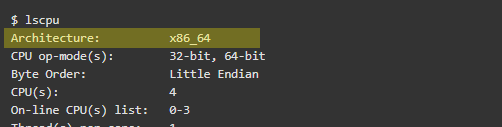
If you are using Raspberry pi, then you can use the provided Debian package with for ARM processor architecture. For others will have to check whether their system is x86_32bit system or x86_64bit system.

You can use various command methodologies to find your cpu architecture depending on your Linux distribution. As a generic command "lscpu" can be used in most of the Linux distributions.

Figure 8: Distribution Architecture

Linux C11 vs C98: GNU Compiler Collection (GCC) is an optimizing compiler produced by the GNU Project supporting various programming languages, hardware architectures and operating systems. GCC/g++ version 5.3.1 or later has C11 support. GCC prior to 5.3.1 use C98 versions. Command to show the GCC version are gcc --version or g++ --version.

Please refer https://gcc.gnu.org/projects/cxx-status.html to know more about C++ versions.

RPM and Debian Installer Packages

RPM and Debian installers provide three packages for installing different components:

  • zebra-scanner-corescanner - The core package of CoreScanner which includes the CoreScanner daemon and libraries. This package places files into the standard file installation locations of Linux systems (in this case /usr/share/zebra-scanner/etc.) Install this package before installing the JPOS and CoreScanner API development packages, as it is required for both.
  • zebra-scanner-javapos - Part of the CoreScanner-SDK, this includes all JPOS libraries, sample applications, scripts, and C++ libraries for JNI. The zebra-scanner-corescanner package is required for JPOS package development and implementation.
  • zebra-scanner-devel - This provides the application programming interface exposed from CoreScanner, and contains header files required to develop C/C++ applications for CoreScanner and source files for simple console based sample applications. The zebra-scanner-corescanner package is required for this API development package.

Installing the CoreScanner and SDK

This section describes how to install each CoreScanner and SDK package after selecting the suitable installer for the Linux distribution.

Installing RPM Packages

  1. Check for existing CoreScanner and SDK installations using the rpm command -qa option:

    
    rpm -qa | grep zebra


    For example, list packages installed in a CentOS/Suse RPM based distribution:

    
    [root@localhost]# rpm -qa | grep zebra
    zebra-scanner-devel-3.0.0-0
    zebra-scanner-javapos-3.0.0-0
    zebra-scanner-corescanner-3.0.0-0
    
    
  2. Remove existing CoreScanner and SDK packages using the rpm command -e option. Since the zebra-scanner-corescanner package is required for JPOS and API development packages, remove this after uninstalling the other two packages.

    For example:

    
    rpm -e zebra-scanner-javapos-2.0.0-0
    rpm -e zebra-scanner-devel-2.0.0-0
    rpm -e zebra-scanner-corescanner-2.0.0-0
    
    
  3. Install new packages using the rpm command -i option. Install the CoreScanner packages first to avoid possible package dependency issues.

    For example:

    
    rpm -i zebra-scanner-corescanner-2.0.0-0-sles11_sp2-i586.rpm
    rpm -i zebra-scanner-devel-2.0.0-0-sles11_sp2-i586.rpm
    rpm -i zebra-scanner-javapos-2.0.0-0-sles11_sp2-i586.rpm


Installing Debian Packages

  1. Check for existing CoreScanner and SDK installations using the dpkg command -l option:

    dpkg -l | grep zebra
    

    For example, list packages installed in an Ubuntu distribution:

    
    zebra-scanner-corescanner 2.0.0-0 amd64 Zebra Technologies Linux Corescanner Daemon
    zebra-scanner-devel 2.0.0-0 amd64 Development files for Zebra Technologies Linux Corescanner
    zebra-scanner-javapos 2.0.0-0 amd64 Jpos 1.13 drivers for Zebra Technologies Linux Corescanner Daemon
    
    
  2. Remove existing CoreScanner and SDK packages using the dpkg command -r option. Since the zebra-scanner-corescanner package is required for JPOS and API development packages, remove this after uninstalling the other two packages

    For example:

    
    dpkg -r zebra-scanner-javapos
    (Reading database ... 219367 files and directories currently installed.)
    Removing zebra-scanner-javapos (2.0.0-0) ...


    dpkg -r zebra-scanner-devel
    (Reading database ... 219343 files and directories currently installed.)
    Removing zebra-scanner-devel (2.0.0-0) ...


    dpkg -r zebra-scanner-corescanner
    (Reading database ... 219328 files and directories currently installed.)
    Removing zebra-scanner-corescanner (2.0.0-0) ...
    update-rc.d: /etc/init.d/cscored exists during rc.d purge (use -f to force)
    Processing triggers for libc-bin (2.19-0ubuntu6.4) ...
    
    
  3. Install new packages using the dpkg -i option. Install the CoreScanner package first to avoid possible package dependency issues.

    For example:

    
    dpkg -i zebra-scanner-corescanner_2.0.0-0_ubuntu-14.04_amd64.deb


    Sample output:

    
    Selecting previously unselected package zebra-scanner-corescanner.
    (Reading database ... 219288 files and directories currently installed.)
    Preparing to unpack zebra-scanner-corescanner_2.0.0-0_ubuntu-14.04_amd64.deb ...
    Unpacking zebra-scanner-corescanner (2.0.0-0) ...
    Setting up zebra-scanner-corescanner (2.0.0-0) ...
    Adding system startup for /etc/init.d/cscored ...
    /etc/rc0.d/K20cscored -> ../init.d/cscored
    /etc/rc1.d/K20cscored -> ../init.d/cscored
    /etc/rc6.d/K20cscored -> ../init.d/cscored
    /etc/rc2.d/S20cscored -> ../init.d/cscored
    /etc/rc3.d/S20cscored -> ../init.d/cscored
    /etc/rc4.d/S20cscored -> ../init.d/cscored
    /etc/rc5.d/S20cscored -> ../init.d/cscored
    Processing triggers for ureadahead (0.100.0-16) ...
    Processing triggers for libc-bin (2.19-0ubuntu6.4) ...


    dpkg -i zebra-scanner-devel_2.0.0-0_ubuntu-14.04_amd64.deb


    Sample output:

    
    Selecting previously unselected package zebra-scanner-devel.
    (Reading database ... 219320 files and directories currently installed.)
    Preparing to unpack zebra-scanner-devel_2.0.0-0_ubuntu-14.04_amd64.deb ...
    Unpacking zebra-scanner-devel (2.0.0-0) ...
    Setting up zebra-scanner-devel (2.0.0-0) ...


    dpkg -i zebra-scanner-javapos_2.0.0-0_ubuntu-14.04_amd64.deb


    Sample output:

    
    Selecting previously unselected package zebra-scanner-javapos.
    (Reading database ... 219335 files and directories currently installed.)
    Preparing to unpack zebra-scanner-javapos_2.0.0-0_ubuntu-14.04_amd64.deb ...
    Unpacking zebra-scanner-javapos (2.0.0-0) ...
    Setting up zebra-scanner-javapos (2.0.0-0) ...
    Processing triggers for libc-bin (2.19-0ubuntu6.4) ....


Installing the Source Tarball

Software/Library requirements for code compilation.

Table 3: Scanner Device Communication Modes Vs. Capabilities

Software / Tool Chain / Library Requirement Minimum Version Required
GCC - GNU Compiler Collection 4.8
Libusb 1
Libusb-dev 1
Libgtk-dev 2.8
Libudev 1
Libudev-dev 1
Make tool N/A
Java standard edition / open-jdk 1.6
Ant java build tool N/A

  1. Download zebra-scanner-4.0.0.tar.gz to the home directory. This source tarball contains a script file to install CoreScanner and SDK on the Linux system.
  2. Extract the zebra-scanner-4.0.0.tar.gz file, which creates the zebra-scanner-4.0.0 directory. $> tar -xvf zebra-scanner-4.0.0.tar.gz
  3. Change directory to the zebra-scanner-4.0.0 folder.
  4. Change the user to a super user using sudo/su commands. A super user password is required.
  5. Configure CoreScanner for the Linux distribution, specifying the destination directory as the root directory using the destdir option.

    
    $> configure --destdir = /
    
    
  6. Use the make build command to build the CoreScanner and SDK for the system. “make” searches for all dependent third party libraries, and displays errors and aborts the build if it can’t find a dependent package in the environment. Restart installation by installing these packages.

    
    $> make
    
    
  7. Use the make build command to build the CoreScanner and SDK for the system. “make” searches for all dependent third party libraries, and displays errors and aborts the build if it can’t find a dependent package in the environment. Restart installation by installing these packages.

    
    $> make install
    
    
  8. Use make uninstall to remove an existing source tarball installation from the system.

    
    $> make uninstall


Installed Components

CoreScanner daemon service (cscore) is installed with the zebra-scanner-corescanner package. This coordinates activity between the communication layer (SNAPI, IBMHH, IBMTT, etc.) and upper level drivers (JPOS, SDK API, etc.).

Table 4: Zebra Scanner SDK Components

Component File Description Installation Path
CoreScanner cscore Scanner Driver Daemon Service /usr/bin/
CoreScanner libcs-iudev.so Transport Component /usr/lib/zebra-scanner/corescanner
CoreScanner libcs-iudev.so.4.0.0 Transport Component /usr/lib/zebra-scanner/corescanner
CoreScanner libcscl-hidkb.so Transport Component /usr/lib/zebra-scanner/corescanner
CoreScanner libcscl-hidkb.so.4.0.0 Transport Component /usr/lib/zebra-scanner/corescanner
CoreScanner libcscl-ibmhh.so Transport Component /usr/lib/zebra-scanner/corescanner
CoreScanner libcscl-ibmhh.so.4.0.0 Transport Component /usr/lib/zebra-scanner/corescanner
CoreScanner libcscl-ibmtt.so Transport Component /usr/lib/zebra-scanner/corescanner
CoreScanner libcscl-ibmtt.so.4.0.0 Transport Component /usr/lib/zebra-scanner/corescanner
CoreScanner libcscl-snapi.so Transport Component /usr/lib/zebra-scanner/corescanner
CoreScanner libcscl-snapi.so.4.0.0 Transport Component /usr/lib/zebra-scanner/corescanner
CoreScanner libcs-client.so Transport Component /usr/lib/zebra-scanner/corescanner
CoreScanner libcs-client.so.4.0.0 Transport Component /usr/lib/zebra-scanner/corescanner
CoreScanner libcs-common.so Transport Component /usr/lib/zebra-scanner/corescanner
CoreScanner libcs-common.so.4.0.0 Transport Component /usr/lib/zebra-scanner/corescanner
CoreScanner libcs-comm.so Transport Component /usr/lib/zebra-scanner/corescanner
CoreScanner libcs-comm.so.4.0.0 Transport Component /usr/lib/zebra-scanner/corescanner
CoreScanner libcs-clientscanner.so Transport Component /usr/lib/zebra-scanner/corescanner
CoreScanner libcs-clientscanner.so. 4.0.0 Transport Component /usr/lib/zebra-scanner/corescanner
CoreScanner libcs-clientscale.so Transport Component /usr/lib/zebra-scanner/corescanner
CoreScanner libcs-clientscale.so.4.0.0 Transport Component /usr/lib/zebra-scanner/corescanner
CoreScanner-JNI libcs-jniscanner.so.4.0.0 JPOS-JNI Component /usr/lib/zebra-scanner/javapos/jni
CoreScanner-JNI libcs-jniscanner.so JPOS-JNI Component /usr/lib/zebra-scanner/javapos/jni
CoreScanner-JNI libcs-jniscale.so.4.0.0 JPOS-JNI Component /usr/lib/zebra-scanner/javapos/jni
CoreScanner-JNI libcs-jniscale.so JPOS-JNI Component /usr/lib/zebra-scanner/javapos/jni
JPOS jpostest.sh Start Script for JPOS Test Application /usr/lib/zebra-scanner/javapos/jpos
JPOS dio.sh Start Script for JPOS Direct IO Test Application /usr/lib/zebra-scanner/javapos/jpos
JPOS xml-apis.jar Third party Java library used for JPOS /usr/lib/zebra-scanner/javapos/jpos
JPOS xercesImpl.jar Third party Java library used for JPOS /usr/lib/zebra-scanner/javapos/jpos
JPOS JposTest.jar JPOS sample application /usr/share/zebra-scanner/samples/ jpos-sample-app
JPOS JposTestDio.jar JPOS direct I/O sample application /usr/share/zebra-scanner/samples/ jpos-directio-app
JPOS JposServiceScanner.jar JPOS Library /usr/lib/zebra-scanner/javapos
JPOS JposServiceScale.jar JPOS Library /usr/lib/zebra-scanner/javapos
JPOS JposServiceOnScanner.jar JPOS Library /usr/lib/zebra-scanner/javapos
JPOS JposServiceOnScale.jar JPOS Library /usr/lib/zebra-scanner/javapos
JPOS JposServiceJniScanner.jar JPOS Library /usr/lib/zebra-scanner/javapos
JPOS JposServiceJniScale.jar JPOS Library /usr/lib/zebra-scanner/javapos
JPOS jpos113.jar JPOS Library /usr/lib/zebra-scanner/javapos
JPOS Remote management JposRemoteManagementTool.jar Remote management application /usr/share/zebra-scanner/remote-management
JPOS Remote management remote-management.sh Remote management executing script /usr/share/zebra-scanner/remote-management
Console Application Makefile Local Make File for Console Application /usr/share/zebra-scanner/samples/ console-app
Console Application ConsoleApplication Execute File of Console Application /usr/share/zebra-scanner/samples/ console-app
Console Application ConsoleSampleEvent Listener.h Console Application Source File /usr/share/zebra-scanner/samples/ console-app
Console Application ConsoleMain.h Console Application Source File /usr/share/zebra-scanner/samples/ console-app
Console Application ConsoleSampleEvent Listener.cpp Console Application Source File /usr/share/zebra-scanner/samples/ console-app
Console Application ConsoleMain.cpp Console Application Source File /usr/share/zebra-scanner/samples/ console-app
Path Verifier Corescanner.conf Path Verifier for CoreScanner Shared Libraries /etc/ld.so.conf.d/
Init Script cscored Systemv Init Script /etc/init.d/
CoreScanner CsBarcodeTypes.h Header files required for application development on top of CoreScanner /usr/include/zebra-scanner
CoreScanner CsUserDefs.h Header files required for application development on top of CoreScanner /usr/include/zebra-scanner
CoreScanner CsIEventListenerXml.h Header files required for application development on top of CoreScanner /usr/include/zebra-scanner
CoreScanner Cslibcorescanner_xml.h Header files required for application development on top of CoreScanner /usr/include/zebra-scanner

Configuration

The corescanner-sdk.conf file located in the directory /etc/zebra-scanner can be used to configure logging, udev options and client library options of CoreScanner and the SDK. See sections Configure Logging, Configure Udev Options and Configure Client Library Options for more details on configuration.

Configure Logging


<logging>
    <enable>1</enable>
    <level>5</level>
    <dir>/var/log/zebra-scanner/corescannerd/</dir>
    <max_lines_for_a_file>20000</max_lines_for_a_file>
    <max_number_of_files>200</max_number_of_files>
</logging>

<enable> 1 - enable logging
0 - disable logging
<level> 1 - Desired level of logging ranges from 1 to 5. Default value is 5.
NOTE: All log entries will be in level 5 now.
<dir> The pre-existing location for log creation. The default location is /var/log/zebra-scanner/corescannerd.
<max_lines_for_a_file> Maximum number of log entries for a single log file. Any positive value is valid for this entry.
<max_number_of_files> Maximum number of log files ranges from 1 to 999. Oldest file will be replaced by a new file once the limit is reached.

Configure Udev Options


<udev-options>
    <libudev_library_dir></libudev_library_dir>
</udev-options>                                                                        

<libudev_library_dir> Custom udev library path.

Configure Client Library Options


<client-library>
    <binary_data_event>1</binary_data_event>
</client-library>                                                                        

<binary_data_event> 1 - Enable Binary Data Event: IDC data to be received in ISO1543 format.
0 - Disable Binary Data Event; IDC data to be received in separate image and barcode events.

Configure Hid Library Options


<hid-library-options>
    <hid_configuration>0</hid_configuration> 
</hid-library-options>                                                                       

<hid_configuration> 0 - Use Hidraw library based implementation to communicate with USB devices.
1 - Use libusb library based implementation to communicate with USB devices.

Configure Scan Avoidance Events


<notification-event>
    <scan_avoidance_as_notification_event>1</scan_avoidance_as_notification_event>   
</notification-event>                                                                        

<scan_avoidance_as_notification_event> 1 - Enable generating scanner notification event for scan avoidances.
0 - disable scan avoidance events.

Configure Command Time Out Values in CoreScanner


<delays>
    <bulk_transfer_timeout>8000</bulk_transfer_timeout>
    <command_response_timeout>20</command_response_timeout> 
</delays>

<bulk_transfer_timeout> Time-out in milliseconds for bulk data writing in SNAPI mode. Default value is 8000.
<command_response_timeout> Time-out in seconds. It is used to determine waiting time period for command responses. Default value is 20.

Configure HIDKB Simulation Settings


<hidkb_simulation>
    <enable>0</enable>  
    <inter_key_delay>10</inter_key_delay>  
</hidkb_simulation>                                                                        

<enable> 1 - Enable HIDKB simulation.
0 - Disable HIDKB simulation.
<inter_key_delay> Character transmission delay in milliseconds. Default value is 10.

Configure Driver Data Formatting (DDF) Settings

DDF enables the formatting of scanned Barcode data with prefix and suffix labels through the CoreScanner driver and has been available since CoreScanner version 3.07.0037. DDF is available when the scanner is in a mode such as USB SNAPI, USB IBM Hand-held and USB IBM Table-top. Unlike Advanced Data Formatting (ADF), DDF does not permit modifying the scanned Barcode data by scanner itself using any rule-based method.

The prefix/suffix labels are composed of one or more ASCII characters (1-255). There can be one or more prefix/suffix labels which are defined in the section governed by the <ddf-tag-def> in the corescanner-sdk.conf file. The <ddf> description is composed of a <ddf-meta> section and a <ddf-select> section. The <ddf-meta> section defines the prefix/suffix labels used in DDF and how they are combined in various ways to compose one or more DDF format definitions in the <ddfdef> tag format.

NOTE: For alt key press, use value 500.


<ddf>
<ddf-meta>
    <ddf-tag-def>suffix1.suffix2.prefix1.prefix3.suffix3</ddf-tag-def>
    <suffix1>13.14</suffix1>
    <suffix2>15.16</suffix2>
    <prefix1>12.11.5.56</prefix1>
    <prefix3>500</prefix3> <!--For alt key press, use value 500. see sample ddf_code 8 -->
    <ddfdef ddf_code='0' ddf_format='data'/>
    <ddfdef ddf_code='1' ddf_format='data.suffix1'/>
    <ddfdef ddf_code='2' ddf_format='data.suffix2'/>
    <ddfdef ddf_code='3' ddf_format='data.suffix1.suffix2'/>
    <ddfdef ddf_code='4' ddf_format='prefix1.data'/>
    <ddfdef ddf_code='5' ddf_format='prefix1.data.suffix1'/>
    <ddfdef ddf_code='6' ddf_format='prefix1.data.suffix2'/>
    <ddfdef ddf_code='7' ddf_format='prefix1.data.suffix1.suffix2'/>
    <ddfdef ddf_code='8' ddf_format='prefix3.data'/>     
</ddf-meta>
<ddf-select>0</ddf-select>
</ddf>

<ddf-tag-def> Prefix/Suffix labels are defined here.
<suffix1>, <prefix3>, ... prefix/suffix labels are defined with one or more ASCII characters (1-255). For alt key press, use value 500.
<ddfdef> Defines DDF format definitions (combinations of Barcode data and predefined suffixes and prefixes).
<ddf-select> Selected DDF format to apply.


Test Utilities

Overview

This chapter provides information for evaluating Zebra Scanner SDK software components using the SDK test utilities.

NOTE For supported scanner attributes (parameters), refer to the scanner Product Reference Guide. This guide may also contain an appendix listing non-parameter attributes that most Zebra scanners support.


Test Utilities

The Zebra Scanner SDK includes the following test utilities that demonstrate SDK functionality to help you gain an understanding of the Zebra Scanner SDK.

  • Zebra Scanner SDK C++ GUI Demonstration Application, GTK
  • Zebra Scanner SDK C++ Console Sample Application, Commandline (see Chapter 5, SAMPLE SOURCE CODE)

NOTE You may need to install all dependent packages before installing the CoreScanner.

The Zebra Scanner SDK test utilities support the following functionality:

  • Discovery of asset tracking information
  • Barcode scanning
  • Image and video capture
  • Attribute query and setting
  • Host variant switching
  • Firmware upgrade.

Scanner SDK C++ GTK-based Sample Application

The Scanner SDK C++ Sample Application demonstrates SDK functionality by simulating an application that communicates with the Scanner SDK. It includes C++ source code and solution and project files for further reference.

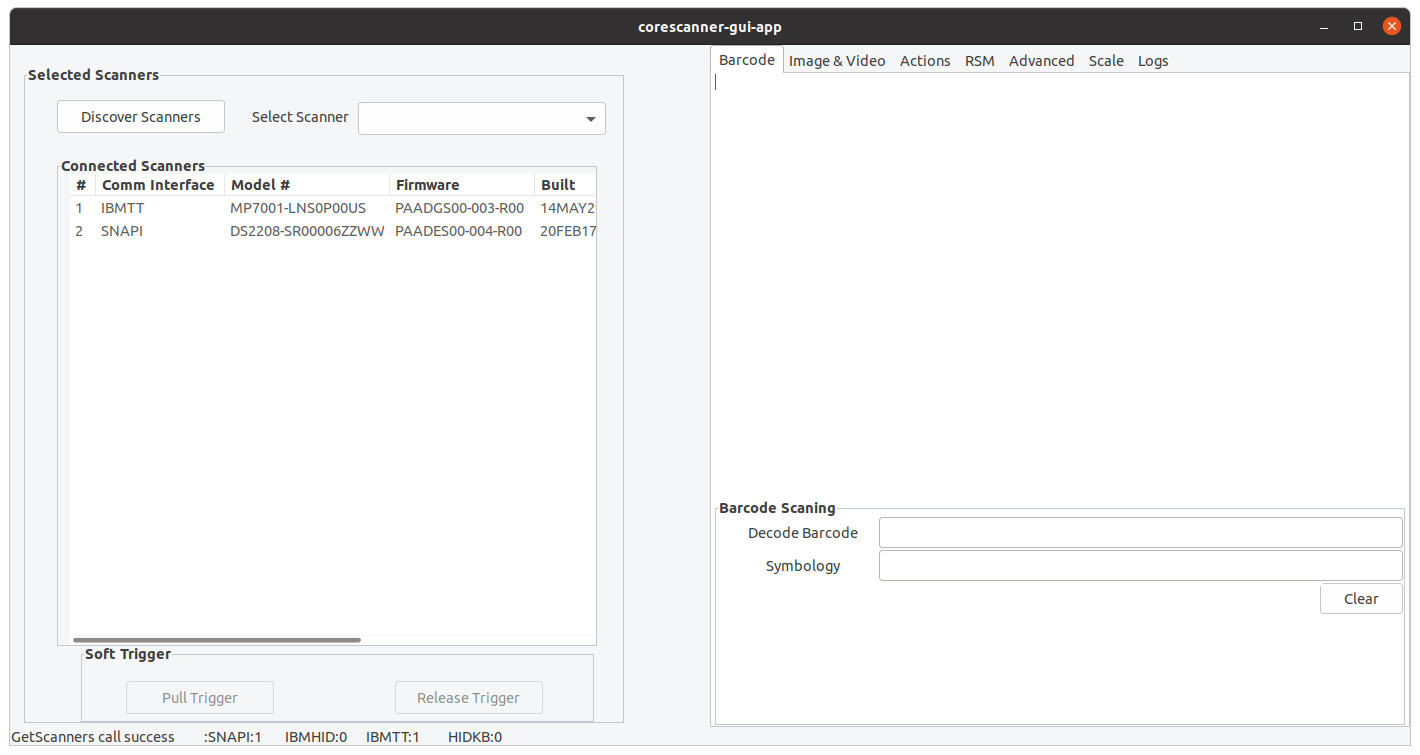
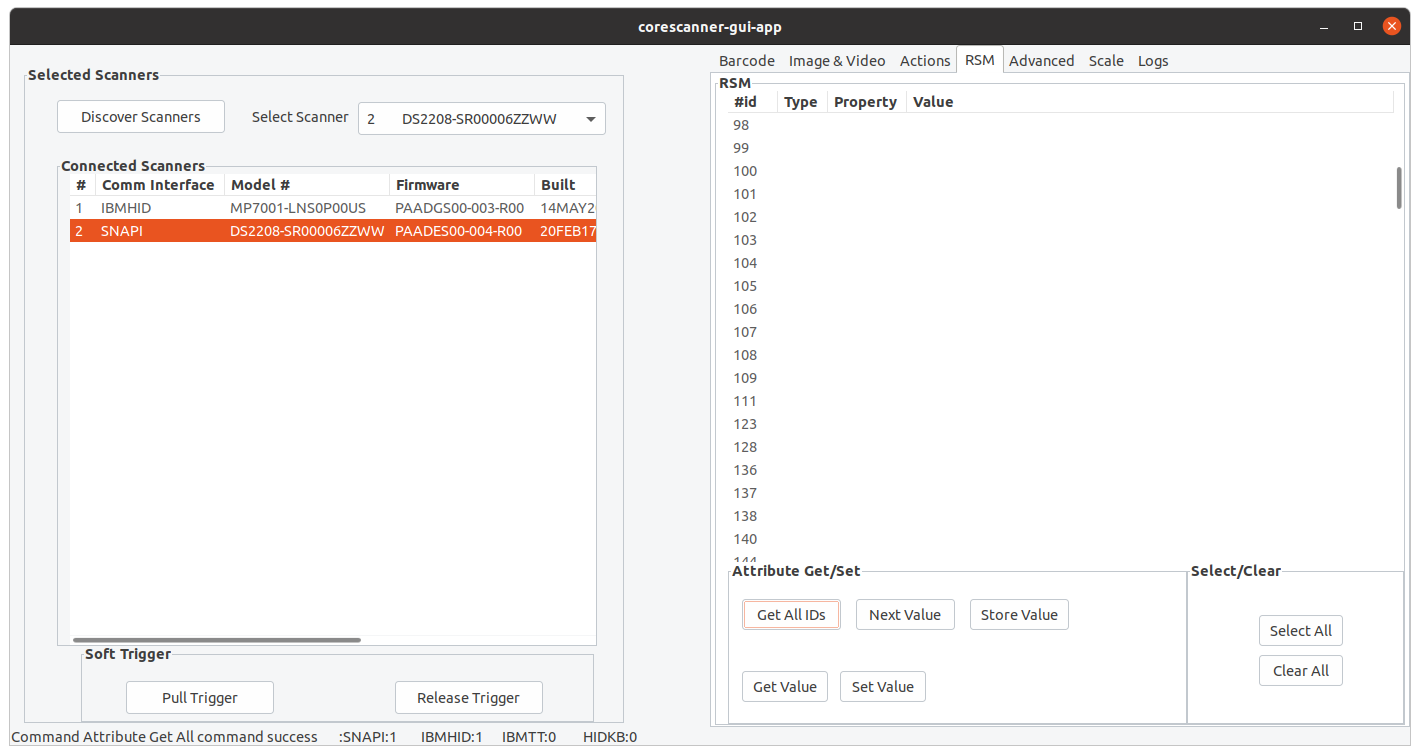
Figure 9: C++ Sample Application

Table 5: Test Utility Buttons and Fields by Tab

Button or Field Description
Discover Scanners Invoke GetScanners methods and refresh the scanner list.
Select Scanner Select the scanner to invoke the command.
Connected Scanners List all connected scanners regardless of mode.
Pull Trigger Soft Pull Trigger the scanner for barcode, image, and video actions.
Release Trigger Soft Release Trigger the scanner for barcode, image, and video actions
Barcode Tab
Clear Clear the barcode data area.
Decoded Barcode Display the label value of the scanned barcode.
Symbology Display the symbology of the scanned barcode.
Image/Video Tab
Image Invoke image capture mode.
Video Invoke video capture mode
Image Type Select JPG, TIFF, or BMP image type.
Enable Video View Finder Enable the view finder in image mode.
Save Image Save the captured image.
Scanner Actions Tab
Enable/Disable Scanner Enable/Disable the scanner for data/image/video capture initiation.
Aim Switch on and off Aim control of the scanner.
Beeper Beep the beeper of the scanner.
Reboot Scanner Reboot the scanner.
LED Light the LED(s) on the scanner.
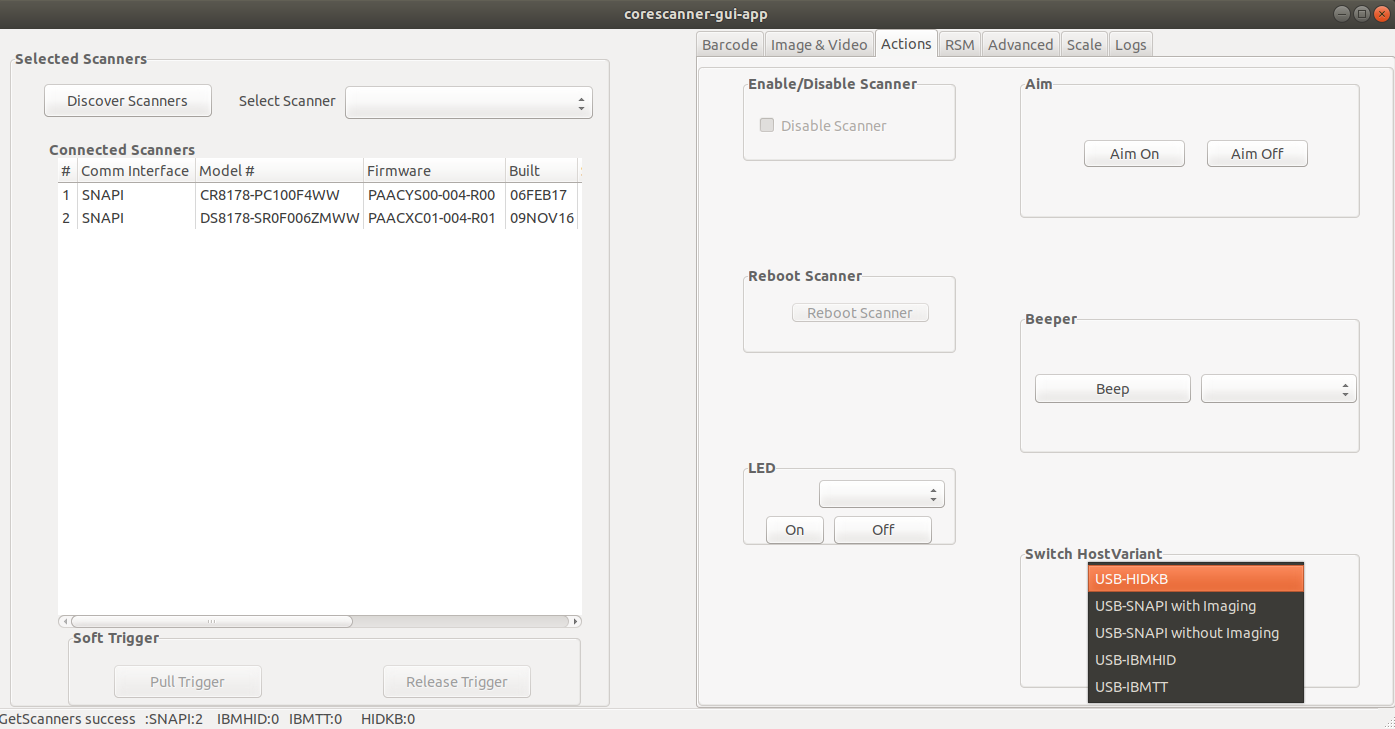
Switch Host Variant Switch the scanner host type; you can select a silent feature and persist the variant change
RSM Tab
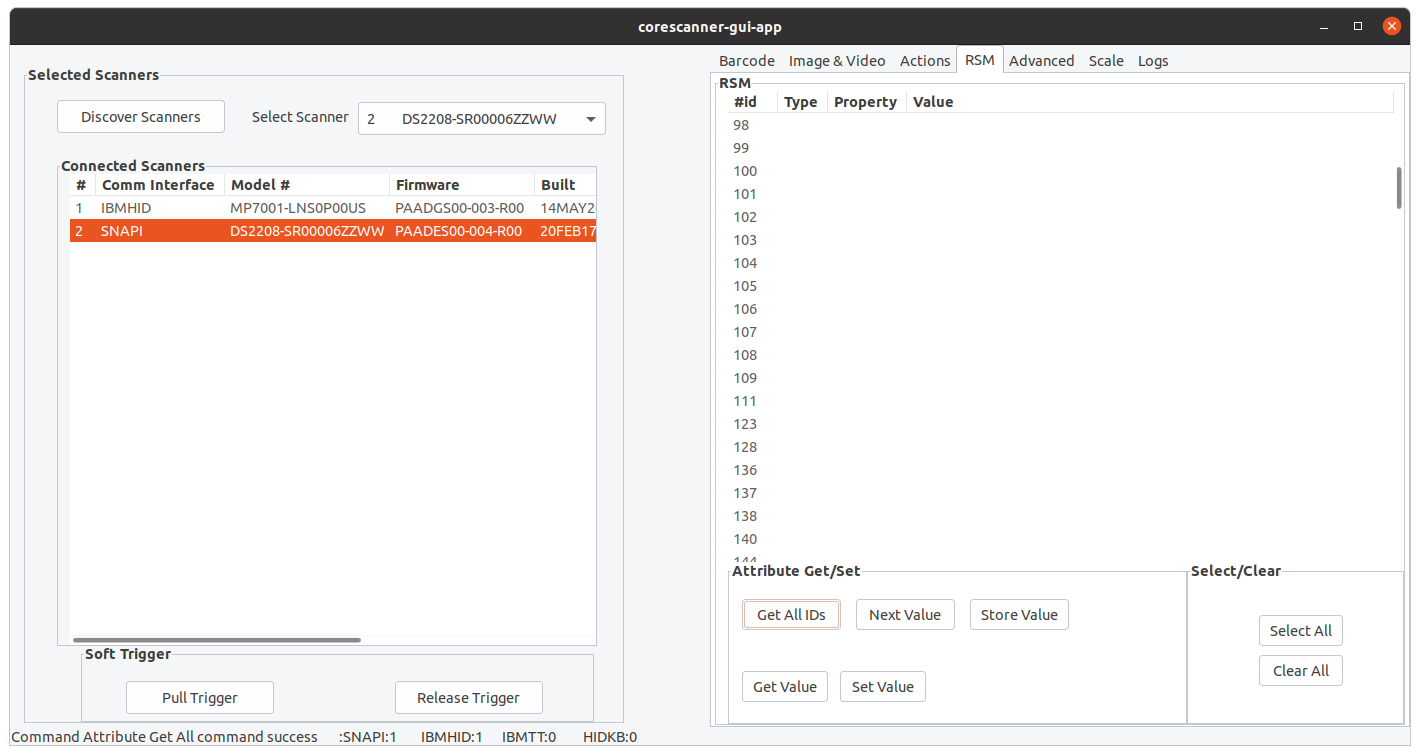
Get All IDs Get all supported attribute IDs from the selected scanner.
Get Value Select one or more attribute IDs and get their values.
Next Value Get the next attribute value given the current attribute number.
Store Value Store value(s) for selected attribute(s).
Set Value Set value(s) for selected attribute(s).
Select All Select all attribute IDs at the RSM data viewer.
Clear All Clear all attribute data at the RSM data viewer.
Advance Tab
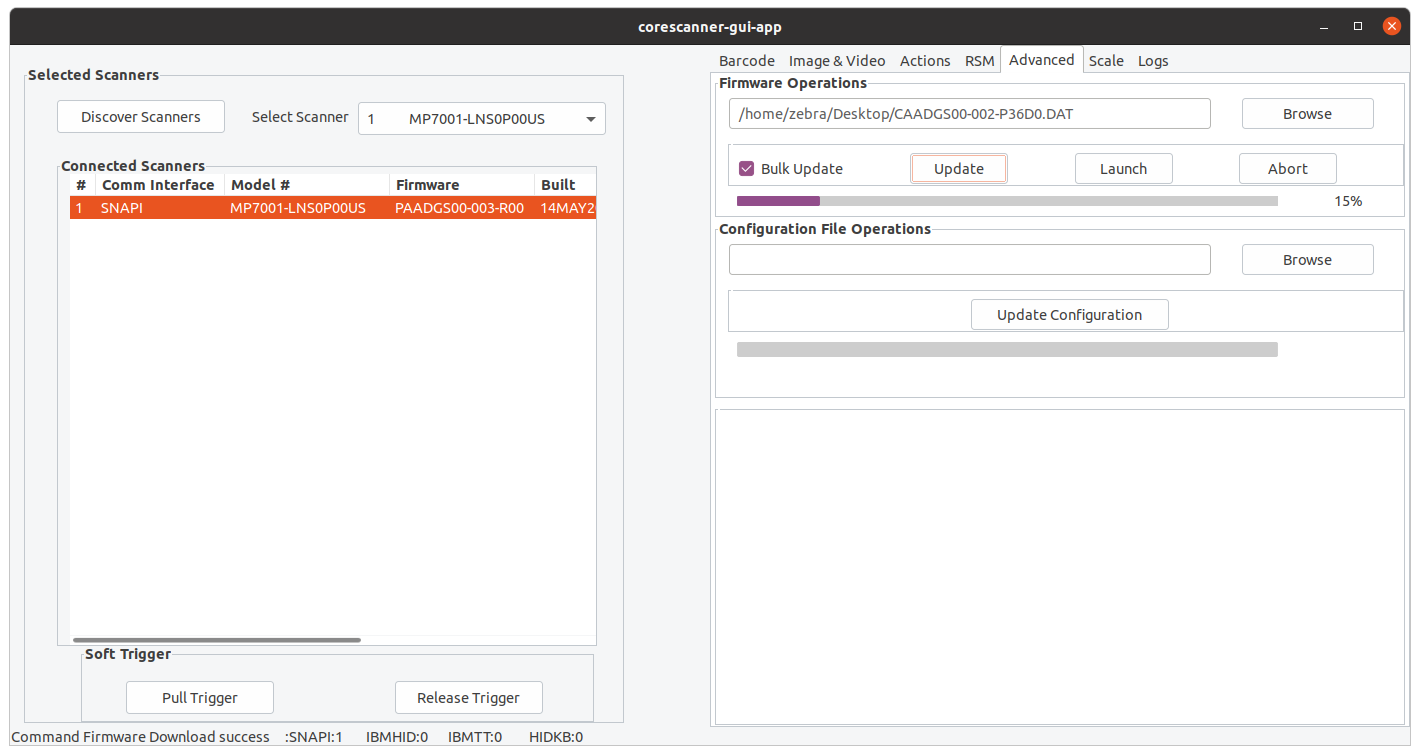
Firmware Update Operations Update firmware and launch the new firmware on the scanner.
Browse Browse the firmware file (*.DAT) or plug-in file (*.SCNPLG).
Update Initiate firmware update.
Abort Abort firmware update.
Launch Once firmware update finishes launch the new firmware in the scanner.
Update Configuration Update configuration file on the scanner.
Browse Browse the configuration file(.scnfg).
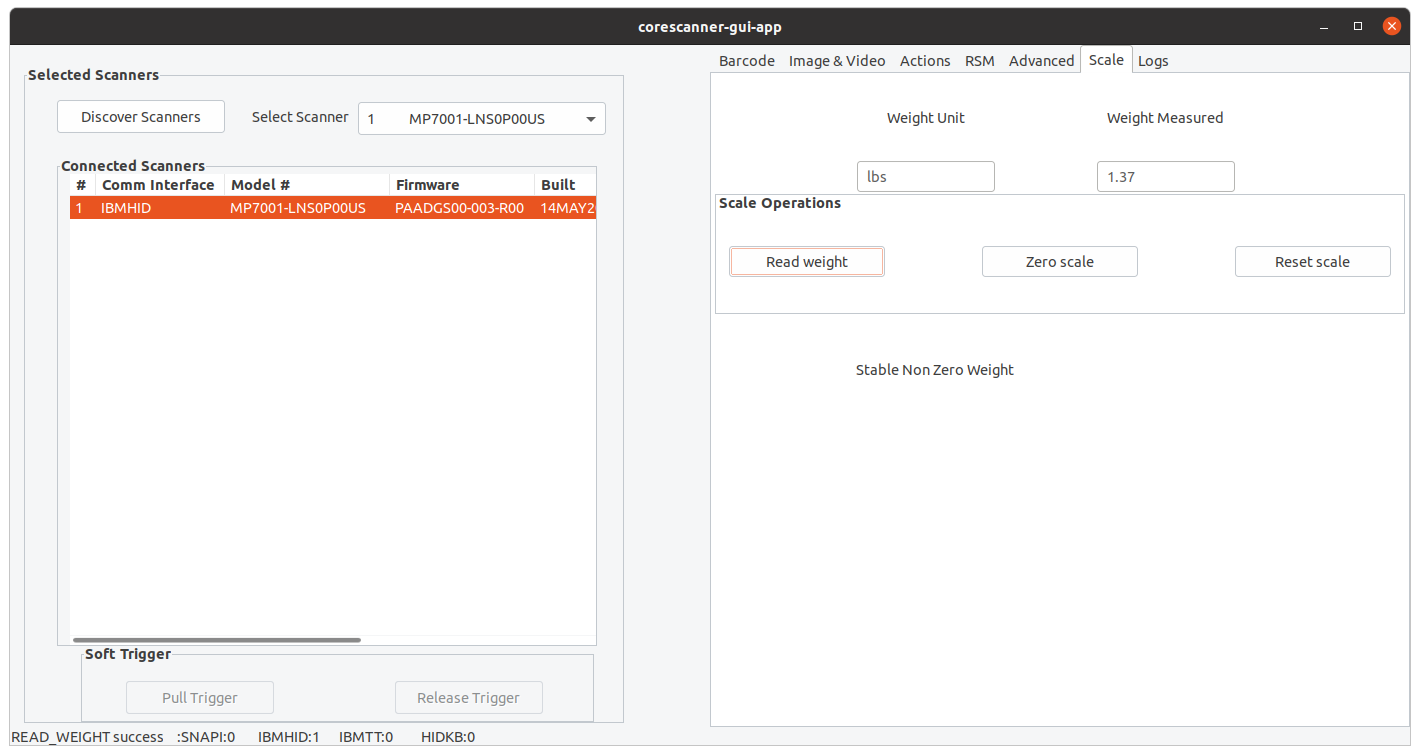
Scale Tab
Read Weight Retrieves the measured weight
Zero Scale Sets the scale based on a reference item
Reset Scale Clearing out previously set weight references
Weight Unit Unit used to measure the weight
Weight Measured Weight measured by the scanner
Logs Tab
Event Log Command and event log; logs initiated commands.
XML Log Displays output of each function if available.
Clear Event Log Clear command and event log area.
Clear XML Log Clear XML log area.

Verifying Scanner SDK Functionality

This section provides test cases to demonstrate Zebra Scanner SDK functionality. See Installing the CoreScanner and SDK for more information.

Scanner Discovery / Asset Tracking / Successful SDK Installation Validation

  1. Connect a Zebra USB scanner(s) to the host computer.
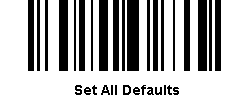
  2. Scan one of the following barcodes to place the scanner in USB Hand-held or USB SNAPI mode.

    USB (IBM Hand-Held)
    Symbol Native API (SNAPI) with Imaging Interface
  3. Launch the Zebra Scanner SDK Sample Utility on the host computer.

    Figure 10: Discover Scanners on C++ Sample Application
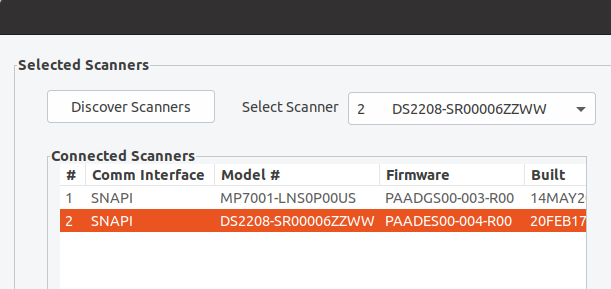
  4. Use the change directory (cd) command to change to the /usr/share/zebra-scanner/samples/gui-app directory and run the corescanner-gui-app executable file.
  5. Click Discover Scanners to display all connected scanners. This executes an Open for all types of scanners and an ExecCommand with the REGISTER_FOR_EVENTS method using the following XML and a GetScanners API call:

    
    <inArgs>
        <cmdArgs>
            <arg-int>6</arg-int>
            <arg-int>1,2,4,8,16,32</arg-int>
        </cmdArgs>
    </inArgs>


NOTE The first <inArgs> tag in the XML contains the number of events to register, in this example, 6. The second <arg-int> tag contains the event IDs to register separated by commas (",").

Table 6: Supported Event IDs

Event Name Event ID
SUBSCRIBE_BARCODE 1
SUBSCRIBE_IMAGE 2
SUBSCRIBE_VIDEO 4
SUBSCRIBE_RMD 8
SUBSCRIBE_PNP 16
SUBSCRIBE_OTHER 32

The GetScanners API call produces the following XML code:


<?xml version="1.0" encoding="UTF-8" ?>
    <scanners>
        <scanner type="SNAPI">
            <scannerID>1</scannerID>
            <serialnumber>7116000501003</serialnumber>
            <GUID>A2E647DED2163545B18BCEBD0A2A133D</GUID>
            <VID>1504</VID>
            <PID>6400</PID>
            <modelnumber>DS670-SR20001ZZR</modelnumber>
            <DoM>27APR07</DoM>
            <firmware>NBRPUAAC</firmware>
        </scanner>
    </scanners>

Table 7: GetScanners Output For This Example

Scanner Information Value Description
Scanner ID 1 A unique ID that the SDK assigns to a scanner. Any scanner specific method executed via ExecCommand must point to this.
Serial Number 7116000501003 Device serial number printed on the label.
Model Number DS670-SR20001ZZR Device model number.
Date of Manufacture 27APR07 Device date of manufacture.
Firmware Version NBRPUAAC Current firmware version.
H/W GUID A2E647DED2163545B18BCEBD0A2A133D Hardware Unique ID.

The XML consists of the scanner type, scanner ID, serial number, GUID, VID, PID, model number, date of manufacture, and firmware version of the connected scanners.

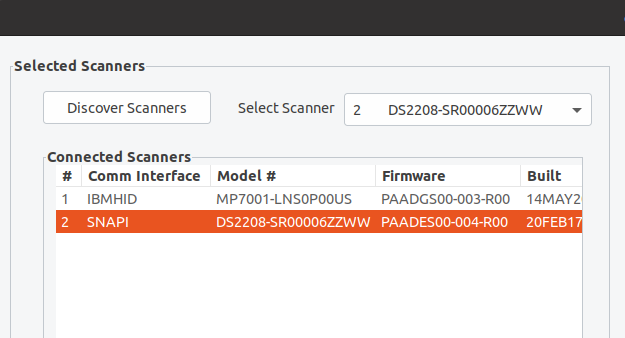
The Connected Scanners list displays all discovered scanners by processing the XML from the GetScanners command along with asset tracking information returned by querying device parameters. This information indicates the SDK was installed successfully.

Figure 11: Connected Scanners

Barcode Scanning

Connect and discover a scanner. See Verifying Scanner SDK Functionality

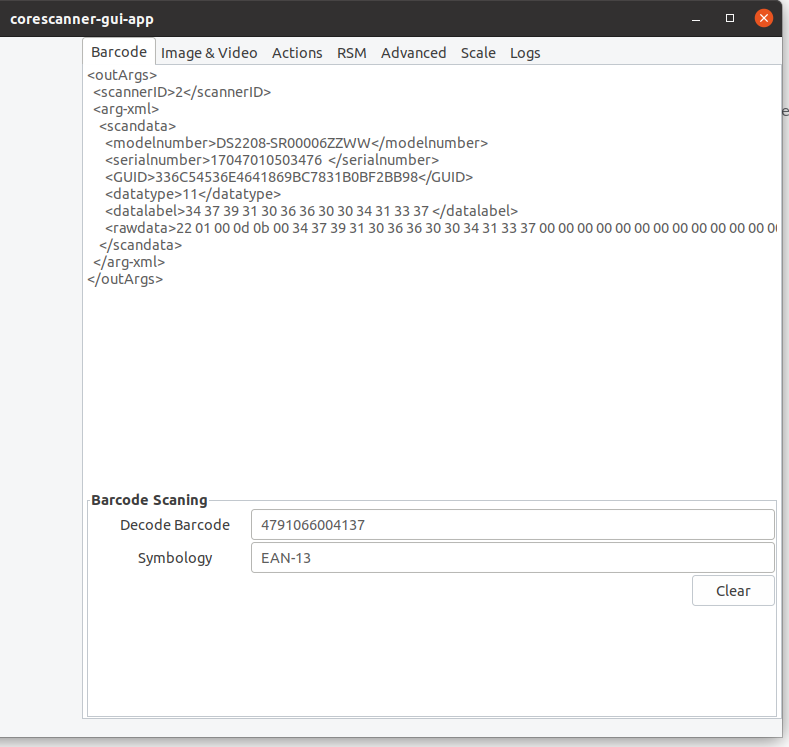
Scanning a barcode returns decoded data as XML on the Barcode tab. To illustrate the implementation, the sample application displays only the barcode data below the XML data.

Figure 12: Decode Barcode Data

Example

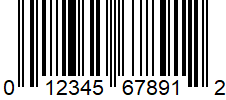
Scan the following barcode after discovering the scanner in the sample application.

UPC-A 0-1234567891-2

This returns the following XML:


<?xml version="1.0" encoding="UTF-8" ?>
<outArgs>
    <scannerID>2</scannerID>
    <arg-xml>
        <scandata>
            <modelnumber>DS670-SR20001ZZR</modelnumber>
            <serialnumber>7116000501003</serialnumber>
            <GUID>A2E647DED2163545B18BCEBD0A2A133D</GUID>
            <datatype>8</datatype>
            <datalabel>0x30 0x31 0x32 0x33 0x34 0x35 0x36 0x37 0x38 0x39 0x31 0x32</datalabel>
            <rawdata>0x30 0x31 0x32 0x33 0x34 0x35 0x36 0x37 0x38 0x39 0x31 0x32</rawdata>
        </scandata>
    </arg-xml>
</outArgs>                                                                    

The sample application processes this XML and displays the decoded barcode in the Decoded Barcode text box, and the symbology in the Symbology text box.

Image and Video Capture

  1. Connect and discover an imaging scanner. See Verifying Scanner SDK Functionality
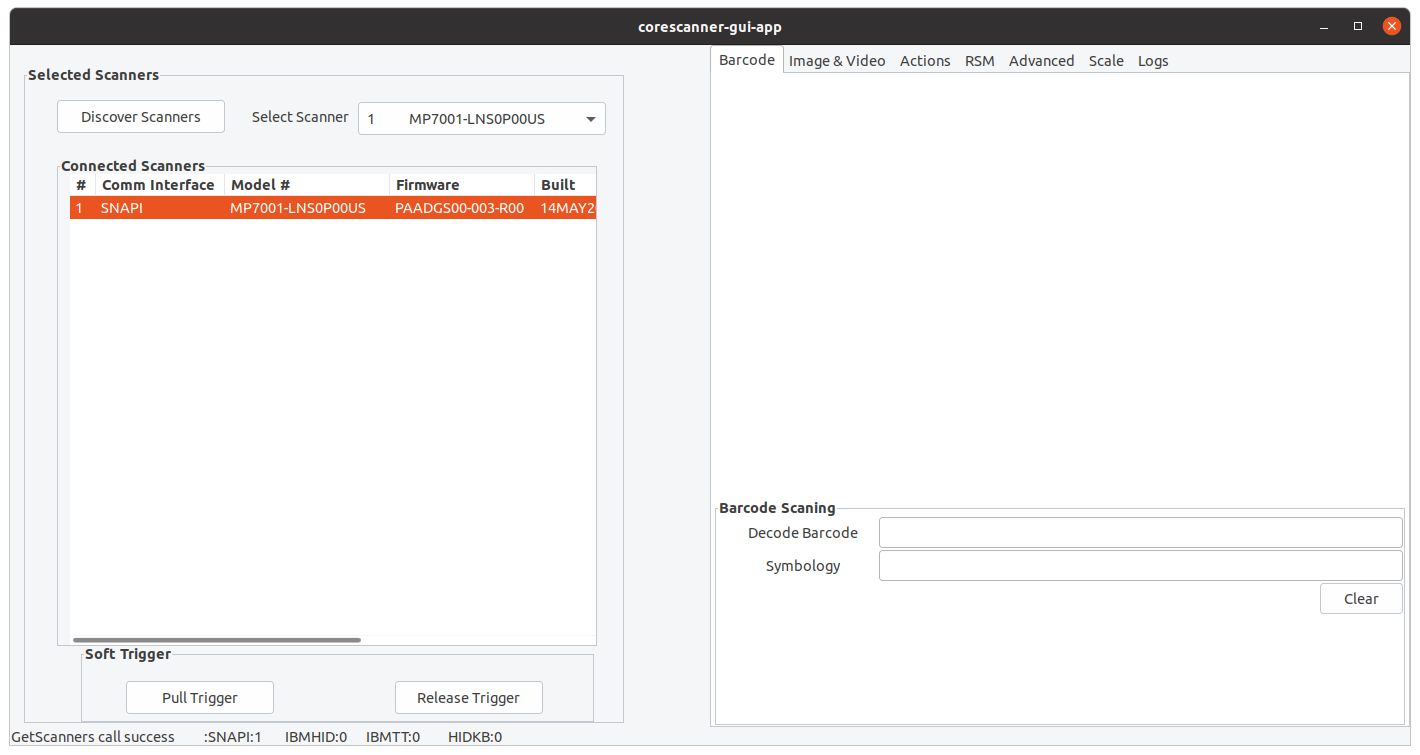
  2. Select a SNAPI mode scanner ID from the Select Scanner drop-down list. The selection appears in the Connected Scanners list.

    NOTE If no SNAPI scanner appears in the Connected Scanners list, connect an imaging scanner that supports image/video transfer. For a list if scanner models and their supported communication modes, refer to the Scanner SDK for Windows website: www.zebra.com/scannersdkforwindows.

    Alternatively, select the SNAPI mode scanner in the Connected Scanners area. The selected scanner's ID appears in the Select Scanner drop-down list.

    Figure 13: Scanner Selection
  3. Select the Image & Video tab.
  4. Select an image type of JPG, TIFF, or BMP. This executes an ExecCommand API call using the ATTR_SET method and following XML code:

    
    <inArgs>
        <scannerID>1</scannerID>
        <cmdArgs>
            <arg-xml>
                <attrib_list>
                    <attribute>
                        <id>304</id>
                        <datatype>B</datatype>
                        <value>4</value>
                    </attribute>
                </attrib_list>
            </arg-xml>
        </cmdArgs>
    </inArgs>      


    NOTE The <scannerID> tag in the XML contains the scanner ID selected in the Connected Scanners list. The <id> tag contains the image file type parameter of the selected scanner, in this example, 304. The value 4 indicates the image type the user gets from the scanner. See following table.

    Table 8: Image Types

    Image Type Value
    BMP_FILE_SELECTION 3
    TIFF_FILE_SELECTION 4
    JPEG_FILE_SELECTION 1

    NOTE These values may vary by scanner model. Refer to the scanner Product Reference Guide for information on scanner parameters.

  5. Check Enable Video View Finder. This executes an ExecCommand API call with the ATTR_SET method and the following XML code:

    
    <inArgs>
        <scannerID>1</scannerID>
        <cmdArgs>
            <arg-xml>
                <attrib_list>
                    <attribute>
                        <id>324</id>
                        <datatype>B</datatype>
                        <value>1</value>
                    </attribute>
                </attrib_list>
            </arg-xml>
        </cmdArgs>
    </inArgs>                                                                            


    NOTE The <scannerID> tag in the XML contains the ID of the scanner selected in the Connected Scanners list. The <id> tag contains the video view finder parameter number of the scanner and value 1 indicates that the view finder is enabled. A value 0 indicates the view finder is disabled.

  6. Click either Image to put the scanner into image capture mode or Video to put the scanner into video capture mode. This executes an ExecCommand API call using the DEVICE_CAPTURE_IMAGE method for Image, or DEVICE_CAPTURE_VIDEO method for Video, with the following XML code:

    
    <inArgs>
        <scannerID>1</scannerID>
    </inArgs>                                                                                    
    
    
  7. Click Pull Trigger on the bottom left side of the utility. The scanner captures an image if in image capture mode, or begins video capture if in video capture mode. Click Release Trigger to stop video capture.

    Clicking Pull Trigger or Release Trigger executes an ExecCommand API call using the corresponding DEVICE_PULL_TRIGGER or DEVICE_RELEASE_TRIGGER method with the following XML code:

    
    <inArgs>
        <scannerID>1</scannerID>
    </inArgs>                                                                                    


    NOTE You can use the trigger on the scanner to start and stop image or video capture instead of the soft trigger buttons provided in the sample utility.

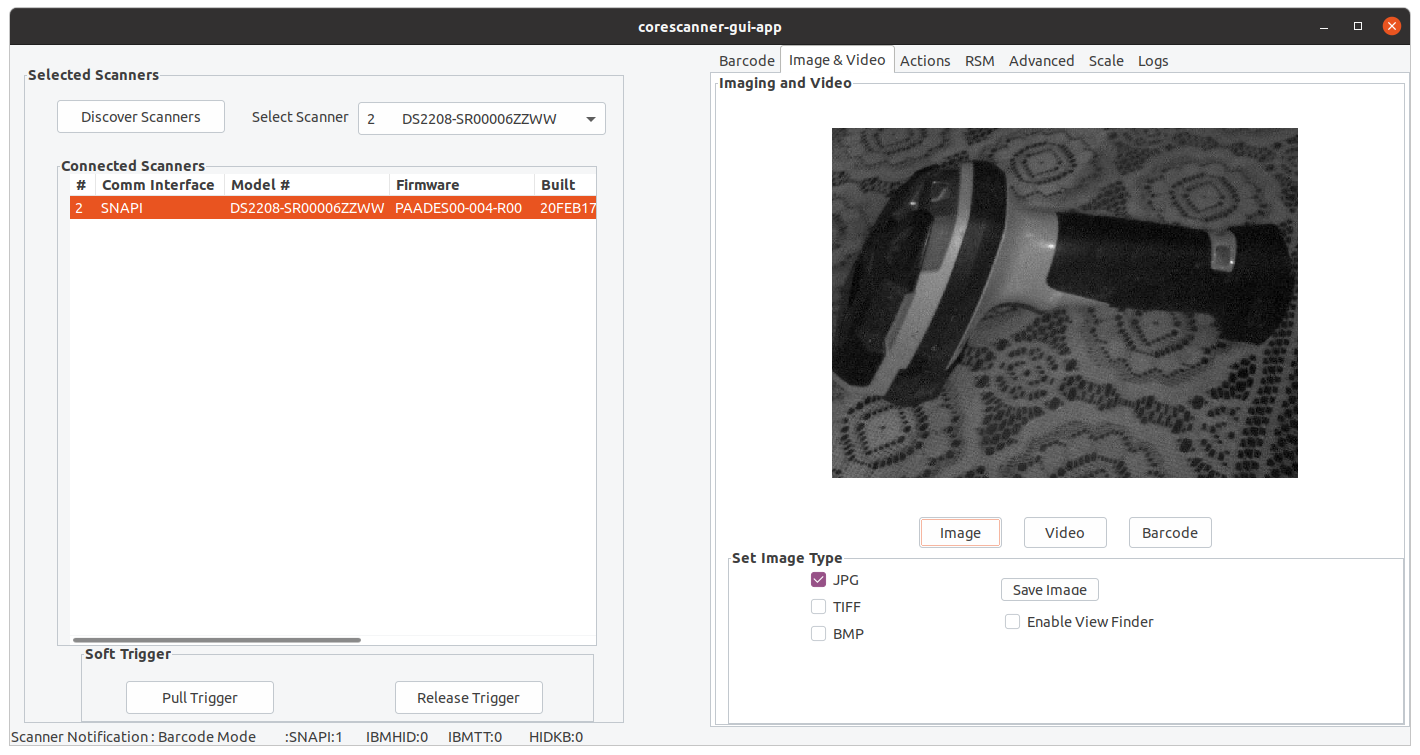
    Figure 14: Captured Image Displayed on the Image snd Video Tab
    If you registered with ImageEvent you receive an image event for the pull trigger when in image mode. If you registered with VideoEvent you receive a video event for the pull trigger when in video mode.

Beep the Beeper

Zebra scanners sound the beeper when the host system invokes the Beeper method.

  1. Connect and discover a scanner. See Verifying Scanner SDK Functionality
  2. Select a SNAPI or IBM mode scanner ID from the Select Scanner drop-down list. The selection appears in the Connected Scanners list.
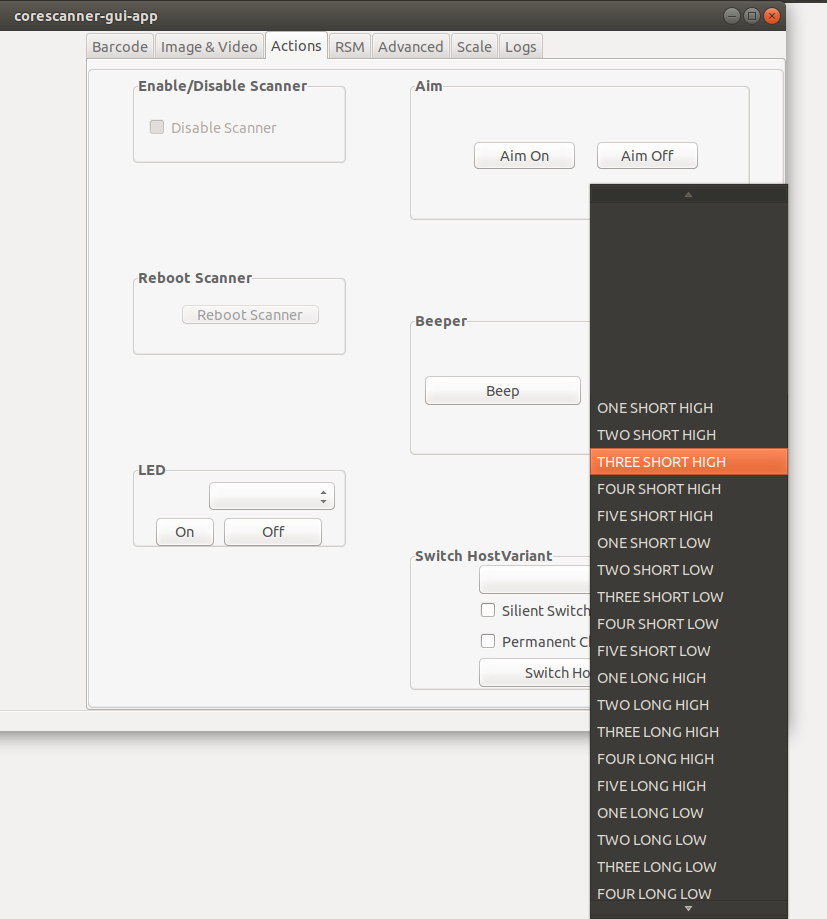
  3. On the Actions tab, select the beep sequence.

    Figure 15: Beep Values
  4. Click Beep to execute an ExecCommand API call with the SET_ACTION method and following XML code:

                                                                        
                                                                                <inArgs>
                                                                                <scannerID>1</scannerID>
                                                                                <cmdArgs>
                                                                                <arg-int>2</arg-int>
                                                                                </cmdArgs>
                                                                                </inArgs>                                


    NOTE The <scannerID> tag in the XML contains the scanner ID selected in the Connected Scanners list. The <arg-int> tag in the XML contains the beep value selected in the Beeper drop-down list.

Flash the LED

Zebra scanners flash an LED when the host system initiates the flash LED method.

  1. Connect and discover a scanner. See Verifying Scanner SDK Functionality
  2. Select a SNAPI or OPOS/IBM OPOS mode scanner ID from the Select Scanner drop-down list. The selection appears in the Connected Scanners list.
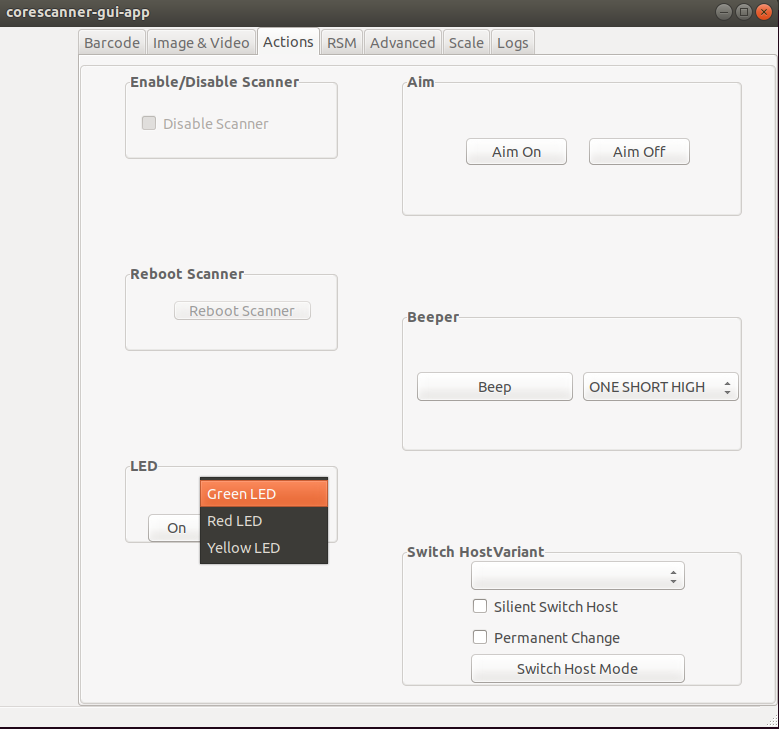
  3. On the Actions tab, select the desired LED.

    Figure 16: LED Selection
  4. Click On to execute an ExecCommand API call with the SET_ACTION method and the following XML code:

    
    <inArgs>
        <scannerID>1</scannerID>
        <cmdArgs>
            <arg-int>43</arg-int>
        </cmdArgs>
    </inArgs>                                                                                                                                                                  


    NOTE The <scannerID> tag in the XML contains the scanner ID selected in the Connected Scanners list. The <arg-int> tag in the XML contains the corresponding action value to turn on or off the LED selected from the drop-down list.

    To control the LED, change the action value in the <arg-int> tag.

    Click Off to execute an ExecCommand API call using the DEVICE_LED_OFF method with the same XML code that turned it on.

    NOTE The Beep the Beeper and Flash the LED XML code examples are the same except for the method name. All XML used in an ExecCommand API call has a common format. The </inArgs> tag always contains the <scannerID> tag and optionally contains <cmdArgs> tags and <arg-xml> tags inside the </inArgs> tag. <cmdArgs> can contain <arg-string>, <arg-bool>, and <arg-int> tags. Execute different commands for the same XML by changing the method parameter in ExecCommand.

Attribute and Parameter Query

To query parameters from a specific device, such as the Date of Manufacture and Firmware Version:

  1. Connect and discover a scanner. See Verifying Scanner SDK Functionality
  2. Select the scanner to query from the list of Connected Scanners.
  3. On the RSM tab, click Get All IDs to retrieve a list of all attribute IDs supported by the scanner. This executes an ExecCommand API call with the ATTR_GETALL method and the following XML:

    
    <inArgs>
        <scannerID>1</scannerID>
    </inArgs>                                  


    NOTE The <scannerID> tag in the XML contains the ID of the scanner selected in the Connected Scanners list

    The sample application receives the following XML output and displays the corresponding attribute IDs.

    
    <?xml version="1.0" encoding="UTF-8" ?>
    <outArgs>
        <scannerID>1</scannerID>
        <arg-xml>
            <modelnumber>DS670-SR20001ZZR</modelnumber>
            <serialnumber>7116000501003</serialnumber>
            <GUID>A2E647DED2163545B18BCEBD0A2A133D</GUID>
            <response>
                <opcode>5000</opcode>
                <attrib_list>
                    <attribute name="">0</attribute>
                    <attribute name="">1</attribute>
                    <attribute name="">2</attribute>
                    <attribute name="">3</attribute>
                    <attribute name="">4</attribute>
                    <attribute name="">5</attribute>
                    <attribute name="">6</attribute>
                    <attribute name="">7</attribute>
                    <attribute name="">8</attribute>
                    <attribute name="">9</attribute>
                    <attribute name="">10</attribute>
                    <attribute name="">11</attribute>
                    <attribute name="">12</attribute>
                    <attribute name="">13</attribute>
                    <attribute name="">14</attribute>
                    <attribute name="">15</attribute>
                    <attribute name="">16</attribute>
                    <attribute name="">17</attribute>
                    <attribute name="">18</attribute>
                    <attribute name="">19</attribute>
                    <attribute name="">20</attribute>
                    <attribute name="">21</attribute>
                    <attribute name="">22</attribute>
                    <attribute name="">23</attribute>
                    <attribute name="">24</attribute>
                    <attribute name="">25</attribute>
                    <attribute name="">26</attribute>
                    <attribute name="">27</attribute>
                    <attribute name="">28</attribute>
                    <attribute name="">29</attribute>
                    <attribute name="">30</attribute>
                    <attribute name="">31</attribute>
                    <attribute name="">34</attribute>
                    <attribute name="">35</attribute>
                    <attribute name="">36</attribute>
                    <attribute name="">37</attribute>
                    <attribute name="">38</attribute>
                    <attribute name="">39</attribute>
                    <attribute name="">655</attribute>
                    <attribute name="">656</attribute>
                    <attribute name="">657</attribute>
                    <attribute name="">658</attribute>
                    <attribute name="">659</attribute>
                    <attribute name="">665</attribute>
                    <attribute name="">670</attribute>
                    <attribute name="">672</attribute>
                    <attribute name="">673</attribute>
                    <attribute name="">705</attribute>
                    <attribute name="">716</attribute>
                    <attribute name="">718</attribute>
                    <attribute name="">721</attribute>
                    <attribute name="">724</attribute>
                    <attribute name="">726</attribute>
                    <attribute name="">727</attribute>
                    <attribute name="">728</attribute>
                    <attribute name="">730</attribute>
                    <attribute name="">731</attribute>
                    <attribute name="">734</attribute>
                    <attribute name="">735</attribute>
                    <attribute name="">745</attribute>
                    <attribute name="">6000</attribute>
                    <attribute name="">6001</attribute>
                    <attribute name="">6002</attribute>
                    <attribute name="">6003</attribute>
                    <attribute name="">6004</attribute>
                    <attribute name="">20004</attribute>
                    <attribute name="">20006</attribute>
                    <attribute name="">20007</attribute>
                    <attribute name="">20008</attribute>
                    <attribute name="">20009</attribute>
                    <attribute name="">20010</attribute>
                    <attribute name="">20011</attribute>
                    <attribute name="">20013</attribute>
                </attrib_list>
            </response>
        </arg-xml>
    </outArgs>


    NOTE To find the corresponding attribute names, refer to the scanner Product Reference Guide, available on the Zebra Support website. Attributes include configuration parameters, monitored data, and asset tracking information.

    Figure 17: Get RSM IDs

Querying Specific Attributes

To query attributes, select attribute IDs and click Get Value. This executes an ExecCommand API call with the ATTR_GET method and the following XML.


<inArgs>
    <cmdArgs>
        <scannerID>1</scannerID>
        <arg-xml>
            <attrib_list>535,20004,1,140,392</attrib_list>
        </arg-xml>
    </cmdArgs>
</inArgs>

note The <scannerID> tag in the XML contains the ID of the scanner selected in the Connected Scanners list and the <attrib_list> tag with the attribute IDs selected on the RSM tab.

For example, to retrieve the values of the Date of Manufacture, Firmware Version, UPC -A status, Beeper Volume, and ADF Rule parameters, select these attribute IDs and click Get Value. This executes an ExecCommand API call with the ATTR_GET method and the XML shown above. See the following table for the corresponding IDs

Table 9: Device Parameters to Query

Parameter Attribute #
Date of Manufacture 535
Firmware Version 20004
UPC A status 1
Beeper Volume 140
ADF Rule 392

After a successful command, the output XML appears in the Logs tab as follows:


<?xml version="1.0" encoding="UTF-8" ?>
<outArgs>
    <scannerID>1</scannerID>
    <arg-xml>
        <modelnumber>DS670-SR20001ZZR</modelnumber>
        <serialnumber>7116000501003</serialnumber>
        <GUID>A2E647DED2163545B18BCEBD0A2A133D</GUID>
        <response>
            <opcode>5001</opcode>
            <attrib_list>
                <attribute>
                    <id>535</id>
                    <name></name>
                    <datatype>S</datatype>
                    <permission>R</permission>
                    <value>27APR07</value>
                    </attribute>
                    <attribute>
                    <id>20004</id>
                    <name></name>
                    <datatype>S</datatype>
                    <permission>R</permission>
                    <value>DS6707X4</value>
                    </attribute>
                    <attribute>
                    <id>1</id>
                    <name></name>
                    <datatype>F</datatype>
                    <permission>RWP</permission>
                    <value>True</value>
                    </attribute>
                    <attribute>
                    <id>140</id>
                    <name></name>
                    <datatype>B</datatype>
                    <permission>RWP</permission>
                    <value>0</value>
                    </attribute>
                    <attribute>
                    <id>392</id>
                    <name></name>
                    <datatype>A</datatype>
                    <permission>RWP</permission>
                    <value>0x00 0x00 0x00 0x00 0x00 0x00 0x00 0x00 0x00 0x00 0x00 0x00 0x00 0x00 0x00 0x00 0x00 0x00 0x00 0x00 0x00 0x00 0x00 0x00 0x00 0x00 0x00 0x00 0x00 0x00 0x00 0x00 0x00
                    0x00 0x00 0x00 0x00 0x00 0x00 0x00 0x00 0x00 0x00 0x00 0x00 0x00 0x00 0x00 0x00 0x00 0x00
                    0x00 0x00 0x00 0x00 0x00 0x00 0x00 0x00 0x00 0x00 0x00 0x00 0x00 0x00 0x00 0x00 0x00 0x00
                    0x00 0x00 0x00 0x00 0x00 0x00 0x00 0x00 0x00 0x00 0x00 0x00 0x00 0x00 0x00 0x00 0x00 0x00
                    0x00 0x00 0x00 0x00 0x00 0x00 0x00 0x00 0x00 0x00 0x00 0x00 0x00 0x00 0x00 0x00 0x00 0x00
                    0x00 0x00 0x00 0x00 0x00 0x00 0x00 0x00 0x00 0x00 0x00 0x00 0x00 0x00 0x00 0x00 0x00 0x00
                    0x00 0x00 0x00 0x00 0x00 0x00 0x00 0x00 0x00 0x00 0x00 0x00 0x00 0x00 0x00 0x00 0x00 0x00
                    0x00 0x00 0x00 0x00 0x00 0x00 0x00 0x00 0x00 0x00 0x00 0x00 0x00 0x00 0x00 0x00 0x00 0x00
                    0x00 0x00 0x00 0x00 0x00 0x00 0x00 0x00 0x00 0x00 0x00 0x00 0x00 0x00 0x00 0x00 0x00 0x00
                    0x00 0x00 0x00 0x00 0x00 0x00 0x00 0x00 0x00 0x00 0x00 0x00 0x00 0x00 0x00 0x00 0x00 0x00
                    0x00 0x00 0x00 0x00 0x00 0x00 0x00 0x00 0x00 0x00 0x00 0x00</value>
                </attribute>
            </attrib_list>
        </response>
    </arg-xml>
</outArgs>

The sample application processes this XML and displays the output on the RSM tab.

Figure 18: Get Attribute Values

Parameter Setting (Device Configuration)

To set parameters of a specific device, such as UPC-A status or beeper volume:

  1. Query the parameter. See Attribute and Parameter Query
  2. To set an attribute, select and edit the attribute value in the RSM window.
  3. Select the row of the updated attribute and click Set Value or Store Value. This executes an ExecCommand API call using the ATTR_SET or ATTR_STORE method and the following XML code:

    
    <inArgs>
        <scannerID>1</scannerID>
        <cmdArgs>
            <arg-xml>
                <attrib_list>
                    <attribute>
                        <id>1</id>
                        <datatype>F</datatype>
                        <value>False</value>
                    </attribute>
                </attrib_list>
            </arg-xml>
        </cmdArgs>
    </inArgs>                                                                                    


NOTE The <scannerID> tag in the XML contains the ID of the scanner selected in the Connected Scanners list and the <attrib_list> tag contains the <attribute> tags selected on the RSM tab.

Examples

The following examples demonstrate how to enable or disable a symbology, program an ADF rule, control beeper volume, and control LEDs.

Before starting an example, scan the Set All Defaults barcode to return all parameters to default values (replacing the scanner's current settings). Refer to the scanner Product Reference Guide for default values.

Set All Defaults

Enable / Disable a Symbology

To disable a symbology, refer to the scanner Product Reference Guide to determine the attribute ID. The attribute ID of the UPC-A parameter is 1. To change and validate the setting:

  1. Put the scanner into USB OPOS (Hand-held) or USB SNAPI mode by scanning one of the barcodes in Scanner Discovery / Asset Tracking / Successful SDK Installation Validation, or using the procedure in Host Variant Switching.

  2. Get the value of attribute ID 1, which is TRUE if you scanned the Set All Defaults barcode.
  3. To disable UPC-A, change the value of attribute ID 1 to FALSE on the RSM tab, and click Set Value or Store Value. This executes an ExecCommand API call with the ATTR_SET or ATTR_STORE method and the XML shown in Parameter Setting.

If the command was successful, the scanner cannot scan the following UPC-A barcode.

UPC-A 0-1234567891-2

Program an ADF Rule

To create an ADF rule to add the prefix "A" to any barcode and an Enter key after, modify the scanner ADF buffer. The attribute ID of the ADF rule is 392.

To change and validate the setting:


USB Host Type = HID Keyboard Wedge

  1. Scan the following barcode, or see Host Variant Switching, to switch the scanner to HID keyboard mode. This enables the scanner to send data to any text editor

    USB Keyboard HID
  2. Open a text editor such as Windows Notepad.
  3. Scan the Sample UPC-A Barcode with the text editor as the active window to insert the barcode data "012345678912" in the window.
  4. Put the scanner into USB OPOS (Hand-held) or USB SNAPI mode by scanning one of the barcodes in Scanner Discovery / Asset Tracking / Successful SDK Installation Validation, or using the procedure in Host Variant Switching
  5. In the sample application, change the value of the selected scanner's attribute 392 to: 0x01 0x0C 0x11 0xF4 0x14 0x10 0x47 0x0D
  6. Click Store Value. The sample application executes an ExecCommand API call using the ATTR_STORE method and the following XML code:

    
    <inArgs>
        <scannerID>1</scannerID>
        <cmdArgs>
            <arg-xml>
                <attrib_list>
                    <attribute>
                        <id>392</id>
                        <datatype>A</datatype>
                        <value>0x01 0x0C 0x11 0xF4 0x14 0x10 0x47 0x0D</value>
                    </attribute>
                </attrib_list>
            </arg-xml>
        </cmdArgs>
    </inArgs>
    
    
  7. After successfully executing the command, repeat steps 1 - 3.

The text entered in Notepad is "A012345678912<Enter key>".

Beeper Volume Control

The beeper volume attribute ID is 140, and the scanner beeper has three volume levels:

  • 2 = Low
  • 1 = Medium
  • 0 = High

To change and validate this setting:

  1. Put the scanner into USB OPOS (Hand-held) or USB SNAPI mode by scanning one of the barcodes in Scanner Discovery / Asset Tracking / Successful SDK Installation Validation, or using the procedure in Host Variant Switching.
  2. Scan the Sample UPC-A Barcode and listen to the beeper
  3. Select attribute ID 140 from the RSM attribute grid. Its value is 0 if you scanned the Set All Defaults barcode at the beginning of the example.
  4. Change the value to 2 and click Set Value or Store Value. The sample application executes an ExecCommand API call with the ATTR_SET or ATTR_STORE method and the following XML code:

    
    <inArgs>
        <scannerID>1</scannerID>
        <cmdArgs>
            <arg-xml>
                <attrib_list>
                    <attribute>
                        <id>140</id>
                        <datatype>B</datatype>
                        <value>2</value>
                    </attribute>
                </attrib_list>
            </arg-xml>
        </cmdArgs>
    </inArgs>
    
    
  5. Scan the Sample UPC-A Barcode again. The beeper volume is lower if the command was successful.

NOTE Changes made using the Store Value commands are permanent, persisting over power down and power up cycles. Changes made using the Set Value command are temporary and are discarded after the next power down.

Beeper and LED Control

Attribute ID for beeper and LED control is 6000. To change and validate this setting:

  1. Put the scanner into USB OPOS (Hand-held) or USB SNAPI mode by scanning one of the barcodes in Scanner Discovery / Asset Tracking / Successful SDK Installation Validation, or using the procedure in Host Variant Switching.
  2. To turn on the scanner LED, execute an ExecCommand API call with the ATTR_SET or ATTR_STORE method and the following XML code:

    
    <inArgs>
    <scannerID>1</scannerID>
    <cmdArgs>
    <arg-xml>
    <attrib_list>
    <attribute>
    <id>6000</id>
    <datatype>X</datatype>
    <value>43</value>
    </attribute>
    </attrib_list>
    </arg-xml>
    </cmdArgs>
    </inArgs>                                                                        


NOTE You can execute several actions by changing the tag in this XML. For example, to turn off the LED, change the value to 42; to beep the beeper, change the value to an integer between 0 and 25.

Host Variant Switching

  1. Connect and discover a scanner. See Scanner Discovery / Asset Tracking / Successful SDK Installation Validation.
  2. On the Actions tab, select a target mode from the Switch Host Variant drop-down list.
  3. If desired, select Permanent Change or Silent Reboot options (hidden by the Switch Host Variant drop-down list).

    Figure 19: Changing Host Mode
  4. Click Switch Host Mode to reboot the scanner and set the target mode. This executes an ExecCommand API call with the DEVICE_SWITCH_HOST_MODE method and the following XML code:

    
    <inArgs>
    <scannerID>1</scannerID>
    <cmdArgs>
    <arg-string>XUA-45001-1</arg-string>
    <arg-bool>TRUE</arg-bool>
    <arg-bool>FALSE</arg-bool>
    </cmdArgs>
    </inArgs>


    NOTE The <scannerID> tag in the XML code contains the ID of the scanner selected in the Connected Scanners list. The <arg-string> tag contains the string code of the selected target host variant.

    NOTE The first <arg-bool> tag contains the boolean value for the silent reboot option. A value of TRUE silently reboots the scanner (without reboot beeps). The second <arg-bool> tag contains the boolean value for the permanent change option. A value of TRUE persists the target host variant over power down and power up cycles. Otherwise the host variant change is temporary until the next reboot.

HID Keyboard mode only supports the IBM Hand-held USB and SNAPI host variants.

Firmware Upgrade

Firmware Upgrade Scenarios

There are three firmware upgrade scenarios.

Loading a compatible, different version of firmware to the scanner

Firmware upgrade downloads the firmware file to the scanner and activates the firmware. Activation takes approximately 50 seconds, during which the LED blinks red and the scanner does not respond to network queries.

When activation (programming) completes, the scanner reboots. The LED turns off, the scanner emits a power up beep, and powers up with the new firmware.

A firmware download can take up to 20 minutes depending on the connection speed between the POS terminal and the scanner, the operating mode of the scanner, and the size of the firmware file.

Loading the same version of firmware that is on the scanner

A firmware file can include multiple components. When loading the same version of firmware, some components in the firmware file may be the same as those on the scanner, while other components are different.

Before loading firmware, the scanner driver reads the header information of each firmware component to validate the model number and version, and only loads components that are different on the scanner. For example, if the first component downloading from the firmware file is the same version as one already on the scanner, the component does not load.

Loading an incompatible version of firmware on the scanner

This occurs when attempting to load firmware designed for one scanner model, for example a DS6707, onto another incompatible scanner model, for example the DS6708.

A firmware file can include multiple components. Before downloading firmware to the scanner, the scanner driver reads the header information of each firmware component to validate the model number and version. If the firmware component model number does not match the scanner, the component does not load. This process continues, verifying each remaining component in the firmware file.

Firmware Upgrade Procedure

  1. Connect and discover a scanner. See Scanner Discovery / Asset Tracking / Successful SDK Installation Validation.
  2. Use 123Scan to obtain the latest scanner plug-in which contains the firmware .DAT file.

    1. Download and launch 123Scan from https://www.zebra.com/us/en/support-downloads/software/scanner-software/123scan-utility.html
    2. Using 123Scan, confirm you have the latest scanner plug-in, which contains a number of files including the firmware file and release notes.

      • To download the latest scanner plug-ins from within 123Scan2, on the help menu, select Check for updates.
      • For a list of scanner models, plug-ins, and firmware files supported in 123Scan2 on the help menu, select Supported scanners and plug-ins.
      • The plug-ins are located in one of the following 123Scan2 sub folders:

      For Windows XP systems: [WINDOWSDRIVE]\ Documents and Settings\ [USERNAME]\Application Data\123Scan2\Plug-ins

      For later versions of Windows: [WINDOWSDRIVE]\Users\ Application Data\123Scan2\Plug-ins

  3. Extract the firmware .DAT file from 123Scan plug-in:

    1. Rename the file extension of the plug-in from .SCNPLG to .ZIP
    2. Use a standard archive tool, such as WinZip, to extract the firmware update file which contains the file extension .DAT

    For example, the DS9808 plug-in is named DS9808-COMMON SR MODELS-S-017.SCNPLG. Change .SCNPLG to .ZIP and access the firmware file CAAABS00-006-R02D0.DAT using WinZip.

  4. In the sample application, select the Advanced tab and browse to and select the firmware .DAT file.
  5. Check the Bulk Update option if desired.

    NOTE There are two communication interfaces (channels), USB HID or the faster USB Bulk, to perform a firmware update. Most SNAPI devices support USB Bulk firmware update but some do not. To determine if your scanner supports USB Bulk mode, refer to the Scanner SDK for Windows website: www.zebra.com/scannersdkforwindows.

  6. Click Update to transfer the firmware file to the scanner. This executes an ExecCommand API call with the UPDATE_FIRMWARE method and the following XML code:

    
    <inArgs>
    <scannerID>1</scannerID>
    <cmdArgs>
    <arg-string>D:\scanner\ScannerFW\DS6707\DS6707X4.DAT</arg-string>
    <arg-int>2</arg-int>
    </cmdArgs>
    </inArgs>


    NOTE The <scannerID> tag in the XML contains the ID of the scanner selected in the Connected Scanners list. The <arg-string> tag contains the path to the firmware file. The <arg-int> tag contains 2 if the bulk update option is selected, or 1 if not.

  7. If you have registered with ScanRMDEvent, you receive six types of events per firmware update cycle, shown in table below.

    Table 10: Firmware Update Event Types

    Event Value Event Type Description
    11 SCANNER_UF_SESS_START Triggered when flash download session starts
    12 SCANNER_UF_DL_START Triggered when component download starts
    13 SCANNER_UF_DL_PROGRESS Triggered when block(s) of flash completed
    14 SCANNER_UF_DL_END Triggered when component download ends
    15 SCANNER_UF_SESS_END Triggered when flash download session ends
    16 SCANNER_UF_STATUS Triggered when update error or status

    The OnScanRMDEvent function has two parameters:

    • The first short type parameter contains the event type described above.
    • The second parameter contains an XML for the event types in table above. Processing the XML provides further information. The receiving XML formats for each event types are as follows, and include information about the scanner it updates.

    NOTE A firmware file can include multiple components. Before downloading firmware to the scanner, the scanner driver reads the header information of each firmware component to validate the model number and version. If the component model number does not match the scanner’s, the component does not load. This process verifies each component in the firmware file.

    1. SCANNER_UF_SESS_START

      
      <?xml version="1.0" encoding="UTF-8"?>
      <outArgs>
      <scannerID>1</scannerID>
      <arg-xml>
      <sess_start>
      <modelnumber>DS670-SR20001ZZR</modelnumber>
      <serialnumber>S/N:7108E15933CA1B4BB776F7BDB4B3F826</serialnumber>
      <GUID>7108E15933CA1B4BB776F7BDB4B3F826</GUID>
      <maxcount>3075</maxcount>
      <status>0</status>
      </sess_start>
      </arg-xml>
      </outArgs>


      NOTE The <maxcount> tag contains the number of records in the firmware file.

    2. SCANNER_UF_DL_START

      
      <?xml version="1.0" encoding="UTF-8"?>
      <outArgs>
      <scannerID>1</scannerID>
      <arg-xml>
      <dl_start>
      <modelnumber>DS670-SR20001ZZR</modelnumber>
      <serialnumber>S/N:7108E15933CA1B4BB776F7BDB4B3F826</serialnumber>
      <GUID>7108E15933CA1B4BB776F7BDB4B3F826</GUID>
      <software_component>0</software_component>
      <status>0</status>
      </dl_start>
      </arg-xml>
      </outArgs>


      NOTE The <software_component> tag contains the component number that starts downloading.

    3. SCANNER_UF_DL_PROGRESS

      
      <?xml version="1.0" encoding="UTF-8"?>
      <outArgs>
      <scannerID>1</scannerID>
      <arg-xml>
      <dl_progress>
      <modelnumber> DS670-SR20001ZZR </modelnumber>
      <serialnumber>S/N:7108E15933CA1B4BB776F7BDB4B3F826</serialnumber>
      <GUID>7108E15933CA1B4BB776F7BDB4B3F826</GUID>
      <software_component>1</software_component>
      <progress>7</progress>
      <status>600</status>
      </dl_progress>
      </arg-xml>
      </outArgs>


      NOTE The <progress> tag contains the record number that is currently downloading. The tag contains the record of the download progress. 600 indicates the resident firmware.

    4. SCANNER_UF_DL_END

      
      <?xml version="1.0" encoding="UTF-8"?>
      <outArgs>
      <scannerID>1</scannerID>
      <arg-xml>
      <dl_end>
      <modelnumber> DS670-SR20001ZZR </modelnumber>
      <serialnumber>S/N:7108E15933CA1B4BB776F7BDB4B3F826</serialnumber>
      <GUID>7108E15933CA1B4BB776F7BDB4B3F826</GUID>
      <software_component>2</software_component>
      <size>0</size>
      <status>0</status>
      </dl_end>
      </arg-xml>
      </outArgs>
      
      
    5. SCANNER_UF_SESS_END

      
      <?xml version="1.0" encoding="UTF-8"?>
      <outArgs>
      <scannerID>1</scannerID>
      <arg-xml>
      <sess_end>
      <modelnumber> DS670-SR20001ZZR </modelnumber>
      <serialnumber>S/N:7108E15933CA1B4BB776F7BDB4B3F826</serialnumber>
      <GUID>7108E15933CA1B4BB776F7BDB4B3F826</GUID>
      <status>0</status>
      </sess_end>
      </arg-xml>
      </outArgs>
      
      
    6. SCANNER_UF_STATUS

      
      <?xml version="1.0" encoding="UTF-8"?>
      <outArgs>
      <scannerID>1</scannerID>
      <arg-xml>
      <sess_info>
      <modelnumber> DS670-SR20001ZZR </modelnumber>
      <serialnumber>S/N:7108E15933CA1B4BB776F7BDB4B3F826</serialnumber>
      <GUID>7108E15933CA1B4BB776F7BDB4B3F826</GUID>
      <status>506</status>
      </sess_info>
      </arg-xml>
      </outArgs>
      
      
  8. After file transfer completes, click Launch to activate (program into the scanner) the new firmware. Activation takes approximately one minute, during which the scanner blinks the red LED, cannot scan barcodes, and does not respond to network queries. When activation completes, the scanner reboots and turns off the LED, and then emits a power up beep and restarts with the new firmware.

    Figure 20: Firmware Upgrade Through Bulk (Faster Download Mode) Channel
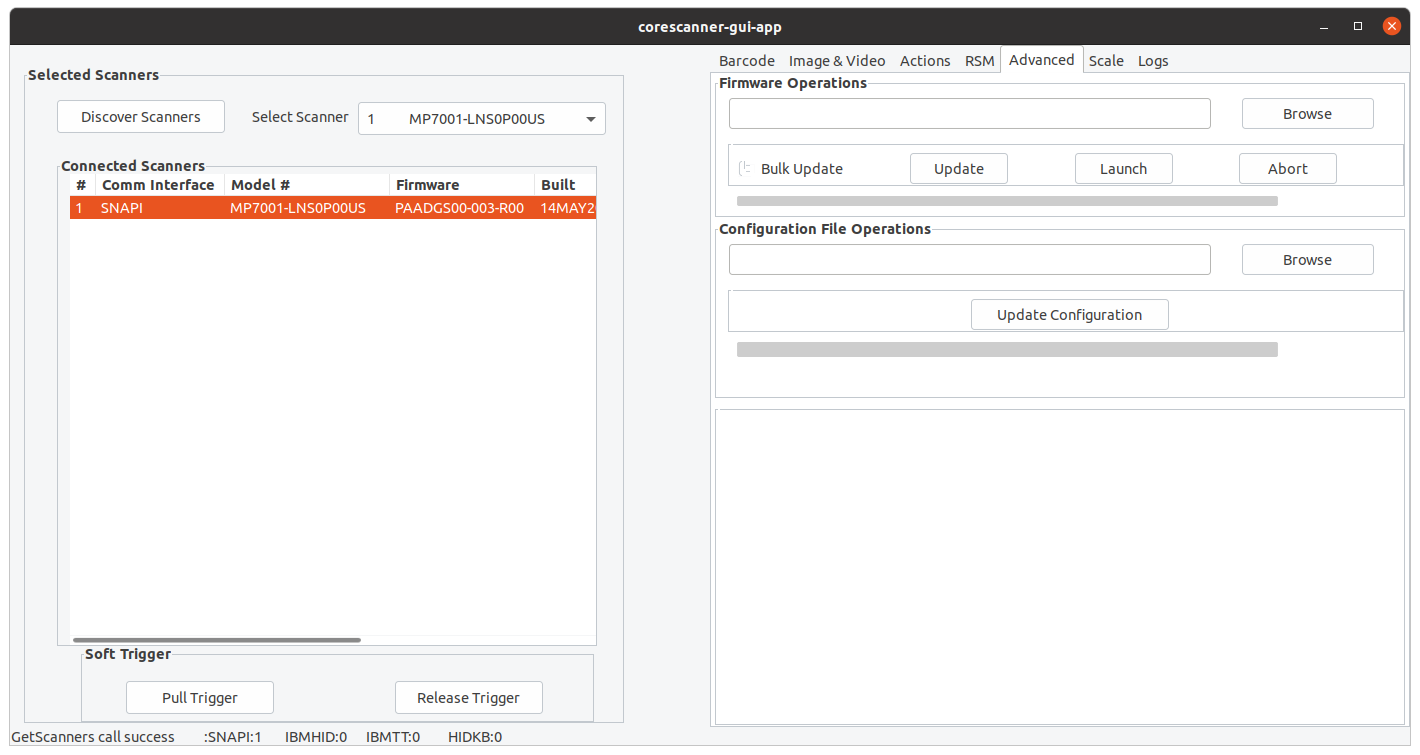
Configuration Upgrade

Configuration Upgrade Scenarios

There are two configuration update scenarios.

Update scanner settings via a configuration file

Configuration file contains all the parameters and data formatting rules required to program your scanner. Configuration update process pushes the configurations to the scanner and changes the current configuration of the scanner. Configuration file should be compatible with the connected scanner.

A configuration file update can take up to few seconds depending on the configuration file.

Loading an incompatible configuration file to the scanner

This occurs when attempting to load a configuration file that is incompatible with the scanner. For example loading a configuration file of a DS6707 scanner to a DS6708 scanner.

Configuration Upgrade Procedure

  1. Connect and discover a scanner.
  2. Use 123Scan to create configuration file.

    1. Download and launch 123Scan from https://www.zebra.com/us/en/support-downloads/software/scanner-software/123scan-utility.html
    2. Create configuration file using 123Scan. Follow 123scan configuration for more details on this.
  3. In the sample application select the Advanced tab. under configuration update browse and select the configuration .scnfg file.

    Figure 21: Configuration Update
  4. Click Update Configuration to update the configuration file of the scanner. This executes an ExecCommand API call with the LOAD_CONFIGURATION method and the following XML code.

    
    <inArgs>
        <scannerID>1</scannerID>
        <cmdArgs>
            <arg-string>/home/zebra/a/Config_File_DS8108_Sample_2020.09.16.scncfg</arg-string>
        </cmdArgs>
    </inArgs>


    NOTE The <scannerID> tag in the XML contains the ID of the scanner selected in the Connected Scanners list. The <arg-string> tag contains the path to the configuration file.

  5. If you have registered with ScanRMDEvent, you receive three types of events per configuration update cycle, shown in the table below. Configuration update events will only be received to the client app which is executing that command.

    Table 11: Configuration Update Event Types

    Event Value Event Type Description
    17 SCANNER_UC_SESS_START Triggered when configuration update session starts.
    18 SCANNER_UC_PROGRESS Reports configuration push progress.
    19 SCANNER_UC_SESS_END Triggered when configuration update session end.

    The OnScanRMDEvent function has two parameters:

    • The first short type parameter contains the event type described above.
    • The second parameter contains an XML for the event types in Table 11. Processing the XML provides further information. The receiving XML formats for each event types are as follows and includes information about the scanner it updates.

    SCANNER_UC_SESS_START

    
    <outArgs>
        <scannerID>1</scannerID>
        <arg-xml>
            <uc_sess_start>
                <modelnumber>DS4308-SR00007ZZWW</modelnumber>
                <serialnumber>14153010500869</serialnumber>
                <maxcount>282</maxcount>
                <status>0</status>
            </uc_sess_start>
        </arg-xml>
    </outArgs>


    NOTE The <maxcount> tag contains the number of records in the configuration file.

    SCANNER_UC_PROGRESS

    
    <outArgs>
        <scannerID>1</scannerID>
        <arg-xml>
            <uc_progress>
                <modelnumber>DS4308-SR00007ZZWW</modelnumber>
                <serialnumber>14153010500869</serialnumber>
                <progress>38</progress>
                <status>0</status>
                </uc_progress>
        </arg-xml>
    </outArgs>


    NOTE The <progress> tag contains the record number that is currently downloading.

    SCANNER_UC_SESS_END

    
    <outArgs>
        <scannerID>1</scannerID>
        <arg-xml>
            <uc_sess_end>
                <modelnumber>DS4308-SR00007ZZWW</modelnumber>
                <serialnumber>14153010500869</serialnumber>
                <status>0</status>
            </uc_sess_end>
        </arg-xml>
    </outArgs>                                                                      


Scale Support

As of today, this feature can only be used with MP6/MP7 scanners. Once a weight is kept on the platter of the MP7, the scanner will take note of the weight. This weight can be retrieved by pressing the 'Read Weight' button of the Sample App.

Figure 22: Scale Support

In the event, a weight measurement is needed with respect to a reference item, 'Zero Scale' option can be used. If the object whose weight is required cannot be directly placed on the platter, one can choose to place a tray on top of the platter of the scanner followed by a click on 'Zero Scale'. After that, user may proceed to keep the weight measurement required object on the tray and retrieve the measurement with a click on 'Read Weight'. With this approach, weight of the tray is neglected and the actual weight of the object is received.

A similar function is performed by the 'Reset Scale' button. In the event user chose to place a reference item and then proceeded to press 'Zero Scale', all future weight measurements will be with respect to the reference item as explained above. But the sudden removal of the reference item followed by a click on 'Read Weight' will display a negative weight measurement. At this point the scale needs to be reset. This can be achieved by a click on 'Reset Scale'.


Linux SDK Sample Applications

Overview

This chapter describes how to use the Zebra Scanner SDK, and includes code snippets from the sample application.

NOTE For a list of a scanner's supported attribute (parameter) numbers and definitions, refer to the scanner Product Reference Guide, available on the Zebra Support website: http://www.zebra.com/support. Attributes include configuration parameters, monitored data, and asset tracking information.


SDK Sample Utilities

The Zebra Scanner SDK includes the following sample utilities that demonstrate SDK functionalities. This section describes how to use the utilities to gain an understanding of the SDK.

Developing a Console Application Using zebra-scanner-devel and Libraries

zebra-scanner-sdk main packages include a development package that contains header files to access CoreScanner API calls, as well as source code for a sample application. The sample application can be modified and compiled using the make file to create a new application. Include a path for header files and LD_FLAGS.

NOTE The sample application demonstrates how to develop an application for Zebra scanner drivers.

Table 12: Installation Locations for Sample Application, Development Resources, and Shared Libraries

Application Type Installation Location File
Sample application /usr/share/zebra-scanner/samples/co nsole-app Makefile
ConsoleApplication
/usr/share/zebra-scanner/samples/co nsole-app/include ConsoleSampleEventListener.h
ConsoleMain.h
/usr/share/zebra-scanner/samples/co nsole-app/src ConsoleSampleEventListener.cpp
ConsoleMain.cpp
Development files for uPOS applications, files are installed by zebra-scanner-devel package /usr/include/zebra-scanner CsBarcodeTypes.h
CsUserDefs.h
CsIEventListenerXml.h
Cslibcorescanner_xml.h
CoreScanner shared libraries /usr/lib/zebra-scanner/corescanner libcs-iudev.so.4.0.0
libcs-comm.so.4.0.0
libcs-common.so.4.0.0
libcscl-snapi.so.4.0.0
libcs-client.so.4.0.0
libcs-clientscanner.so.4.0.0
libcs-clientscale.so.4.0.0
libcscl-ibmtt.so.4.0.0
libcscl-ibmhh.so.4.0.0
libcscl-hidkb.so.4.0.0
libcs-client.so
libcs-clientscale.so
libcs-clientscanner.so
libcs-comm.so
libcs-common.so
libcs-iudev.so
libcscl-hidkb.so
libcscl-snapi.so
libcscl-ibmtt.so
libcscl-ibmhh.so

An application should extend the IEventListenerXml class from the zebra-scanner-devel package. IEventListenerXml is an abstract class with pure virtual functions for all event handling. The included sample application implements all event handling methods. Additional methods support required features, and each method calls the ExecCommand() method after preparing input XML.

For example, ConsoleSampleEventListener.h is implemented in the IEventListenerXml class of the Console Application.

A developer implements all pure abstract methods inside the sample application's class SampleEventListener, which is derived from the IEventListenerXML interface. The SampleEventListener class can then be instantiated inside the main method. The following API calls are used for further development:

  • Open
  • GetScanners
  • ExecCommand
  • Close

Source Code for the Console Application

Class SampleEventListener (ConsoleSampleEventListener.h)


/*
* ©2022 Zebra Technologies LLC. All rights reserved.
*/

#ifndef SAMPLEEVENTLISTENER_H_
#define SAMPLEEVENTLISTENER_H_

#include "CsIEventListenerXml.h"
#include "CsUserDefs.h"
#include "CsBarcodeTypes.h"
#include "Cslibcorescanner_xml.h"

/* standard C includes */
#include <stdio.h>
#include <stdlib.h>

/* standard template library includes */
#include <string>
#include <iostream>
#include <sstream>

using namespace std;

class SampleEventListener : public IEventListenerXml
{
public:
    explicit SampleEventListener();
    virtual ~SampleEventListener();

    virtual void OnImageEvent( short eventType, int size, short imageFormat, char* sfimageData, int dataLength, std::string& pScannerData );
    virtual void OnVideoEvent( short eventType, int size, char* sfvideoData, int dataLength, std::string& pScannerData );
    virtual void OnBarcodeEvent( short eventType, std::string& pscanData );
    virtual void OnPNPEvent( short eventType, std::string ppnpData );
    virtual void OnCommandResponseEvent( short status, std::string& prspData );
    virtual void OnScannerNotification( short notificationType, std::string& pScannerData );
    virtual void OnIOEvent( short type, unsigned char data );
    virtual void OnScanRMDEvent( short eventType, std::string& prmdData );
    virtual void OnDisconnect();
    virtual void OnBinaryDataEvent( short eventType, int size, short dataFormat, unsigned char* sfBinaryData, std::string&  pScannerData);


    StatusID Open();
    void GetScanners();
    void GetAttribute();
    void GetAttributeNext();
    void GetAllAttributes();
    void SetAttribute();
    void SetAttributeStore();
    void SetZeroWeight();
    void Close();
    
    void RebootScanner();
    void ExecuteActionCommand(CmdOpcode opCode);
    void GetDeviceTopology();
    void FirmwareUpdate();
    void FirmwareUpdateFromPlugin();
    void StartNewFirmware();
    void AbortFirmwareUpdate();
    void GetVersion();
    void SwitchHostMode();
};

#endif /* SAMPLEEVENTLISTENER_H_ */                                                           

Class SampleEventListener Definitions/Implementation (ConsoleSampleEventListener.cpp)


/*
* ©2022 Zebra Technologies LLC. All rights reserved.
*/

#include "ConsoleSampleEventListener.h"
#include "ISO15434formatEnvelope.h"

/* standard C includes */
#include <stdio.h>
#include <stdlib.h>
#include <unistd.h>

/* standard template library includes */
#include <string>
#include <iostream>
#include <sstream>
#include <errno.h>
#include <cstring>
#include <time.h>

SampleEventListener::SampleEventListener()
{

}

SampleEventListener::~SampleEventListener()
{
    Close();
}

StatusID SampleEventListener::Open()
{
    StatusID status;
    ::Open(this, SCANNER_TYPE_ALL, &status);
    if(status != STATUS_OK)
    {
        return status;
    }

    std::string inXml = "<inArgs><cmdArgs><arg-int>6</arg-int><arg-int>1,2,4,8,16,32</arg-int></cmdArgs></inArgs>";
    std::string outXml;
    ::ExecCommand(CMD_REGISTER_FOR_EVENTS, inXml, outXml, &status);   
    return status;
}
   
void SampleEventListener::GetScanners()
{
    unsigned short count;
    vector<unsigned int> list;
    string outXml;
    StatusID eStatus;

    ::GetScanners(&count, &list, outXml, &eStatus);
    
    cout << "================================" << endl;

    if ( eStatus != STATUS_OK )
    {
        std::cout << "Get Scanners failed. Can't connect to the corescanner." << std::endl;
        return ;
    }

    cout << "Get Scanners command success. " << endl << endl;
    cout << "Scanner Count: " << count << endl;
    for(int x=0; x> scannerID;
    cout << "Enter attribute number or comma separated attribute numbers : " ;
    std::string attribute_number = "";
    cin >> attribute_number;

    std::string inXml = "<inArgs><scannerID>" + scannerID + 
                        "</scannerID><cmdArgs><arg-xml><attrib_list>" + 
                        attribute_number + "</attrib_list></arg-xml></cmdArgs></inArgs>";
            
    StatusID sId;
    std::string outXml;
    cout << "In XML  : " << inXml << endl << endl;
    ::ExecCommand(CMD_RSM_ATTR_GET, inXml, outXml, &sId);    
    
    cout << "================================" << endl;
    if(sId == STATUS_OK)
    {
        cout << "GetAttribute command success." << endl << endl;        
        cout << "Out XML : " << outXml << endl;
    }
    else
    {
        cout << "GetAttribute command failed. Error code : " << sId << endl;
    }
    cout << "================================" << endl<< endl;
}
   
void SampleEventListener::GetAttributeNext()
{
    std::string scannerID = "";
    cout << "Enter Scanner ID : " << endl;
    cin >> scannerID;
    cout << "Enter current attribute number : " ;
    std::string attribute_number = "";
    cin >> attribute_number;

    std::string inXml = "<inArgs><scannerID>" + scannerID + 
                        "</scannerID><cmdArgs><arg-xml><attrib_list>" + 
                        attribute_number + "</attrib_list></arg-xml></cmdArgs></inArgs>";    
    
    StatusID sId;
    std::string outXml;
    cout << "In XML  : " << inXml << endl << endl;
    ::ExecCommand(CMD_RSM_ATTR_GETNEXT, inXml, outXml, &sId);
    
    cout << "================================" << endl;
    
    if(sId == STATUS_OK)
    {
        cout << "GetAttributeNext command success. " << endl << endl;        
        cout << "Out XML : " << outXml << endl;
    }
    else
    {
        cout << "GetAttributeNext command failed. Error code : " << sId << endl;
    }
    
    cout << "================================" << endl << endl;
}
   
void SampleEventListener::GetAllAttributes()
{    
    std::string scannerID = "";     
    
    cout << "Enter scanner ID: ";
    cin >> scannerID;
    
    std::string inXml = "<inArgs><scannerID>"+scannerID+"</scannerID></inArgs>";
    StatusID sId;
    std::string outXml;
    cout << "In XML  : " << inXml << endl << endl;
    ::ExecCommand(CMD_RSM_ATTR_GETALL, inXml, outXml, &sId);
        
    cout << "================================" << endl;    
    if(sId == STATUS_OK)
    {
        cout << "GetAllAttributes command success. " << endl << endl;        
        cout << "Out XML : " << outXml << endl;
    }
    else
    {
        cout << "GetAllAttributes command failed. Error code : " << sId << endl;
    }
    cout << "================================" << endl << endl;
}

void SampleEventListener::SetAttribute()
{
    std::string scannerID = "";
    cout << "Enter scanner ID : " << endl;
    cin >> scannerID;
    std::string attributeNumber = "";
    cout << "Enter attribute number : " << endl;
    cin >> attributeNumber;
    std::string dataType = "";
    cout << "Enter data type : " << endl;
    cin >> dataType;
    std::string attributeValue = "";
    cout << "Enter attribute value : " << endl;
    cin >> attributeValue;
    
    std::string inXml = "<inArgs><scannerID>"+ scannerID +
                        "</scannerID><cmdArgs><arg-xml><attrib_list><attribute><id>" + attributeNumber + 
                        "</id><datatype>" + dataType + 
                        "</datatype><value>" + attributeValue + 
                        "</value></attribute></attrib_list></arg-xml></cmdArgs></inArgs>";
    
    StatusID sId;    
    std::string outXml;
    cout << "In XML  : " << inXml << endl << endl;   
    ::ExecCommand(CMD_RSM_ATTR_SET, inXml, outXml, &sId);
    
    cout << "================================" << endl;    
    if(sId == STATUS_OK)
    {
        cout << "SetAttribute command success. " << endl << endl;            
    }
    else
    {
        cout << "SetAttribute command failed. Error code : " << sId << endl;
    }
    
    cout << "================================" << endl << endl;

}
   
void SampleEventListener::SetAttributeStore()
{
    std::string scannerID = "";
    cout << "Enter scanner ID : " << endl;
    cin >> scannerID;
    std::string attributeNumber = "";
    cout << "Enter attribute number : " << endl;
    cin >> attributeNumber;
    std::string dataType = "";
    cout << "Enter data type : " << endl;
    cin >> dataType;
    std::string attributeValue = "";
    cout << "Enter attribute value : " << endl;
    cin >> attributeValue;    

    std::string inXml = "<inArgs><scannerID>"+ scannerID +
                        "</scannerID><cmdArgs><arg-xml><attrib_list><attribute><id>" + attributeNumber + 
                        "</id><datatype>" + dataType + 
                        "</datatype><value>" + attributeValue + 
                        "</value></attribute></attrib_list></arg-xml></cmdArgs></inArgs>";
    
    StatusID sId;    
    std::string outXml;
    cout << "In XML  : " << inXml << endl << endl; 
    ::ExecCommand(CMD_RSM_ATTR_STORE, inXml, outXml, &sId);
    
    cout << "================================" << endl;    
    if(sId == STATUS_OK)
    {
        cout << "StoreAttribute command success. " << endl << endl;               
    }
    else
    {
        cout << "StoreAttribute command failed. Error code : " << sId << endl;
    }    
    cout << "================================" << endl << endl;
}
   
void SampleEventListener::SetZeroWeight()
{
    std::string inXml = "<inArgs><scannerID>1</scannerID><cmdArgs><arg-xml><attrib_list><attribute><id>6019</id><datatype>X</datatype><value>0</value></attribute></attrib_list></arg-xml></cmdArgs></inArgs>";

    StatusID sId;
    std::string outXml;
    cout << "In XML  : " << inXml << endl << endl;     
    ::ExecCommand(CMD_RSM_ATTR_SET, inXml, outXml, &sId);
        
    cout << "================================" << endl;    
    if(sId == STATUS_OK)
    {
        cout << "SetZeroWeight command success. " << endl << endl;          
    }
    else
    {
        cout << "SetZeroWeight command failed. Error code : " << sId << endl;
    } 
    cout << "================================" << endl << endl;
}
   
//Event EventListener for get Get Version number of Core scanner
void SampleEventListener::GetVersion() {
    
    std::string inXml = "<inArgs></inArgs>";   
    StatusID sId;
    std::string outXml;
    cout << "In XML  : " << inXml << endl << endl;
    ::ExecCommand(CMD_GET_VERSION, inXml, outXml, &sId);
        
    cout << "================================" << endl;    
    if(sId == STATUS_OK)
    {
        cout << "GetVersion command success. " << endl << endl;        
        cout << "Out XML : " << outXml << endl;
    }
    else
    {
        cout << "GetVersion command failed. Error code : " << sId << endl;
    } 
    cout << "================================" << endl << endl;    
}

void SampleEventListener::Close()
{
    StatusID status;
    ::Close(0, &status);

}
   
string getStringFromRawData(unsigned char* rawData,int startIndex, int endIndex)
{
    int numElements = endIndex-startIndex;
    char buffer [numElements];
    int j=0;
    for(int i=startIndex;i<endIndex;i++){
        sprintf (&buffer[j++], "%c", rawData[i]);
    }
    string str(buffer);
    return str;
}

void SampleEventListener::OnImageEvent( short eventType, int size, short imageFormat, char* sfimageData, int dataLength, std::string& pScannerData )
{
    cout << "OnImageEvent" << endl;
}
   
void SampleEventListener::OnBinaryDataEvent( short eventType, int size, short dataFormat, unsigned char* sfBinaryData, std::string&  pScannerData)
{    
    //Constants for ISO15434 messages
    const unsigned char ISO_RS = 0x1E;      // ISO15454 Format Trailer Character
    //const unsigned char ISO_GS = 0x1D;    // ISO15454 Data Element Separator
    const unsigned char ISO_EOT = 0x04;     // ISO15454 Message Trailer Character
    const unsigned char MSG_EASYCAP = 0;    // ISO15451 Message DocCap message number
    FILE *imgFile; 
    cout << "OnBinaryDataEvent" << endl;
        
    int packetLength = (sfBinaryData[0] << 24) |
                    (sfBinaryData[1] << 16) |
                    (sfBinaryData[2] << 8) |
                    sfBinaryData[3];
    
    if(packetLength+4!= size)
    {
        cout << "Incorrect packet size\n" << endl;
    }
    else
    {
        if(sfBinaryData[4]!= MSG_EASYCAP)
        {
            cout << "Incorrect Msg type\n" << endl;
        }
        else
        {
            // ISO15434 Envelope: is message header correct?
            if ((sfBinaryData[5] != '[') || (sfBinaryData[6] != ')') || (sfBinaryData[7] != '>') || (sfBinaryData[8] != ISO_RS))
            {
                cout << "Incorrect message header\n" << endl;
            }
            else
            {
                // ISO15434 Envelope: is message header correct?
                if (sfBinaryData[size - 1] != ISO_EOT)
                {
                    cout << "Incorrect message header ISO_EOT\n" << endl;
                }
                else
                {
                    cout << "Correct packet received \n" << endl;
                    ISO15434formatEnvelope *anEnvelope = new ISO15434formatEnvelope(sfBinaryData,size, 9);
                    while (anEnvelope->getNext())
                    {
                        string fileType = anEnvelope->getFileType();

                        if (fileType == "BarCode")
                        {
                            string decodeData=getStringFromRawData(sfBinaryData,anEnvelope->getDataIndex(),anEnvelope->getDataIndex()+anEnvelope->getDataLength());
                            cout << "Barcode received " << endl;
                            cout << " Data type = "<<  (int)decodeData.at(0) << endl;
                            cout << " Data = "<< decodeData.substr(1,anEnvelope->getDataLength())<< endl;
                        }
                        else
                        {
                            char filename[200];
                            string fileFormat = anEnvelope->getFileType();
                            time_t t = time(0);   // get time now
                            tm* now = localtime(&t);
                            sprintf(filename,"ZIMG-%d%d%d%d%d%d%s%s", now->tm_year + 1900, now->tm_mon + 1,now->tm_mday,now->tm_hour,now->tm_min,now->tm_sec,".",fileFormat.c_str());
                            imgFile = fopen(filename, "w");
                            if (!imgFile)
                            {
                                cout << "Unable to open file " << filename<< endl;
                                continue;
                            }
                            fwrite(&sfBinaryData[anEnvelope->getDataIndex()]+6,sizeof(unsigned char),anEnvelope->getDataLength()+6,imgFile);
                            fflush(imgFile);
                            fclose (imgFile);
                            cout << "ImageData saved in " <<filename<< endl;
                        }
                    }
                }
            }  
        }
    }
}
   
void SampleEventListener::OnVideoEvent( short eventType, int size, char* sfvideoData, int dataLength, std::string& pScannerData )
{
    cout << "OnVideoEvent" << endl;
}

void SampleEventListener::OnPNPEvent( short eventType, std::string ppnpData )
{
    string str;
    if (eventType == SCANNER_ATTACHED) {
        cout << "Scanner attached" << endl;
        str = ppnpData;
    } else if (eventType == SCANNER_DETACHED) {
        cout << "Scanner detached" << endl;
        str =  ppnpData;
    } else {
        str = " UNKNOWN PNP Event ";
    }
    cout << str << endl;
}

void SampleEventListener::OnCommandResponseEvent( short status, std::string& prspData )
{
    cout << endl << "Scanner data: " << prspData << endl;
    cout << "OnCommandResponseEvent" << endl;
    cout << prspData << endl;
}

void SampleEventListener::OnScannerNotification( short notificationType, std::string& pScannerData )
{
    cout << endl << "Scanner event data: " << pScannerData << endl;
    cout << "OnScannerNotification" << endl;
}

void SampleEventListener::OnIOEvent( short type, unsigned char data )
{
    cout << "OnIOEvent" << endl;
}
   
void SampleEventListener::OnScanRMDEvent( short eventType, std::string& prmdData )
{
    cout << "OnScanRMDEvent" << endl;
        cout << "Out XML " << endl;
        cout << prmdData << endl;
}

void SampleEventListener::OnDisconnect()
{
    cout << "OnDisconnect" << endl;
}

void SampleEventListener::OnBarcodeEvent(short int eventType, std::string & pscanData)
{
    cout << "Barcode Detected" << endl;
    cout << "Out XML" << endl;
    cout << pscanData << endl;
}

void SampleEventListener::RebootScanner()
{
    
}
   
void SampleEventListener::FirmwareUpdate()
{
    std::string inXml;
    std::string outXml;
    std::string datFilePath; 
    StatusID sId;
    std::string scannerID;
    std::string bulkOption;
    
    std::cout << "Enter Scanner ID : " << std::endl;
    std::cin >> scannerID;
    std::cout << "Enter Firmware DAT file path: " << std::endl;
    std::cin >> datFilePath;
    std::cout << "Enter USB communication mode 1=hid, 2=bulk : ";
    std::cin >> bulkOption;
    
    inXml = "<inArgs><scannerID>" + scannerID + "</scannerID><cmdArgs><arg-string>" + datFilePath + "</arg-string><arg-int>" + bulkOption + "</arg-int></cmdArgs></inArgs>";
    cout << "In XML  : " << inXml << endl << endl;     
    ::ExecCommand(CMD_DEVICE_UPDATE_FIRMWARE, inXml, outXml, &sId);
        
    cout << "================================" << endl;    
    if(sId == STATUS_OK)
    {
        cout << "Firmware Update command success. " << endl << endl;              
    }
    else
    {
        cout << "Firmware Update command failed. Error code : " << sId << endl;
    } 
    cout << "================================" << endl << endl;    
}
   
void SampleEventListener::FirmwareUpdateFromPlugin()
{
    std::string inXml;
    std::string outXml;
    std::string pluginFilePath=""; 
    StatusID sId;
    std::string scannerID;
    std::string bulkOption;
    
    std::cout << "Enter Scanner ID : " << std::endl;
    std::cin >> scannerID;
    std::cout << "Enter Firmware Plug-in file path: " << std::endl;
    //std::cin >>  pluginFilePath;

    while ( pluginFilePath.size() < 4 ){
        std::getline(std::cin, pluginFilePath);
    }
    
    if ( !(pluginFilePath.substr(pluginFilePath.find_last_of(".")+ 1) == "SCNPLG") ){
        std::cout << "Please Enter a file with extension .SCNPLG." << std::endl << std::endl;
        return;
    }
    
    std::cout << "Enter USB communication mode 1=hid, 2=bulk : ";
    std::cin >> bulkOption;
    
    inXml = "<inArgs><scannerID>" + scannerID + "</scannerID><cmdArgs><arg-string>" + pluginFilePath + "</arg-string><arg-int>" + bulkOption + "</arg-int></cmdArgs></inArgs>";
    cout << "In XML  : " << inXml << endl << endl; 
    ::ExecCommand(CMD_DEVICE_UPDATE_FIRMWARE_FROM_PLUGIN, inXml, outXml, &sId);
    
    cout << "================================" << endl;    
    if(sId == STATUS_OK)
    {
        cout << "FirmwareUpdate From Plug-in command success. " << endl << endl;              
    }
    else
    {
        cout << "FirmwareUpdate From Plug-in command failed. Error code : " << sId << endl;
    } 
    cout << "================================" << endl << endl;
}
   
void SampleEventListener::StartNewFirmware()
{
    std::string inXml;
    std::string outXml;
    StatusID sId;
    std::string scannerID;
    
    std::cout << "Enter Scanner ID : " << std::endl;
    std::cin >> scannerID;
        
    inXml = "<inArgs><scannerID>" + scannerID + "</scannerID></inArgs>"; 
    cout << "In XML  : " << inXml << endl << endl;   
    ::ExecCommand(CMD_START_NEW_FIRMWARE, inXml, outXml, &sId);
    
    cout << "================================" << endl;    
    if(sId == STATUS_OK)
    {
        cout << "Start New Firmware command success. " << endl << endl;            
    }
    else
    {
        cout << "Start New Firmware command failed. Error code : " << sId << endl;
    } 
    cout << "================================" << endl << endl;
}
   
void SampleEventListener::AbortFirmwareUpdate()
{
    std::string inXml;
    std::string outXml;
    StatusID sId;
    std::string scannerID;    
    
    std::cout << "Enter Scanner ID : " << std::endl;
    std::cin >> scannerID;
    
    inXml = "<inArgs><scannerID>" + scannerID + "</scannerID></inArgs>";
    cout << "In XML  : " << inXml << endl << endl; 
    ::ExecCommand(CMD_DEVICE_ABORT_UPDATE_FIRMWARE, inXml, outXml, &sId);
    
    cout << "================================" << endl;    
    if(sId == STATUS_OK)
    {
        cout << "Abort Firmware Update command success. " << endl << endl;              
    }
    else
    {
        cout << "Abort Firmware Update command failed. Error code : " << sId << endl;
    } 
    cout << "================================" << endl << endl;
}
   
/**
* Method to execute action attribute related commands.
* added to v1.3.0 release.
* @param opCode
*/
void SampleEventListener::ExecuteActionCommand(CmdOpcode opCode)
{
    std::string scannerID = "";
    std::string ledNumber = "";
    std::string beeperCode = "";
    std::string inXml;
    std::string commandName = "";
            
    switch (opCode)
    {
        case CMD_DEVICE_LED_ON:
        case CMD_DEVICE_LED_OFF:
        {
            commandName = "Device LED ON/OFF command ";
            cout << "Enter scanner ID : ";
            cin >> scannerID;
            cout << "Enter LED number : ";
            cin >> ledNumber;

            inXml = "<inArgs><scannerID>" + scannerID + 
                                "</scannerID><cmdArgs><arg-int>" + ledNumber +
                                "</arg-int></cmdArgs></inArgs>";
            break;
        }
        case CMD_DEVICE_BEEP_CONTROL:
        {
            commandName = "Beep command ";
            cout << "Enter scanner ID : ";
            cin >> scannerID;
            cout << "Enter Beeper code : ";
            cin >> beeperCode;

            inXml = "<inArgs><scannerID>" + scannerID + 
                                "</scannerID><cmdArgs><arg-int>" + beeperCode +
                                "</arg-int></cmdArgs></inArgs>";
            break;
        }
        case CMD_DEVICE_SCAN_ENABLE:
        case CMD_DEVICE_SCAN_DISABLE:
        {
            commandName = "Device Scan Enable/Disable command ";
            cout << "Enter scanner ID : ";
            cin >> scannerID;
            inXml = "<inArgs><scannerID>" + scannerID + "</scannerID></inArgs>";
            break;
        }
        case CMD_REBOOT_SCANNER:
        {
            commandName = "Reboot scanner command ";
            cout << "Enter scanner ID : ";
            cin >> scannerID;
            inXml = "<inArgs><scannerID>" + scannerID + "</scannerID></inArgs>";
            break;
        }
        case CMD_DEVICE_AIM_ON:
        case CMD_DEVICE_AIM_OFF:
        {
            commandName = "Device AIM ON/OFF command ";
            cout << "Enter scanner ID : ";
            cin >> scannerID;
            inXml = "<inArgs><scannerID>" + scannerID + "</scannerID></inArgs>";
            break;
        }
        case CMD_LOAD_CONFIGURATION:
        {
            std::string config_file_path = "";
            commandName = "Configuration update ";
            cout << "Enter scanner ID : ";
            cin >> scannerID;
            cout << "Enter configuration file path : ";
            cin.ignore();
            std::getline(std::cin, config_file_path);

            inXml = "<inArgs><scannerID>" + scannerID + "</scannerID>" + 
                    "<cmdArgs><arg-string>" + config_file_path + "</arg-string></cmdArgs>" +
                    "</inArgs>";
            break;
        }
        default:
        {
            commandName = "Default Action command ";
            cout << "Enter scanner ID : ";
            cin >> scannerID;
            inXml = "<inArgs><scannerID>" + scannerID + "</scannerID></inArgs>";
            break;
        }
    }
        
    StatusID sId;
    std::string outXml;
    cout << "In XML  : " << inXml << endl << endl; 
    ::ExecCommand(opCode, inXml, outXml, &sId);

    cout << "================================" << endl;    
    if(sId == STATUS_OK)
    {
        cout << commandName << "success. " << endl << endl;              
    }
    else
    {
        cout << commandName << "failed. Error code : " << sId << endl;
    } 
    cout << "================================" << endl << endl;
}

/**
* Method to execute switch host mode command (option 20).
*/
void SampleEventListener::SwitchHostMode()
{
    std::string scannerID = "";
    cout << "Enter scanner ID : ";
    cin >> scannerID;
    std::string hostMode = "";
    cout << "Host mode options : " << endl;
    cout << "   1. USB-HIDKB " << endl;
    cout << "   2. USB-SNAPI with imaging " << endl;
    cout << "   3. USB-SNAPI without imaging " << endl;
    cout << "   4. USB-IBMHID " << endl;
    cout << "   5. USB-IBMTT " << endl;
    cout << "Enter host mode to switch into (1-5): ";
    cin >> hostMode;
    std::string hostModeString = "";
    int hostModeInteger = atoi(hostMode.c_str());
    switch (hostModeInteger)
    {
        case 1:
        {
            hostModeString = "XUA-45001-3";
            break;
        }  
        case 2:
        {
            hostModeString = "XUA-45001-9";
            break;
        }
        case 3:
        {
            hostModeString = "XUA-45001-10";
            break;
        } 
        case 4:
        {
            hostModeString = "XUA-45001-1";
            break;
        } 
        case 5:
        {
            hostModeString = "XUA-45001-2";
            break;
        } 
        default:
        {
            cout << "=================================" << endl;
            cout << "Error : Invalid value entered!!!"  << endl;
            cout << "=================================" << endl<< endl;
            return;
        }
    }
    
    std::string inXml = "<inArgs><scannerID>"+ scannerID +"</scannerID><cmdArgs>"
                        "<arg-string>"+ hostModeString +"</arg-string>"
                        "<arg-bool>FALSE</arg-bool><arg-bool>TRUE</arg-bool></cmdArgs></inArgs>";
    
    StatusID sId;    
    std::string outXml;
    cout << "In XML  : " << inXml << endl << endl;   
    ::ExecCommand(CMD_DEVICE_SWITCH_HOST_MODE, inXml, outXml, &sId);
    
    cout << "==================================" << endl;    
    if(sId == STATUS_OK)
    {
        cout << "Switch host mode command success. " << endl;            
    }
    else
    {
        cout << "Switch host mode command failed. Error code : " << sId << endl;
    }
    
    cout << "==================================" << endl << endl;
}

After implementation for the class IEventListenerXml, the main class can create an instance of the class SampleEventListener for the demonstration application. It is mandatory to implement IEventListenerXml class because it is an abstract class provided by zebra-scanner. Following is main.cpp for the sample application.

Main Method Implementation (ConsoleMain.cpp)


/*
* ©2022 Zebra Technologies LLC. All rights reserved.
*/

#include "ConsoleMain.h"
#include "ConsoleSampleEventListener.h"

#include <stdlib.h>
//class LoggingContext;

bool hasAlreadyOpen = false;

int ReturnChoice()
{
    cout << "======Select CoreScanner command====" << endl;
    cout << "=== 1. GetAttribute " << endl;
    cout << "=== 2. GetAllAttributes " << endl;
    cout << "=== 3. Get Scanners " << endl;
    cout << "=== 4. SetAttribute " << endl;
    cout << "=== 5. SetAttribute-Store " << endl;
    cout << "=== 6. Device LED ON or OFF " << endl;
    cout << "=== 7. Scanner Enable " << endl;
    cout << "=== 8. Scanner Disable " << endl;
    cout << "=== 9. Scanner Reboot " << endl;
    cout << "== 10. Action - Beeper command" << endl;
    cout << "== 11. AIM ON" << endl;
    cout << "== 12. AIM OFF" << endl;
    cout << "== 13. Get Device Topology" << endl;
    cout << "== 14. Firmware Update" << endl;
    cout << "== 15. Start New Firmware" << endl;
    cout << "== 16. Abort Firmware Update" << endl;
    cout << "== 17. Firmware Update From Plugin"<< std::endl;
    cout << "== 18. Get Version "<< endl;
    cout << "== 19. GetNextAttribute " << endl;
    cout << "== 20. Switch Host Mode - permanent" << endl;
    cout << "== 21. Configuration Update " << endl;
        
    cout << "====================================" << endl;
    cout << "=== 0. Exit" << endl;
    cout << "= 100. Main Menu" << endl;
    //cout << "====================================" << endl;
    //cout << "== 7. SetScaleZero " << endl;
    //cout << "== 8. Discover Tunneling " << endl;
    //cout << "== 9. Open called again " << endl;
    cout << "====================================" << endl;
    cout << "Enter choice : " ;
            
    int choice = 0;
    cin >> choice;
    return choice;
}

int main(void)
{
    cout << "Zebra Scanner Sample Application" << endl;
    cout << "====================================" << endl;

    SampleEventListener sel;
    SampleEventListener sel2;

    if(STATUS_OK != sel.Open())
    {
        std::cout << "Corescanner service is not Active." << std::endl;
        return STATUS_ERROR;
    }
        
    sel.GetScanners();

    int choice = ReturnChoice();

    do 
    {
        switch (choice) 
        {
            case 1:
                sel.GetAttribute();
                break;
            case 2:
                sel.GetAllAttributes();
                break;
            case 3:
                sel.GetScanners();
                break;
            case 4:
                sel.SetAttribute();
                break;
            case 5:
                sel.SetAttributeStore();
                break;  
            case 6:
                sel.ExecuteActionCommand(CMD_DEVICE_LED_ON);
                break;
            case 7:
                sel.ExecuteActionCommand(CMD_DEVICE_SCAN_ENABLE);
                break;
            case 8:
                sel.ExecuteActionCommand(CMD_DEVICE_SCAN_DISABLE);
                break;
            case 9:
                sel.ExecuteActionCommand(CMD_REBOOT_SCANNER);
                break;
            case 10:
                sel.ExecuteActionCommand(CMD_DEVICE_BEEP_CONTROL);
                break;
            case 11:
                sel.ExecuteActionCommand(CMD_DEVICE_AIM_ON);
                break;
            case 12:
                sel.ExecuteActionCommand(CMD_DEVICE_AIM_OFF);
                break;
            case 13:
                sel.GetDeviceTopology();
                break;
            case 14:
                sel.FirmwareUpdate();
                break;
            case 15:
                sel.StartNewFirmware();
                break;
            case 16:
                sel.AbortFirmwareUpdate();
                break;
            case 17:
                sel.FirmwareUpdateFromPlugin();
                break;
            case 18:
                sel.GetVersion();
                break;
            case 19:
                sel.GetAttributeNext();
                break;
            case 20:
                sel.SwitchHostMode();
                break;
            case 21:
                sel.ExecuteActionCommand(CMD_LOAD_CONFIGURATION);
                break;	
            case 100:
                cout << "====================================" << endl;
                break;
            case 0:
            default:
                break;
        }
                
        if(choice != 0)
        {
            choice = ReturnChoice();
        }

    } 
    while (choice);
    
    sel.Close();
    return 0;
}

Calling Open Command


void SampleEventListener::Open()
{
    StatusID status;
    ::Open(this, SCANNER_TYPE_ALL, &status);

    // register for all events.
    std::string inXml = "<inArgs><cmdArgs><arg-int>6</arg-int><arg-int>1,2,4,8,16,32</arg-int></cmdArgs></inArgs>";

    std::string outXml;
    ::ExecCommand(CMD_REGISTER_FOR_EVENTS, inXml, outXml, &status);
}

Calling Close Command


void SampleEventListener::Close()
{
    StatusID status;
    ::Close(0, &status);
}

Calling GetScanners Command


void SampleEventListener::GetScanners()
{
    unsigned short count;
    vector<unsigned int> list;
    string outXml;
    StatusID eStatus;

    ::GetScanners(&count, &list, outXml, &eStatus);

    cout << "GetScanners" << endl;
    cout << outXml << endl;
}

Calling ExecCommand Command


void SampleEventListener::GetAttribute()
{
    cout << "================================" << endl;
    cout << "GetAttribute " << endl;
    std::string scannerID = "";
    
    cout << "Enter Scanner ID" << endl;
    cin >> scannerID;
    
    cout << "Enter attribute number or comma separated attribute numbers : ";
    std::string attribute_number = "";
    cin >> attribute_number;

    std::string inXml = "<inArgs><scannerID>" + 
                        scannerID +
                        "</scannerID><cmdArgs><arg-xml><attrib_list>" +
                        attribute_number + 
                        "</attrib_list></arg-xml></cmdArgs></inArgs>";

    cout << "In XML : " << inXml << endl << endl;
    StatusID sId;
    std::string outXml;
    ::ExecCommand(CMD_RSM_ATTR_GET, inXml, outXml, &sId);

    cout << "Out XML : " << outXml << endl;
    cout << "================================" << endl;
}


GetAndSet Utility

Overview

Each scanner has an attribute list which can be accessed by the user. There are 3 types of operations that can be performed over the attribute list. They are get, set and store.

GetAndSet application enables the user to access the attribute list of the connected scanner. GetAndSet does the following operations when executed as an application.

  1. Get attributes values for corresponding attributes ids.
  2. Set the attribute values temporarily.
  3. Store the attribute values permanently.

Prerequisites

  1. CoreScanner SDK should be installed in the system.
  2. gcc package.

GetAndSet Binary Command

There are 3 files in the distribution package.

  1. GetAndSet - The binary application by which user can access the scanner attributes.
  2. getandset.sh - This is a sample script which runs the GetAndSet binary internally. The user can use it as a reference to build their application on top of it.
  3. sample_xml_files/sample_input_getandset.xml - A sample input xml file which contains the information of attributes ids which need to be read from scanner and written to scanner.

Execute the GetandSet binary by providing the input xml file along with the path. ./GetandSet <path>/sample_input_getandset.xml User can find sample_input_getandset.xml under sample_xml_files directory for reference.

Note: By default, the output xml file gets stored under newly created directory output_xml_file in the current path. The path to store the output_xml_file can be changed by modifying the environment variable ZEBRA_GETANDSET_OUTPUT_PATH. This can be done by the following command:


export ZEBRA_GETANDSET_OUTPUT_PATH=<PATH>


Using getandset.sh Script

  1. Open the script file with your favorite editor.
  2. Make sure that the variable get_and_set_binary_location points to the directory which has GetAndSet binary variable. If this variable is empty, the script looks for the GetAndSet variable in the current directory and in the paths defined in the $PATH environment variable.
  3. Please provide the input xml file name with the full path as argument while running the script.
  4. By default, the output xml file gets stored under newly created directory output_xml_file in the current path, since the ZEBRA_GETANDSET_OUTPUT_PATH environment variable is empty. The path to store the "output_xml_file" can be changed by modifying the environment variable ZEBRA_GETANDSET_OUTPUT_PATH. The ZEBRA_GETANDSET_OUTPUT_PATH needs to be set in the script if the script is being used for GetandSet execution.
  5. Run the script,
  6. 
    getandsetatt.sh <PATH>/sample_input_getandset.xml


Input XML File

A reference input xml file can be found in the sample_xml_file directory.


<?xml version="1.0" encoding="utf-8"?>
<main-tag>
    <scanner>
        <model>DS8108-SR00006ZZWW</model> 
        <serial-number>123456789</serial-number>
        <output-filename-tag>xyz</output-filename-tag>
    </scanner>
    <get-attributes-configuration>
        <attrib_list>392, 33, 44</attrib_list> 
    </get-attributes-configuration>
    <store-attributes-configuration>
        <attrib_list>
            <attribute>
                <id>392</id>
                <datatype>A</datatype>
                <value>0x00</value>
            </attribute>
            <attribute>
                <id>135</id>
                <datatype>A</datatype>
                <value>0x03</value>
            </attribute>
            <attribute>
                <id>235</id>
                <datatype>B</datatype>
                <value>1</value>
            </attribute>
            <attribute>
                <id>111</id>
                <datatype>B</datatype>
                <value>10</value>
            </attribute>
        </attrib_list>
    </store-attributes-configuration>
    <set-attributes-configuration>
        <attrib_list>
            <attribute>
                <id>445</id>
                <datatype>A</datatype>
                <value>0x00 </value>
            </attribute>
            <attribute>
                <id>135</id>
                <datatype>A</datatype>
                <value>0x03</value>
            </attribute>
            <attribute>
                <id>235</id>
                <datatype>B</datatype>
                <value>1</value>
            </attribute>
            <attribute>
                <id>1341</id>
                <datatype>B</datatype>
                <value>10</value>
            </attribute>
        </attrib_list>
    </set-attributes-configuration>
</main-tag>

User can edit the file according to his/her need. The GetAndSet Utility reads this file and carries on the execution process. Please note that the user has to provide the model number of the scanner that needs to be communicated with. Serial number is used to identify the device if more than one scanner of the same model is connected.

output-filename-tag is attached to the output xml file name if get attribute is requested.

Attributes to get, set and store can be modified under the get-attributes-configuration, set-attributes-configuration and store-attributes-configuration tags accordingly.

Get Attribute

To read a single or multiple attribute values from the scanner the user must provide the list of attribute ids which need to be read in the input xml file inside <get-attributes-configuration> tag enclosed with <attrib_list> as shown below.


<get-attributes-configuration>
    <attrib_list>392, 33, 44</attrib_list>
</get-attributes-configuration>

Set Attribute

To write a single or multiple attribute values to the scanner temporarily, the user has to provide the list of attribute ids which need to be written to the scanner in the input xml file, inside <set-attributes-configuration> tag enclosed with <attrib_list> as shown below.


<set-attributes-configuration>
    <attrib_list>
        <attribute>
            <id>445</id>
            <datatype>A</datatype>
            <value>0x00 </value>
        </attribute>
        <attribute>
            <id>135</id>
            <datatype>A</datatype>
            <value>0x03 </value>
        </attribute>
        <attribute>
            <id>235</id>
            <datatype>B</datatype>
            <value>1</value>
        </attribute>
        <attribute>
            <id>1341</id>
            <datatype>B</datatype>
            <value>10</value>
        </attribute>
    </attrib_list>
</set-attributes-configuration>

Please note that setting an attribute value has a temporary effect on the scanner. Once the scanner is rebooted, the set value gets erased. if the user wants to set the value permanently then please use store attribute which is explained in the next section.

Store Attribute

To write a single or multiple attribute values to the scanner permanently, the user has to provide the list of attribute ids which need to be written to the scanner in the input xml file, inside <store-attributes-configuration> tag enclosed with <attrib_list> as shown below.


<store-attributes-configuration>
    <attrib_list>
        <attribute>
            <id>392</id>
            <datatype>A</datatype>
            <value>0x00 </value>
        </attribute>
        <attribute>
            <id>135</id>
            <datatype>A</datatype>
            <value>0x03 </value>
        </attribute>
        <attribute>
            <id>235</id>
            <datatype>B</datatype>
            <value>1</value>
        </attribute>
        <attribute>
            <id>111</id>
            <datatype>B</datatype>
            <value>10</value>
        </attribute>
    </attrib_list>
</store-attributes-configuration>

Output XML

Output xml file is created for the requested attribute ids in the get-attributes-configuration tag of the input xml file.

By default, the output xml file gets stored under newly created directory output_xml_file in the current path since the ZEBRA_GETANDSET_OUTPUT_PATH environment variable is empty. The path to store the "output_xml_file" can be changed by modifying the environment variable ZEBRA_GETANDSET_OUTPUT_PATH.


<?xml version="1.0" encoding="utf-8"?>
<main-tag>
    <scanner>
        <model>DS8108-SR00006ZZWW</model> 
        <serial-number> </serial-number>
    </scanner>
    <attributes-from-scanner>
        <attrib_list>
            <attribute>
                <id>392</id>
                <datatype>A</datatype>
                <value>0x00 </value>
            </attribute>
            <attribute>
                <id>33</id>
                <datatype>A</datatype>
                <value>0x03 </value>
            </attribute>
            <attribute>
                <id>44</id>
                <datatype>B</datatype>
                <value>1</value>
            </attribute>
        </attrib_list>
    <attributes-from-scanner>
</main-tag>


Output File Name Format

Each output file will have a Model number, Serial number, Time stamp and the tag. The tag is provided by the user in the input xml file.

The filename of the output xml file has the following format:

MODELNUMBER_SERIALNUMBER_DATE_TIME_TAG.xml

For example:

DS8108-SR00006ZZWW_123456789_2021-12-14_15-55-33_xyz.xml

Note: This application only supports directly connected scanners.


Scanner SDK API

Overview

The Zebra Scanner SDK provides an easy to use yet powerful and extendible set of API commands to interface with scanner devices. The API commands include:

  • Open
  • GetScanners
  • ExecCommand
  • ExecCommandAsync
  • Close

Once the SDKs Open and GetScanners commands are invoked and the list of connected scanners is retrieved, all other methods execute through the ExecCommand and ExecCommandAsync commands. This is a user friendly approach, and easy to code in terms of day-to-day programming.

With the evolution of the SDK's capabilities, it is easier to increase the number of methods rather than increase the number of API commands. The benefit to the user is that, once you have the system up and running, a new method is just an additional operation to the existing code.

In addition to the commands above, the Zebra Scanner SDK supports seven types of events:

  • ImageEvent
  • VideoEvent
  • BarcodeEvent
  • PNPEvent
  • ScanRMDEvent
  • CommandResponseEvent
  • IOEvent

See sample source code for an example of an application illustrating the Zebra Scanner SDK.

NOTE For a list of a scanner's supported attribute (parameter) numbers and definitions, refer to the Product Reference Guide for that model scanner, available from the Zebra Support website at http://www.zebra.com/support. Attributes include configuration parameters, monitored data, and asset tracking information.

References


Scanner ID

In the SDK context, scanner ID uniquely identifies a scanner device connected to the CoreScanner driver, and is required to communicate programmatically with the device. Developers need to call the GetScanners method of the CoreScanner API in order to retrieve the scanner IDs of connected devices. For example, to switch on a scanner's red LED, the scanner ID of that particular scanner must be obtained to provide that value in the <scannerID> element of inXML of the ExecCommand method call.

During each CoreScanner driver instance, scanner IDs are sequentially assigned to each connected device. When the CoreScanner driver is restarted, the array of connected scanners is reinitialized and previous scanner IDs may no longer be valid. In this case, the GetScanners method must be executed to obtain the new scanner IDs.

During a single CoreScanner driver instance, an RSM (Remote Scanner Management) supported scanner that is unplugged, and reconnected retaina its unique scanner ID. However, a non-RSM device is assigned a different scanner ID each time it is reconnected.


API Commands

Open

Opens an application instance from the user application or user library. This must be the first API command called before invoking any other API command from the user level application.

Syntax


unsigned short Open(
    /* [in] */ IEventListenerXml* pEventListener,
    /* [in] */ unsigned int scannerTypeFlags,
    /* [out]*/ StatusID *status);

Parameters

pEventListener - Input argument of IEventListener class type object reference.

scannerTypeFlags - The types of scanners requested for use with the API. Use "|" to specify multiple types.

Table 13: Values for scannerTypeFlags

Code Value Scanner Category
SCANNER_TYPES_ALL 0 All Scanners
SCANNER_TYPES_SNAPI 1 SNAPI Scanners
SCANNER_TYPES_IBMHID 2 IBM Hand Held Scanners (USB OPOS)
SCANNER_TYPES_IBMTT 4 IBM Table-top Scanners
SCANNER_TYPES_HIDKB 8 USB HID Keyboard scanners

Return Values

0 - Success.

Any other value - See Error and Status Codes on Appendix.

GetScanners

Gets a list of connected scanners of the requested types. Invoke this command after the Open command.

Syntax


unsigned short GetScanners(
    /* [out] */ unsigned short *numberOfScanners,
    /* [out][in] */ std::vector<unsigned int> *scannerIDList,
    /* [out] */ std::string& outXML,
    /* [out] */ StatusID *status);

Parameters

numberOfScanners - Number of connected scanners of requested type(s).

sfScannerIDList - Vector/Array of scannerIDs of the requested type(s). The size of the array is 255 (MAX_NUM_DEVICES).

outXML - XML string scanner meta information.

status - Return value for the command.

Return Values

0 - Success.

Any other value - See Error and Status Codes on Appendix.

ExecCommand

Provides synchronous execution of a method via an opcode.

Syntax


unsigned short ExecCommand(
    /* [in] */ unsigned int opcode,
    /* [in] */const std::string inXML,
    /* [out] */ std::string& outXML,
    /* [out] */ StatusID *status);

Parameters

opcode - Method to execute. See Methods Invoked Through ExecCommand Or ExecCommandAsync for opcodes.

inXML - Relevant argument list for the opcode, structured into an XML string.

outXML - XML string, scanner meta information.

status - Return value for the command.

Return Values

0 - Success.

Any other value - See Error and Status Codes on Appendix.

ExecCommandAsync

Provides asynchronous execution of a method via an opcode. Any response data is retrieved as a ScannerNotificationEvent.

Syntax


unsigned short ExecCommandAsync(
    /* [in] */ unsigned int opcode,
    /* [in] */ const std::string inXML,
    /* [out] */ StatusID *status);        

Parameters

opcode - Method to execute. See Methods Invoked Through ExecCommand Or ExecCommandAsync for opcodes.

inXML - Relevant argument list for the opcode, structured into an XML string.

status - Return value for the command.

Return Values

0 - Success.

Any other value - See Error and Status Codes on Appendix.

Close

Closes the application instance through the CoreScanner service.

Syntax


unsigned short Close(
    /* [in] */ unsigned int appHandle,
    /* [out] */ StatusID *status);

Parameters

appHandle - Reserved argument. Set to 0.

status - Return value for the command.

Return Values

0 - Success.

Any other value - See Error and Status Codes on Appendix.


API Events

The user application must register for each event category separately to receive events for that category. Use the methods REGISTER_FOR_EVENTS and UNREGISTER_FOR_EVENTS for this purpose (see Table 25 on Appendix).

ImageEvent

Triggered when an imaging scanner captures images in image mode. To receive ImageEvents, an application needs to execute the REGISTER_FOR_EVENTS method with the SUBSCRIBE_IMAGE event type.

Syntax


void OnImageEvent(
    short eventType, 
    int size,
    short imageFormat, 
    char* sfimageData, 
    int dataLength,
    std::string& pScannerData )    

Parameters

eventType - Type of image event received (see Table 14).

Table 14: Image Event Types

Event Type Value Description
IMAGE_COMPLETE 1 Triggered when complete image captured
IMAGE_TRAN_STATUS 2 Triggered when image error or status

size - Size of image data buffer.

dataLength - Length of image data buffer.

imageFormat - Format of image. (see Table 15)

Table 15: Image Formats

Event Type Value
JPEG_FILE_SELECTION 1
BMP_FILE_SELECTION 3
TIFF_FILE_SELECTION 4

sfimageData - Image data buffer.

pScannerData - Information in XML format about the scanner (ID, Model Number, Serial Number and GUID) that triggered the image event.


<?xml version="1.0" encoding="UTF-8"?>
<outArgs>
    <scannerID>1</scannerID>
    <arg-xml>
        <modelnumber>DS6707-SR20001ZZR</modelnumber>
        <serialnumber>7114000503322</serialnumber>
        <GUID>33C01F39EB23D949B5F3DBF643304FC4</GUID>
    </arg-xml>
</outArgs>

VideoEvent

Triggered when an imaging scanner captures video in video mode. To receive VideoEvents, an application must execute the REGISTER_FOR_EVENTS method with the SUBSCRIBE_VIDEO event type.

Syntax


void OnVideoEvent(
    short eventType,
    int size,
    char* sfvideoData, 
    int dataLength,
    std::string& pScannerData)

Parameters

eventType - Type of video event received. (see Table 16)

Table 16: Video Event Types

Event Type Value Description
VIDEO_FRAME_COMPLETE 1 A complete video frame is captured.

size - Size of video data buffer.

sfvideoData - Video data buffer.

dataLength - Length of video data buffer.

pScannerData - Reserved parameter. Always returns an empty string.

BarcodeEvent

Triggered when a scanner captures barcodes. To receive BarcodeEvents, an application must execute the REGISTER_FOR_EVENTS method with the SUBSCRIBE_BARCODE event type.

Syntax


void OnBarcodeEvent(
    short int eventType, 
    std::string & pscanData)

Parameters

eventType - Type of barcode event received. (see Table 17)

Table 17: Barcode Event Types

Event Type Value Description
SCANNER_DECODE_GOOD 1 A decode is successful.

pscanData - Barcode string that contains information about the scanner that triggered the barcode event including data type, data label, and raw data of the scanned barcode.


<?xml version="1.0" encoding="UTF-8"?>
<outArgs>
    <scannerID>1</scannerID>
    <arg-xml>
        <scandata>
            <modelnumber>DS6707-SR20001ZZR</modelnumber>
            <serialnumber>7114000503322</serialnumber>
            <GUID>33C01F39EB23D949B5F3DBF643304FC4</GUID>
            <datatype>8</datatype>
            <datalabel>0x30 0x32 0x31 0x38 0x39 0x38 0x36 0x32</datalabel>
            <rawdata>0x30 0x32 0x31 0x38 0x39 0x38 0x36 0x32</rawdata>
        </scandata>
    </arg-xml>
</outArgs>                                                            

<datatype> indicates the barcode type of the scanned barcode.

Barcode Data Types in Appendix lists the values received in SNAPI and IBM Hand-held USB communication protocols for each supported barcode type.

PNPEvent

Triggered when a scanner of a requested type attaches to or detaches from the system. Pairing a Bluetooth scanner to a cradle does not trigger a PnP event. To receive information about a newly paired device, call the GetScanners command again.

To receive PnPEvents, an application must execute the REGISTER_FOR_EVENTS method with the SUBSCRIBE_PNP event type.

Syntax


void OnPNPEvent( 
    short eventType, 
    std::string ppnpData)

Parameters

eventType - Type of PnP event received. (see Table 18)

Table 18: Barcode Event Types

Event Type Value Description
SCANNER_ATTACHED 0 A Zebra scanner is attached.
SCANNER_DETACHED 1 A Zebra scanner is detached.

ppnpData - PnP information string containing the asset tracking information of the attached or detached device.

Samples

Sample ppnpData XML for attachment of a direct scanner:


<outArgs>
    <arg-xml>
        <scanners>
            <scanner type="SNAPI">
                <scannerID>1</scannerID>
                <modelnumber>DS9808-SR00007C1WR</modelnumber>
                <serialnumber>1026300507698  </serialnumber>
                <GUID>77E48FC31C75444B90BE318FECFAE867</GUID>
            </scanner>
        </scanners>
        <status>1</status>
    </arg-xml>
</outArgs> 

Sample ppnpData XML for attachment of a cascaded scanner. This XML can be received as a PnP event after a GetScanners command if there are devices newly paired to a Bluetooth cradle.


<outArgs>
    <arg-xml> 
        <scanners>
            <scanner type="USBIBMHID">
                <scannerID>1</scannerID>
                <modelnumber>CR0078-SC10007WR </modelnumber>
                <serialnumber>1020800512980  </serialnumber>
                <GUID>3665579766A9514DAAF523D35E051674</GUID>
                <pnp>0</pnp>
                <scanner type="USBIBMHID">
                    <scannerID>2</scannerID>
                    <modelnumber>DS6878-SR20007WR </modelnumber>
                    <serialnumber>M1M87R38Y      </serialnumber>
                    <GUID></GUID>
                    <pnp>1</pnp>
                </scanner>
            </scanner>
        </scanners>
        <status>1</status>
    </arg-xml>
</outArgs>                                                            

ScanRMDEvent

Receives RMD events when updating scanner firmware. To receive RMD events, an application must execute the REGISTER_FOR_EVENTS method with the SUBSCRIBE_RMD event type.

Syntax


void OnScanRMDEvent(
    short eventType, 
    std::string & pscanData)

Parameters

eventType - Type of RMD event received. (see Table 19)

Table 19: RMD Event Types

Event Type Value Description
SCANNER_UF_SESS_START 11 Flash download session started.
SCANNER_UF_DL_START 12 Component download started.
SCANNER_UF_DL_PROGRESS 13 Block(s) of flash completed.
SCANNER_UF_DL_END 14 Component download ended.
SCANNER_UF_SESS_END 15 Flash download session ended.
SCANNER_UF_STATUS 16 Updated error or status.

prmdData - ScanRMD information string containing the event data.

ScannerNotificationEvent

Received when a SNAPI scanner changes operational mode. To receive ScannerNotificationEvents, an application must execute the REGISTER_FOR_EVENTS method with the SUBSCRIBE_OTHER event type.

Syntax


void OnScannerNotification(
    short notificationType, 
    std::string & pScannerData)

Parameters

notificationType - Type of the notification event received. (see Table 20)

Table 20: Notification Event Types

Event Type Value Description
DECODE_MODE 1 Triggered when a scanner changes its operation mode to decode.
SNAPSHOT_MODE 2 Triggered when a scanner changes its operation mode to image mode.
VIDEO_MODE 3 Triggered when a scanner changes its operation mode to video mode.

pScannerData - Information about the scanner (ID, Model Number, Serial Number and GUID) that triggered the notification event.

BinaryDataEvent

Triggered when an IDC-supported imaging scanner captures an image in Intelligent Document Capture (IDC). To receive a BinaryDataEvent, an application must execute the REGISTER_FOR_EVENTS method with the SUBSCRIBE_IMAGE event type.

Syntax


void OnBinaryDataEvent(
    short eventType,
    int size,
    short dataFormat,
    unsigned char* sfBinaryData,
    std::string& pScannerData)

Parameters

eventType - Reserved.

size - Size of binary data buffer.

dataFormat - The format of the BinaryDataEvent. (see Table 21)

Table 21: Binary Data Formats

Data Format
0xB5 IDC Format

sfBinaryData - Binary data buffer.

pScannerData - Information in XML format about the scanner (ID, Model Number, Serial Number, and GUID) that triggered the Binary data event.


<?xml version="1.0" encoding="UTF-8"?>
<outArgs>
    <scannerID>1</scannerID>
        <arg-xml>
        <modelnumber>DS6707-SR20001ZZR</modelnumber>
        <serialnumber>7114000503322</serialnumber>
        <GUID>33C01F39EB23D949B5F3DBF643304FC4</GUID>
    </arg-xml>
</outArgs>                                                             


Using the Methods (Examples)

NOTE The inXML segments that follow are only examples. The inXML strings must be customized by the programmer based on each user's requirements.
REGISTER_FOR_EVENTS (Value 1001)
Description Register for API events.
Asynchronous supported No
Supported Scanner Communication Protocols N/A
InXml

<inArgs>
    <cmdArgs>
        <arg-int>6</arg-int> <!-- Number of events -->
        <arg-int>1,2,4,8,16,32</arg-int> <!-- Event ID(s) -->
    </cmdArgs>
</inArgs>

Table 22 lists the Event IDs for the inXML code above.

Table 22: Event IDs

Event Name Event ID
SUBSCRIBE_BARCODE 1
SUBSCRIBE_IMAGE 2
SUBSCRIBE_VIDEO 4
SUBSCRIBE_RMD 8
SUBSCRIBE_PNP 16
SUBSCRIBE_OTHER 32

OutXml

null

UNREGISTER_FOR_EVENTS (Value 1002)
Description Unregister from API events.
Asynchronous supported No
Supported Scanner Communication Protocols N/A
InXml

<inArgs>
    <cmdArgs>
        <arg-int>6</arg-int> <!-- Number of events -->
        <arg-int>1,2,4,8,16,32</arg-int> <!-- Event ID(s) -->
    </cmdArgs>
</inArgs>       

OutXml

null

CLAIM_DEVICE (Value 1500)
Description Claim a specified device.
Asynchronous supported No
Supported Scanner Communication Protocols N/A
InXml

<inArgs>
    <scannerID>1</scannerID> <!-- Specified Scanner ID -->
</inArgs>

OutXml

null

RELEASE_DEVICE (Value 1501)
Description Release a specified device.
Asynchronous supported No
Supported Scanner Communication Protocols N/A
InXml

<inArgs>
    <scannerID>1</scannerID> <!-- Specified Scanner ID -->
</inArgs>

OutXml

null

CMD_LOAD_CONFIGURATION (5020)
Description Pushes the Configuration File to the Scanner.
Asynchronous supported N/A
Supported Scanner Communication Protocols IBM Hand-held, IBM Table-top, SNAPI
InXml

<inArgs>
    <scannerID>1</scannerID>
    <cmdArgs>
        <arg-string>/home/zebra/a/Config_File_DS8108_Sample_2020.09.16.scncfg</arg-string>
    </cmdArgs>
</inArgs>    

OutXml

null

ABORT_MACROPDF (Value 2000)
Description Abort MacroPDF of a specified scanner.
Asynchronous supported No
Supported Scanner Communication Protocols SNAPI
InXml

<inArgs>
    <scannerID>1</scannerID> <!-- Specified Scanner ID -->
</inArgs>

OutXml

null

ABORT_UPDATE_FIRMWARE (Value 2001)
Description Abort firmware update process of a specified scanner.
Asynchronous supported No
Supported Scanner Communication Protocols IBM Hand-held, IBM Table-top, SNAPI
InXml

<inArgs>
    <scannerID>1</scannerID> <!-- Specified Scanner ID -->
</inArgs>

OutXml

null

AIM_OFF (Value 2002)
Description Turn off the aiming of a specified scanner.
Asynchronous supported No
Supported Scanner Communication Protocols SNAPI
InXml

<inArgs>
    <scannerID>1</scannerID> <!-- Specified Scanner ID -->
</inArgs>

OutXml

null

AIM_ON (Value 2003)
Description Turn on the aiming of a specified scanner.
Asynchronous supported No
Supported Scanner Communication Protocols SNAPI
InXml

<inArgs>
    <scannerID>1</scannerID> <!-- Specified Scanner ID -->
</inArgs>

OutXml

null

FLUSH_MACROPDF (Value 2005)
Description Flush MacroPDF of a specified scanner.
Asynchronous supported No
Supported Scanner Communication Protocols SNAPI
InXml

<inArgs>
    <scannerID>1</scannerID> <!-- Specified Scanner ID -->
</inArgs>

OutXml

null

DEVICE_PULL_TRIGGER (Value 2011)
Description Pull the trigger of a specified scanner.
Asynchronous supported No
Supported Scanner Communication Protocols

SNAPI, IBM Hand-held*, IBM Table-top

*Supported auxiliary scanners if the firmware supports.

InXml

<inArgs>
    <scannerID>1</scannerID> <!-- Specified Scanner ID -->
</inArgs>

OutXml

null

DEVICE_RELEASE_TRIGGER (Value 2012)
Description Release the pulled trigger of a specified scanner.
Asynchronous supported N/A
Supported Scanner Communication Protocols

SNAPI, IBM Hand-held*, IBM Table-top

*Supported auxiliary scanners if the firmware supports.

InXml

<inArgs>
    <scannerID>1</scannerID> <!-- Specified Scanner ID -->
</inArgs>

OutXml

null

SCAN_DISABLE (Value 2013)
Description Disable scanning on a specified scanner.
Asynchronous supported N/A
Supported Scanner Communication Protocols SNAPI, IBM Hand-held, IBM Table-top
InXml

<inArgs>
    <scannerID>1</scannerID> <!-- Specified Scanner ID -->
</inArgs>

OutXml

null

SCAN_ENABLE (Value 2014)
Description Enable scanning on a specified scanner.
Asynchronous supported N/A
Supported Scanner Communication Protocols SNAPI, IBM Hand-held, IBM Table-top
InXml

<inArgs>
    <scannerID>1</scannerID> <!-- Specified Scanner ID -->
</inArgs>

OutXml

null

REBOOT_SCANNER (Value 2019)
Description Reboot a scanner. To reboot a Bluetooth scanner, send this command to the scanner’s associated cradle.
Asynchronous supported N/A
Supported Scanner Communication Protocols IBM Hand-held, IBM Table-top, SNAPI
InXml

<inArgs>
    <scannerID>1</scannerID> <!-- Specified Scanner ID -->
</inArgs>

OutXml

null

DEVICE_CAPTURE_IMAGE (Value 3000)
Description Invoke snapshot mode on an imaging scanner. The scanner blinks the green LED at one second intervals to indicate it is not in standard operating (decode) mode, and reverts to standard operating mode after a trigger pull or the snapshot time out occurs. After a trigger pull, the CoreScanner driver triggers an ImageEvent containing the captured image.
Asynchronous supported N/A
Supported Scanner Communication Protocols SNAPI
InXml

<inArgs>
    <scannerID>1</scannerID> <!-- Specified Scanner ID -->
</inArgs>

OutXml

null

DEVICE_CAPTURE_BARCODE (Value 3500)
Description Change a scanner to decode mode.
Asynchronous supported N/A
Supported Scanner Communication Protocols SNAPI
InXml

<inArgs>
    <scannerID>1</scannerID> <!-- Specified Scanner ID -->
</inArgs>

OutXml

null

DEVICE_CAPTURE_VIDEO (Value 4000)
Description Invoke video mode on an imaging scanner. The scanner behaves as a video camera as long as the trigger is pulled. Releasing the trigger returns the scanner to decode mode. As long as the trigger is pulled, the CoreScanner driver triggers VideoEvents that contain the video data.
Asynchronous supported N/A
Supported Scanner Communication Protocols SNAPI
InXml

<inArgs>
    <scannerID>1</scannerID> <!-- Specified Scanner ID -->
</inArgs>

OutXml

null

ATTR_GETALL (Value 5000)
Description Get all attributes of a scanner. A synchronous call of this method returns an outXML as in the following example. An asynchronous call triggers a CommandResponseEvent.
Asynchronous supported Yes
Supported Scanner Communication Protocols IBM Hand-held, IBM Table-top, SNAPI
InXml

<inArgs>
    <scannerID>1</scannerID> <!-- Specified Scanner ID -->
</inArgs>

OutXml


<?xml version="1.0" encoding="UTF-8" ?>
<outArgs>
    <scannerID>1</scannerID> <!-- Scanner ID of Data Receiving -->
    <arg-xml>
        <modelnumber>DS6700-SR20001ZZR</modelnumber>
        <serialnumber>7116000501003</serialnumber>
        <GUID>A2E647DED2163545B18BCEBD0A2A133D</GUID> <!-- Asset Tracking Information of the Scanner -->
        <response>
            <opcode>5000</opcode> <!-- Method Response Received -->
            <attrib_list>
                <attribute name="">0</attribute> <!-- Attribute Numbers -->
                <attribute name="">1</attribute>
                <attribute name="">2</attribute>
                <attribute name="">3</attribute>
                <attribute name="">4</attribute>
                <attribute name="">5</attribute>
                <attribute name="">6</attribute>
                <attribute name="">7</attribute>
                <attribute name="">8</attribute>
                <attribute name="">9</attribute>
                <attribute name="">10</attribute>
                <attribute name="">11</attribute>
                <attribute name="">12</attribute>
                <attribute name="">13</attribute>
                <attribute name="">14</attribute>
                <attribute name="">15</attribute>
                <attribute name="">16</attribute>
                <attribute name="">17</attribute>
                <attribute name="">18</attribute>
                <attribute name="">19</attribute>
                <attribute name="">20</attribute>
                <attribute name="">21</attribute>
                <attribute name="">22</attribute>
                <attribute name="">23</attribute>
                <attribute name="">24</attribute>
                <attribute name="">25</attribute>
                <attribute name="">26</attribute>
                <attribute name="">27</attribute>
                <attribute name="">28</attribute>
                <attribute name="">29</attribute>
                <attribute name="">30</attribute>
                <attribute name="">31</attribute>
                <attribute name="">34</attribute>
                <attribute name="">35</attribute>
                <attribute name="">36</attribute>
                <attribute name="">37</attribute>
                <attribute name="">38</attribute>
                <attribute name="">39</attribute>
                <attribute name="">655</attribute>
                <attribute name="">656</attribute>
                <attribute name="">657</attribute>
                <attribute name="">658</attribute>
                <attribute name="">659</attribute>
                <attribute name="">665</attribute>
                <attribute name="">670</attribute>
                <attribute name="">672</attribute>
                <attribute name="">673</attribute>
                <attribute name="">705</attribute>
                <attribute name="">716</attribute>
                <attribute name="">718</attribute>
                <attribute name="">721</attribute>
                <attribute name="">724</attribute>
                <attribute name="">726</attribute>
                <attribute name="">727</attribute>
                <attribute name="">728</attribute>
                <attribute name="">730</attribute>
                <attribute name="">731</attribute>
                <attribute name="">734</attribute>
                <attribute name="">735</attribute>
                <attribute name="">745</attribute>
                <attribute name="">6000</attribute>
                <attribute name="">6001</attribute>
                <attribute name="">6002</attribute>
                <attribute name="">6003</attribute>
                <attribute name="">6004</attribute>
                <attribute name="">20004</attribute>
                <attribute name="">20006</attribute>
                <attribute name="">20007</attribute>
                <attribute name="">20008</attribute>
                <attribute name="">20009</attribute>
                <attribute name="">20010</attribute>
                <attribute name="">20011</attribute>
                <attribute name="">20013</attribute>
            </attrib_list>
        </response>
    </arg-xml>
</outArgs>

NOTE Refer to the pertinent scanner's Product Reference Guide for supported attribute numbers, types, and possible values.
ATTR_GET (Value 5001)
Description Get the attribute values of a scanner. A synchronous call of this method returns outXML as in the following example. An asynchronous call triggers a CommandResponseEvent.
Asynchronous supported Yes
Supported Scanner Communication Protocols IBM Hand-held, IBM Table-top, SNAPI
InXml

<inArgs>
    <scannerID>1</scannerID> <!-- Specified Scanner ID -->
    <cmdArgs>
        <arg-xml>
            <attrib_list>535,20004,1,140,392</attrib_list> <!-- Required Attribute Numbers -->
        </arg-xml>
    </cmdArgs>
</inArg>

OutXml


<?xml version="1.0" encoding="UTF-8" ?>
<outArgs>
    <scannerID>1</scannerID> <!-- Scanner ID of Data Receiving -->
    <arg-xml>
        <modelnumber>DS670-SR20001ZZR</modelnumber> <!-- Asset Tracking Information of the Scanner -->
        <serialnumber>7116000501003</serialnumber>
        <GUID>A2E647DED2163545B18BCEBD0A2A133D</GUID>
        <response> <!-- Method Response Received -->
            <opcode>5001</opcode>
            <attrib_list>
                <attribute>
                    <id>535</id>
                    <name></name>
                    <datatype>S</datatype>
                    <permission>R</permission>
                    <value>27APR07</value>
                </attribute>
                <attribute>     
                    <id>20004</id> <!-- Attribute Number -->
                    <name></name>
                    <datatype>S</datatype> <!-- Attribute Data Typer -->
                    <permission>R</permission> <!-- Permissions of the Attribute -->
                    <value>DS6707X4</value> <!-- Attribute Value -->
                </attribute>
                <attribute>
                    <id>1</id>
                    <name></name>
                    <datatype>F</datatype>
                    <permission>RWP</permission>
                    <value>True</value>
                </attribute>
                <attribute>
                    <id>140</id>
                    <name></name>
                    <datatype>B</datatype>
                    <permission>RWP</permission>
                    <value>0</value>
                </attribute>
                <attribute>
                    <id>392</id>
                    <name></name>
                    <datatype>A</datatype>
                    <permission>RWP</permission>
                    <value>0x01 0x00 0x58 0x55 0x41 0x00 0x0b 0x00 0x00 0x00 0x00 0x00 0x00 0x00 0x00
                    0x00 0x00 0x00 0x00 0x00 0x00 0x00 0x00 0x00 0x00 0x00 0x00 0x00 0x00 0x00 0x00 0x00 0x00 0x00
                    0x00 0x00 0x00 0x00 0x00 0x00 0x00 0x00 0x00 0x00 0x00 0x00 0x00 0x00 0x00 0x00 0x00 0x00 0x00
                    0x00 0x00 0x00 0x00 0x00 0x00 0x00 0x00 0x00 0x00 0x00 0x00 0x00 0x00 0x00 0x00 0x00 0x00 0x00
                    0x00 0x00 0x00 0x00 0x00 0x00 0x00 0x00</value>
                </attribute>
            </attrib_list>
        </response>
    </arg-xml>
</outArgs>    

ATTR_GETNEXT (Value 5002)
Description Get the value of the next attribute to a given attribute of a scanner. A synchronous call of this method returns an outXML as in the following example. An asynchronous call triggers a CommandResponseEvent.
Asynchronous supported Yes
Supported Scanner Communication Protocols IBM Hand-held, IBM Table-top, SNAPI
InXml

<inArgs> 
    <scannerID>1</scannerID> <!-- Specified Scanner ID -->
    <cmdArgs>
        <arg-xml>
            <attrib_list>14</attrib_list> <!-- Attribute Number -->
        </arg-xml>
    </cmdArgs>
</inArgs>

OutXml


<?xml version="1.0" encoding="UTF-8"?>
<outArgs>
    <scannerID>1</scannerID> <!-- Scanner ID of Data Receiving -->
    <arg-xml>
        <modelnumber>DS670-SR20001ZZR</modelnumber> <!-- Asset Tracking Information of the Scanner -->
        <serialnumber>7116000501003</serialnumber>
        <GUID>A2E647DED2163545B18BCEBD0A2A133D</GUID>
        <response> <!-- Method Response Received -->
            <opcode>5002</opcode>
            <attrib_list>
                <attribute>
                    <id>15</id> <!-- Attribute Numbers -->
                    <name></name>
                    <datatype>F</datatype> <!-- ATtribyte Data Type -->
                    <permission>RWP</permission> <!-- Permissiong on the Attribute -->
                    <value>True</value> <!-- Attribute Value -->
                </attribute>
            </attrib_list>
        </response>
    </arg-xml>
</outArgs>

ATTR_SET (Value 5004)
Description Set the attribute values of a scanner. These values are discarded on power down.
Asynchronous supported N/A
Supported Scanner Communication Protocols IBM Hand-held, IBM Table-top, SNAPI
InXml

<inArgs>
    <scannerID>1</scannerID> <!-- Specified Scanner ID -->
    <cmdArgs>
        <arg-xml>
            <attrib_list>
                <attribute>
                    <id>1</id> <!-- Attributes Nnumbers -->
                    <datatype>F</datatype> <!-- Attribute Data Type -->
                    <value>False</value> <!-- Attribute Value -->
                </attribute>
            </attrib_list>
        </arg-xml>
    </cmdArgs>
</inArgs>        

OutXml

null

ATTR_STORE (Value 5005)
Description Store the attribute values of a scanner. These values persist over power down and power up cycles.
Asynchronous supported N/A
Supported Scanner Communication Protocols IBM Hand-held, IBM Table-top, SNAPI
InXml

<inArgs>
    <scannerID>1</scannerID> <!-- Specified Scanner ID -->
    <cmdArgs>
        <arg-xml>
            <attrib_list>
                <attribute>
                    <id>1</id> <!-- Attributes Nnumbers -->
                    <datatype>F</datatype> <!-- Attribute Data Type -->
                    <value>False</value> <!-- Attribute Value -->
                </attribute>
            </attrib_list>
        </arg-xml>
    </cmdArgs>
</inArgs>  

OutXml

null

GET_DEVICE_TOPOLOGY (Value 5006)
Description Get the topology of devices connected to the calling system.
Asynchronous supported No
Supported Scanner Communication Protocols IBM Hand-held, IBM Table-top, SNAPI
InXml

<inArgs></inArgs>

OutXml


<?xml version="1.0" encoding="UTF-8"?>
<outArgs>
    <arg-xml>
        <scanners> 
            <scanner type="SNAPI"> <!-- Scanner Type -->
                <scannerID>1</scannerID>
                <modelnumber>DS670-SR20001ZZR</modelnumber>
                <serialnumber>7116000501003</serialnumber>
                <GUID>A2E647DED2163545B18BCEBD0A2A133D</GUID>
                <VID>1504</VID>
                <PID>6400</PID>
                <DoM>24MAR10</DoM>
                <firmware>NBRPUAAM</firmware>
            </scanner>
            <scanner type="USBIBMHID">
                <scannerID>2</scannerID> <!-- Asset Tracking Information of the Scanner -->
                <modelnumber>CR0078-SC10007WR</modelnumber>
                <serialnumber>MXA4WD88</serialnumber>
                <GUID>993DF345C3B00E408E8160116AE9A319</GUID>
                <VID>1504</VID>
                <PID>2080</PID>
                <DoM>24MAR10</DoM>
                <firmware>NBCACAK7</firmware>
                <scanner type="USBIBMHID"> <!-- Cascaded Scanner -->
                    <scannerID>3</scannerID>
                    <serialnumber>M1M87R39H</serialnumber>
                    <modelnumber>DS6878-SR20007WR</modelnumber>
                    <DoM>08OCT10</DoM>
                    <firmware>PAAAJS00-002-N25</firmware>
                </scanner>
            </scanner>
        </scanners>
    </outArgs>
</arg-xml>

START_NEW_FIRMWARE (Value 5014)
Description Start the updated firmware. This reboots the scanner.
Asynchronous supported N/A
Supported Scanner Communication Protocols IBM Hand-held, IBM Table-top, SNAPI
InXml

<inArgs>
<scannerID>1</scannerID> <!-- Specified Scanner ID -->
</inArgs>

OutXml

null

UPDATE_FIRMWARE (Value 5016)
Description Update the firmware of a scanner. Specify the bulk firmware update option for faster firmware download in SNAPI mode. If an application registered for ScanRMDEvents, it receives ScanRMDEvents.
Asynchronous supported N/A
Supported Scanner Communication Protocols IBM Hand-held, IBM Table-top, SNAPI
InXml

<inArgs>
    <scannerID>1</scannerID> <!-- Specified Scanner ID -->
    <cmdArgs>
        <arg-string>D:\ScannerFW\DS6707\NBRPUCAM.DAT</arg-string> <!--  Path to the DAT File -->
        <arg-int>2</arg-int>
    </cmdArgs>
</inArgs>

OutXml

null

UPDATE_FIRMWARE_FROM_PLUGIN (Value 5017)
Description Update the firmware of a scanner using a plug-in. Specify the bulk firmware update option for faster firmware download in SNAPI mode. If an application registered for ScanRMDEvents, it receives ScanRMDEvents.
Asynchronous supported N/A
Supported Scanner Communication Protocols IBM Hand-held, IBM Table-top, SNAPI
InXml

<inArgs>
    <scannerID>1</scannerID> <!-- Specified Scanner ID -->
    <cmdArgs>
        <arg-string>D:\ScannerFW\DS9808\DS9808-COMMON SR MODELS-S-018.SCNPLG</arg-string>
        <!-- Path to the Plug-in File  -->
        <arg-int>2</arg-int>
    </cmdArgs>
</inArgs>

OutXml

null

NOTE This command does not verify supported scanner models of the plug-in. It attempts the firmware update with the DAT file extracted from the specified plug-in file regardless of model.
SET_ACTION (Value 6000)
Description Perform an action involving the scanner's beeper or LEDs.
Asynchronous supported N/A
Supported Scanner Communication Protocols IBM Hand-held, IBM Table-top, SNAPI
InXml

<inArgs>
    <scannerID>1</scannerID> <!-- Specified Scanner ID -->
    <cmdArgs>
        <arg-int>0</arg-int> <!-- Scanner Actions Commands -->
    </cmdArgs>
</inArgs>

OutXml

null

DEVICE_SWITCH_HOST_MODE (Value 6200)
Description

Switch the USB host mode of a scanner. This reboots the scanner. If the scanner is in HID Keyboard mode, the only supported host variants are IBM Hand-held, IBM Table-top, and SNAPI. To configure this as a silent switch (suppressing reboot beeps) and persist the targeted host mode as permanent, set the parameters in the inXML string.

For a Bluetooth scanner, send this command to the scanner's associated cradle.

Asynchronous supported N/A
Supported Scanner Communication Protocols IBM Hand-held, IBM Table-top, SNAPI, HID Keyboard.
InXml

<inArgs>
    <scannerID>1</scannerID> <!-- Specified Scanner ID -->
    <cmdArgs>
        <arg-string>XUA-45001-1</arg-string> <!-- String Code for Target Host Variant -->
        <arg-bool>TRUE</arg-bool> <!-- Silent Switch Option -->
        <arg-bool>FALSE</arg-bool> <!-- Permanent Change Option -->
    </cmdArgs>
</inArgs>

Table 23 lists the string codes for USB host variants.

Table 23: USB Host Variants

Host Variant String Code
USB-IBMHID XUA-45001-1
USB-IBMTT XUA-45001-2
USB-HIDKB XUA-45001-3
USB-SNAPI with Imaging XUA-45001-9
USB-SNAPI without Imaging XUA-45001-10
OutXml

null


JPOS Remote Management Tool

Overview

Zebra JPOS Remote Management Tool is an application which can deliver information related to current operation such as operative status, health and statistics of Zebra barcode scanners. Zebra JPOS Remote Management Tool is bundled with Zebra Barcode Scanner SDK for Linux that supports many Linux distributions such as Ubuntu 16.04, SUSE12, Debian 9 and operates with Zebra's Native and JAVAPOS libraries.

Following are some of the basic information that can be obtained using the tool:

  • Scanner model
  • Serial number
  • Duration of operation from the last "Power-ON"
  • Good decode count related to barcode scanning
  • Scale calibration event count
  • "Zero Scale" button pushed count
  • Display error count

Many other scanner information can be retrieved on a plain text log file by configuring the tool through its XML configuration file.


Installation and Configuration

JPOS Remote Management Tool uses the Zebra Native and JAVAPOS libraries that are installed along with CoreScanner and JPOS drivers for Zebra scanners.

Quick Setup Guide

"remote-management.xml" config file which is located in /usr/share/zebra-scanner/javapos/xml is used to configure Zebra Remote Management Tool to retrieve required scanner information in a log file.

"remote-management.xml" configuration file has following format:


<remote-management-configuration>
    <user-log>
        <file-path> path-of-log-file </file-path>
        <file-hostname>name-of-log-file</file-host-name>
        <file-serial-number>scanner-serial-number</file-serial-number>
        <file-model-number>scanner-model-number</file-model-number>
    </user-log>
    <scanner-configuration>
        <logical-name>scanner-management-interface</logical-name>
        <query-scanner-attributes>
            <attribute>
                <id> attribute-id-1 </id>
                <name> attribute-name-1 </name>
            <attribute>
            <attribute>
                <id> attribute-id-2 </id>
                <name> attribute-name-2 </name>
            <attribute>
        <query-scanner-attributes>
    <scanner-configuration>
</remote-management-configuration>

NOTE: Each attribute has an ID (unique number) given by Zebra. A list of IDs of the most commonly used attributes is given at the end of this section.

If any information that is not included in the list is needed, Zebra can evaluate the possibility of providing it based on scanner capability.

Sample remote-management.xml is given below.

Figure 23: Sample remote-management.xml
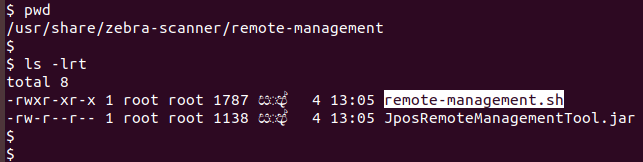
Most Commonly Used Attributes

Table 28: Most Commonly Used Attributes

Attribute ID Description Type
533 Scanner model Inventory
534 Serial number Inventory
20004 Firmware version Inventory
15 PDF symbology activated Configuration
15013 Seconds from Power-On Performance
293 QR symbology activated Configuration
15421 Number of UPC read Performance
25007 Scale calibration count Performance
15251 Pole display fault count Diagnostic
15227 Zero-scale button count Diagnostic

How to run JPOS Remote Management Tool

  1. Log into your Linux system and open a terminal/console.
  2. Change directory to /user/share/zebra-scanner/remote-management.

  3. Execute remote-management.sh script.


Statistics Log File

After the successful execution of the script, a plain text file with the expected statistics data is generated. The file will have the .log extension and will be in the path that has been configured in the configuration XML. By default, the log file will be generated in /var/log/zebra-scanner/jpos-remote-management directory.

Information in the log file are delimited by "pipe" ( | ) separator, each field contains information about a single attribute specified via the configuration XML file. String “null” will be printed if a specified attribute is not supported by the scanner. Sample entry from the log file is as below. A separate log file will be created for each scanner.


Appendix

Error/Status Codes

Table 24: Error and Status Codes

Error/Status Code Value Description
SUCCESS 0 Generic success.
STATUS_ERROR 1 Generic error
STATUS_ERROR_DEVICE_NOT_AVAILABLE 4 Device not available
STATUS_ERROR_COMMAND_RESPONSE_TIMED_OUT 7 Command response timeout
STATUS_ERROR_PARTIAL_SUCCESS 8 Partial success
ERROR_COMMLIB_UNAVAILABLE 101 Required Comm Lib is unavailable to support the requested Type.
ERROR_INCORRECT_BUFFER_SIZE 104 Incorrect buffer size.
ERROR_INVALID_ARG 107 Invalid argument
ERROR_INVALID_SCANNERID 108 Invalid scanner ID.
ERROR_INCORRECT_NUMBER_OF_EVENTS 109 Incorrect value for number of Event IDs.
ERROR_DUPLICATE_EVENTID 110 Event IDs are duplicated.
ERROR_INVALID_EVENTID 111 Invalid value for Event ID.
ERROR_DEVICE_UNAVAILABLE 112 Required device is unavailable.
ERROR_INVALID_OPCODE 113 Opcode is invalid.
ERROR_INVALID_TYPE 114 Invalid value for Type.
ERROR_ASYNC_NOT_SUPPORTED 115 Opcode does not support asynchronous method.
ERROR_OPCODE_NOT_SUPPORTED 116 Device does not support the Opcode.
ERROR_OPERATION_FAILED 117 Operation failed in device.
ERROR_REQUEST_FAILED 118 Request failed in CoreScanner.
ERROR_OPERATION_NOT_SUPPORTED_FOR_ AUXILIARY_SCANNERS 119 Operation not supported for auxiliary scanners.
ERROR_DEVICE_BUSY 120 Device busy. Applications should retry command.
STATUS_ERROR_CDC_SCANNERS_NOT_FOUND 150 No CDC scanners found in the system.
STATUS_ERROR_UNABLE_TO_OPEN_CDC_COM_PORT 151 Unable to open CDC port.
ERROR_ALREADY_OPENED 200 CoreScanner is already opened.
ERROR_ALREADY_CLOSED 201 CoreScanner is already closed.
ERROR_CLOSED 202 CoreScanner is closed.
ERROR_INVALID_INXML 300 Malformed inXML.
ERROR_FW_INVALID_DATFILE 500 Invalid firmware file.
ERROR_FW_UPDATE_FAILED_IN_SCN 501 Firmware Update failed in scanner.
ERROR_FW_READ_FAILED_DATFILE 502 Failed to read DAT file.
ERROR_FW_UPDATE_INPROGRESS 503 Firmware Update is in progress (cannot proceed another firmware update or another command).
ERROR_FW_UPDATE_ALREADY_ABORTED 504 Firmware update is already aborted.
ERROR_FW_UPDATE_ABORTED 505 Firmware Update aborted.
ERROR_FW_SCN_DETTACHED 506 Scanner is disconnected while updating firmware.
STATUS_FW_SWCOMP_RESIDENT 600 The software component is already resident in the scanner.
STATUS_ERROR_INVALID_CONFIG_FILE 601 Configuration file hash check failed. Tampered *.scncfg file.
STATUS_ERROR_INCOMPATIBLE_CONFIG_FILE 602 Configuration file is not compatible with the selected scanner.
STATUS_ERROR_CONFIG_FILE_SYNTAX_VALIDATION_FAILED 603 Configuration file syntax validation failed


Methods Invoked Through ExecCommand Or ExecCommandAsync

Table 25: List of Methods

Description Method Value
Scanner SDK Commands GET_VERSION 1000
REGISTER_FOR_EVENTS 1001
UNREGISTER_FOR_EVENTS 1002
Scanner Access Control Commands CLAIM_DEVICE 1500
RELEASE_DEVICE 1501
Scanner Common Commands ABORT_MACROPDF 2000
ABORT_UPDATE_FIRMWARE 2001
AIM_OFF 2002
AIM_ON 2003
FLUSH_MACROPDF 2005
DEVICE_PULL_TRIGGER 2011
DEVICE_RELEASE_TRIGGER 2012
SCAN_DISABLE 2013
SCAN_ENABLE 2014
REBOOT_SCANNER 2019
Scanner Operation Mode Commands DEVICE_CAPTURE_IMAGE 3000
DEVICE_CAPTURE_BARCODE 3500
DEVICE_CAPTURE_VIDEO 4000
Scanner Management Commands ATTR_GETALL 5000
ATTR_GET 5001
ATTR_GETNEXT 5002
ATTR_SET 5004
ATTR_STORE 5005
GET_DEVICE_TOPOLOGY 5006
START_NEW_FIRMWARE 5014
UPDATE_FIRMWARE 5016
UPDATE_FIRMWARE_FROM_PLUGIN 5017
Scanner Action Commands SET_ACTION 6000
Other Commands DEVICE_SWITCH_HOST_MODE 6200


Barcode Data Types

Table 26: Barcode Data Types

Barcode Data Type Communication Protocol
SNAPI IBM Hand-held
Code 39 1 1
Codabar 2 2
Code 128 3 3
Discrete (Standard) 2 of 5 4 4
IATA 5 N/A
Interleaved 2 of 5 6 6
Code 93 7 7
UPC-A 8 8
UPC-E0 9 9
EAN-8 10 10
EAN-13 11 11
Code 11 12 N/A
Code 49 13 13
MSI 14 N/A
EAN-128 15 15
UPC-E1 16 N/A
PDF-417 17 17
Code 16K 18 N/A
Code 39 Full ASCII 19 N/A
UPC-D 20 N/A
Code 39 Trioptic 21 N/A
Bookland 22 N/A
Coupon Code 23 N/A
NW-7 24 N/A
ISBT-128 25 N/A
Micro PDF 26 N/A
DataMatrix 27 27
QR Code 28 28
Micro PDF CCA 29 N/A
PostNet US 30 N/A
Planet Code 31 N/A
Code 32 32 N/A
ISBT-128 Con 33 N/A
Japan Postal 34 N/A
Australian Postal 35 N/A
Dutch Postal 36 N/A
MaxiCode 37 37
Canadian Postal 38 N/A
UK Postal 39 N/A
Macro PDF 40 N/A
Micro QR code 44 44
Aztec 45 45
GS1 Databar (RSS-14) 48 48
RSS Limited 49 49
GS1 Databar Expanded (RSS Expanded) 50 50
Scanlet 55 N/A
UPC-A + 2 Supplemental 72 72
UPC-E0 + 2 Supplemental 73 73
EAN-8 + 2 Supplemental 74 74
EAN-13 + 2 Supplemental 75 75
UPC-E1 + 2 Supplemental 80 N/A
CCA EAN-128 81 N/A
CCA EAN-13 82 N/A
CCA EAN-8 83 N/A
CCA RSS Expanded 84 N/A
CCA RSS Limited 85 N/A
CCA RSS-14 86 N/A
CCA UPC-A 87 N/A
CCA UPC-E 88 N/A
CCC EAN-128 89 N/A
TLC-39 90 N/A
CCB EAN-128 97 N/A
CCB EAN-13 98 N/A
CCB EAN-8 99 N/A
CCB RSS Expanded 100 N/A
CCB RSS Limited 101 N/A
CCB RSS-14 102 N/A
CCB UPC-A 103 N/A
CCB UPC-E 104 N/A
Signature Capture 105 N/A
Matrix 2 of 5 113 N/A
Chinese 2 of 5 114 N/A
UPC-A + 5 Supplemental 136 136
UPC-E0 + 5 Supplemental 137 137
EAN-8 + 5 Supplemental 138 138
EAN-13 + 5 Supplemental 139 139
UPC-E1 + 5 Supplemental 144 144
Macro Micro PDF 154 154

N/A indicates that the communication protocol does not support that barcode data type. The SDK typically returns a value of 0 for these data types, but in some cases may identify these as a related data type. For example, Nixdorf Mode B does not support UPC-A + 2 Supplemental but the SDK identifies it as UPC-A.


Action Attributes and Values

Table 27: Action Attributes and Values

Attribute Number Attribute Name Description Data Type Values
6000 Beeper/LED Triggers the beeper/LED via command 'X' 0 - 1 high short beep
1 - 2 high short beeps
2 - 3 high short beeps
3 - 4 high short beeps
4 - 5 high short beeps
5 - 1 low short beep
6 - 2 low short beeps
7 - 3 low short beeps
8 - 4 low short beeps
9 - 5 low short beeps
10 - 1 high long beep
11 - 2 high long beeps
12 - 3 high long beeps
13 - 4 high long beeps
14 - 5 high long beeps
15 - 1 low long beep
16 - 2 low long beeps
17 - 3 low long beeps
18 - 4 low long beeps
19 - 5 low long beeps
20 - Fast warble beep
21 - Slow warble beep
22 - High-low beep
23 - Low-high beep
24 - High-low-high beep
25 - Low-high-low beep
26 - High-high-low-low beep
42 - Green LED off
43 - Green LED on
45 - Yellow LED
46 - Yellow LED off
47 - Red LED on
48 - Red LED off
6001 ParameterDefaults Initiates a parameter defaults command 'X' 0 - Restore Defaults
1 - Restore Factory Defaults
2 - Write Custom Defaults
6003 BeepOnNextBootup Controls whether or not boot up/power up beep is suppressed on the next power up. 'X' 0 - Disable beep on next bootup
1 - Enable beep on next bootup
6004 Reboot Remote reboot command. 'X'
6005 HostTriggerSession Triggers the scanner to start scanning via command. 'X' 0 - start Host Trigger Session
1 - stop Host Trigger Session
6011 StatsReset Reset/default a specific statistic. 'X' The specific statistic attribute to reset. Range: 15002-19999.
6013 StatsResetAll Reset/default all statistics. 'X'
6017 ScaleReadWeight Read Weight from scale. 'A' Byte[0] status:
0 - scaleNotEnabled
1 - scaleNotReady
2 - stableWeightOverLimit
3 - stableWeightUnderZero
4 - nonStableWeight
5 - stableZeroWeight
6 - stableNonZeroWeight
Byte[1] units:
0=kgs
1=lbs
Bytes[2-5] weight in thousandths of units
6018 ScaleZero Zeros the scale. 'X'
6019 ScaleReset Resets the scale. 'X'
6022 ChangeAllCodeTypes Enables/Disables all code types. 'X' 0 = Disable All Code types
1 = Enable All Code Types


Download Scanner SDK for Linux

IMPORTANT: Zebra recommends using the latest release whenever possible.

To Download Barcode Scanner SDK for Linux:

  1. Visit the Zebra Barcode Scanner SDK for Linux download page and select the desired download(s).
  2. Proceed to the Barcode Scanner SDK for Linux release notes for the version details.
  3. Proceed to the Barcode Scanner SDK for Linux setup page for installation instructions.