About SMS for Windows

Overview

Figure 1: Steps in the SMS Process

Reducing Your Total Cost of Ownership

Lowering your total cost of ownership, the SMS Solution enables an enterprise to remotely manage their Zebra scanners. In addition to accessing asset tracking information, the SMS Solution can remotely set parameters and update firmware. Providing your enterprise maximum flexibility, the SMS Solution operates in an automated, unattended manner, no operator intervention is required.

Helpful Links

Manage Asset Information Fleet Wide

The SMS also provides a conduit for any third party enterprise console to query and report fleet wide asset tracking information such as model number, serial number, date of manufacture, firmware version, configuration file name and parameter values. Providing additional flexibility, the SMS can operate as a service - always running and available, or as an application that can be invoked by a third party console command.

Configuration at the Point-of-Use

The SMS automates the process of loading a 123Scan generated SMS Package to a scanner. The SMS Package contains 123Scan generated scanner configuration file(s) loaded with parameters, scanner plug-in(s) containing the scanner's firmware and a load directive file with loading details such as date and time. Best of all, the SMS enables an enterprise to purchase off-the-shelf Zebra scanners and fully customize them to their needs at the point-of-use, no depot staging or operator intervention or bar code scanning required.

Zero Effort Configuration

SMS automatically establishes communication between the scanner and your host application hence operator intervention, pre-staging at a depot, scanning a bar code to establish communication, or console interaction is not required.

Replacing a scanner during store hours just before the holidays is not a problem. Just plug in the scanner and walk away. If the SMS is run as a Service, it automatically establishes communication with the scanner and downloads the appropriate content from the SMS Package to the scanner. No operator intervention is required.


Solution Architecture - Three Steps to Success

The SMS enables an enterprise to remotely update scanner firmware, configure scanner parameters, and gather asset tracking information. The SMS automates the process of loading firmware, and configuration files (parameter settings) to Zebra scanners. It also provides a conduit for third party network tools to query and report fleet wide asset tracking information, such as model number, serial number, date of manufacture, firmware version, configuration file name, and parameter values.

Figure 2: Steps in the SMS Process

Remotely managing your scanner using the SMS is a three step process:

Step 1. Generate an SMS Package using 123Scan v5.0 (or newer).

Step 2. Deploy the SMS Package to your target (production) PC to the specified download folder on the scanner's terminal using your third party network tools. The network management console can also be used to query asset information from the SMS agent.

Step 3. On the target PC, the SMS agent loads the SMS Package to your scanner.

SMS solutions are available at no cost and require no licensing fees.


Supported Devices

For the compatible devices list, please visit following page.

https://www.zebra.com/us/en/support-downloads/software/utilities/scanner-management-service-for-windows.html

Version History

Version 4.02.0021 - 10/2026

  1. Added support to use Staging files to update firmware and configuration of scanners in a single step.
  2. Bug Fix - Fixed issue in executing default application-type package when SMS service is started from Windows services.

Version 4.02.0019 - 10/2025

  1. Bug Fix - Fixed issue with default SMS packages failing to be executed in both application and service modes.

Version 4.02.0018 - 07/2025

  1. Added support to maintain the SMS log file count based on values specified in the SMS package.

Version 4.02.0017 - 04/2024

  1. Updated behavior on SMS - Scanner now switches to the original host mode upon the execution of an SMS package containing only a firmware update.

Version 4.02.0015 - 01/2024

  1. Bug Fix - Fixed issue rarely seen by most people. In Application Mode (rarely used by most) fixed missing attributes in startup package when SMS is executed in Application mode. Resolved issue only seen at first operation.

Version 4.02.0013 - 10/2022

  1. SMS code base updated (migrated) to Visual Studio 2019 from Visual Studio 2017.
  2. Access to SMS Version Info - Modified how-to-access SMS Version info. Now read from registry key, Instead of SMS binary file.

Version 4.02.0012 - 07/2022

  1. Enhancement - At deployment of the SMS, when performing a Standard Installation, “Run as application” type default package is now copied into the Download folder.

Version 4.02.0011 - 04/2022

  1. Added configurable option to delete SMS package once the package has been loaded. Option located in the SMS package.
  2. Added configurable option to force configuration load from SMS package upon launch of the SMS, even if the configuration is already present on the scanner. Option located in the SMS package.
  3. Added support to manage scanners in IBM HH. This option is desired when the scanner is communicating with an OPOS/JPOS driver. Option located in the SMS package.

Version 4.02.0010 - 04/2020

  1. Updated the version of Visual C++ redistributable package from 2012 to 2017. Note redistributable package for 2012 is no longer included with the SMS.
  2. Bug Fix - On the MP7000, loading a configuration file through a SMS package no longer causes the configuration name to change to “Modified” on the scanner.
  3. Bug Fix - At deployment of the SMS, when performing a “Custom Installation” the correct service type default package is now copied into the Download folder.
  4. Removed Windows XP support.

Version 4.02.0005 - 11/2019

  1. Installation software enhanced to improve installation path security. Note this change does not impact or apply to SMS operation.

Version 4.02.0004 - 05/2019

  1. Fixed a bug in SMS which prevent ADF rules in DS8178 scanners from working correctly.

Version 4.02.0003 - 11/2018

  1. Cascaded scanners support like MP7000 with CSS and connected DS8178/cradle. All cascading scenarios now supported.
  2. Enhanced SMS by adding retry logic for failed firmware download and configuration push. Default = 3 attempts. Retry attempts are registry configurable.
  3. Enhances SMS logging.

Version 4.01.0000 - 11/2017

  1. SMS supports any SMS package created with any versions of 123Scan2 for SMS v4.1.

Version 4.00.0000 - 09/2017

  1. SMS optimized for faster performance. For example, at bootup, asset information can be retrieved within around 20 seconds versus around 5 minutes.

Version 3.01.0000 - 09/2016

  1. Added DS8108/DS8178, DS3608/DS3678, LI3608/LI3678 scanner support.
  2. SMS package must be generated using 123Scan² v4.2 or newer.

Version 3.00.0000 - 02/2016

  1. Rebranded Motorola SMS to Zebra SMS.
  2. Updated the version of Visual C++ redistributable package from 2005 to 2012.
  3. Security enhancements to address potential security vulnerabilities.
  4. Added support for Windows 10.
  5. Added a new default package in order to skip scanner actions till a new custom package is loaded.
  6. NOTE: SMS package must be generated using 123Scan2 v4.0.

Version 2.03.0000 - 07/2015

  1. Enable operation of SMS even if Windows login does not occur.
  2. Fixed scenario where parameter scanning disabled incorrectly by SMS package.

Version 2.02.0000 - 12/2014

  1. Intelligent firmware update - If target firmware already present on scanner, firmware load is not performed.
  2. Intelligent configuration update - If target config file name already present on scanner, config file parameters are not loaded. NOTE SMS package must be generated using 123Scan2 v3.5.
  3. Log file - Asset tracking information enhanced.
    1. Now include config file name (cfg) and communication mode (mode) [2014-12-10, 18:32:14] ASSET INFO :: id=1 ; mode=USBHIDKB ; model=CR0078-SC10001WR ; sn=1204100501861 ; fw=NBCACAAN ; cfg=Front Reg ; dom=29MAR12
    2. Asset tracking information shall be disabled by default at launch of SMS (when run in service mode), IF no customer package is present in the download folder. Parameter is set in installation process.

Version 2.01.0000 - 10/2014

  1. Windows 8 support.
  2. Security enhancements to address potential security vulnerabilities.

Version 2.00.0000 - 08/2013

  1. Support for RS-232 (SSI) communication protocol (Scanner firmware support required).
  2. Support for statistics (Scanner firmware support required).
  3. MP6000 Scanner support without auxiliary scanners connected.

Version 1.00.0000 - 12/2012

  1. Initial release of the Scanner Management Service.
Installation and Configuration

Overview

This chapter describes how to install the Zebra SMS and 123Scan on recommended platforms.


Download the SMS Solution from the Web

Both the SMS Solution and 123Scan must be downloaded to utilize the SMS Solution. Both utilities can be downloaded from www.zebra.com/sms, or download 123Scan from www.zebra.com/123Scan.)


System Requirements

123Scan Requirements

Hardware Requirements

  • Pentium Dual-Core E214 1.6GHz or Pentium Mobile Dual-Core T2060 or Pentium Celeron E1200 1.6GHz
  • 2GB RAM and 1.2 GB free hard drive space
  • USB port, 1.1 or higher, for the connection of USB Scanners

Software and Operating System Requirements

  • Microsoft Windows 7 or 10 (32 bit/64 bit)
  • If not present, Microsoft .NET Framework 3.5 SP1 loaded at time of initial 123Scan installation
  • Minimum display resolution = 1024 by 768 pixels

SMS Solution Requirements

Supported Operating Systems

The Zebra SMS supports the following Operating Systems:

  • Windows 10 32bit
  • Windows 10 64bit

SMS Solution Size

The Zebra SMS 32bit installation package is approximately 20 MB in size. The Zebra SMS 64bit installation package is approximately 30 MB in size. Once installed in a production environment, the SMS solution size decreases.

Table 1: Installed SMS Solution Sizes

Typical Installed Solution Size 32bit 64bit
SMS agent 4 MB 9 MB
SMS Package for one model scanner 3 MB 3 MB
Total required space 7 MB 12 MB


Installing the Solution

The following steps show the process to install 123Scan and the SMS Solution.

Install 123Scan (v5.0 or newer)

To install 123Scan:

  1. Go to www.zebra.com/us/en/support-downloads/software/utilities/123scan-utility.html.
  2. Scroll down to the Software section and select and run the relevant OS download for your PC (123Scan 32bit or 123Scan 64bit).
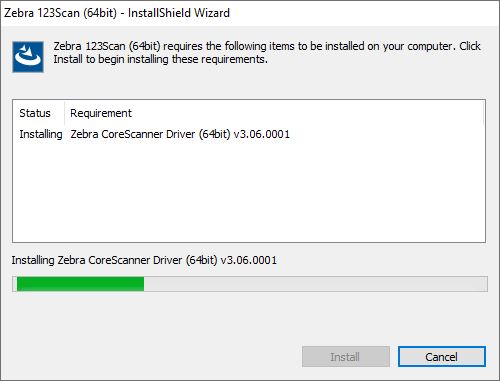
  3. The Zebra CoreScanner Driver is a prerequisite for both the 32bit and 64bit setup programs. The installation process checks for the CoreScanner driver on the target PC. If the CoreScanner driver is not present, or is outdated, clicking Install adds updated drivers before installing the Zebra 123Scan package.

    Figure 3: Installation of Zebra CoreScanner Driver Window
    The Microsoft .NET Framework is also a prerequisite for Zebra 123Scan. If .NET is not available in the system, the installer lists it as a requirement and installs it as part of the setup process.

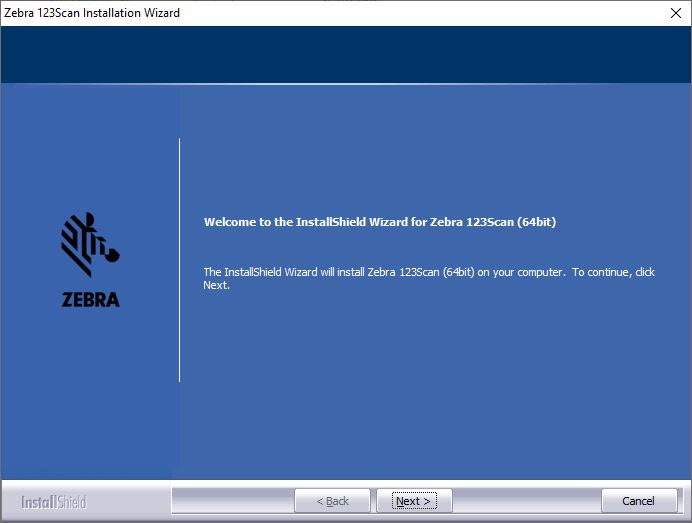
  4. Click Next in the Welcome window.

    Figure 4: Welcome Window
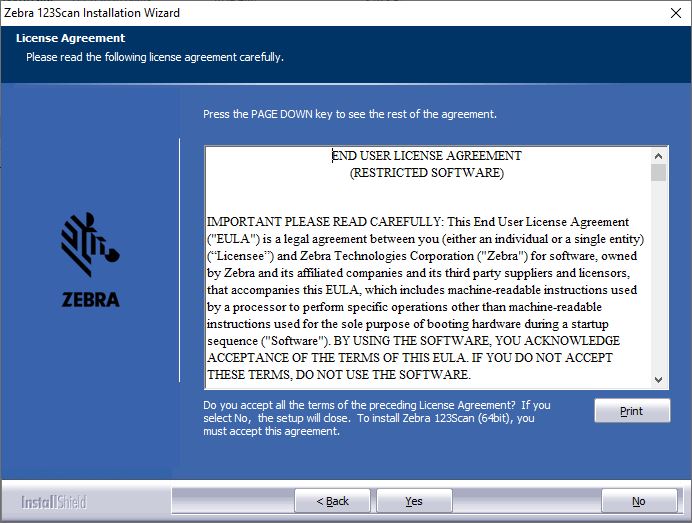
  5. Review the license agreement and click Yes to accept.

    Figure 5: License Agreement Window
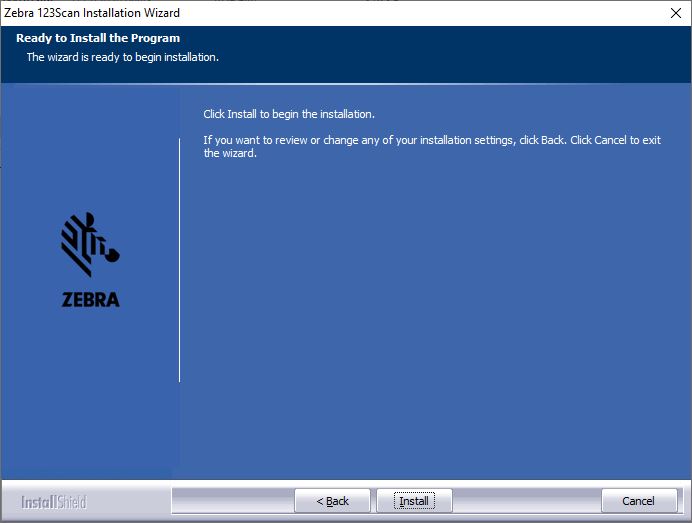
  6. Click Install to install 123Scan.

    Figure 6: Ready to Install Window
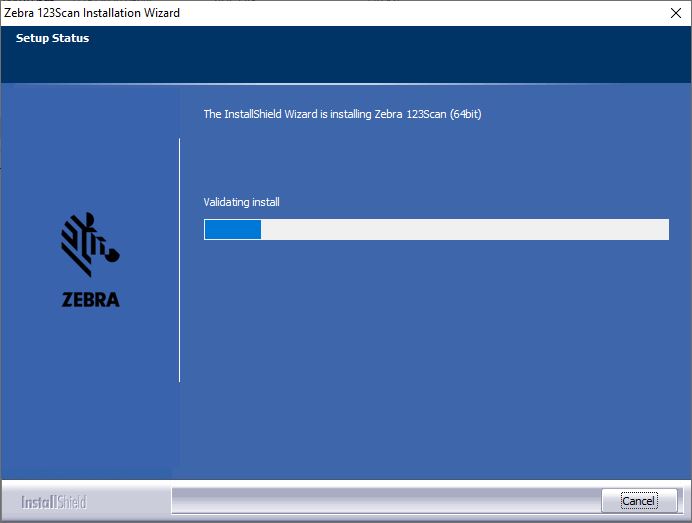
  7. As the installation proceeds, the status displays.

    Figure 7: Installation Status Window
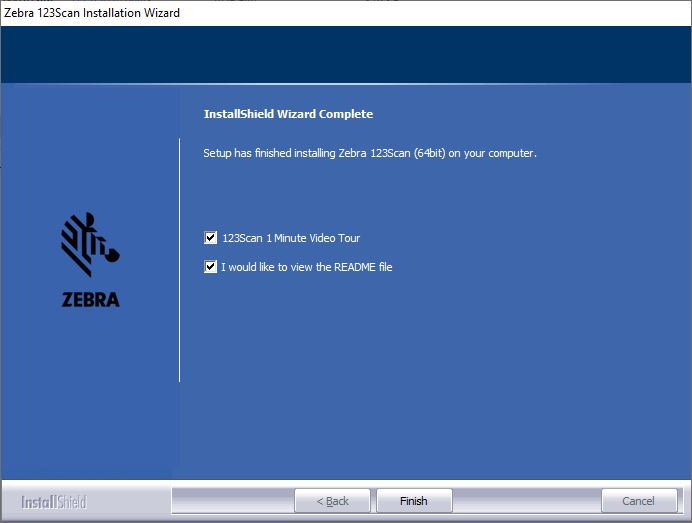
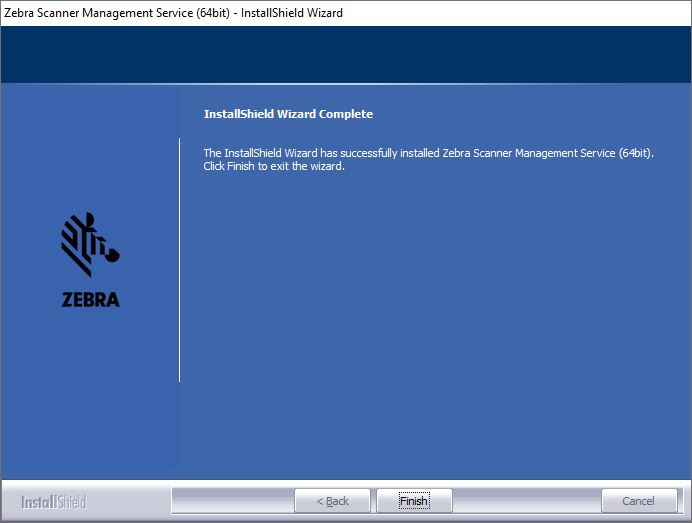
  8. When the installation is complete, the following window displays. Click Finish.

    Figure 8: Installation Complete Window
Install SMS

To install SMS:

  1. Go to www.zebra.com/us/en/support-downloads/software/utilities/scanner-management-service-for-windows.html.
  2. Scroll down to the Software section and select and run the relevant OS download for your PC (SMS 32 Bit, or SMS 64 Bit).
  3. If you previously installed 123Scan on the same PC, the Zebra CoreScanner Driver (a prerequisite for both the 32bit and 64bit setup programs) was already installed. If you are installing the SMS Solution first, or on a different PC than 123Scan, the CoreScanner driver automatically installs before the SMS Solution installation.
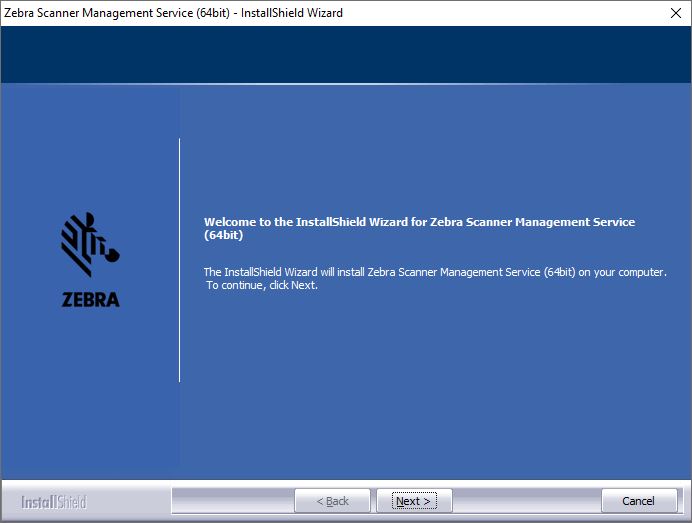
  4. Click Next in the Welcome window.

    Figure 9: Welcome Window
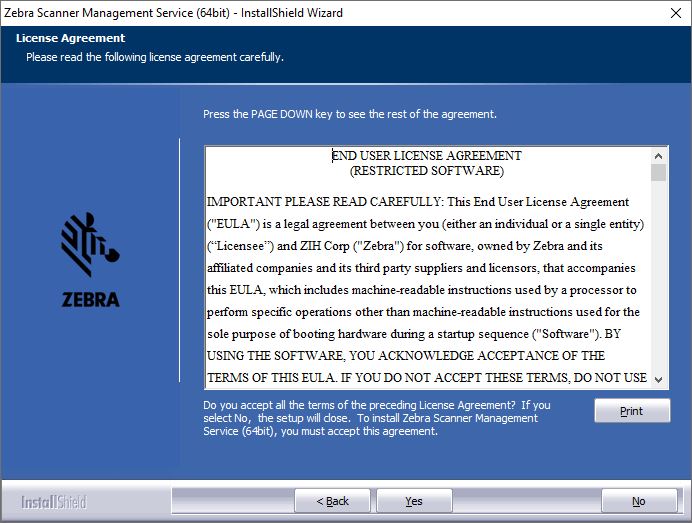
  5. Review the license agreement and click Yes to accept.

    Figure 10: License Agreement Window
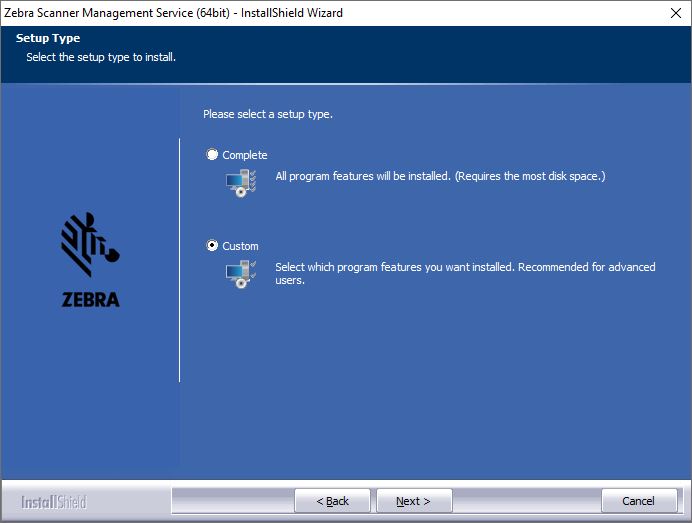
  6. Click the appropriate radio button for the type of setup to install.

    • Complete setup installs all Zebra SMS components.
    • Custom setup allows the user to de-select Start menu shortcuts for Developer Utilities.
    Figure 11: Select Type Window
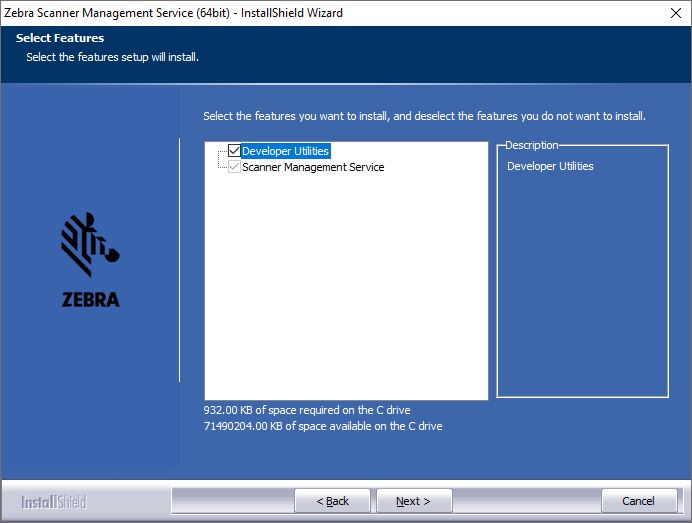
  7. Click Next to continue with the installation.

    Figure 12: Select Feature
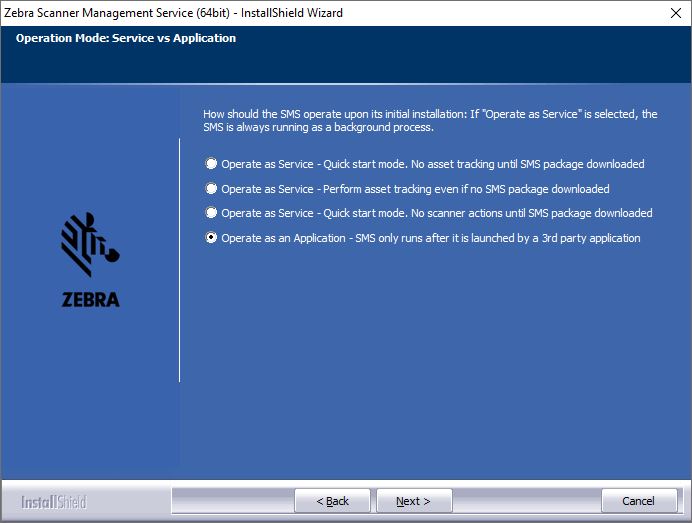
    Figure 13: Select Default SMS Package
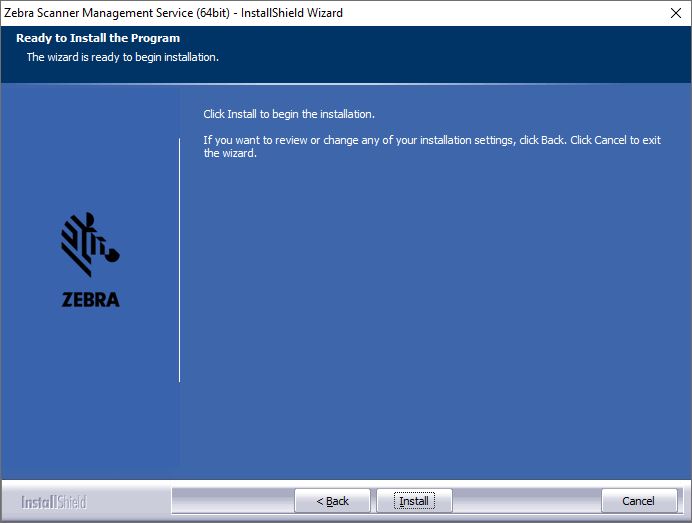
  8. Click Install to continue.

    Figure 14: Ready to Install Window
  9. When the installation is complete, the following window displays. Click Finish.

    Figure 15: Installation Complete Window
Silent Unattended Installation of the Zebra Scanner Management Service

The Scanner Management Service (SMS) for Windows require the Microsoft 2019 C++ Redistributable Package which automatically installs if it is does not already exist on the host PC. For an unattended installation, a complication arises if the 2019 C++ Redistributable is not pre-installed. By default, Microsoft triggers a reboot of the PC after the C++ Redistributable installation. In this case, a reboot is injected into the overall silent install process (which may then also require a login).

To avoid the interruption, the 2019 C++ Redistributable can be downloaded from Microsoft and pre- installed silently while suppressing the reboot using the command line switches /install /quiet /norestart. This delays the required reboot, and allows a custom silent SMS for Windows install to be performed using a subsequent command.

The Visual C++ Redistributable for Visual Studio 2019 can be downloaded from the Microsoft website. The appropriate file vcredist_x86.exe (32-bit version) or vcredist_x64.exe (64-bit version) must be selected and downloaded.

NOTE: Microsoft Visual C++ Redistributable 2015-2019 or 2015-2022 runtime packages will also work, as they all support C++ 2019.

The command line to perform its install silently without reboot is:


vcredist_x86.exe /install /quiet /norestart

or,


vcredist_x64.exe /install /quiet /norestart

The required reboot must be performed at the end of the overall installation process to ensure correct operation.

The Zebra Scanner Management Service and prerequisite CoreScanner driver are packaged using the Flexera InstallShield installer program. Options can be selectively installed using the Custom Installation option. In conjunction with this custom install option, the installer program supports command line switches to record custom responses that can be used to create a silent install response file. These response files, ending in the file extension .iss, may then be used to perform a silent installation of the CoreScanner driver and SMS components on production PCs.

Silent Install Command Line Options

Command Line Switch Description

Table 2: Command Line Switch Description

Switch Description
-s Silent mode. The -s switch runs the installation in silent mode using the responses contained in a recorded response file.
-r Record mode. The -r switch displays all the setup dialogs and records the chosen responses in the file specified with the -f1 switch described below.
-f1 Specify custom response file name and path. The -f1 switch specifies where the response file is located for the -s switch, or where it should be created when using the -r switch. Specify an absolute path; using a relative path yields unpredictable results.
-f2 Specify alternative log file name and path. When running an installation in silent mode (using the -s switch), the log file is created by default in the same directory and with the same name (except for the extension) as the response file. The -f2 switch enables you to specify an alternative log file location and file name. Specify an absolute path; using a relative path yields unpredictable results.

When executed from a command prompt, the example below uses the -r and -f1 switches to record your responses to the setup prompts into a custom response file:


"Zebra_CoreScanner_Driver_(64bit)_v3.07.0002.exe" -r -f1"c:\path\CSsetup.iss"

The responses chosen using the command above are saved in the specified response file and can then be used as input to silently install the CoreScanner with those chosen responses on production PCs.

The next example shows how the -s switch uses the response file created with the previous command to perform the silent install:


"Zebra_CoreScanner_Driver_(64bit)_v3.07.0002.exe" -s -f1"c:\path\CSsetup.iss"

Note that there is no space between the -f1 switch and first quotation mark for the custom response file.Additionally, you would perform the above steps for the silent installation of the SMS. Record the SMS response file using the -r switch on a PC that does not yet have SMS installed:


"Zebra_Scanner_Management_Service_(64bit)_v4.02.0010.exe" -r -f1"c:\path\SMSsetup.iss" 

Then use that resulting response file with the -s switch to install silently on other PCs:


"Zebra_Scanner_Management_Service_(64bit)_v4.02.0010.exe" -s -f1"c:\path\SMSsetup.iss"

If necessary, the -r switch option can also be used to record a custom response file for a silent removal of a program by running the command on a PC that has that program already installed.


Components and Folder Paths

SMS Components

Table 3: SMS Components

Component Description Installation Path
SMS agent folder SMS installation folder. User cannot customize this location. %ProgramFiles%\Zebra Technologies\Barcode Scanners\SMS
SMS Package download folder Folder on PC host in which SMS Packages are placed for processing. %ProgramFiles%\Zebra Technologies\Barcode Scanners\SMS\Download
SMS default log folder Default log file folder. User can change the logging location in the package at creation time. %ProgramFiles%\Zebra Technologies\Barcode Scanners\SMS\Download\Logs
Launch SMS as an Application Executable file to launch SMS as an application. %ProgramFiles%\Zebra Technologies\Barcode Scanners\SMS\SmsService.exe
Start SMS agent Script file to start the SMS agent. %ProgramFiles%\Zebra Technologies\Barcode Scanners\SMS\Start SMS Agent.bat
Stop SMS agent Script file to stop the SMS agent. %ProgramFiles%\Zebra Technologies\Barcode Scanners\SMS\Stop SMS Agent.bat
Release notes Release notes. %ProgramFiles%\Zebra Technologies\Barcode Scanners\Release Notes Windows SMS.pdf

123Scan Components

Table 4: 123Scan Components

Component Description Installation Path
Application Application EXE and the supporting DLLs of the program %ProgramFiles%\Zebra Technologies\Barcode Scanners\123Scan2
Configuration files Default location of Configuration Files Users\Public\Documents\123Scan2\Configuration Files
Activity reports Default location of Activity Reports Users\Public\Documents\123Scan2\Activity Report Database
Data view reports Default location of Data View Reports Users\Public\Documents\123Scan2\Data View Reports
Saved images Default location of Saved Images Users\Public\Documents\123Scan2\Images
SMS Packages Default location of SMS Packages Users\Public\Documents\123Scan2\ SMS Packages
Scanner plug-Ins Scanner Plug-Ins ProgramData\123Scan2\Plug-ins
Application help document Application Help Document Program Files\Zebra Technologies\Barcode Scanners\123Scan2\Languages\en-us


Generating SMS Packages

Overview

An SMS Package is a single file which, when used with the SMS agent, can be used to remotely manage scanners by programming parameters and updating firmware. 123Scan is used to generate an SMS Package.

An SMS Package can be programmed to support up to five (5) unique scanners models/plug-ins.

For example:

Model/Plug-in #1 DS6878 SR (Standard Range)
Model/Plug-in #2 DS6878 HC (Health Care)
Model/Plug-in #3 DS4208 SR
Model/Plug-in #4 LS4208 SR
Model/Plug-in #5 DS9808 SR

An SMS Package is comprised of three components:

Component #1 123Scan configuration file containing parameters.
Component #2 123Scan plug-in file containing the scanner's firmware.
Component #3 A single Load Directive File (LDF) containing the rule set including details such as trigger events, programming date and logging settings.

Once the SMS Package is placed on the target PC, if the SMS agent is in its default state - Run as a Service, it will review the SMS Package's content and automatically program the scanner as described in the SMS Package.


Creating a SMS Package

Steps to Create the SMS Package

123Scan v5.0 (or newer) can be used to create an SMS Package. 123Scan utilizes a wizard to guide users through the SMS Package generation process.

  1. Launch the 123Scan utility.
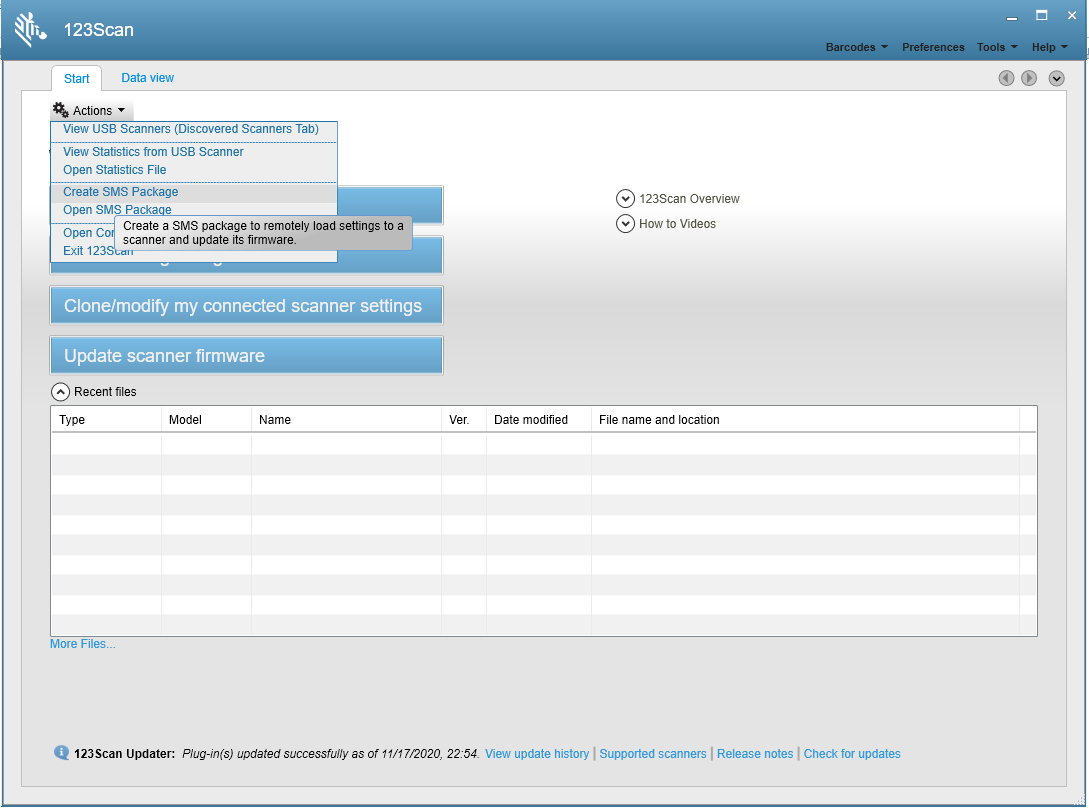
  2. In the Start tab, click the Actions drop-down menu and select Create Scanner Management Service (SMS) Package.

    Figure 16: Start Tab - Create Scanner Management Service (SMS) Package
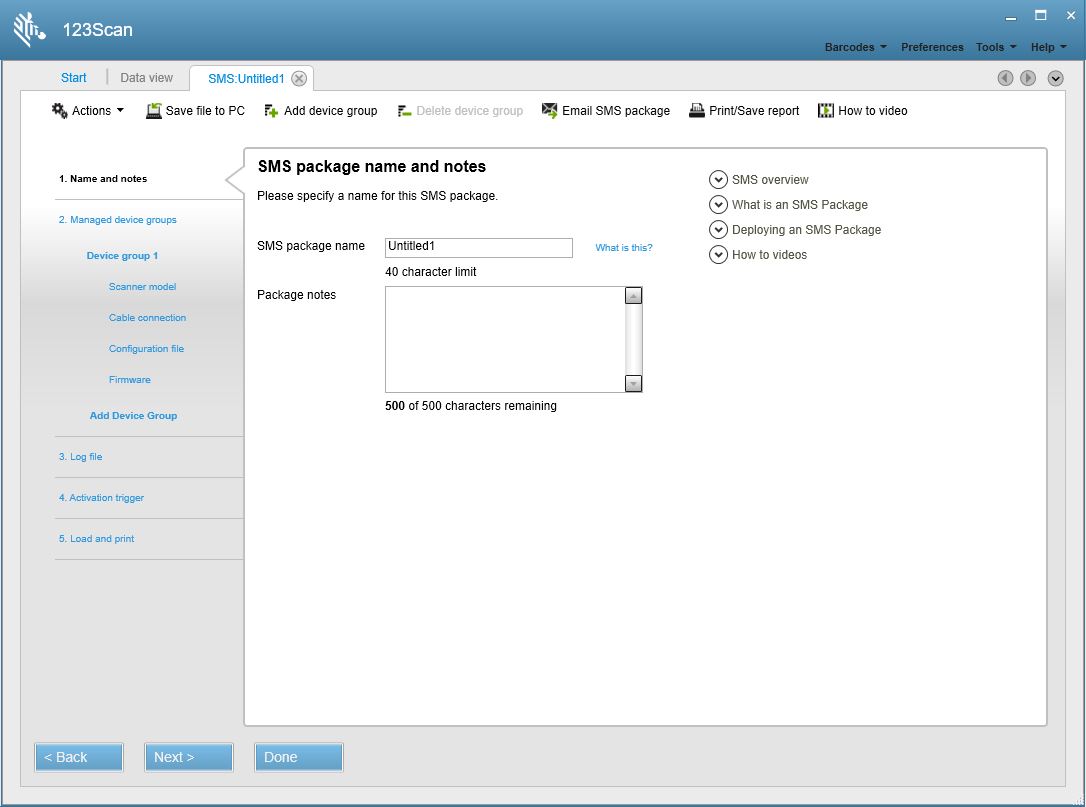
  3. In the SMS Package name and notes window, enter an SMS Package name, and anyPackage notes you may want to add to describe the package. Click Next.

    Figure 17: SMS Untitled1 Tab - SMS package name and notes Window
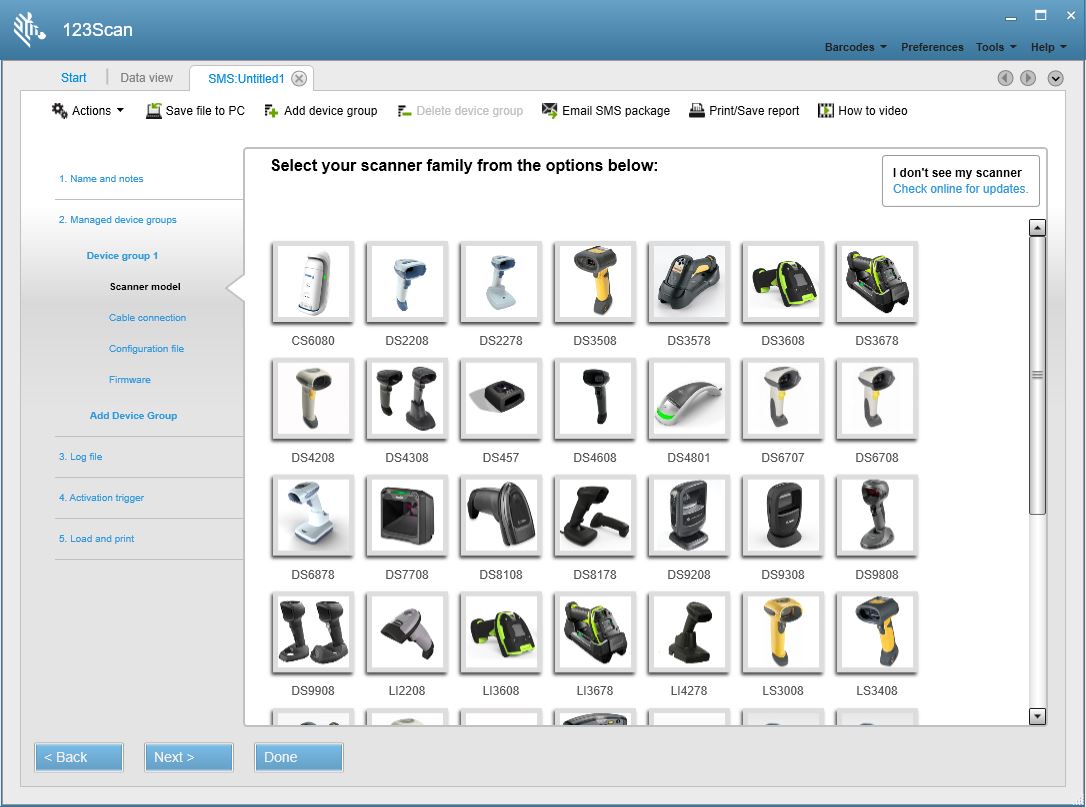
  4. In the Select your scanner family from the options below window, select the family of scanners that you want to configure. Click Next.

    Figure 18: SMS Untitled1 Tab - Select your scanner family Window
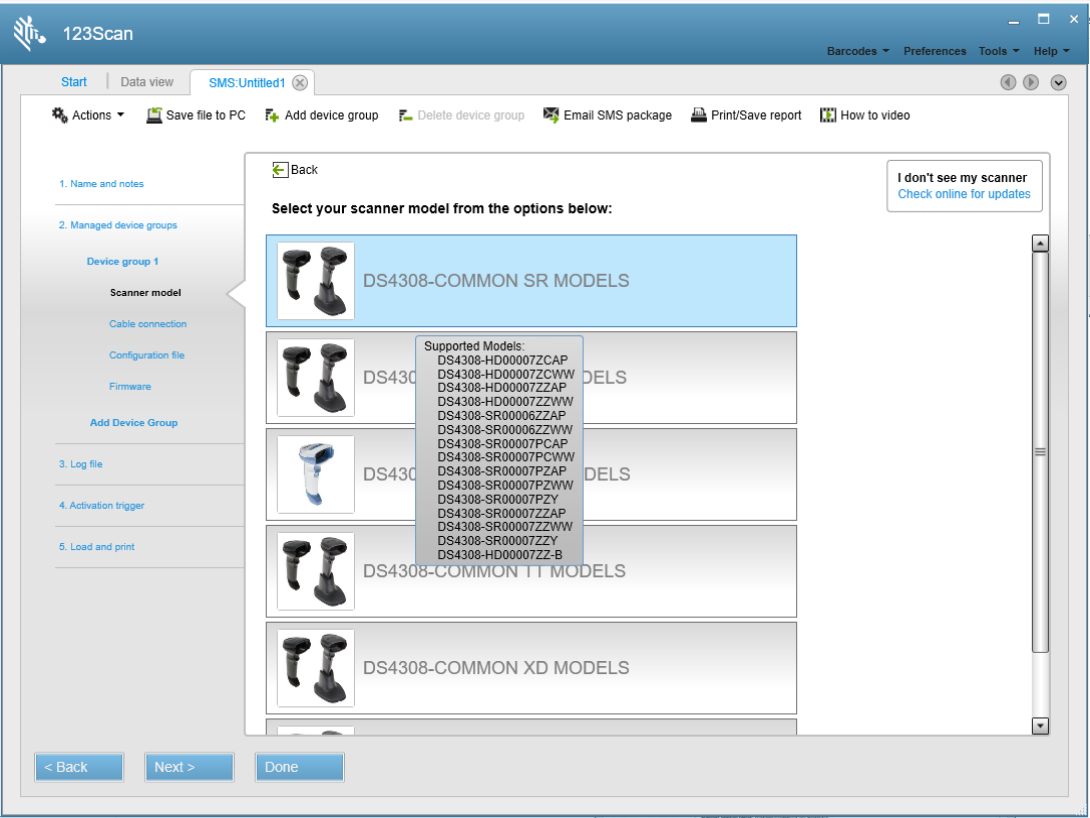
  5. In the Select your scanner model from the options below window, click the scanner model you want to configure. Click Next.

    Figure 19: SMS Untitled1 Tab - Select your scanner model Window
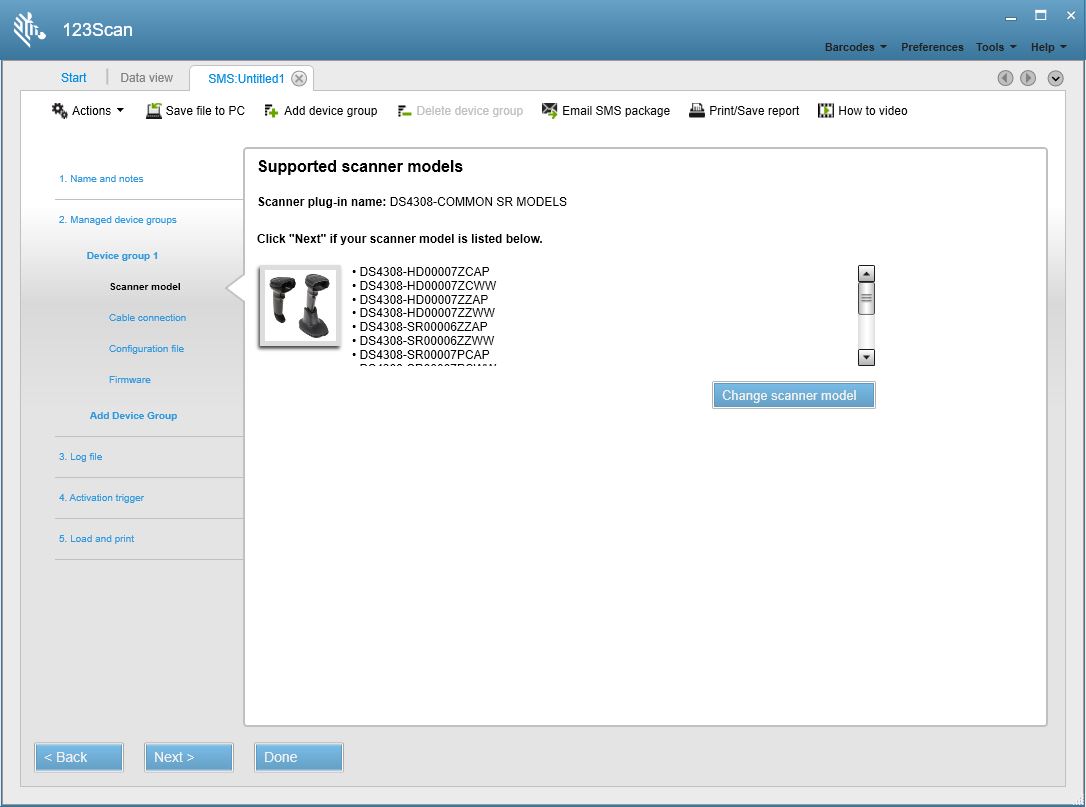
  6. In the Supported scanner models window, click Next > if your scanner model is in the list of supported scanners.

    Figure 20: SMS Untitled1 Tab - Supported scanner models Window
    IMPORTANT If your scanner model is not in the list, click Change scanner model to return to the Select your scanner family window (Figure 3) and choose another scanner family.

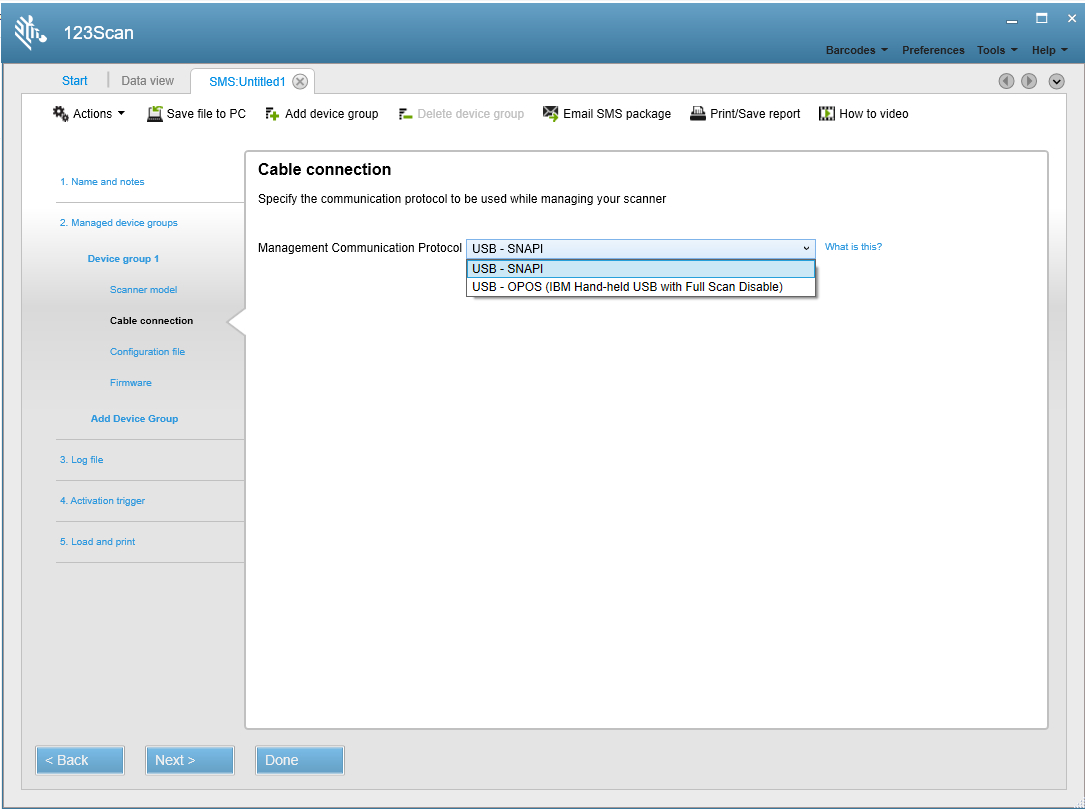
  7. In the Cable connection window, click the Management Communication Protocol drop-down arrow to select the communication method you want to use to manage your device.

    This protocol is the communication mode used by SMS to manage your scanner. The fastest supported management communication protocol (programming mode) is shown at the top of the list by default. Note that this management protocol can be different than the communication protocol used by the device during normal operations such as scanning and transmitting data to the host application.

    The SMS for Windows supports the following communication protocols.

    • USB SNAPI
    • USB OPOS (IBM Hand-held USB with Full Scan Disable)

    For example, the management communication protocol for a DS9808 scanner could be SNAPI while the scanning communication protocol could be OPOS.

    Figure 21: SMS Untitled1 Tab - Cable connection Window
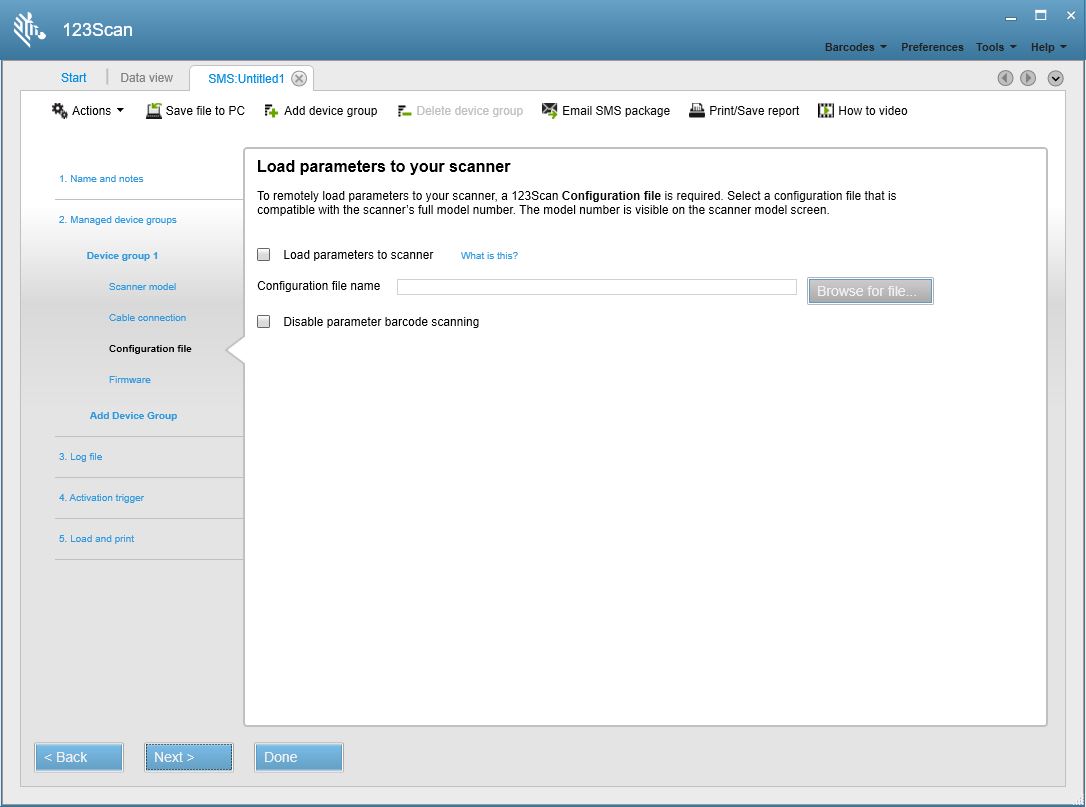
  8. In the Load parameters to your scanner window, you may check the Load parameters to scanner box if you have a configuration file containing attributes that you want to load onto the scanner. This option requires that you have already created an appropriate configuration file for your scanner using the 123Scan utility. After checking the box, click the Browse for file and select the configuration file you want to load onto the scanner. Click Next.

    Figure 22: SMS Untitled1 Tab - Load parameters to your scanner Window
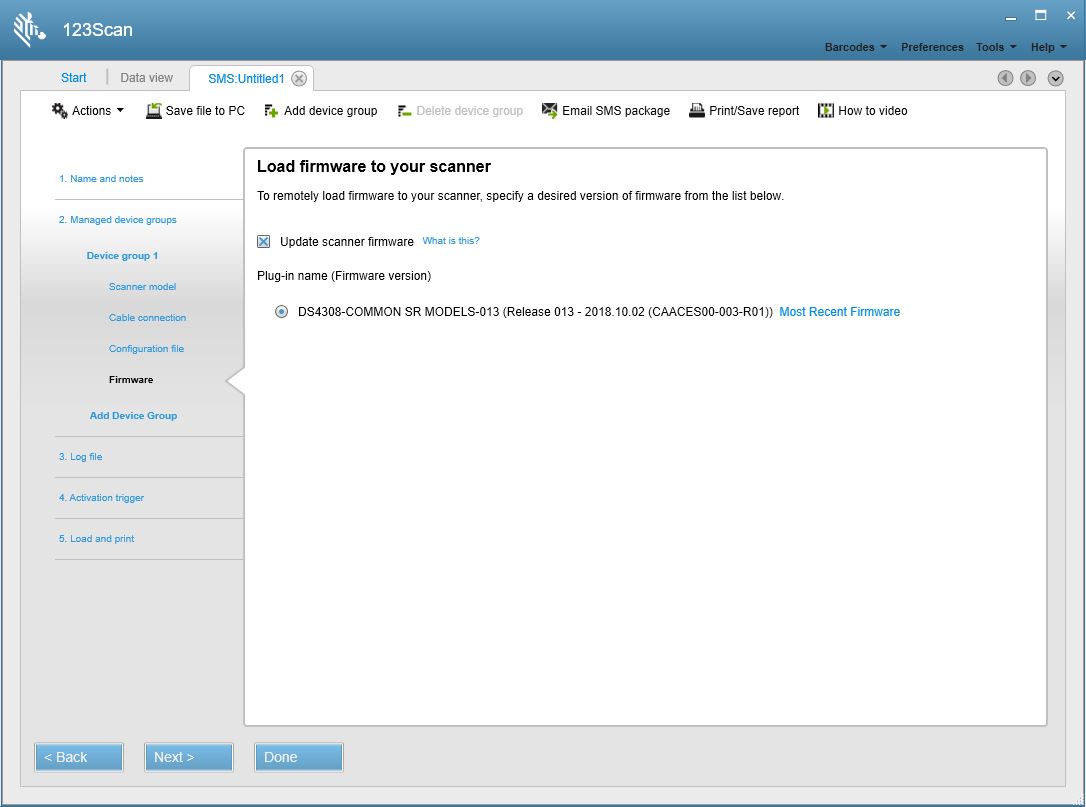
  9. In the Load firmware to your scanner window, you may check the Update scanner firmware box to load updated firmware on the scanner. When you check the box, the available versions of firmware actively display. The most recent firmware is recommended and selected by default but previous versions may be chosen, if necessary. Click Next.

    Figure 23: SMS Untitled1 Tab - Load firmware to your scanner Window
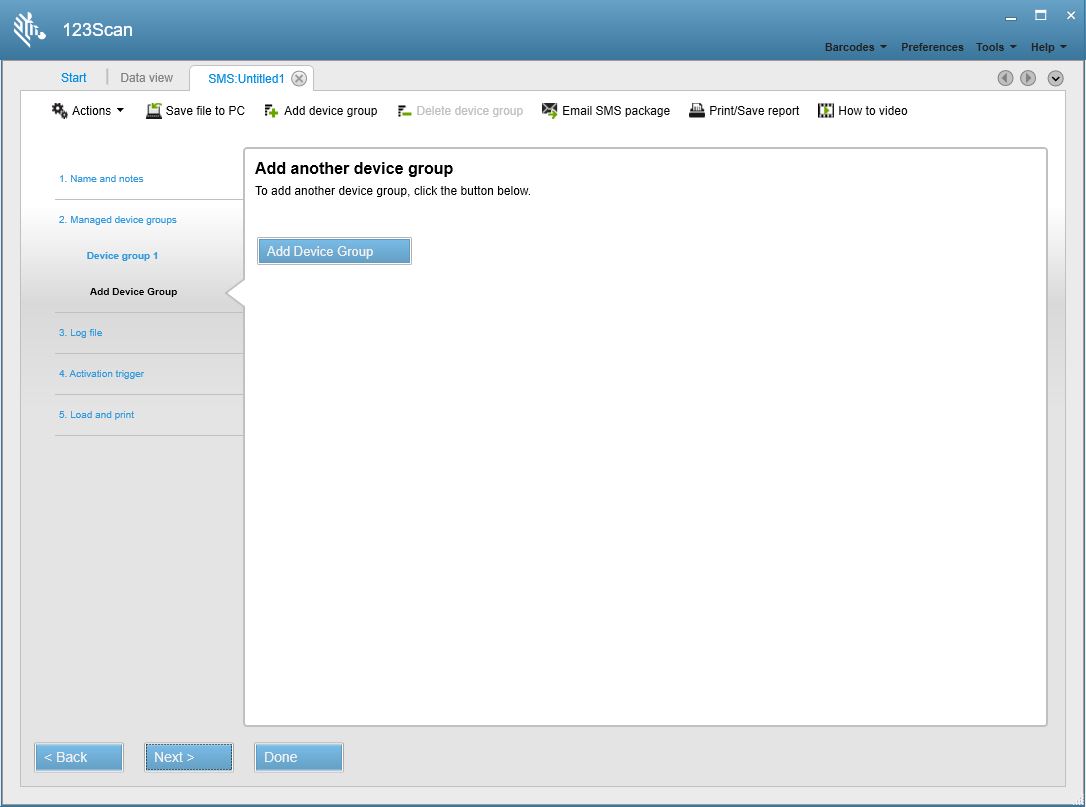
  10. On the Add another device group window, you may configure additional device groups (up to a total of five) within the SMS Package. If applicable, click Add Device Group and repeat Step 4 through Step 9. When all device groups are added within the SMS Package, click Next.

    Figure 24: SMS Untitled1 Tab - Add another device group Window
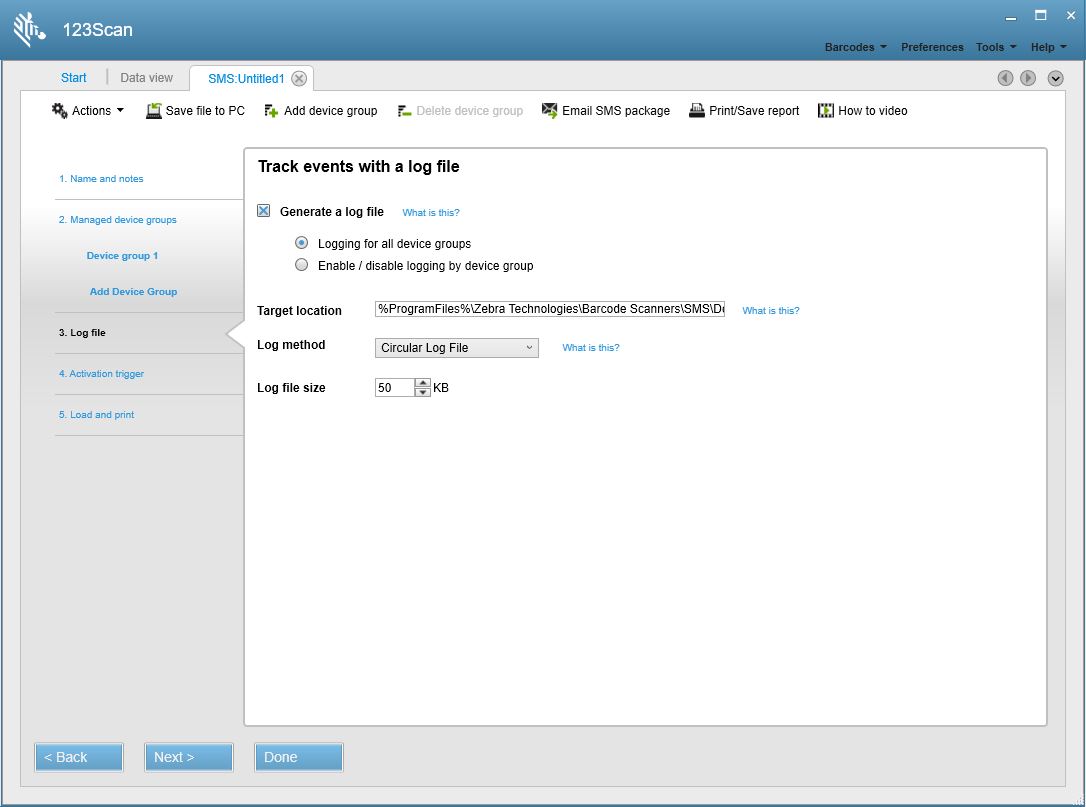
  11. In Track events with a log file window, you may select the mode for logging SMS events.

    NOTE The information that follows includes log file field descriptions and sample log files. To continue with the next step in the SMS Package Generator. Click Next on the window above to continue with the generator.

    Figure 25: Track events with a log file Window
    Following table lists the fields available in this window, and their descriptions.

    Table 5: Track events with a log file Window Fields

    Field Description
    Generate a log file

    Select this box to create a log file; deselect this box to disregard logging.

    Logging for all devices: Select this radio button to log events for all managed devices defined in the SMS Package.

    Enable / disable logging by device group: Select this radio button to choose particular managed devices for which to log events.

    Target location

    This is the directory path to which the log file is saved on your target (production) PC. Note the target location excludes the name of the log file.

    For a Windows machine, by default, the target path would be: C:\Program Files\Zebra Technologies\Barcode Scanners\SMS\Download\Logs

    For advanced users, this same path can also be entered as: %ProgramFiles%\Zebra Technologies\Barcode Scanners\\SMS\Download\Logs

    Log method

    There are two log method options available: Circular log file, or Accumulating log files.

    Circular Log File (default): All events are alternately written between two log files. All information is written to one log file until it reaches its maximum size, then new information is written to a second log file. Once the second file reaches its maximum size, new information is again written to the first log file, over-writing its original content. The combined size of both log files equals the Log File Size set within the SMS Package.

    IMPORTANT This log file option results in only two log files in the Windows folder, which never exceeds the Log File Size set within the SMS Package.

    Accumulating Log Files: All events for a given SMS Package are logged into one file that continues to grow until it reaches its maximum size, the Log File Size set within the SMS Package. Upon log file one reaching the maximum size, another new log file is created. The process of generating new log files will continue over time. If a new SMS Package is placed within the SMS download folder, a new log file is started.

    IMPORTANT This log file option results in multiple log files accumulating within the log file target folder.

    Note: All log files are time date stamped. A sample name would be "SMS_2019.10.11_11-58-13.log". The naming convention is SMS_YYYY.MM.DD_HH-MM-SS with hours (HH) in 24 hour format.

    Log file size Maximum log file size.

    Sample Log File

    SMS log message format is as follows <log-time-stamp> <device-group-and-name> :: <log-message- information>::<configuration-or-firmware-file-name>: <unique-identifier-for-scanner> :<scanner-model> : <scanner-serial-number> : < DOM> :< firmware-version> :< program-date>

    Following table lists the log file fields, and their descriptions.

    Table 6: Log File Fields

    Field Description
    Log-time-stamp Date and time of the log message in the format: yyyy-mm-dd, hh:mm:ss.
    device-group-and-name Device group and the name of the device by which this scanner is managed.
    log-message- information Details of the action that the corresponding device executed on this scanner.
    configuration-or-firmware-file-name File name and the path of firmware or configuration file below %program files%/Download.
    unique-identifier-for-scanner Unique identifier assigned by SMS for each scanner managed by the SMS service or application.
    scanner-model Model of the scanner.
    scanner-serial-number Serial number of the scanner.
    DOM Date of manufacture of the scanner in the format: ddmmyy. If the scanner does not have this information, SMS writes "DDMMYY" to the log file.
    firmware-version Version of the current firmware in the scanner.
    program-date Date on which the scanner's last electronically programmed date in the format: ddmmyy. If the scanner does not have this information, SMS writes "DDMMYY" to the log file.

    When the SMS agent begins execution of a package, either from cold-start or auto-reboot, an appropriate log file entry is made (if logging is enabled) explaining the last loaded package details as follows:

    
    [2012-07-27, 14:17:37] INFO: A Valid Package 'SMS
    Package_ScannerUpgrade_OnAttach_DS6878_Presentation.smspkg' has been dropped into the DOWNLOAD folder. SMS will be re-started when current device execution completes
    [2012-07-27, 14:17:40] INFO: SMS Device Engine Requested a Service Restart
    [2012-07-27, 14:17:43] INFO: SMS Service is Stopping... [2012-07-27, 14:17:48] INFO: SMS has Started
    Executing as a Service From Download Folder. Package Details: 'SMS Package_ScannerUpgrade_OnAttach_DS6878_Presentation_modified.smspkg'


    The following is part of the log file content while SMS loaded the configuration on a DS6878 scanner with a standard cradle connected to host PC:

    
    [2012-06-27, 12:48:49] Device Group 1_on_scanner_attached :: Initializing configuration file push :: config_files\Config_File_DS6878_UC_A2_MOD_2012.05.17.scncfg : 1 : STB4278-C0001WW : MXA0BP47
    : 15Dec06 : NBCACAAM : DDMMMYY
    [2012-06-27, 12:48:54] Device Group 1_on_scanner_attached :: Configuration file push failed :: config_files\Config_File_DS6878_UC_A2_MOD_2012.05.17.scncfg : 1 : STB4278-C0001WW : MXA0BP47
    : 15Dec06 : NBCACAAM : DDMMYY
    [2012-06-27, 12:49:32] Device Group 1_on_scanner_attached :: Initializing configuration file push :: config_files\Config_File_DS6878_UC_A2_MOD_2012.05.17.scncfg : 2 : DS6878-SR20007WR : M1M87R37J
    : 07OCT10 : PAAAJS00-003-R01 : DDMMYY
    [2012-06-27, 12:49:50] Device Group 1_on_scanner_attached :: Configuration file push succeeded :: config_files\Config_File_DS6878_UC_A2_MOD_2012.05.17.scncfg : 2 : DS6878-SR20007WR : M1M87R37J
    : 07OCT10 : PAAAJS00-003-R01 : DDMMYY


    The following log entries were created while SMS loaded firmware and the configuration on a DS6878 scanner with a presentation cradle when SMS was started as a service:

    
    [2012-06-22, 21:15:29] INFO: SMS has Started Executing as a Service From Work Folder. Package Details: 'SMS Package_DS6878_SR_StandardCradle_ScannerUpgrade_2012.06.22.smspkg'
    [2012-06-22, 21:15:54] Device Group 1_on_service_start :: Initializing firmware update ::
    plug-in_files\DS6878-STANDARD_SR_MODELS-S-014.SCNPLG : 2 : CR0078-SC10007WR : 1020800512980	: 28JUL10 : NBCACAAM : DDMMYY
    [2012-06-22, 21:16:24] Device Group 1_on_service_start :: Firmware update succeeded :: plug-in_files\DS6878-STANDARD_SR_MODELS-S-014.SCNPLG : 2 : : : : :
    [2012-06-22, 21:16:41] Device Group 1_on_service_start :: Initializing configuration file push :: config_files\Config_File_DS6878_BeeperHigh_2012.06.22.scncfg : 2 : CR0078-SC10007WR : 1020800512980	: 28JUL10 : NBCACAAM : DDMMYY
    [2012-06-22, 21:16:47] Device Group 1_on_service_start :: Configuration file push succeeded :: config_files\Config_File_DS6878_BeeperHigh_2012.06.22.scncfg : 2 : CR0078-SC10007WR : 1020800512980 : 28JUL10 : NBCACAAM : DDMMYY
    [2012-06-22, 21:17:05] Device Group 1_on_service_start :: Initializing configuration file push :: config_files\Config_File_DS6878_BeeperHigh_2012.06.22.scncfg : 3 : DS6878-SR20007WR : M1M87R37F
    : 08OCT10 : PAAAJS00-004-R01 : DDMMYY
    [2012-06-22, 21:17:22] Device Group 1_on_service_start :: Configuration file push succeeded :: config_files\Config_File_DS6878_BeeperHigh_2012.06.22.scncfg : 3 : DS6878-SR20007WR : M1M87R37F
    : 08OCT10 : PAAAJS00-004-R01 : DDMMMY
    
    
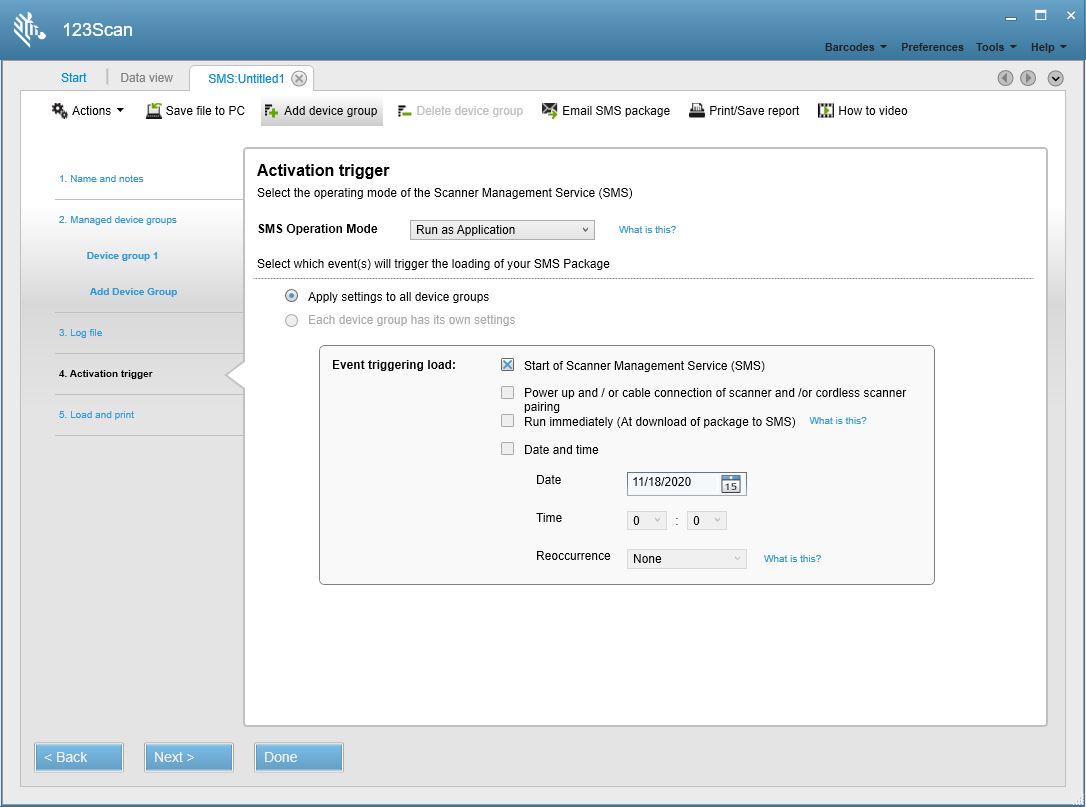
  12. In Activation trigger window, you may select the operation mode of the SMS agent, and which events trigger the SMS Package to be loaded to a scanner.

    Figure 26: Activation trigger Window

    Following table lists the fields available in this window, and their descriptions.

    Table 7: Activation trigger Window Fields

    Field Description
    SMS Operation Mode

    The SMS operation mode setting determines if the SMS operates as a service, or an application. Use the drop-down arrow to make a selection.

    • Run as Service: The SMS runs continuously as a Windows background service. It monitors scanners and the download folder on the target PC for any activity that triggers a package load. In this mode, the SMS agent automates the process of loading an SMS Package to your scanner. Once the SMS Package is on the target PC in the download folder, the SMS agent reviews the SMS Package content and automatically programs the scanner appropriately. Using your SMS Package, the SMS agent programs your scanner without any console/application initiating command. Asset information can be accessed real time using Windows Management Instrumentation (WMI).
    • Run as Application: The SMS is only available and running when it is manually launched. The SMS agent can be launched by a third party application, or console initiated command. When invoked, the SMS agent checks the download folder on the target PC for the existence of a new SMS Package, and processes that package. Typically, a customer uses their third party network management tool first to copy an SMS Package into the target PC download folder and then invokes the SMS agent to process that package. Upon completion of the task(s) outlined in the SMS Package, the SMS agent terminates operation and releases the USB scanner device. Asset information can be accessed non-real time from the log file (which must be enabled in the SMS Package), and compiled through parsing. In Application mode, the SMS agent can be used in conjunction with but not simultaneously with a third party application, or driver (such as a non-Zebra OPOS scanner driver). To configure SMS to initially run in Application mode, first download an SMS Package with its SMS operation mode set to Run as an Application (programmable in the 123Scan Activation trigger Window on page 4-10). Then, launch the SMS agent using the script, Start SMS Agent.vbs (located in <%ProgramFiles%>\Zebra Technologies\Barcode Scanners\SMS). Alternatively, from a command line, type net start "Zebra SMS".

      Note 1: If you select Run as Application, certain trigger events start of SMS, initial download of SMS Package, and date and time) are not available for selection.

      Note 2: To switch the SMS agent to operate in Application mode, load an SMS Package with SMS Operation Mode set to Run as an Application.

      Note 3: Be aware that when SMS is running in Service mode, an unexpected plug and play event such as a cable reconnection may trigger SMS processing. In this instance, SMS will temporarily gain control of the scanner to perform any specified SMS package directives and interrupt normal scanner operation until SMS has finished executing. If this scenario is a concern, set SMS to 'Run as Application' and launch SMS manually when an interruption will not impact normal scanner usage.

    Apply settings to all device groups This trigger event to load your SMS Package applies trigger events to all managed devices in your SMS Package.
    Each device group has its own settings This trigger event to load your SMS Package applies different trigger events to different managed devices in your SMS Package.
    Start of Scanner Management Service (SMS)

    Triggers package loading when the SMS agent starts. This trigger includes the following scenarios:

    • When the SMS agent is executed, and Run as an Application is set.
    • When the SMS is set to run as a service, and the host PC is rebooted.
    • When the SMS is set to run as a service, and the SMS service is restarted.
    Power up and/or cable connection of scanner Triggers package loading when a scanner becomes attached to the host PC, or the PC is rebooted.
    Run immediately (at download of package to SMS) Triggers package loading immediately upon arrival and detection of an SMS Package in the download folder. If this trigger is not selected, package loading takes place at the next host PC reboot or restart of the SMS service. This trigger applies only to Run as service.
    Date and time

    Triggers a package load at the specified date and time, and time interval. This trigger applies only to Run as Service mode.

    Select Reoccurrence to set up a reoccurring event to load an SMS Package. For example, to reload the same SMS Package every two weeks, set this field to Every 2 weeks. In this example, the SMS Package loads on the same day of the week and time specified in the Date and Time trigger event boxes. The SMS Package continues to reload every two weeks. This trigger applies only to Run as Service mode.


    Following table shows the differences between the SMS operation modes.

    Table 8: SMS Operation Modes: Service vs Application

    Run as Service Run as Application
    SMS Functionality
    Parameter Configuration Supported Supported
    Firmware Update Supported Supported
    Asset Tracking Supported Non-real time support
    SMS Operation
    SMS always running and accessible Supported Not Supported
    SMS launched by a command from a third party console or application Not Supported Supported
    Upon completion of tasks define in the SMS Package, the SMS terminates operation and releases the USB scanner Not Supported Supported

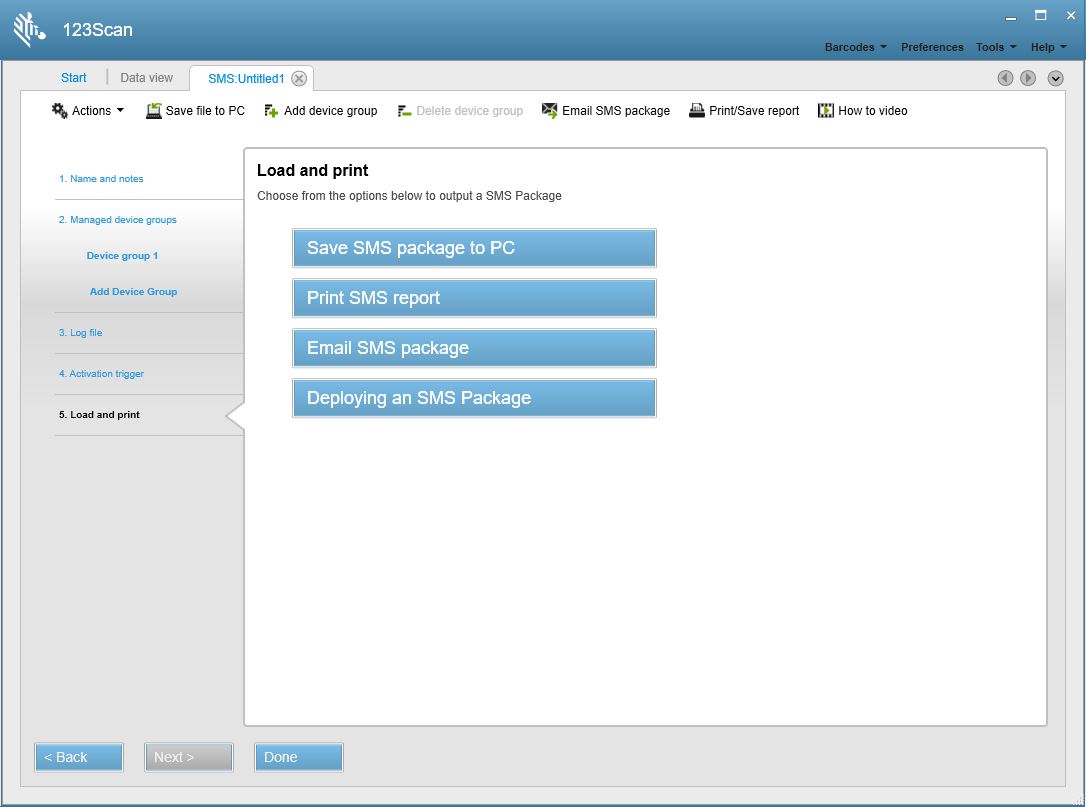
  13. Click Next to display the Load and print window. In this window choose one of the SMS Package output options (see Table 9).

    Figure 27: Load and Print Window

    Table 9: Load and Print Window Options

    Option Description
    Save SMS package to PC Prompts with a window to select a location to save the completed SMS Package.
    Print SMS report Opens a window with the option to print the SMS report, or save it to a Word document.
    Email SMS package Opens an e-mail window with the SMS Package attached.
    Deploying an SMS Package Opens a window with instructions on deploying an SMS Package on a production host PC.


Opening an Existing SMS Package

You can open an existing SMS Package from a Windows folder, or within the 123Scan utility.

Opening an SMS Package from a Windows Folder

  1. Locate the SMS Package on the PC. The folder path for an SMS Package within 123Scan folder structure is C:\ProgramData\Documents\123Scan\SMS Packages.
  2. Double-click the package.
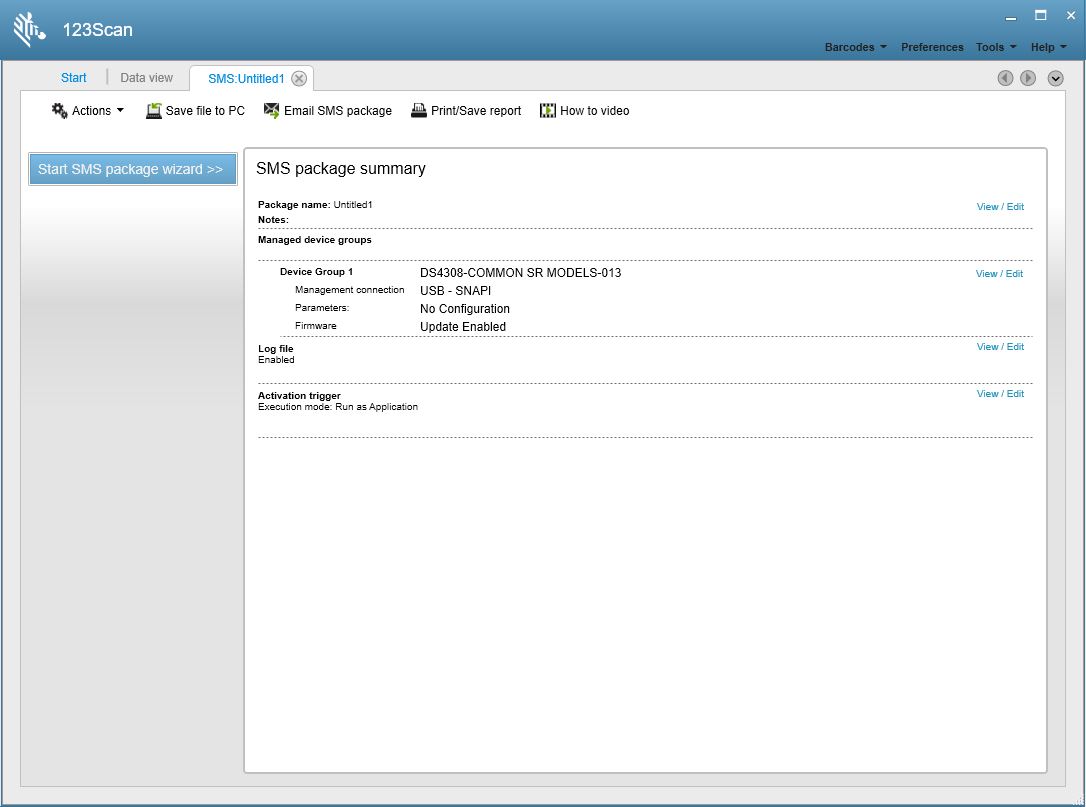
  3. The 123Scan utility launches and the SMS package summary window displays.

    Figure 28: SMS package summary Window
  4. Click Start SMS package wizard to modify the package content.

Opening an SMS Package within 123Scan

  1. Launch the 123Scan utility.
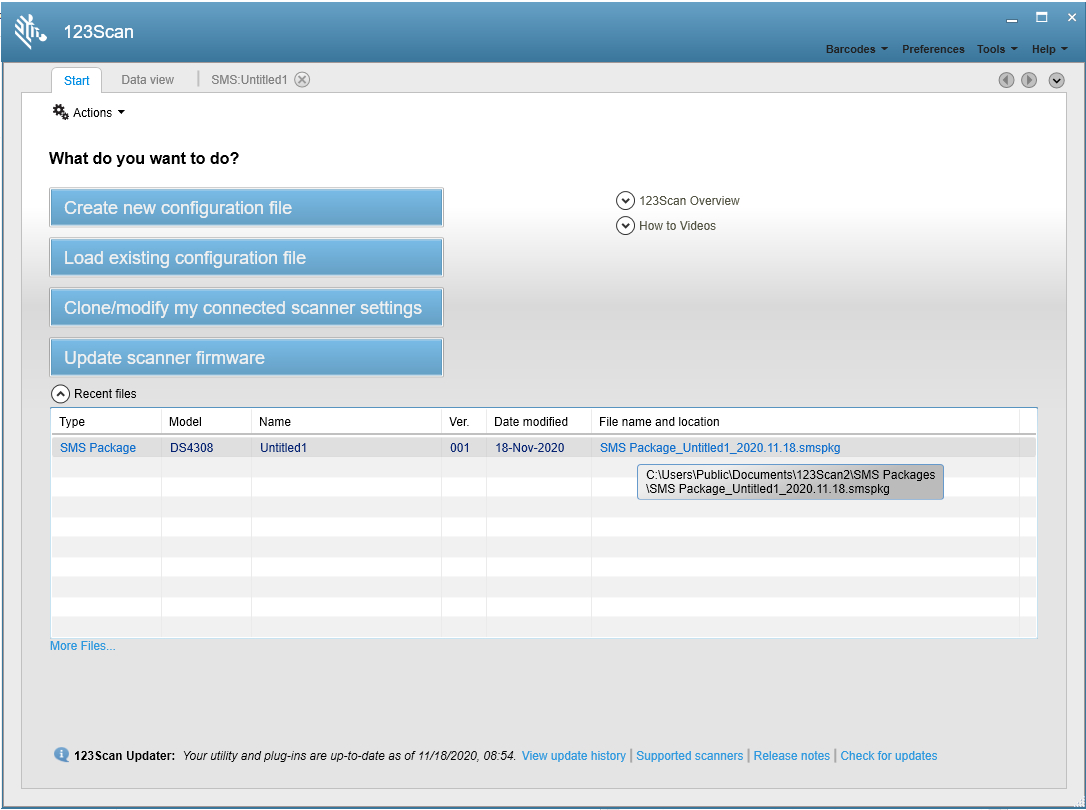
  2. On the Start tab, click the Actions drop-down menu and select Open Scanner Management Service (SMS) Package. Select the SMS Package from the file dialog or Select an existing package from the recent files list. Click the Recent files arrow to expand the list of the recently accessed files.

    Figure 29: Open SMS package Window

Deploying SMS Packages

Overview

Deployment of an SMS Package involves placing the package into the SMS download folder on the scanner's host PC. Whether the SMS agent is running as a service or as an application, the SMS agent monitors the download folder for a deposited SMS Package. If a package exists, the SMS agent executes the actions specified in the SMS Package.


Customer Supplied Third Party File Distribution Tool

The SMS solution relies on the customer to provide a method to install the SMS agent on managed host PCs and to deliver SMS Packages to those host PCs. The typical method is using a 3rd party network tool such as IBM Director or HP OpenView to push the SMS software and packages to terminals that have scanners to be configured.


SMS Package Download Destination

The directory path for the SMS' download folder, which the SMS agent monitors for new packages, is shown below.

%ProgramFiles%\Zebra Technologies\Barcode Scanners\SMS\Download

Once an SMS Package is placed into the download folder, it is acted upon by the SMS agent. In this process, the SMS Package is automatically moved from the download folder to a work sub-folder. The new SMS Package replaces the previous content of the work sub-folder.

An SMS Package placed into the download folder takes priority and is acted on instead of any prior package that exists in the work folder. For example, if a package exists in the work folder and then another package is placed into the download folder, the work folder package will no longer be acted upon. Instead, the newly arrived download folder package replaces the work folder package and is loaded to the scanner.

NOTE Download only one SMS Package at a time to the download folder for processing. Downloading multiple packages simultaneously into the download folder will yield unexpected results.

Download Folder Structure

The Download folder structure for Windows consists of:

  • %ProgramFiles%\Zebra Technologies\Barcode Scanners\SMS\Download
  • %ProgramFiles%\Zebra Technologies\Barcode Scanners\SMS\Download\Work
  • %ProgramFiles%\Zebra Technologies\Barcode Scanners\SMS\Download\Temp
  • %ProgramFiles%\Zebra Technologies\Barcode Scanners\SMS\Download\Logs

The 123Scan Deployment Checklist

The 123Scan Deployment Checklist is a document detailing the activities involved in deploying an SMS Package. The document also lists key folder locations:

  • Where to access your SMS Package from the PC running 123Scan.
  • Where to push the SMS Package on your production PCs.

The Deployment Checklist can be accessed and printing from within 123Scan v5.0 on the SMS Wizard's name and notes window.


Configuration at the Point-Of-Use (POS)

Once the SMS agent running on a host PC detects a trigger event, it will perform the actions specified in the active package. For example, when the SMS agent is running in Service mode, the arrival of a package in the download folder causes the agent to process the new package, check the rule set conditions specified and then perform the appropriate actions. If the connection of a scanner device is defined as a trigger event, the SMS agent will check the rule set conditions specified in the active package and perform the actions associated with that connection event.

When the SMS agent runs in Application mode, the execution of the SMS agent is the trigger event. Upon execution, the agent will check for and process a new package. Then it checks the rule set conditions in the active package and performs the specified actions.


Scanner LEDs Indicating SMS Load Status

The SMS agent instructs the scanner to display a red blinking LED to indicate that an SMS Package is currently loading to the scanner.

Table 10: LED Indicators

LED State Description
LED Blinking Red Loading SMS Package to scanner.
Other LED states (when not controlled by an application) vary by product. For LED state details, refer to your product's Product Reference Guide available at: http://www.zebra.com/us/en/support-downloads/scanners.html.


Default SMS Agent Operation Mode

By default, the SMS is configured to start as a service when first installed on a production host PC.

To configure SMS to initially run in Application mode, first download an SMS Package with its SMS operation mode set to Run as Application. (This is programmable on the 123Scan Activation trigger Window) Then, launch the SMS agent using the script, Start SMS Agent.vbs (located in <%ProgramFiles%>\Zebra Technologies\Barcode Scanners\SMS). Alternatively, from a command line type the following: net start "Zebra SMS".


Querying Asset Tracking Information

The SMS solution enables the query of asset tracking information from Zebra scanners. The following is an example of asset information to query:

  • Model Number
  • Serial Number
  • Date of Manufacture
  • Firmware Version
  • Configuration File Name
  • Date of first Electronic Programming

Asset information can be queried in either real time or non-real time based on the SMS operation mode. For more details on SMS operation mode see SMS Operation Mode.

  • If the SMS operation mode is set to Service, asset information can be accessed real time using WMI.
  • If SMS operation mode is set to Application, asset information can be accessed non-real time from the log file and compiled through parsing. For more information on the SMS log file see Generate a log file and Sample Log File.

In this scenario a script can be written to parse the required information.

Querying Asset Information Real Time

SMS provides a conduit for an enterprise console application to query and report fleet wide asset tracking information using Windows WMI. Note that because of network security implications, WMI remote management is typically an IT/SysAdmin function that requires configuration and access rights to allow remote functionality depending on a customer's particular network environment.

The Zebra WMI namespace is Symbol_BarcodeScanner which allows WMI to access properties, methods and events for Zebra scanners. The SMS installation loads the WMI Provider Service for Zebra Scanners named ScnSrvc.

If multiple RSM-enabled scanners are connected to an SMS host PC, asset tracking information for all connected scanners can be reported back to the querying source (enterprise console application) over the standard WMI interface. For a list of parameter values that can be queried, download the Product Reference Guide for your scanner model at https://www.zebra.com/us/en/support-downloads/scanners.html.

Sample Application to Query Assets Using WMI

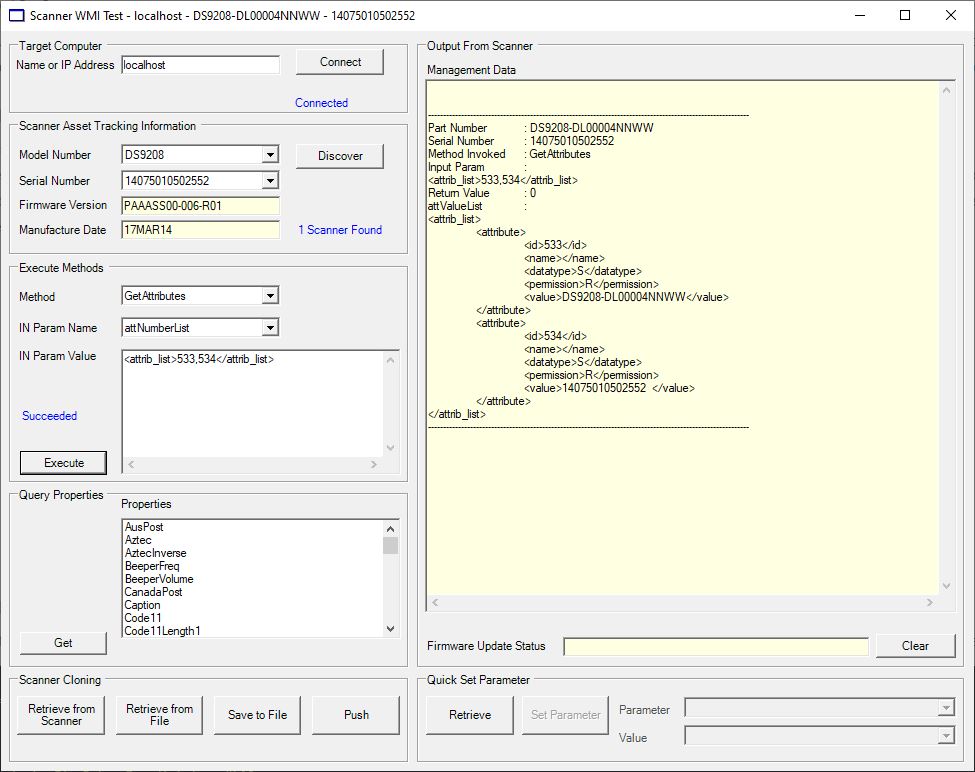
A basic application that demonstrates this capability is the Scanner WMI Test sample application provided with Zebra's Scanner SDK for Windows. Figure 1 shows this sample application's ability to display the asset information of a scanner connected to the same host PC on which the sample application is running. For access to the WMI sample application and its source code, download the Scanner SDK for Windows from https://www.zebra.com/scannersdkforwindows. The Scanner WMI test sample application is capable of accessing scanners on remote PCs if a systems administrator configured WMI for remote access.

Figure 30: Asset Tracking Information Displayed in the WMI Sample Application from the Scanner SDK
Sample WMI Visual Basic Script to Query Asset Tracking Information

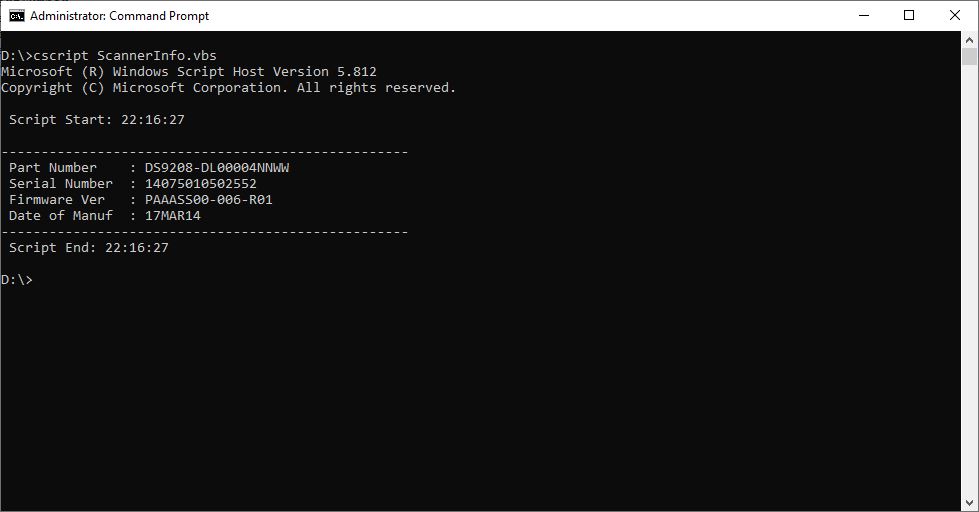
The following Visual Basic script shows an example of a WMI script used to query the asset information of scanner devices in IBM HandHeld mode connected to a host PC running the SMS agent.


' FILENAME: ScannerInfo.vbs

On Error Resume Next

Const wbemFlagReturnImmediately = &h10 
Const wbemFlagForwardOnly = &h20

arrComputers = Array("127.0.0.1")

For Each strComputer In arrComputers 
    WScript.Echo " Script Start: " & Time
    
    Set objWMIService = GetObject("winmgmts:\\" & strComputer & "\root\CIMV2")
    Set colScanners = objWMIService.ExecQuery("SELECT * FROM Symbol_BarcodeScanner", "WQL", wbemFlagReturnImmediately + wbemFlagForwardOnly)

    For Each objScanner in colScanners 
        WScript.Echo
        Wscript.Echo "---------------------------------------------------" 
        WScript.Echo " Part Number  : " & objScanner.PartNumber 
        WScript.Echo " Serial Number: " & objScanner.SerialNumber 
        WScript.Echo " Firmware Ver : " & objScanner.FirmwareVersion 
        WScript.Echo " Date of Manuf: " & objScanner.DateofManufacture 
        Wscript.Echo "---------------------------------------------------" 
    Next
Next

WScript.Echo " Script End: " & Time                                                            

Figure 31: Sample WMI Visual Basic Script Screen Output
Tracking SMS Operations

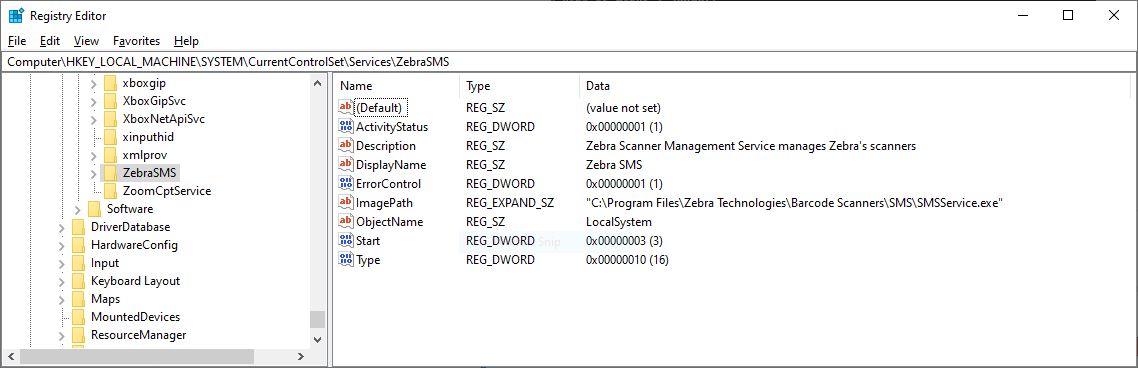
SMS enables a customer's management console to query the ActivityStatus flag of the HKEY_LOCAL_MACHINE\SYSTEM\CurrentControlSet\Services\ZebraSMS registry key to determine if scanners are being controlled by the SMS

Figure 32: Zebra SMS Registry Key

The ActivityStatus value indicates whether SMS agent is busy currently executing any rules that cannot be interrupted.

ActivityStatus = 1 indicates that the SMS agent is busy executing some rules and cannot be interrupted at this point in time without compromising device state. Any new package dropped into the download folder is only acted upon after these critical rules finish execution.

ActivityStatus = 0 indicates that the SMS agent has completed rule execution and any package can be safely dropped into the download folder at this point in time and is immediately acted upon.

In addition, the SMS log file tracks all the actions performed on all connected scanners as specified in the SMS Package.


Download SMS for Windows

IMPORTANT: Zebra recommends using the latest release whenever possible.


To Download SMS for Windows:

  1. Visit the Zebra Scanner Management Service (SMS) for Windows download page and select the desired download(s).
  2. Proceed to the SMS for Windows release notes for the version details.
  3. Proceed to the SMS for Windows setup page for installation instructions.