About Scanner WMI Driver for Windows

Overview

Windows Management Instrumentation (WMI) is a free component of the Microsoft Windows® operating system that provides a scalable system management infrastructure. Using a free provider plug-in from Zebra, WMI enables local and network remote management of a scanner. System administrators can leverage WMI to query and set information on desktop systems, applications, networks, components, and accessories, such as a scanner. Developers can use the underlying WMI Application Programmers Interfaces (APIs) to create system management applications/tools that organize system information for the purposes of asset management or other enterprise level activities. The WMI API supports the use of several high level languages such as C++, C#, VB, VBScript, and Jscript

For more information, search for WMI on http://msdn.microsoft.com


Zebra Scanner WMI Driver Architecture

Figure 1: Zebra Scanner WMI Driver Architecture

Managed Objects and Providers

A provider is a COM object that monitors one or more managed objects for WMI. Similar to a driver, a provider supplies WMI with data from a managed object. A provider also handles messages from WMI to the managed object.

A managed object is a logical or physical enterprise component, such as a hard drive, network adapter, database system, operating system, process, or service. A managed object communicates with WMI through a WMI provider that calls methods in the COM API for WMI.

For example, the Platform SDK ships with the Registry provider, which accesses data in the system registry. WMI passes information from the providers to the WMI infrastructure when client applications and scripts request registry data. The Registry provider has one WMI class, StdRegProv, with many methods but no properties. Other providers, such as the Win32 provider, usually have classes with many properties but few methods, such as Win32_Process or Win32_LogicalDisk.

WMI Infrastructure

The WMI infrastructure is a Microsoft Windows operating system component comprised of two components: the Windows Management service, including the WMI Core, and the WMI repository. The Windows Management service acts as an intermediary between the providers, management applications, and the WMI repository. The repository contains only static data about objects, such as the classes defined by providers. WMI obtains most data dynamically from the provider when a client requests it.

Most provider classes, such as Win32_LogicalDisk, are defined in Managed Object Format (MOF) files, are then compiled into the WMI repository by mofcomp.exe. A provider also has a DLL file which contains the code that implements the classes.

WMI Management Applications and Scripts

A management application or script is an application that interacts with the WMI infrastructure. A management application can query or enumerate management data by calling either the COM API for WMI or the Scripting API for WMI. Management applications can call methods in either API to send instructions or reconfigure a managed object. The only data or actions available for a managed object such as a disk drive or a service are those that a provider supplies.

Zebra WMI Provider Plug-in

Zebra's driver provides a WMI interface with a mechanism to view and program scanner settings. It also enables an administrator to perform actions such as firmware updates, event reporting on the progress of a firmware update and the discovery of scanners, as defined in the Symbol Scanner Managed Object Format (MOF) file. By leveraging the WMI infrastructure built into the Windows Operating System, an application developer can write a management application to perform the following enterprise level activities:

  • Discovery (asset management)
  • Configuration deployment
  • In system firmware update

Supported Devices

  • Any RSM-ready Zebra scanner
  • Supported Scanner Communication Modes
  • IBM Hand-held USB

System Requirements

For system requirements, refer to the Scanner SDK for Windows Developer's Guide.


Version History

Please refer Barcode Scanner SDK for Windows release notes for more details.

Installation Instructions

Overview

The Zebra WMI providers are installed as part of the Zebra Scanner SDK Installshield package. There are two WMI providers: Scanner WMI provider; and, Driver WMI provider. Two Windows services (Symbol Scanner Management and RSM Driver Provider Service) are installed and start automatically. These two services are called Zebra's WMI provider, also called the WMI plug-in.

For general installation instructions to install the Zebra Scanner SDK, refer to the installation instructions in the Scanner SDK for Windows Developer's Guide.

NOTE The Zebra CoreScanner Driver is a prerequisite for the Zebra WMI provider. The Zebra Scanner SDK Installshield® package automatically installs the CoreScanner Driver if it is not already on the system. A complete installation of the SDK installs the Zebra WMI provider. If you select the custom installation, you must select the Scanner WMI provider and Driver WMI provider components.


Basic Installation Verification

You can perform a basic inspection on your system process list to verify a successful installation of the Zebra WMI provider.

To do a simple check of the Zebra WMI provider's operation:

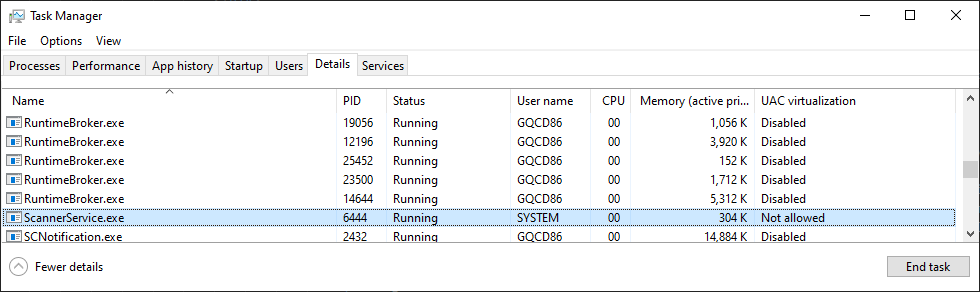
  1. Right click on the Windows Task Bar and select Task Manager.
  2. Select the process tag in Windows 7, or Details tab in Windows 10 and 11.

    Figure 2: Windows Task Manager - Scanner
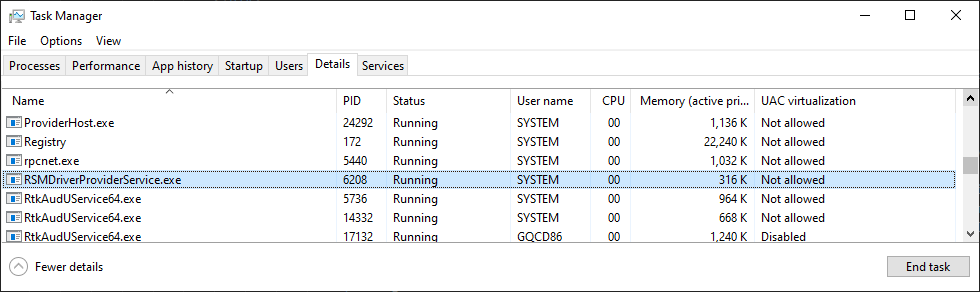
    Figure 3: Windows Task Manager - Driver
  3. In the Image Name list, find RSMDriverProviderService.exe and ScannerService.exe. The presence of these two processes in the list indicates a successful installation.

Configuration

Scanner Configuration Bar Codes

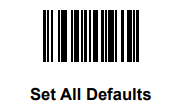
Scan the Set All Defaults bar code below to return all parameters to the scanner's default values. Refer to the scanner's Product Reference Guide for default values.

Set All Defaults

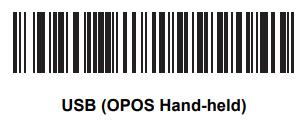
Scan the bar code below to configure the scanner for the IBM Hand-held USB communication protocol.

USB Communication Protocol

Set All Defaults

WMI Provider Scheme in Common Information Model (CIM)

Zebra Scanner WMI MOF File

The Zebra scanner WMI schema is defined using Managed Object Format (MOF) in symbscnr.mof. This file is located in the directory \Zebra Technologies\Barcode Scanners\Common. The symbscnr.mof describes and lists the properties, methods, and events exposed by the instance/method provider. If a specific device or class of device does not support a property, its property value is defined as null.


Properties, Methods and Events

Properties

Table 1: Properties Descriptions

Name Type Access Allowed Description Valid Values
PartNumber String R (key) Part number (model number) on the label (P/N) attached to the device. This is an 18 digit number but comes from the COM API trimmed. Matches exactly against the label on the tag.
SerialNumber String R (Key) Serial Number (S/N) on the label attached to the device. This is a 16 digit number but comes from the COM API trimmed. Matches exactly against the label on the tag.
DateOfManufacture String R Manufacturing date of the device. Format DDMMMYY.
DateOfService String R Date of last repair within a Zebra Authorized repair facility. Format DDMMMYY.
DeviceClass String R Description of the device's hardware. "1D Laser"
"2D Laser"
"Imager"
"Cordless 1D Laser"
"Cordless 2D Laser"
"Cordless Imager"
"Cordless Base Station"
Caption String R This property is identical to PartNumber.
Description String R This property is identical to PartNumber.
FirmwareVersion String R Version of firmware in the scanner.
FirmwareUpdateStatus String R Status of the last firmware update operation.
FirmwareUpdateBlockCount Integer R Count of firmware blocks downloaded to scanner in the current firmware update operation.
FirmwareUpdateTotalBlocks Integer R Total number of blocks the firmware file used in current update operation.
FirmwareUpdateStatusCode Integer R Status code of the last completed stage of the firmware update operation. 0 - Success
106 - Invalid file path
107 - Management failure
108 - Firmware update failure
109 - Invalid DAT file
118 - Firmware update underway
FirmwareUpdateStatusCodeEx Integer R Download status of software component contained in the firmware file. Zero indicates at least one component successfully downloaded. Non-zero value indicates no software component was downloaded, and the reason why. 0 - Success
110 - Firmware resident
MiddlewareDriverVersion String R Indicates the version of the Management Suite.
LastDecodeData String R Identifies the last successfully decoded bar code information. The scanner can scan the bar code if it supports its symbology and the symbology is enabled.
TotalDecodes Integer R Total bar codes the scanner decoded. The values reset to 0 when the WMI service stops.
TotalGoodDecodes Integer R Total successful bar codes the scanner decoded. The values reset to 0 when the WMI service stops.
LowPowerMode Boolean R/W Determines whether power remains on after a decode attempt. In low power mode, the scanner enters into a reduced power consumption mode to preserve battery life after each decode attempt. TRUE, FALSE
RasterMode Byte R/W Sets the raster mode of the scanner. 0, 1, 2
InCradle Boolean R Reports if the cordless scanner is in a charging cradle (applies to cordless only). TRUE, FALSE
OperationMode Byte R Reports if the scanner is being used in Hand-held Mode or Hands-Free Mode. 0, 1
UPCA Boolean R/W Enable/Disable this symbology. TRUE, FALSE
UPCE Boolean R/W Enable/Disable this symbology. TRUE, FALSE
UPCE1 Boolean R/W Enable/Disable this symbology. TRUE, FALSE
EAN8 Boolean R/W Enable/Disable this symbology. TRUE, FALSE
EAN13 Boolean R/W Enable/Disable this symbology. TRUE, FALSE
ConvertUPCEtoA Boolean R/W Enable/Disable this symbology. TRUE, FALSE
ConvertUPCE1toA Boolean R/W Enable/Disable this symbology. TRUE, FALSE
UCCCouponExtendedCode Boolean R/W Enable/Disable this symbology. TRUE, FALSE
Code 128 Boolean R/W Enable/Disable this symbology. TRUE, FALSE
UCCEAN128 Boolean R/W Enable/Disable this symbology. TRUE, FALSE
Code39 Boolean R/W Enable/Disable this symbology. TRUE, FALSE
TriopticCode39 Boolean R/W Enable/Disable this symbology. TRUE, FALSE
Code93 Boolean R/W Enable/Disable this symbology. TRUE, FALSE
Code11 Boolean R/W Enable/Disable this symbology. TRUE, FALSE
RedundancyLevel Integer R/W Sets the scanner's decode redundancy level. There are four levels. Select higher levels for decreasing levels of bar code quality. As redundancy levels increase, the scanner's aggressiveness decreases. Refer to the scanner Product Reference Guide. 0, 1, 2, 3
Code11Length1 Byte R/W Defines the allowable lengths for the symbology. Range: L1 < L2;Two Lengths: L2 > L1; One Length: L1 = len; L2=0; Any Length: L1=0; L2=0
Code11Length2 Byte R/W Defines the allowable lengths for the symbology. Range: L1 < L2Two Lengths:L2 > L1One Length:L1 = len; L2=0Any Length:L1=0; L2=0
Code39Length1 Byte R/W Defines the allowable lengths for the symbology. Range:L1 < L2Two Lengths:L2 > L1One Length:L1 = len; L2=0Any Length:L1=0; L2=0
Code39Length2 Byte R/W Defines the allowable lengths for the symbology. Range: L1 < L2Two Lengths:L2 > L1One Length:L1 = len; L2=0Any Length:L1=0; L2=0
Code93Length1 Byte R/W Defines the allowable lengths for the symbology. Range: L1 < L2Two Lengths:L2 > L1One Length:L1 = len; L2=0Any Length:L1=0; L2=0
Code93Length2 Byte R/W Defines the allowable lengths for the symbology. Range:L1 < L2Two Lengths:L2 > L1One Length:L1 = len; L2=0Any Length:L1=0; L2=0
LaserOnTime Byte R/W Defines the maximum time decode processing continues during a scan attempt. "99" = 9.9 seconds"
SecurityLevel Byte R/W Sets decode security for delta bar codes, which include the Code 128 family, UPC/EAN, and Code 93. There are four levels. Select increasing levels of security for decreasing levels of bar code quality. As security levels increase, the scanner's aggressiveness decreases. Refer to the scanner Product Reference Guide. 0, 1, 2, 3
BeeperFreq Byte R/W Gets/sets the Beeper Tone (Low = 2, Med = 1, High = 0) Valid values range from 0 to 2 for LS4208. May vary for other scanners. Supports values from 0 to 127; which values within this range depend on the scanner.
BeeperVolume Byte R/W Gets/sets the Beeper Volume (Low = 2, Med = 1, High = 0) Valid values range from 0 to 2 for LS4208. May vary for other scanners. Supports values from 0 to 127; which values within this range depend on the scanner.

Methods

The methods in Table 2 are counterparts of the functions defined in the Scanner SDK driver COM API. See Appendix A, XML SCHEMAS for the XML schema, which is shared with the Scanner SDK driver COM API.

Table 2: Method Descriptions

Name Parameters Return Values Description
GetAllAttributes [OUT] string Integer
0 - Success
Non-zero - Failure
Returns all supported attributes of the selected scanner as an xml through the Attributes parameter. The attributes returned as an out value in the Attributes parameter must match the schema on GetAllAttributes. This function is an exact mapping of the ATTR_GET method in the Scanner SDK.
GetAttributes [IN] string attNumberList
[OUT] string attValueList
Integer
0 - Success
Non-zero - Failure
Retrieves values of specific attribute numbers. Use this to query values of one or more attributes numbers. attrNumberList [in]: The attribute numbers whose values must be queried. These attribute numbers should be comma separated. See GetAttributes for the schema for the attribute numbers. attrValueList [out]: The attribute values returned as output. See GetAttributes for the schema for the numbers. This function is an exact mapping of the ATTR_GET method in the Scanner SDK.
SetAttributes [OUT] string attributeSettings Integer
0 - Success
Non-zero - Failure
Changes the value of writable attributes in the scanner. See SetAttributes for the schema for attributeSettings. This function is an exact mapping of the ATTR_GET method in the Scanner SDK.
StoreAttributes [OUT] string attributeSettings Integer
0 - Success
Non-zero - Failure
Changes the value of writable attributes in the scanner. See StoreAttributes for the schema for attributeSettings. This function is an exact mapping of the ATTR_GET method in the Scanner SDK.
UpdateFirmware [OUT] string filePath Integer
0 - Success
Non-zero - Failure
Update firmware on scanner devices. The firmware file must reside on the computer to which the scanner is connected, and the file path must be fully qualified. This function supports concurrent firmware update of multiple scanner devices. A return value of 0 indicates the successful start of the firmware update, but does not guarantee firmware update success.
StartNewFirmware Integer
0 - Success
Non-zero - Failure
Reboots the scanner with the updated firmware activated.
UpdateAttribMetaFile [OUT] string filePath Integer
0 - Success
Non-zero - Failure
Updates the metafile that defines the names of the attributes. File path:Fully qualified path to the new meta-file.
ScanDisable Integer
0 - Success
Non-zero - Failure
Disables the scanner.
ScanEnable Integer
0 - Success
Non-zero - Failure
Enables the scanner.

Table 3: Return Values for WMI Methods Invocations

Return Value Description
0 Method succeeded.
104 Connection already opened
106 File path invalid (file not found).
108 Firmware update failure.
109 Invalid DAT file.
110 Resident firmware.
112 Invalid scanner.
114 Input parameter invalid.
118 Another firmware update already in progress on the scanner.
122 Driver response empty.
123 Request failed in the driver.
124 Request failed in the scanner.

Events

The Zebra scanner WMI provider implements the events in Table 4. The events are defined in the scanner MOF file.

Table 4: Events Descriptions

Name Description
SymbScnrFirmwareUpdateEvent Occurs at different stages of firmware update activity. The following values define the Type of event.
1 - Session start
2 - Download start
3 - Download progress
11 - Session end
12 - Download end
100 - Error
SymbScnrDiscoveryEvent Occurs when a scanner is connected or disconnected from the host and are indicated using the following Status values in the event.
0 - Device lost
1 - Device found

Zebra Driver WMI MOF File

The Zebra Driver WMI schema is defined using Managed Object Format (MOF) in the file RSMDriverProvider.mof located in the directory \Zebra Technologies\Barcode Scanners\Common. The RSMDriverProvider.mof describes and lists the properties, methods, and events exposed by the instance/method provider. If a specific device or class of device does not support a property, its property value is defined as null.

Table 5: Properties Exposed by the Instance/Method Provider

Name Type Access Allowed Description Valid Values
HostAutoSwitchingEnabled Boolean R/W If enabled, driver temporarily switches Non-RSM mode scanners to RSM mode, every time the scanner is attached or re-booted TRUE, FALSE

Table 6: Methods Exposed by the Instance/Method Provider

Name Parameters Return Values Description
GetDeviceTopology [OUT] string DeviceTopology Integer
0 - Success
Non-zero - Failure
Get the Device Topology.
SwitchHostMode [IN] string ScannerIdentity,
[IN] string TargetHostMode,
[IN] boolean IsSilentSwitch,
[IN] boolean IsPermanentChange
Integer
0 - Success
Non-zero - Failure
RebootScanner [IN] string ScannerIdentity Integer
0 - Success
Non-zero - Failure
Reboot the given scanner.
UpdateAttributeMetaFile [IN] string AttributeMetaFilePath Integer
0 - Success
Non-zero - Failure
Update Attribute MetaFile.

Table 7: Events Exposed by the Instance/Method Provider

Name Description
ScannerPNPEvent This event occurs when a Zebra scanner is attached or detached on the host computer.
Attach - 0
Detach - 1

WMI Scanner and Driver Sample Applications

Overview

The Zebra WMI provider includes C# sample applications that perform queries of the scanner properties and invoke methods. These sample applications, which include source code, demonstrate subscription for scanner discovery events and firmware update events.

The Driver WMI Sample Application demonstrates an application communicating with the Zebra Scanner WMI Driver. The Scanner WMI Sample Application enables you to display management data received from the scanner through the Zebra Scanner SDK Driver.


Test Utilities Provided in the SDK

The Zebra WMI provider includes the following test utilities:

  • Scanner WMI C# Sample Application
  • Driver WMI C# Sample Application

Each test utility demonstrates the main functionalities of the Zebra WMI provider. You can gain an understanding of the Zebra WMI provider using these test utilities. This chapter also describes how to use the test utilities' functionality.

NOTES Microsoft©.Net Framework v2.0 or later may need to be installed to execute C#.Net sample applications. If so, Microsoft detects and informs the user of this requirement.

Scanner WMI C# Sample Application

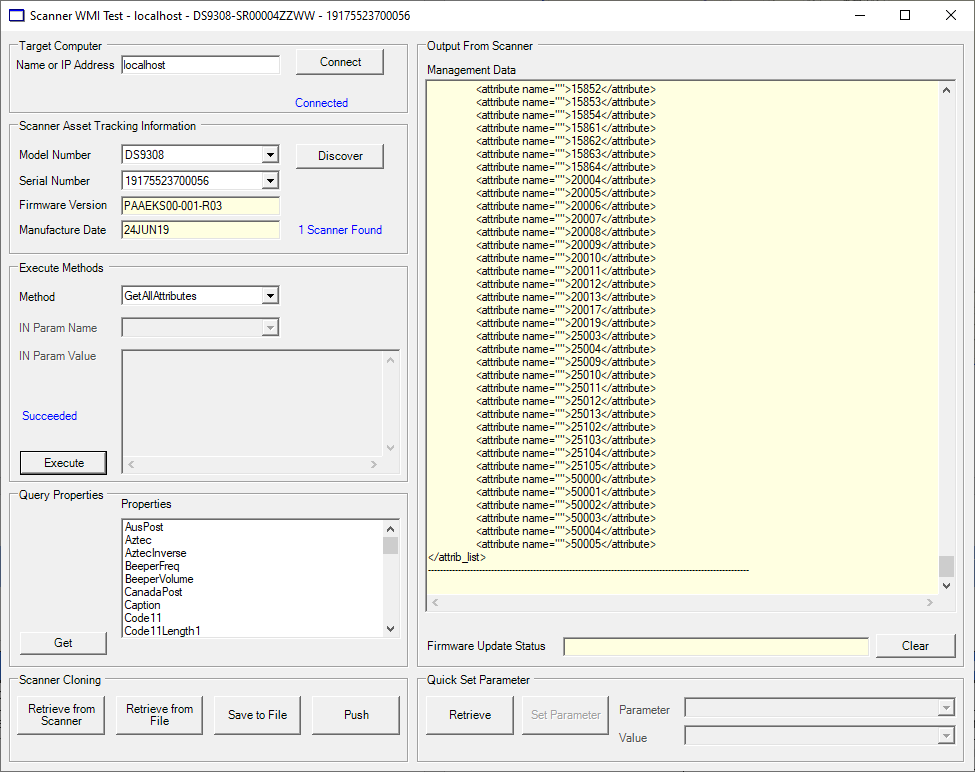
The Zebra Scanner WMI C#.Net sample application enables you to simulate an application which communicates with the Zebra Scanner WMI provider. The utility demonstrates the functionality of the Scanner WMI provider. It includes C#.Net source code and its solution, and project files for further reference.

The Scanner WMI C# Sample Application is included with the standard installation of the Scanner SDK, or when the Scanner WMI Provider Sample Application option of the custom Scanner SDK installation is selected.

To access this window, go to the Programs menu under Zebra Scanner → WMI → Remote Mgmt - WMI - Scanner Provide Sample App.

Figure 4: Scanner WMI Sample Application
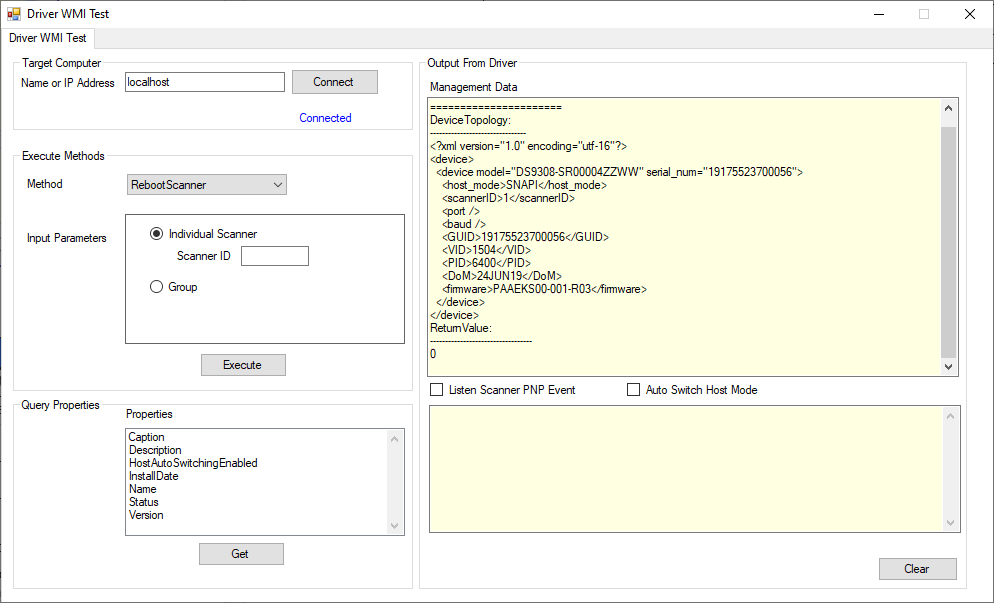
Table 8: Scanner WMI Test Utility - Button/Field Functionality

Button or Field Description
(Host) Name or IP Address Specifies the name or IP address of the computer to connect. The default is localhost.
Connect Connects to the host specified in the Name or IP Address field, populates Method and Property lists, and registers to receive scanner discovery events and firmware update events.
Discover Discovers scanners connected to the host device.
Model Number Extracted from the part number of all discovered scanners.
Serial Number The serial numbers of the scanners under the model selected from the Model Number drop-down list.
Firmware Version The firmware version of the selected scanner.
Manufacture Date The manufacture date of the selected scanner.
Method

Drop-down list containing the following items:

  • GetAllAttributes: Gets all attribute identities in an XML string and displays them in the output box.
  • GetAttributes: Gets detailed attribute information of attribute numbers specified in the parameter input box, and displays them in the output box.
  • ScanDisable: Disables scanner.
  • ScanEnable: Enables scanner.
  • SetAttributes: Sets the list of attribute values specified in the parameter input box. These values are volatile, and are discarded after a device reboot.
  • StartNewFirmware: Starts the scanner with newly downloaded firmware.
  • StoreAttributes: Stores the list of attribute values specified in the parameter input box. These values are non-volatile, and persist after a device reboot.
  • UpdateAttribMetaFile: Updates attribute meta data with contents of the file specified in the parameter input box.
  • UpdateFirmware: Displays an Open window for selecting the firmware file.
IN Param Name Name of the input parameter of the item selected in the Method drop-down list, if applicable.
IN Param Value Text field to enter the value of the input parameter required for the selected method, if applicable.
Execute Invokes the method selected in the Method drop-down list. If the method requires an input parameter value, enter it in the text box.
Query Properties List of properties that can be queried. This list is not comprehensive. Use the GetAttributes method to discover additional scanner attribute values.
Get Queries one or more properties selected in the list box and display results in the output text area. You can select multiple items in the list box at a time.
Management Data Displays the results of a method execution or property query.
Firmware Update Status Displays the firmware update status received from Firmware Update Events.
Clear Clears text in the data output areas.
Retrieve from Scanner Retrieves all storable attributes from the scanner and stores them in the clipboard.
Retrieve from File Opens a window to read in an .xml file containing attribute settings to the clipboard.
Save to File Save clipboard contents to a file. Provides a Save as window to select the filename.
Push Opens the Cloning window that you can use to push the clipboard contents to selected scanners.
Retrieve Retrieves all storable attributes from the scanner and populates the Parameters drop-down list with the attributes. When you select an attribute in the list, the Value drop-down list changes to match its content (True / False or text box). The Value list also displays the current value.
Set Parameter Stores the current value of the selected attribute.

Driver WMI C# Sample Application

The Zebra Driver WMI C#.Net sample application enables you to simulate an application that communicates with the Zebra Driver WMI provider. The utility demonstrates the functionality of the Driver WMI provider. It includes C#.Net source code and its solution and project files for further reference.

The Driver WMI C# Sample Application is included with the standard installation of the Scanner SDK, or when the Driver WMI Provider Sample Application option of the custom Scanner SDK installation is selected.

To access this window select the Programs menu under Zebra Scanner → WMI → Remote Mgmt - WMI - Driver Provide Sample App.

Figure 5: Driver WMI Sample Application

Table 9: Driver WMI Test Utility - Button/Field Functionality

Button or Field Description
(Host) Name or IP Address Specifies the name or IP address of the computer to connect. The default is localhost.
Connect Connects to the host specified in the Name or IP Address field, populates Method and Property lists, and registers to receive scanner discovery events and firmware update events.
Method

Drop-down list containing the following items:

  • GetDeviceTopology: Get the topology that devices are connected to the specified computer.
  • RebootScanner: Reboot a specified scanner or all scanners connected.
  • SwitchHostMode: Switch the USB communication protocol of a specified scanner. Permanent change and silent switch parameters can be set as input parameters.
  • UpdateAttribMetaFile: Updates attribute metadata with contents of the file specified in the File Path text box.
Input Parameters Name of the input parameter of the item selected in the Method drop-down list, if applicable.
Execute Invokes the method selected in the Method drop-down list. If the method requires an input parameter value, enter it in the text box.
Query Properties List of properties that can be queried.
Get Queries a property selected in the list box and display results in the Management Data text area.
Management Data Displays the results of a method execution or property query.
Listen Scanner PNP Event Listen to the scanner attach and detach events and display the results in the text area.
Autoswitch Host Mode Automatically switch the HID Keyboard scanners to IBM Hand-held scanners.
Clear Clears the output.


XML Schemas

Overview

This chapter provides the XML schemas which Zebra Scanner WMI interfaces use to communicate with an RSM-ready scanner.


GetAllAttributes


<?xml version="1.0" encoding="utf-8"?>
<xs:schema xmlns:xs="http://www.w3.org/2001/XMLSchema">
    <xs:element name="attrib_list">
        <xs:complexType>
            <xs:sequence>
                <xs:element maxOccurs="unbounded" name="attribute">
                    <xs:complexType>
                        <xs:simpleContent>
                            <xs:extension base="xs:unsignedShort">
                                <xs:attribute name="name" type="xs:string" use="required" />
                            </xs:extension>
                        </xs:simpleContent>
                    </xs:complexType>
                </xs:element>
            </xs:sequence>
        </xs:complexType>
    </xs:element>
</xs:schema> 


GetAttributes

Schema for AttNumberList


<?xml version="1.0" encoding="utf-8"?>
<xs:schema xmlns:xs="http://www.w3.org/2001/XMLSchema">
    <xs:element name="attrib_list" type="xs:string" />
</xs:schema>

Schema for AttValueList


<?xml version="1.0" encoding="utf-8"?>
<xs:schema xmlns:xs="http://www.w3.org/2001/XMLSchema">
    <xs:element name="attrib_list">
        <xs:complexType>
            <xs:sequence>
                <xs:element maxOccurs="unbounded" name="attribute">
                    <xs:complexType>
                        <xs:sequence>
                            <xs:element name="id" type="xs:unsignedShort" />
                            <xs:element name="name" />
                            <xs:element name="datatype" type="xs:string" />
                            <xs:element name="permission" type="xs:string" />
                            <xs:element name="value" type="xs:string" />
                        </xs:sequence>
                    </xs:complexType>
                </xs:element>
            </xs:sequence>
        </xs:complexType>
    </xs:element>
</xs:schema> 


SetAttributes and StoreAttributes


<?xml version="1.0" encoding="utf-8"?>
<xs:schema xmlns:xs="http://www.w3.org/2001/XMLSchema">
    <xs:element name="attrib_list">
        <xs:complexType>
            <xs:sequence>
                <xs:element maxOccurs="unbounded" name="attribute">
                    <xs:complexType>
                        <xs:sequence>
                            <xs:element name="id" type="xs:unsignedByte" />
                            <xs:element name="datatype" type="xs:string" />
                            <xs:element name="value" type="xs:string" />
                        </xs:sequence>
                    </xs:complexType>
                </xs:element>
            </xs:sequence>
        </xs:complexType>
    </xs:element>
</xs:schema> 


GetDeviceTopology


<?xml version="1.0" encoding="utf-16"?>
<xs:schema xmlns:xs="http://www.w3.org/2001/XMLSchema">
    <xs:element name="device">
        <xs:complexType>
            <xs:sequence>
                <xs:element maxOccurs="unbounded" name="device">
                    <xs:complexType>
                        <xs:sequence>
                            <xs:element name="host_mode" type="xs:string" />
                            <xs:element name="scannerID" type="xs:positiveInteger" />
                            <xs:element name="port" />
                            <xs:element name="baud" />
                            <xs:element name="GUID" type="xs:string" />
                            <xs:element name="VID" type="xs:unsignedShort" />
                            <xs:element name="PID" type="xs:unsignedShort" />
                            <xs:element name="DoM" type="xs:string" />
                            <xs:element name="firmware" type="xs:string" />
                            <xs:element minOccurs="0" maxOccurs="unbounded" name="device">
                                <xs:complexType>
                                    <xs:sequence>
                                        <xs:element name="host_mode" type="xs:string" />
                                        <xs:element name="scannerID" type="xs:positiveInteger" />
                                        <xs:element name="port" />
                                        <xs:element name="baud" />
                                        <xs:element name="GUID" />
                                        <xs:element name="VID" />
                                        <xs:element name="PID" />
                                        <xs:element name="DoM" type="xs:string" />
                                        <xs:element name="firmware" type="xs:string" />
                                    </xs:sequence>
                                    <xs:attribute name="model" type="xs:string" use="required" />
                                    <xs:attribute name="serial_num" type="xs:string" use="required" />
                                </xs:complexType>
                            </xs:element>
                        </xs:sequence>
                        <xs:attribute name="model" type="xs:string" use="required" />
                        <xs:attribute name="serial_num" type="xs:string" use="required" />
                    </xs:complexType>
                </xs:element>
            </xs:sequence>
        </xs:complexType>
    </xs:element>
</xs:schema> 


SymbScnrFirmwareUpdateEvent

Session Start


<?xml version="1.0" encoding="utf-8"?>
<xs:schema xmlns:xs="http://www.w3.org/2001/XMLSchema">
    <xs:element name="sess_start">
        <xs:complexType>
            <xs:sequence>
                <xs:element name="modelnumber" type="xs:string" />
                <xs:element name="serialnumber" type="xs:unsignedLong" />
                <xs:element name="GUID" type="xs:string" />
                <xs:element name="maxcount" type="xs:unsignedShort" />
                <xs:element name="status" type="xs:unsignedByte" />
            </xs:sequence>
        </xs:complexType>
    </xs:element>
</xs:schema>

Download Start


<?xml version="1.0" encoding="utf-8"?>
<xs:schema xmlns:xs="http://www.w3.org/2001/XMLSchema">
    <xs:element name="dl_start">
        <xs:complexType>
            <xs:sequence>
                <xs:element name="modelnumber" type="xs:string" />
                <xs:element name="serialnumber" type="xs:unsignedLong" />
                <xs:element name="GUID" type="xs:string" />
                <xs:element name="software_component" type="xs:unsignedByte" />
                <xs:element name="status" type="xs:unsignedByte" />
            </xs:sequence>
        </xs:complexType>
    </xs:element>
</xs:schema>

Download Progress


<?xml version="1.0" encoding="utf-8"?>
<xs:schema xmlns:xs="http://www.w3.org/2001/XMLSchema">
    <xs:element name="dl_progress">
        <xs:complexType>
            <xs:sequence>
                <xs:element name="modelnumber" type="xs:string" />
                <xs:element name="serialnumber" type="xs:unsignedLong" />
                <xs:element name="GUID" type="xs:string" />
                <xs:element name="software_component" type="xs:unsignedByte" />
                <xs:element name="progress" type="xs:unsignedByte" />
                <xs:element name="status" type="xs:unsignedByte" />
            </xs:sequence>
        </xs:complexType>
    </xs:element>
</xs:schema> 

Session End


<?xml version="1.0" encoding="utf-8"?>
<xs:schema xmlns:xs="http://www.w3.org/2001/XMLSchema">
    <xs:element name="sess_end">
        <xs:complexType>
            <xs:sequence>
                <xs:element name="modelnumber" type="xs:string" />
                <xs:element name="serialnumber" type="xs:unsignedLong" />
                <xs:element name="GUID" type="xs:string" />
                <xs:element name="status" type="xs:unsignedByte" />
            </xs:sequence>
        </xs:complexType>
    </xs:element>
</xs:schema>

Download End


<?xml version="1.0" encoding="utf-8"?>
<xs:schema xmlns:xs="http://www.w3.org/2001/XMLSchema">
    <xs:element name="dl_end">
        <xs:complexType>
            <xs:sequence>
                <xs:element name="modelnumber" type="xs:string" />
                <xs:element name="serialnumber" type="xs:unsignedLong" />
                <xs:element name="GUID" type="xs:string" />
                <xs:element name="software_component" type="xs:unsignedByte" />
                <xs:element name="size" type="xs:unsignedByte" />
                <xs:element name="status" type="xs:unsignedByte" />
            </xs:sequence>
        </xs:complexType>
    </xs:element>
</xs:schema>

Error


<?xml version="1.0" encoding="utf-8"?>
<xs:schema xmlns:xs="http://www.w3.org/2001/XMLSchema">
    <xs:element name="sess_info">
        <xs:complexType>
            <xs:sequence>
                <xs:element name="modelnumber" type="xs:string" />
                <xs:element name="serialnumber" type="xs:unsignedLong" />
                <xs:element name="GUID" type="xs:string" />
                <xs:element name="status" type="xs:unsignedShort" />
            </xs:sequence>
        </xs:complexType>
    </xs:element>
</xs:schema> 


SymbScnrDiscoveryEvent

Corded Scanner


<?xml version="1.0" encoding="utf-8"?>
<xs:schema xmlns:xs="http://www.w3.org/2001/XMLSchema">
    <xs:element name="scanners">
        <xs:complexType>
            <xs:sequence>
                <xs:element name="scanner">
                    <xs:complexType>
                        <xs:sequence>
                            <xs:element name="scannerID" type="xs:unsignedByte" />
                            <xs:element name="modelnumber" type="xs:string" />
                            <xs:element name="serialnumber" type="xs:unsignedLong" />
                            <xs:element name="GUID" type="xs:string" />
                        </xs:sequence>
                        <xs:attribute name="type" type="xs:string" use="required" />
                    </xs:complexType>
                </xs:element>
            </xs:sequence>
        </xs:complexType>
    </xs:element>
</xs:schema> 

Cordless Scanner


<?xml version="1.0" encoding="utf-8"?>
<xs:schema xmlns:xs="http://www.w3.org/2001/XMLSchema">
    <xs:element name="scanners">
        <xs:complexType>
            <xs:sequence>
                <xs:element name="scanner">
                    <xs:complexType>
                        <xs:sequence>
                            <xs:element name="scannerID" type="xs:unsignedByte" />
                            <xs:element name="modelnumber" type="xs:string" />
                            <xs:element name="serialnumber" type="xs:string" />
                            <xs:element name="GUID" type="xs:string" />
                            <xs:element name="pnp" type="xs:unsignedByte" />
                            <xs:element name="scanner">
                                <xs:complexType>
                                    <xs:sequence>
                                        <xs:element name="scannerID" type="xs:unsignedByte" />
                                        <xs:element name="modelnumber" type="xs:string" />
                                        <xs:element name="serialnumber" type="xs:unsignedLong" />
                                        <xs:element name="GUID" />
                                        <xs:element name="pnp" type="xs:unsignedByte" />
                                    </xs:sequence>
                                    <xs:attribute name="type" type="xs:string" use="required" />
                                </xs:complexType>
                            </xs:element>
                        </xs:sequence>
                        <xs:attribute name="type" type="xs:string" use="required" />
                    </xs:complexType>
                </xs:element>
            </xs:sequence>
        </xs:complexType>
    </xs:element>
</xs:schema> 


Download Scanner WMI Driver for Windows

IMPORTANT: Zebra recommends using the latest release whenever possible.


WMI Driver components are installed by default with the standard Scanner SDK installation. If a custom Scanner SDK installation is performed, the WMI option must be selected to install the WMI Driver components.

To Download Barcode Scanner SDK for Windows:

  1. Visit the Zebra Barcode Scanner SDK for Windows download page and select the desired download(s).
  2. Proceed to the Barcode Scanner SDK for Windows release notes for the version details.
  3. Proceed to the Barcode Scanner SDK for Windows setup page for installation instructions.