Overview
MAUI Wi-Fi Sample1 demonstrates how to use EMDK Profile Manager within a .NET MAUI app to manage and configure Wi-Fi settings on Zebra mobile computers running Android.
The sample shows how to:
- Enable/disable the Wi-Fi radio on the device.
- Set target Wi-Fi network SSID parameters.
- Execute network profile actions (Add Default Open Network, Connect, Disconnect, Remove, etc.).
- Use EMDK Manager to monitor status and profile execution feedback in real time.
Requirements
- Microsoft MAUI .NET 8 or 10 Preview (or later)
- Zebra EMDK for MAUI/Xamarin 11.1 or later
- Zebra device(s) running Android 11, 13, 14 or 15
- Wi-Fi enabled on the device(s)
- MX 6.0 or later on device(s)
Using the Sample App
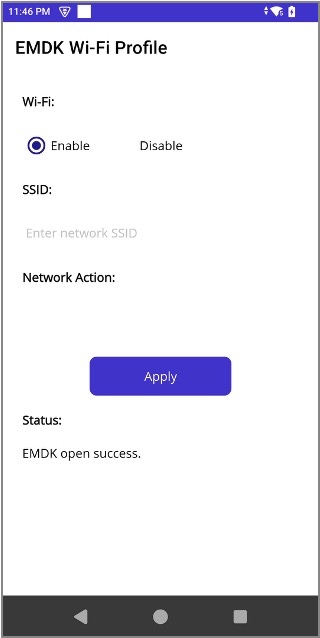
- Download and launch the the MAUIWifiSample1 app on the Zebra mobile computer. The EMDK Manager initializes asynchronously.
- Under "Status:" at the bottom of the app screen, confirm that "EMDK open success" is shown.
- Confirm that the "Enable" radio button is selected. If not, make sure that Wi-Fi is enabled on the device.
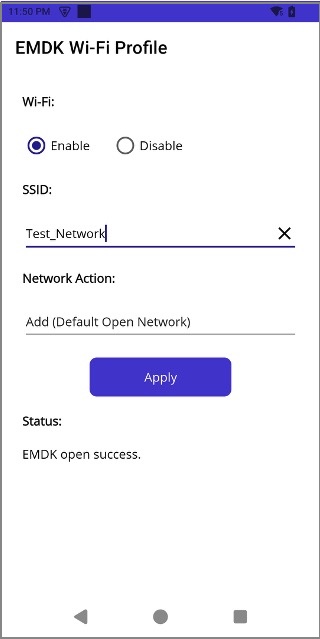
- Enter an SSID in the "SSID:" field (e.g. "Test_Network").
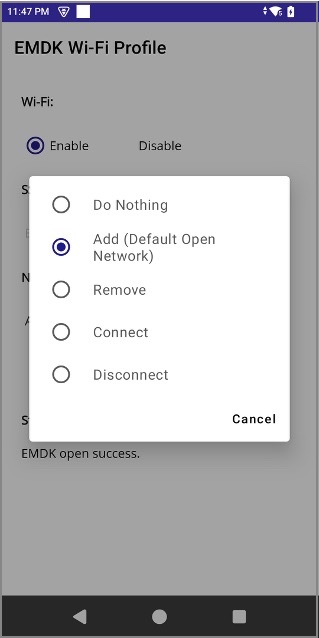
- Under "Network Action:" select "Add (Default Open Network)"
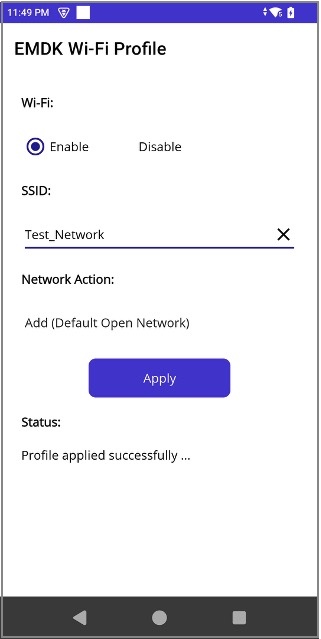
- Tap the Apply button. This passes the selected Wi-Fi parameters to EMDK Profile Manager, which submits it to Zebra MX for execution on the device.
- Under "Status:" a successful configuration shows "Profile applied successfully..."
The device now contains the newly created Wi-Fi network profile.