LAST UPDATED: Sept. 18, 2026
Overview
Commercial deployment of Enterprise Browser requires an end-user license for each device. Licenses are distributed in the form of a "Badge ID" issued by Zebra Technologies and purchased through the Thales Licensing Portal. Licenses are available for 1-, 3- and 5-year terms. There's also a 90-day trial license available; a 30-day trial comes preinstalled with the EB app.
All license types permit an unlimited number of Enterprise Browser-based apps to run on each licensed device. This guide explains the process of obtaining an Enterprise Browser license for commercial use and applying the license(s) to individual devices or as part of a mass-deployment. A given license key can be activated on any number of devices up to the total quantity of licenses purchased, as explained below.
Download PDFs of the Thales and Zebra Licensing Guides at the Zebra Support Portal.
Important Licensing Information
- EB licenses can are activated using single Badge ID acquired from the licensing portal.
- EB supports one-, three- and five-year license terms. A 90-day trial term also is available (a 30-day evaluation license comes preinstalled with every EB app).
- EB 5.5 (and later) supports use of a company name for the "Licensed to:" field:
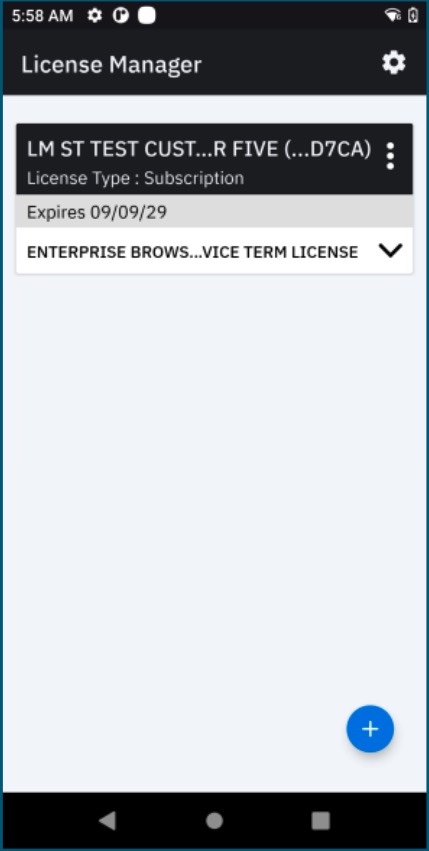
- On unlicensed devices, an “unlicensed software” reminder appears every four hours beginning one month before the end of all non-evaluation terms. After expiration, the prompt appears every five minutes until a renewed EB license is applied.
- Important PS20 Information:
- Upgrading to Enterprise Browser 3.0 on the PS20 requires purchase of a new license.
To upgrade, EB 3.x must be downloaded and installed separately and an EB 2.x or 3.x license purchased and applied. - PS20s running Android 11 (or later) require Enterprise Browser 3.3.0.5 (or later).
- PS20s running Android 10 must upgrade to Android 11 to run EB 3.3.0.5 (or later).
- Use the May 2022 (or later) LifeGuard update† to avoid additional EB licensing requirements.
- Upgrading to Enterprise Browser 3.0 on the PS20 requires purchase of a new license.
† Enterprise Browser must be reinstalled following the May 2022 LifeGuard update.
Also see the Zebra Licensing Portal for more information.
Date formats vary between the License Manager app (MM/DD/YY) and the EB user interface (DD/MM/YYYY).
Requirements
ALL THREE of the following are required to activate EB license(s):
- One or more license keys (aka Badge ID and Product name) purchased for Enterprise Browser.
- One or more supported Zebra device(s) with the correct License Manager app installed:
Android: License Manager 15.0.4 (or later) pre-installed on supported devices. - One of the following server connections:
An internet connection for online activation
~OR~
Windows server (for off-line activation of any supported device)
Common Criteria
Some Zebra devices are compatible with Common Criteria for IT Security Evaluation, a standard for certifying the security of computing devices and systems. When in the so-called "CC state" of heightened security, such Zebra mobile and touch computers are blocked from use of external storage and other features. Learn more.
I. Contact a Reseller
The first step in obtaining a license is to engage with Zebra or a Zebra reseller.
1. Visit Zebra's Enterprise Browser Product Page and select one of the methods for contacting Zebra directly or engaging with a reseller or partner.
2. Alternatively, select one of the following Zebra resources:
- Find a Zebra Partner | Form for submitting an inquiry via the web.
- How to Select a Channel Partner | Explains the types of partners that engage with Zebra and some of their technologies and specialties.
- Partner Interaction Center | Info for contacting Zebra's existing global partner network.
- Zebra Corporate Numbers and Links | Zebra contacts by global region.
II. Access Licensing System
After a licensing agreement is purchased from Zebra or a Zebra reseller, an email is sent to the license requester containing user credentials for accessing the Zebra Enterprise Software Licensing system.
Visit the Zebra licensing support page, register and log into the portal to:
- Check status of existing orders
- Assign licenses to devices or deployments
- View inventory and assignments of current licenses
Available License Types
- Trial License (90-day evaluation period)
- Term-based License:
- 5-year term
- 3-year term
- 1-year term
- These licenses are activated using Badge IDs and a Product Name similar to:
Enterprise Browser Android Device LicenseEnterprise Browser Android Device Term License
An “unlicensed software” reminder appears on devices every four hours beginning one month before the end of all non-evaluation terms. After expiration, the prompt appears every five minutes until an EB license is applied. A 30-day term is included with every EB download.
Common Criteria
Some Zebra devices are compatible with Common Criteria for IT Security Evaluation, a standard for certifying the security of computing devices and systems. When in the so-called "CC state" of heightened security, such Zebra mobile and touch computers are blocked from use of external storage and other features. Learn more.
III. Manually Assign License
This section describes the process for activating a license on a single device running Android. To remotely activate multiple licenses for an entire organization, see the Mass Deployment section of this guide.
License Source Types
- Cloud-based server (internet connection required)
- Local server (on customer premises)
Connectivity Options
- Production Cloud Direct - License Manager maps automatically to web-based Zebra Licensing Server to activate licenses; no server configuration required.
- Production Cloud Through Proxy - License Manager maps automatically to web-based Zebra Licensing Server through customer's on-premise proxy server. Requires configuration of proxy server settings.
- Custom Cloud - Reserved for future use.
- Test Cloud Direct - For Zebra internal use only.
- Test Cloud Through Proxy - For Zebra internal use only.
License Activation
Before Attempting Activation
- Confirm that the clock is set correctly on the device to ensure proper application of license(s).
- Create license-key barcodes (if desired) using any barcode generator tool.
License-key barcodes ease the activation process; they are not provided by Zebra. Keys also can be typed in manually. - Ensure devices are connected to the internet or the required licensing server.
Refer to the Zebra License Manager User Guide (.pdf) for online and offline license activation instructions.
See videos and additional documentation on the License Manager Support page.
Off-line Licensing
License Manager provides a Local License Server option, enabling organizations to employ an on-premise server to distribute licenses to devices without access to the internet. This option requires software installed on a company's own IP-based Linux or Windows server in advance of license distribution to devices.
For more information, including hardware requirements and setup instructions, download the appropriate Local License Server Administration Guide from the Zebra License Management support portal page.
IMPORTANT PERSISTENCE NOTES
- To use StageNow to persist license keys on the device following an Enterprise Reset:
- All License Manager and Persist Manager steps MUST be stored in a SINGLE PROFILE.
- WLAN settings MUST be configured BEFORE license activation steps in the Profile.
- Keys MUST be stored in the
/enterprise/usrfolder on the device.
Local Server Activation
Before Beginning
- Install and configure Local License Server according to the relevant admin guide.
- Acquire a
.BINfile containing licenses from Zebra License Server for all devices to be licensed. - Ensure target devices are connected to the Local Licensing Server.
For installation and activation details, refer to the License Manager User Guide (.pdf).
Pre-activated License Keys
IMPORTANT RESTRICTIONS
- Pre-activated licenses are valid only on the day they are generated.
- If multiple pre-activated licenses are generated, they must be applied in the same order as generated.
- Pre-activated licenses must be applied before all other license actions.
- If combining the application of Badge IDs and pre-activated licenses in the same configuration Profile, pre-activated licenses must be applied first.
Before Beginning
- Acquire a
.BINfile containing licenses (Badge IDs) from Zebra License Server for all devices to be licensed.
For pre-activation details, refer to the License Manager User Guide (.pdf).
Mass Deployment
Mass-deployment of Enterprise Browser device licenses requires use of Zebra DNA Cloud or StageNow tools, or an Enterprise Mobility Management (EMM) system with Zebra OEMConfig.
For mass deployment and activation details, refer to the License Manager User Guide (.pdf).
License Transfer
Enterprise Browser supports the transfer of licenses from one device to another if the device licenses were originally activated using a cloud-based or local licensing server. This is done by returning the activated license(s) to the pool (using License Action "Return") and activating them on new device(s).
For license return and transfer details, refer to the License Manager User Guide (.pdf).
Logging
On Android devices, License Manager activities are captured in Zebra RXLogger log files.
Usage Notes
The following usage notes are derived from frequently asked questions about device licensing and apply to most licensing scenarios.
- Licenses erased by a Factory Reset can be reissued to the same device(s) using the same StageNow Profile and the same License Source (i.e. cloud-based or local server).
- When ordering additional unit entitlements for an existing site license, include the Badge ID with the order to ensure that the same EMM policy can be used for the additional devices.
- The fastest way to deploy a trial license on a device is by using the License Manager app and the manual license assignment procedures above.
- Device licenses can be activated using:
- Zebra DNA Cloud Licensing
- Zebra StageNow License Manager
- A company's own EMM system with Zebra OEMConfig
Related Guides
- Zebra StageNow | A free Windows app for remote device staging, licensing and mass deployment
- Zebra License Manager User Guide | Guide to a free Android app for manually licensing devices
- Zebra.com Licensing Page| Additional user manuals, how-to videos and relevant links
- Enterprise Browser Setup Guide | Help with initial setup, connecting to devices and pushing files