Overview
This guide explains the process of obtaining a Zebra Mobility DNA Enterprise license for commercial use, applying the license manually to individual devices and mass-deploying licenses using Zebra StageNow and an Enterprise Mobile Management (EMM) System.
Not yet ready to buy? Request an evaluation license.
Not sure which Zebra DNA product or feature is needed? See the full list.
Requirements
License activation requires ALL THREE of the following:
- One or more license keys ("Badge IDs") purchased for the target device(s) and/or app(s)
- One or more supported Zebra device(s) with the correct License Manager app installed:
• Android: License Manager 15.0.4 or later (pre-installed on supported devices) - Device(s) must be connected to one of the following:
• Zebra's internet-based license server for online activation (see below)
~OR~
• A company's own Linux or Windows server (for off-line activation of any supported device)
~OR~
• A Windows computer running the Zebra StageNow desktop tool, a Zebra DNA Cloud account, or a compatible EMM system with Zebra OEMConfig
Internet-based servers:
For organizations that use a firewall for network protection, the following URL and port must be opened:
- URL: https://zebratechnologies.prod.sentinelcloud.com/
- Port: 443
I. Contact a Reseller
Zebra licenses are obtained through Zebra resellers or in some cases directly from Zebra. To begin, select an option:
- Find a Zebra Partner - form for submitting an inquiry via the web
- How to Select a Channel Partner - explains the types of partners that engage with Zebra and some of their technologies and specialties
- Partner Interaction Center - info for contacting Zebra's existing global partner network
- Zebra Corporate Numbers and Links - broken down by global region
- Global Marketing Contact Center - broken down by global region and country
II. Access Licensing System
After a licensing agreement is purchased from Zebra or a Zebra reseller and a customer representative is designated, an email is sent to the representative containing user credentials for accessing the Zebra Enterprise Software Licensing system.
After licensing credentials are received:
- Visit the Zebra licensing support page, register and log into the portal.
This allows the customer to:- Place order(s) for licenses
- Check the status of existing orders
- Assign licenses to devices or deployments
- View current license inventory and assignments
- Purchase and download license key
.BINfiles with Activation or Badge IDs for off-line licensing
III. Manually Assign License
This section applies only to manual license activation on a single device running Android. Zebra recommends this step before mass-deployment to help ensure success.
See the Mass Deployment section of this guide to remotely activate multiple licenses for an entire organization.
License Source Types
- Cloud-based server (internet connection required)
- Local server (on customer premises)
- Pre-activated binary (
.BIN) file pushed to device
Connectivity Options
- Production Cloud - License Manager maps automatically to its web-based Zebra Licensing Server* to activate licenses; no server configuration required.
- Test Cloud - For Zebra internal use only.
* As specified in the Requirements section, above.
License Activation
Before Attempting Activation
- Confirm that the clock is set correctly on the device to ensure proper application of license(s).
- Create license-key barcodes (if desired) using any barcode generator tool.
License-key barcodes ease the activation process; they are not provided by Zebra. Keys also can be typed in manually. - Ensure devices are connected to the internet or the required licensing server.
Refer to the Zebra License Manager User Guide (.pdf) for online and offline license activation instructions.
See videos and additional documentation on the License Manager Support page.
Mass Deployment
Mass-deployment of Zebra DNA Enterprise licenses requires use of an Enterprise Mobility Management (EMM) system and/or Zebra StageNow tools and its License Manager Setting Type.
IMPORTANT NOTES
- The procedures described below include only those for deploying and activating licenses for Zebra apps and features on the device(s). They DO NOT include the purchase process for license Activation or Badge IDs nor configuration of the network and device clock settings, which are required to download the app and properly apply the license(s).
- To set license keys to remain on the device following an Enterprise Reset:
- All license activation steps must be stored in a single Profile, activated using License Manager and preserved using Persist Manager.
- WLAN settings MUST be configured BEFORE license activation steps in the Profile.
- Keys MUST be stored in the
/enterprise/usrfolder on the device.
Prerequisites
- StageNow Profiles for correctly configuring device clock and network settings
- Software License key(s) (Badge IDs)
Zebra strongly recommends testing any new StageNow Profile on a working device before general deployment.
Create StageNow Profile
Go to the License Manager videos tab on the Zebra Support Portal.
Select the video(s) for the desired action(s) from the list to the right of the video window:
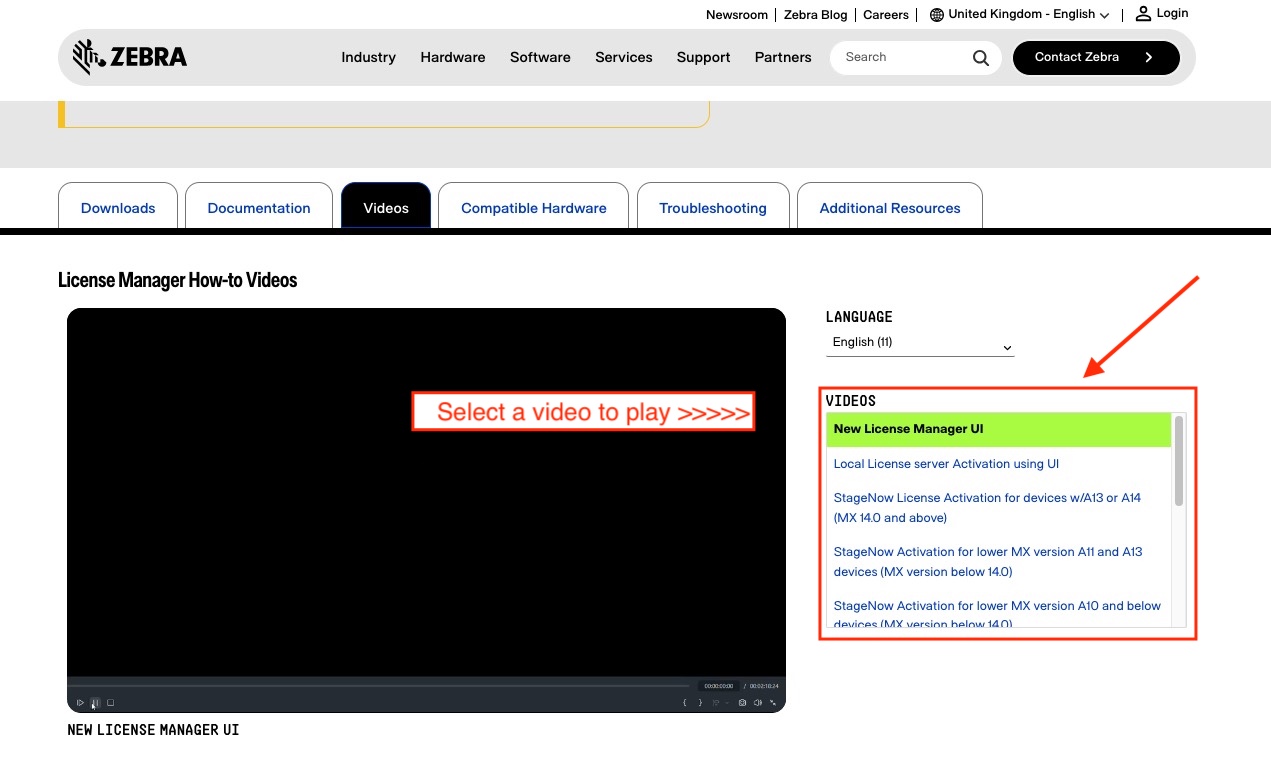 Click image to enlarge.
Follow instructions as described in video(s).
If the License Manager (.apk) is needed for target device(s), click the "Downloads" tab to get it: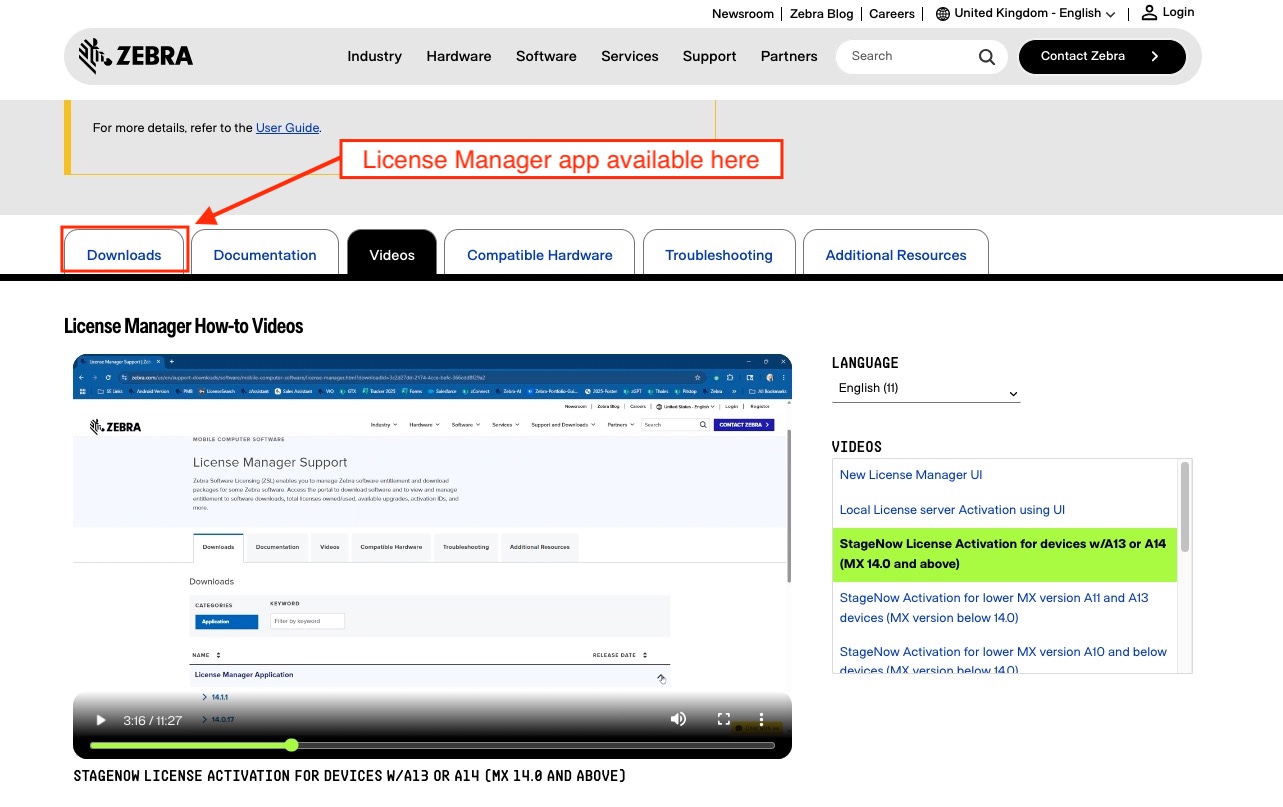 Click image to enlarge.
Evaluation License
Zebra offers time-limited trial licenses to allow companies to evaluate the performance of Zebra solutions in their environment.
- Customers, partners and distributors: Request through a Zebra account manager or sales engineer
- Zebra account managers and sales engineers: Submit requests using SFDC forms
- Zebra engineers and other Zebra employees and contractors: Submit a request in the Zebra ServiceNOW portal
License Transfer
The Zebra DNA Enterprise licensing system supports the transfer of licenses from one device to another if the device licenses were originally activated using a cloud-based or local licensing server. This is done by returning the activated license(s) to the pool (using License Action "Return") and activating them on new device(s).
See the License Manager section of Zebra's StageNow tool for details.
Logging
License Manager activities are captured by Zebra RXLogger and Android logcat.
Also See
- Frequently Asked Questions | Common licensing issues and how to resolve them
- Zebra StageNow | A free Windows app for remote-device staging, licensing and mass deployment
- License Manager Support page | Manuals, videos, release notes and other licensing information
- Zebra.com Licensing Page | Additional user manuals, how-to videos and relevant links