Overview
The NFC Ticket Demo application demonstrates how to read Apple VAS, Google Smart Tap, Samsung Wallet passes, and other NFC tags on Zebra devices that support ECP 1.0 and ECP 2.0. To read an NFC pass from the Apple or Google Wallet, the application utilizes a specific collector ID for configured for Zebra pass integration across mobile devices.
Requirements
See Requirements. The VAS SDK download includes the NFC Ticket Demo application and Zebra VAS Service.
Installation
There are 2 main components for this demo:
- Zebra VAS Pass stored in one of the following:
- Apple Wallet on the iPhone
- Google Wallet on the Android phone
- Samsung Wallet on the Android phone
- Zebra NFC Ticket Demo application installed on the certified Zebra Android mobile computer, see the Zebra Support Portal for supported devices
Store VAS Pass
This section explains how to retrieve and save a Zebra VAS Pass in Apple or Google Wallet.
Note: Samsung Wallet passes must be obtained from the Samsung Developer site.
For Apple Wallet (iPhone):
- Connect the iPhone to the internet.
- Swipe down from the right top corner of the home screen.
- Tap on the scanner icon.
- Scan the following QR code:

- A URL opens on the iPhone, connecting to the database for Pass setup.
- When prompted, enter the required information in the fields (e.g. name, email address, phone number).
- Follow the on-screen instructions to complete the pass installation.
For Google Wallet (Android):
- Connect the Android phone to the internet.
- Swipe down from the right top corner of the home screen.
- Tap the scanner icon.
- Scan the following QR code:
- A URL opens on the Android device, connecting to the database for Pass setup.
- When prompted, enter the required information in the fields (e.g. name, email address, phone number).
- Follow the on-screen instructions to complete the pass installation.
Install Zebra VAS Demo
- Extract the files from the Zebra VAS SDK downloaded from Zebra Support Portal
- Connect the certified Zebra mobile computer to the host computer.
- Copy the service and demo app .APK files to the mobile computer.
- Run the Zebra VAS Service .APK to install the Zebra VAS Service.
- Run the NFC Ticket Demo app .APK to install the demo app.
Using the Demo
Follow this procedure to operate the demo.
Note: The application versions shown in the screenshots may vary.
Open NFC Ticket Demo on the certified Zebra mobile computer.

Activate the pass stored in the mobile wallet.
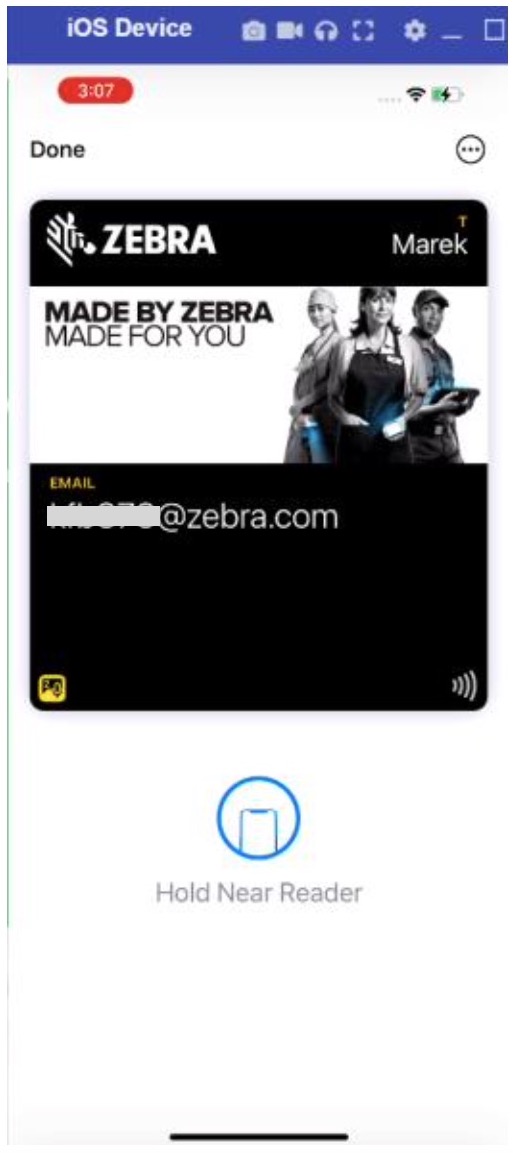

Pass displayed in Apple Wallet Pass displayed in Google Wallet Move the iPhone or Android device in close proximity towards the NFC reader on the Zebra mobile computer to read the VAS pass.
If the read is successful, a green check enclosed in a green circle is displayed on the Zebra mobile computer and the data is displayed on the Zebra mobile computer.


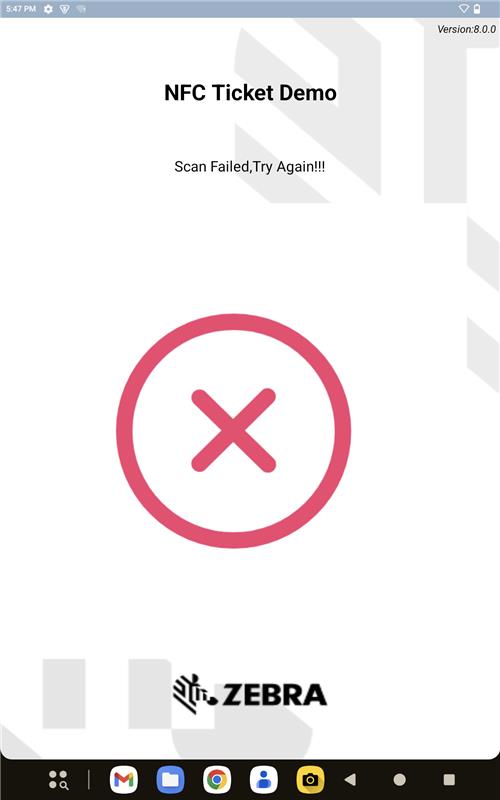
Zebra mobile computer successful read Apple iPhone successful read Google Android phone successful read If the read is unsuccessful, the message "Scan Failed, Try Again" is displayed with a red cross on the mobile computer.